1. Вовед
This manual provides comprehensive instructions for the installation, operation, and maintenance of the HP Aruba 2930F 24G 4SFP+ Switch (Model JL253A). Please read this manual thoroughly before using the device to ensure proper setup and optimal performance. Retain this manual for future reference.
2. Производот завршиview
The HP Aruba 2930F 24G 4SFP+ Switch is a high-performance network switch designed for enterprise edge deployments. It features 24 Gigabit Ethernet ports and 4 SFP+ ports for high-speed uplinks, providing reliable and secure connectivity.

Слика 2.1: Предна страна view of the HP Aruba 2930F 24G 4SFP+ Switch, showing 24 RJ45 Gigabit Ethernet ports, 4 SFP+ uplink ports, and LED indicators.

Слика 2.2: Аголна view of the HP Aruba 2930F 24G 4SFP+ Switch, highlighting its compact design suitable for rack mounting.
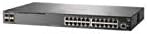
Слика 2.3: Страна view of the HP Aruba 2930F 24G 4SFP+ Switch, showing ventilation slots for heat dissipation.
3. Поставување
3.1 Распакување и проверка на содржината
Внимателно распакувајте го прекинувачот и проверете дали сите компоненти се присутни. Пакетот треба да содржи:
- HP Aruba 2930F 24G 4SFP+ Switch (Model JL253A)
- Кабел за напојување
- Комплет за поставување решетки
- Кабел за конзола
Доколку недостасуваат или се оштетени некои предмети, веднаш контактирајте го вашиот продавач.
3.2 Физичка инсталација
- Монтирање на решетка: Use the provided rack-mount kit to secure the switch in a standard 19-inch equipment rack. Ensure adequate ventilation around the switch.
- Поврзување за напојување: Connect the power cable to the switch's power input and then to a grounded AC power outlet.
- Првично мрежно поврзување: Connect a computer to the switch's console port using the console cable for initial configuration, or connect to any RJ45 port for network access if DHCP is available.
Ensure all cables are securely connected and routed to prevent accidental disconnections.
4. Упатства за работа
4.1 Вклучување и почетно стартување
Once the power cable is connected, the switch will automatically power on. Observe the LED indicators on the front panel. The Power LED should illuminate, indicating the device is receiving power. Other LEDs will indicate port status and activity.
4.2 Port Connectivity
- RJ45 Ports (10/100/1000BASE-T): Connect standard Ethernet cables (Cat5e or higher) to these ports for connecting network devices such as computers, servers, and other switches. These ports support auto-negotiation for speed and duplex settings.
- SFP+ Ports (10 Gigabit Ethernet): Use compatible SFP+ transceivers and fiber optic cables for high-speed uplinks to core switches or servers.
- PoE+ (Напојување преку Ethernet Plus): If your model supports PoE+, these ports can provide power to compatible devices like IP phones, wireless access points, and security cameras, eliminating the need for separate power supplies.
4.3 LED индикатори
The front panel LEDs provide visual status of the switch and its ports:
- Напојување LED: Го означува статусот на напојување (Вклучено/Исклучено).
- ЛЕД за дефект: Indicates system errors or malfunctions.
- LED диоди за поврзување/активност на порти: Indicate link status (solid green for link) and network activity (flashing green). Different colors or patterns may indicate different speeds (e.g., amber for 100Mbps, green for 1Gbps). Refer to the device's specific LED guide for detailed interpretation.
5. Одржување
5.1 Чистење
Regularly clean the exterior of the switch with a soft, dry cloth. Do not use liquid or aerosol cleaners. Ensure ventilation openings are free from dust and obstructions to maintain proper airflow.
5.2 Ажурирања на фирмверот
Periodically check the Hewlett Packard (Aruba) support website for firmware updates. Keeping the firmware up-to-date ensures optimal performance, security, and access to new features. Follow the instructions provided with the firmware update package carefully.
6 Смена на проблеми
This section addresses common issues you might encounter with your HP Aruba 2930F switch.
- Без моќност:
- Verify the power cable is securely connected to both the switch and a working power outlet.
- Проверете го штекерот со друг уред за да се осигурате дека работи.
- Нема врска на портата:
- Проверете дали Ethernet кабелот е правилно поврзан на двата краја.
- Пробајте друг Ethernet кабел.
- Test the connected device with another port or switch to isolate the issue.
- Проверете дали поврзаниот уред е вклучен и работи правилно.
- Slow Network Connection:
- Check for excessive network traffic or bottlenecks.
- Ensure cables are Cat5e or higher for Gigabit speeds.
- Verify duplex settings on connected devices match the switch's auto-negotiated settings.
- Consider updating the switch firmware.
For more advanced troubleshooting or persistent issues, consult the official Hewlett Packard (Aruba) support documentation or contact technical support.
7. Спецификации
| Карактеристика | Вредност |
|---|---|
| Бренд | HEWLETT PACKARD |
| Број на модел | JL253A |
| Тежина на ставката | 2.4 килограми (5.28 фунти) |
| Димензии на производот (ДxШxВ) | 17.42 x 7.88 x 1.73 инчи |
| Voltage | 200 волти |
| Тип на интерфејс | RJ45, SFP+, PoE+ |
| Стапка на пренос на податоци | 100 Megabits Per Second (per port, supports Gigabit on RJ45 and 10 Gigabit on SFP+) |
| RAM меморија | 1024 MB |
| Број на пристаништа | 24 Gigabit Ethernet, 4 SFP+ (Total 28 logical ports) |
| Вклучени компоненти | Power cable, rack-mount kit, console cable |
| Боја | Црното |
| Компатибилни уреди | Desktop (general network devices) |
Note: Data Transfer Rate of "100 Megabits Per Second" may refer to a baseline or specific port type; the switch supports Gigabit Ethernet on RJ45 ports and 10 Gigabit Ethernet on SFP+ ports.
8. Гаранција и поддршка
This HP Aruba 2930F 24G 4SFP+ Switch is manufactured by HEWLETT PACKARD. For warranty information, please refer to the warranty card included with your product or visit the official Hewlett Packard Enterprise (Aruba) website. Technical support and additional resources can be found on their support portal.
За помош, посетете: Поддршка за мрежи на Аруба