
iPazzPort NC-812-16F
iPazzPort NC-812-16F Wireless HDMI Display Adapter User Manual
Model: NC-812-16F | Brand: iPazzPort
1. Вовед
The iPazzPort NC-812-16F is a versatile wireless HDMI display adapter designed to mirror or cast content from your smartphone, tablet, or other compatible devices to a larger screen such as a TV, monitor, or projector. It supports both Miracast for Android devices and Airplay for iOS devices, providing a convenient solution for sharing media, presentations, and more.
2. Производот завршиview
2.1. Клучни карактеристики
- Supports Miracast for Android devices.
- Supports Airplay for iOS devices.
- Wireless display for media, images, and presentations.
- Connects to HDMI-enabled TVs, monitors, and projectors.
- Компактен и пренослив дизајн.
2.2. Содржина на пакетот
Проверете дали сите артикли се присутни во вашиот пакет:
- iPazzPort Wireless HDMI Display Adapter
- USB кабел за полнење
- HDMI кабел за продолжување
- Упатство за употреба

Image: Contents of the iPazzPort Wireless HDMI Display Adapter package, including the adapter, cables, and manual.
3. Упатства за поставување
3.1. Физичка врска
- Connect the micro USB end of the charging cable to the iPazzPort adapter's charging port.
- Connect the standard USB end of the charging cable to a 5V/1A USB power adapter (not always included) or a USB port on your TV/projector.
- Plug the HDMI connector of the iPazzPort adapter directly into an available HDMI port on your TV, monitor, or projector. If space is limited, use the provided HDMI extension cable.
- Power on your display device and select the correct HDMI input source.
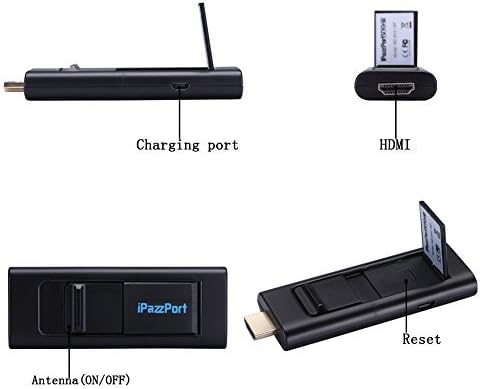
Слика: Детална view of the iPazzPort adapter showing the charging port, HDMI connector, and antenna switch.

Image: Diagram illustrating how to connect the iPazzPort adapter to Android and iOS devices, and then wirelessly to a monitor, HD TV, or projector.
Video: A demonstration of the physical connection process for the iPazzPort Wireless HDMI Display Adapter, showing how to connect the power cable and HDMI extension to the device and then to a power source and TV.
3.2. Wireless Connection (iOS - Airplay)
- Ensure your iPazzPort adapter is connected to your TV and powered on. The TV screen should display the iPazzPort main interface with Wi-Fi name (SSID) and password.
- On your iOS device (iPhone/iPad), go to Поставки > Wi-Fi.
- Select the Wi-Fi network named "iPazzPort_Cast-XXXX" (where XXXX is a unique identifier) and enter the password displayed on your TV screen (default is usually "12345678").
- Once connected, swipe up from the bottom of your iOS device screen to open the Control Center.
- Допрете на AirPlay (or Screen Mirroring).
- Select "iPazzPort_Cast-XXXX" from the list of available devices.
- Вклучете го Пресликување switch to ON. Your iOS device screen should now be mirrored on your TV.
3.3. Wireless Connection (Android - Miracast)
- Ensure your iPazzPort adapter is connected to your TV and powered on. The TV screen should display the iPazzPort main interface.
- On your Android device, navigate to the wireless display or screen mirroring settings. The name of this feature varies by device and Android version (e.g., Smart View, Screen Cast, Wireless Display, MirrorShare, AllShare Cast, etc.).
- Enable the screen mirroring feature and search for available devices.
- Select "iPazzPort_Cast-XXXX" from the list. Your Android device screen should now be mirrored on your TV.
4. Упатства за работа
Once connected, the iPazzPort adapter mirrors your device's screen to the larger display. Any content displayed on your mobile device will appear on the connected TV, monitor, or projector.
4.1. Casting Photos and Videos
Open your photo gallery or video player on your mobile device. The content will automatically display on the connected screen. For videos, ensure your device is in landscape mode for optimal viewing on the larger display.

Слика: Прamples of using the iPazzPort adapter for home theater, sharing moments, TV games, and business presentations.
4.2. Presenting Documents (PPT, etc.)
Open your presentation application (e.g., PowerPoint, Google Slides) on your mobile device. The presentation will be mirrored to the large screen, allowing you to control slides directly from your device.

Image: The iPazzPort adapter facilitating a presentation in a meeting room, displaying content from a tablet to a projector screen.
4.3. Играње игри
Launch your favorite games on your mobile device. The game will be mirrored to the larger screen, providing an enhanced gaming experience. Note that some latency may occur depending on your device and network conditions.
5 Смена на проблеми
- Нема приказ на телевизорот: Ensure the adapter is properly powered and connected to the correct HDMI input. Check if the TV input source is set to the corresponding HDMI port.
- Не може да се поврзе на Wi-Fi: Verify the Wi-Fi name (SSID) and password displayed on the TV screen. Ensure your mobile device's Wi-Fi is enabled.
- Повремена врска или застој: Move your mobile device closer to the iPazzPort adapter to improve signal strength. Reduce interference from other wireless devices. Ensure the adapter has sufficient power.
- iOS Airplay issues: Ensure your iOS device and the iPazzPort adapter are on the same Wi-Fi network. Try restarting both devices.
- Android Miracast issues: Ensure your Android device supports Miracast and that the feature is enabled. Some devices may require specific apps or settings.
6. Спецификации
| Број на модел | NC-812-16F |
| Технологија за поврзување | Wi-Fi |
| Тип на конектор | HDMI, микро USB |
| Специјална карактеристика | Wireless, Wireless Display |
| Резолуција | 1080 стр |
| Компатибилни уреди | Television, Monitor, Projector (with HDMI input) |
| Тежина на ставката | 0.1 килограм (приближно 3.52 унци) |
| Димензии на производот (ДxШxВ) | 3.5 x 0.4 x 1.3 инчи |
| Voltage | 5 волти |
| Големина на инсталирана RAM меморија | 2 GB |
7. Информации за безбедност
Ве молиме прочитајте ги и следете ги овие безбедносни упатства за да обезбедите правилно функционирање и да спречите оштетување на уредот или повреда:
- Не го изложувајте уредот на вода или прекумерна влага.
- Избегнувајте екстремни температури.
- Не обидувајте се сами да го расклопите или поправате уредот.
- Користете само испорачаниот или препорачаниот адаптер за напојување и кабли.
- Да се чува подалеку од дофат на деца.
8. Гаранција и поддршка
За информации за гаранцијата и техничка поддршка, ве молиме погледнете ги контакт информациите дадени со вашата нарачка или посетете ја официјалната страница на iPazzPort. webсајт.