
CYBERPOWERPC CGS480VR1318
CYBERPOWERPC Wyvern Gaming PC User Manual
Model: CGS480VR1318
1. Вовед
Welcome to the CYBERPOWERPC Wyvern Gaming PC user manual. This guide provides essential information for setting up, operating, maintaining, and troubleshooting your new desktop computer. Please read this manual thoroughly before using your PC to ensure proper function and longevity.
Your CYBERPOWERPC Wyvern (Model CGS480VR1318) is a high-performance gaming desktop designed for an immersive computing experience. It features an Intel Core i5-9400F processor, an Nvidia GeForce GTX 1650 graphics card, 8GB of DDR4 RAM, a 240GB SSD, and a 1TB HDD, all running on Windows 10 Home.
Безбедносни упатства
- Always connect the PC to a grounded power outlet.
- Do not open the PC case unless instructed by technical support, as it may void your warranty.
- Keep the PC away from liquids, excessive heat, and direct sunlight.
- Ensure adequate ventilation around the PC to prevent overheating.
- Use only the power supply unit (PSU) provided with your system.

Слика: напред view of the CYBERPOWERPC Wyvern Gaming PC, showcasing its RGB-lit fans and sleek chassis design.
2. Почетно поставување
2.1 Отпакување
Carefully remove your PC and all accessories from the packaging. Retain the original packaging for future transport or warranty claims.
2.2 Поврзување на периферни уреди
- Монитор: Connect your monitor to the graphics card (Nvidia GeForce GTX 1650) ports (HDMI 2.0b, DVI-D, or DisplayPort v1.4) located at the rear of the PC. Do not connect to the motherboard's video outputs.
- Тастатура и глушец: Connect your keyboard and mouse to the available USB ports. The PC has 4x USB 3.1 Gen 1 and 2x USB 2.0 ports.
- Моќност: Connect the power cable to the power supply unit (PSU) at the rear of the PC, then plug it into a grounded electrical outlet.
- Мрежа (опционално): For a wired connection, connect an Ethernet cable from your router to the RJ45 Ethernet port on the PC. For wireless, ensure the Wi-Fi antenna (if provided) is connected.
- Аудио (опционално): Connect speakers or headphones to the audio jacks on the rear or front panel.
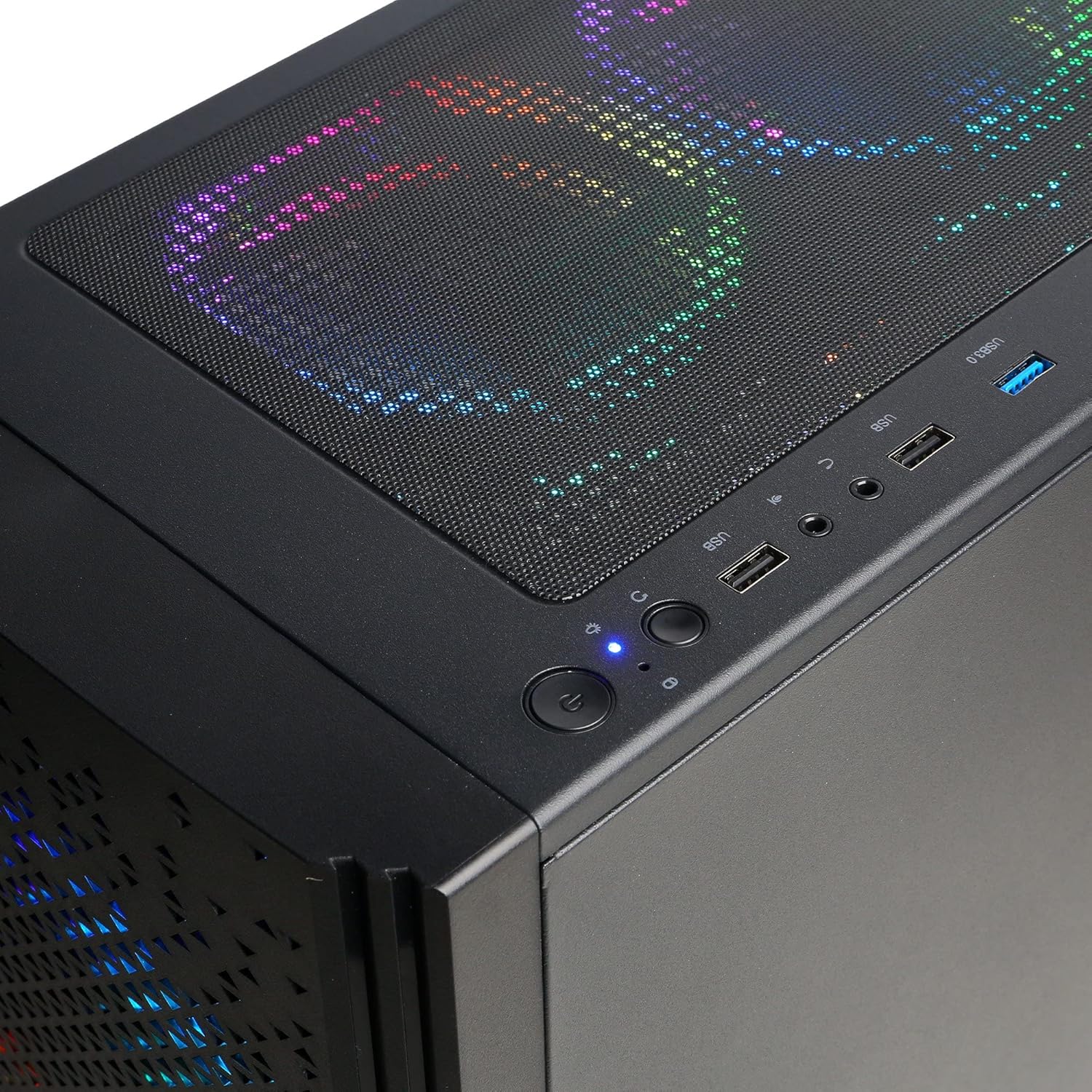
Image: Close-up of the top panel of the PC, illustrating the accessible USB ports, audio jacks, and power button for easy peripheral connection.
2.3 Прво стартување
Press the power button located on the top front of the PC. The system will boot into Windows 10 Home. Follow the on-screen instructions to complete the initial Windows setup, including language, region, and user account creation.
2.4 мрежно поврзување
- Wичен: If you connected an Ethernet cable, your PC should automatically detect the network connection.
- Безжичен: Click the Wi-Fi icon in the Windows taskbar, select your network, enter the password, and connect. The PC supports 300Mbps 802.11n Wi-Fi.
3. Ракување со вашиот компјутер
3.1 Вклучување/исклучување
- Вклучување: Press the power button on the top front of the case.
- Исклучи: Click the Windows Start button, then Power > Shut down. Avoid simply unplugging the PC to prevent data loss or system corruption.
- Рестартирајте: Кликнете на копчето „Старт“ на Windows, потоа на „Вклучување“ > „Рестартирај“.
3.2 Windows 10 Home
Your PC comes pre-installed with Windows 10 Home 64-bit. Familiarize yourself with the operating system's interface and features. Regular updates are recommended for security and performance.
3.3 RGB контрола на осветлувањето
The Cooler Master Masterbox MB520 case features 4x RGB LED fans. These can typically be controlled via a dedicated button on the case or through software provided by the manufacturer. Refer to the case manufacturer's documentation for specific instructions on RGB customization.

Image: The front panel of the CYBERPOWERPC Wyvern PC, highlighting the vibrant RGB illumination of the three front fans.
4. Одржување
4.1 Чистење
- Надворешност: Користете мека, гamp крпа за чистење на надворешноста на куќиштето. Избегнувајте абразивни средства за чистење.
- Прашина: Periodically clean dust from the fan vents and interior components using compressed air. Ensure the PC is powered off and unplugged before cleaning.
4.2 Ажурирања на софтверот
- Ажурирања на Windows: Редовно проверувајте и инсталирајте ажурирања на Windows за да обезбедите стабилност и безбедност на системот.
- Ажурирања на возачот: Keep your graphics card drivers (Nvidia) and other component drivers updated for optimal performance. Visit the respective manufacturer's webсајтови за најновите драјвери.
4.3 Бекап на податоци
Regularly back up your important data to an external drive or cloud storage to prevent data loss in case of hardware failure or other unforeseen issues.
5 Смена на проблеми
5.1 Нема струја
- Осигурајте се дека кабелот за напојување е безбедно поврзан и со компјутерот и со ѕидниот штекер.
- Check if the power switch on the PSU (at the back of the PC) is in the 'On' position.
- Тестирајте го штекерот со друг уред за да потврдите дека има струја.
5.2 Нема приказ на мониторот
- Verify that the monitor is powered on and the video cable is securely connected to the graphics card (Nvidia GTX 1650) ports on the PC.
- Ensure the monitor input source is correctly selected (e.g., HDMI, DisplayPort).
- Пробајте друг видео кабел или монитор доколку е достапен.
5.3 Бавни перформанси
- Затворете ги непотребните апликации во заднина.
- Проверете и инсталирајте ги сите чекачки ажурирања за Windows или драјвери.
- Run a disk cleanup and defragmentation (for HDD) or optimization (for SSD).
- Скенирајте за малициозен софтвер или вируси.
5.4 Проблеми со мрежната поврзаност
- Wичен: Check the Ethernet cable connection to both the PC and the router. Restart your router.
- Безжичен: Ensure Wi-Fi is enabled in Windows. Restart your router. Verify your Wi-Fi password.
5.5 Blue Screen Errors (BSOD)
Blue Screen of Death errors can indicate various issues. Note down the error code or message displayed. Common solutions include:
- Updating drivers, especially graphics and chipset drivers.
- Running Windows Memory Diagnostic to check for RAM issues.
- Checking disk health using Windows tools.
- Performing a system restore to a previous working state.
6. Спецификации
| Компонента | Детал |
|---|---|
| Број на модел | CGS480VR1318 |
| Процесор | Intel Core i5-9400F (6 Cores, 2.90GHz Base, 4.10GHz Turbo, 9 MB Cache) |
| Чипсет на матична плоча | H310 |
| Графичка картичка | Nvidia GeForce GTX 1650 4GB (HDMI 2.0b, DVI-D, DisplayPort v1.4) |
| RAM меморија | 8GB 2400MHz DDR4 RAM |
| Складирање | 240GB SATA-III SSD + 1TB 7200RPM SATA-III HDD |
| Напојување | 400W 80 Plus PSU |
| Оперативен систем | Windows 10 Home 64-битен |
| Поврзување | 4x USB 3.1 Gen 1, 2x USB 2.0, 1x PS/2 Port, 1x RJ45 Ethernet (10/100/1000), 300Mbps 802.11n Wi-Fi, 5.1 Channel High Definition Audio |
| Случај | Cooler Master Masterbox MB520 Mid-Tower Gaming Case with 4x RGB LED Fans |
| Ладење | Intel Standard Cooler |
| Димензии (Д x Ш x В) | 36 x 20.5 x 45 cm |
| Тежина | 10.4 кг |
7. Гаранција и поддршка
7.1 Информации за гаранцијата
Your CYBERPOWERPC Wyvern Gaming PC comes with a warranty of 2 години на делови и 3 years on laborОваа гаранција ги покрива производствените дефекти и хардверските дефекти под нормални услови на употреба.
The system also includes Bullguard Internet Security for 1 year (3 devices), providing protection against online threats.
7.2 Техничка поддршка
CYBERPOWERPC нуди доживотна техничка поддршка for your product. If you encounter any issues that cannot be resolved using this manual's troubleshooting section, please contact CYBERPOWERPC customer support. Have your model number (CGS480VR1318) and purchase details ready when contacting support.
For the most up-to-date contact information and support resources, please visit the official CYBERPOWERPC webсајт.
Ask a question about this manual
Ask about setup, troubleshooting, compatibility, parts, safety, or missing instructions. Manuals+ will review the question and use this page’s manual context to help answer it.