
1. Вовед
Thank you for choosing the Gembird MUS-6B-01 Optical USB Mouse. This manual provides essential information for setting up, operating, maintaining, and troubleshooting your new mouse. Please read these instructions carefully to ensure optimal performance and longevity of your device.

Image: The official Gembird brand logo, featuring the company name in a stylized font with a geometric design.
2. Производот завршиview
The Gembird MUS-6B-01 is a reliable 6-button optical USB mouse designed for comfortable and precise navigation. Its ambidextrous design makes it suitable for both left and right-handed users.
Клучни карактеристики:
- Оптичко следење: Provides smooth and accurate cursor control.
- 6 копчиња: Includes standard left/right click, scroll wheel, DPI adjustment, and two side buttons for enhanced functionality.
- USB поврзување: Simple plug-and-play connection to your computer.
- Амбидекстрен дизајн: Comfortable for both left and right-handed users.
Компоненти:
- Копче за лево кликнување
- Десен клик на копче
- Scroll Wheel (also functions as a middle click button)
- Копче за прилагодување на DPI
- Копче за напред (страна)
- Копче за назад (страна)
- Optical Sensor (underside)
- USB Connector (at the end of the cable)
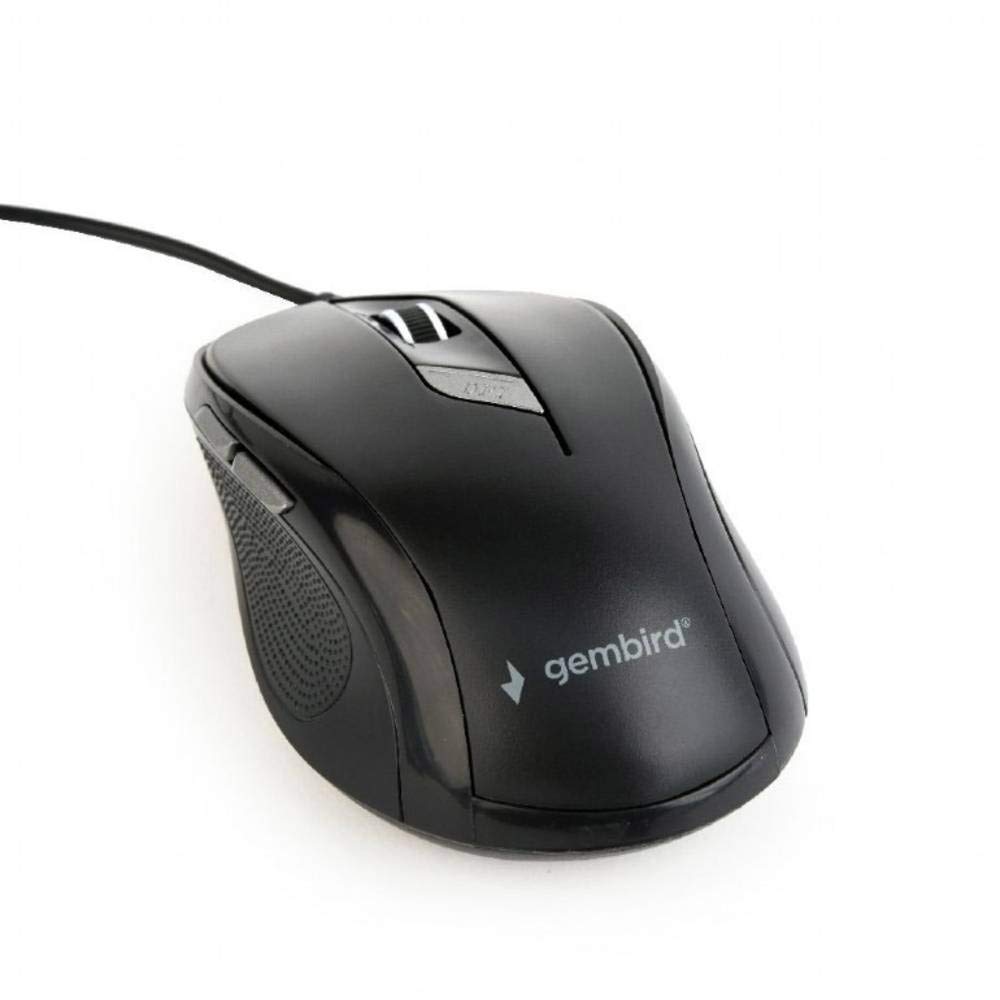
Слика: Од горе надолу view of the Gembird MUS-6B-01 optical USB mouse. The mouse is black with a matte finish, featuring a scroll wheel, left and right click buttons, a DPI button, and two side buttons. A black USB cable extends from the front of the mouse.
3. Поставување
Setting up your Gembird MUS-6B-01 mouse is a simple plug-and-play process.
Чекори за инсталација:
- Пронајдете достапна USB порта на вашиот компјутер.
- Plug the USB connector of the Gembird MUS-6B-01 mouse firmly into the USB port.
- Your operating system (Windows, Linux) will automatically detect and install the necessary drivers. This process may take a few moments.
- Once the drivers are installed, the mouse is ready for use.
Обично не е потребна дополнителна инсталација на софтвер за основна функционалност.
4. Упатства за работа
Familiarize yourself with the functions of each button on your Gembird MUS-6B-01 mouse.
Основни функции:
- Лев клик: Primary action, selecting items, opening files.
- Десен клик: Opens context menus, provides additional options.
- Тркало за лизгање: Скролувајте нагоре или надолу низ документите и web страници.
- Среден клик (притискање на тркалцето за скролување): Often used to open links in new tabs or for specific application functions.
Напредни функции:
- Копче за прилагодување на DPI: Located behind the scroll wheel, this button allows you to cycle through different sensitivity (DPI) settings. Press it to change the cursor speed to suit your preference.
- Копче за напред (страна): Typically navigates forward in web прелистувачи или file истражувачи.
- Backward Button (Side): Typically navigates backward in web прелистувачи или file истражувачи.
The functionality of the side buttons may vary depending on the application or operating system settings. Some operating systems allow customization of these buttons.
5. Одржување
Proper care will help extend the life of your Gembird MUS-6B-01 mouse.
Чистење:
- Исклучете го глувчето од компјутерот пред чистење.
- Користете мека, малку гamp, крпа без влакненца за бришење на површината на глувчето.
- For stubborn dirt, a small amount of mild soap solution can be applied to the cloth (not directly to the mouse).
- Use a cotton swab or compressed air to clean around the scroll wheel and between buttons.
- Ensure the optical sensor on the underside is clean and free of dust or debris.
- Не користете груби хемикалии, абразивни средства за чистење и не го потопувајте глувчето во вода.
Складирање:
Кога не го користите подолго време, чувајте го глувчето во чиста, сува средина, подалеку од екстремни температури и директна сончева светлина.
6 Смена на проблеми
If you encounter issues with your Gembird MUS-6B-01 mouse, try the following troubleshooting steps:
| Проблем | Можно решение |
|---|---|
| Глувчето не реагира |
|
| Erratic or jumpy cursor movement |
|
| Копчињата не работат |
|
7. Спецификации
Detailed technical specifications for the Gembird MUS-6B-01 Optical USB Mouse:
| Карактеристика | Спецификација |
|---|---|
| Бренд | Gembird |
| Име на моделот | MUS-6B-01 |
| Технологија за поврзување | Iredичен (USB) |
| Технологија за откривање на движење | Оптички |
| Број на копчиња | 6 |
| Ориентација на рацете | Амбидекстно |
| Компатибилни оперативни системи | Linux, Windows 7, Windows XP (и понови верзии) |
| Хардверска платформа | Личен компјутер |
| Должина на кабелот | 5.0 метри |
| Тежина на ставката | 74 грама |
| Материјал | Пластика |
| Боја | Црното |
| Потребни се батерии | бр |
8. Информации за безбедност
Ве молиме почитувајте ги следниве безбедносни упатства:
- Do not expose the mouse to water or excessive moisture.
- Избегнувајте паѓање или изложување на глувчето на силни удари.
- Не обидувајте се сами да го расклопите или поправите глувчето. Обратете се кај квалификуван сервисер.
- Чувајте го уредот подалеку од екстремни температури и директна сончева светлина.
- Отстранете го електронскиот отпад одговорно во согласност со локалните прописи.
9. Гаранција и поддршка
Gembird products are designed for reliability and performance. For specific warranty terms and conditions, please refer to the warranty card included with your product or visit the official Gembird website. For technical support or further assistance, please contact your retailer or the Gembird customer service department.