
1. Вовед
This manual provides essential information for the proper installation, operation, and maintenance of your PowerColor Radeon RX 5600 XT 6GB graphics card. Please read this guide thoroughly before proceeding with installation to ensure optimal performance and longevity of your product.
2. Содржина на пакетот
Проверете дали сите артикли наведени подолу се присутни во пакувањето на вашиот производ:
- PowerColor Radeon RX 5600 XT 6GB Graphics Card
- Водич за инсталација

Image: The PowerColor Radeon RX 5600 XT graphics card shown alongside its retail packaging.
3. Производот завршиview
3.1 Клучни карактеристики
- Graphics Engine: RX 5600 XT
- Video Memory: 6 GB GDDR6
- Stream Processors: 2304 Units
- Engine Clock: 1420 MHz
- Boost Clock: Up to 1620 MHz
- Memory Clock: 14.0 Gbps
- Мемориски интерфејс: 192-битен
- Bus Standard: PCIE 4.0
- Display Connectors: HDMI x1, DisplayPort x3
- Конектор за напојување: 8-пински
3.2 Спецификации
| Спецификација | Вредност |
|---|---|
| Графички копроцесор | AMD Radeon RX 5600 XT |
| Брзина на меморија | 14 GHz |
| Големина на RAM меморијата на графичката картичка | 6 GB |
| Интерфејс за видео излез | DisplayPort, HDMI |
| Број на модел на ставка | AXRX 5600XT 6GBD6-3DH/OC |
| Тежина на ставката | 2.14 фунти (приближно 0.97 кг) |
| Димензии на производот (ДxШxВ) | 9.06 x 5.51 x 1.18 инчи (приближно 23 x 14 x 3 см) |
4. Поставување и инсталација
4.1 Контролна листа пред инсталација
- Ensure your computer's power supply unit (PSU) has sufficient wattage and a free 8-pin PCIe power connector.
- Verify your motherboard has an available PCI Express 4.0 x16 slot (or compatible PCI Express 3.0 x16 slot).
- Back up important data before making hardware changes.
- Исклучете го компјутерот и исклучете го кабелот за напојување од ѕидниот штекер.
- Заземјете се за да го испразните статичкиот електрицитет.
4.2 Физичка инсталација
- Отворете го куќиштето на компјутерот.
- Locate an empty PCI Express x16 slot on your motherboard.
- Remove any expansion slot covers that correspond to the graphics card's size.
- Carefully align the graphics card with the PCIe slot and press it down firmly until it is securely seated. A click may be heard.
- Secure the graphics card to the computer case with screws.
- Connect the 8-pin PCIe power connector from your power supply to the corresponding port on the graphics card. Ensure a secure connection.
- Затворете ја кутијата за компјутер.
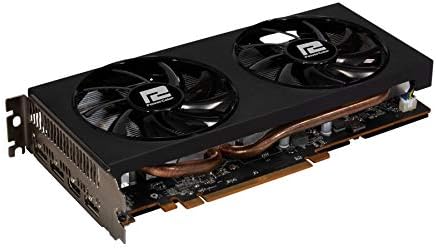
Слика: Крупен план view of the PowerColor Radeon RX 5600 XT graphics card, highlighting its dual-fan cooling system and heat pipes.
4.3 Инсталација на драјвери
- Поврзете го кабелот за прикажување (HDMI или DisplayPort) од графичката картичка со мониторот.
- Reconnect the power cable to your computer and turn it on.
- Once your operating system loads, download the latest AMD Radeon drivers from the official AMD webсајт (www.amd.com/en/support).
- Следете ги упатствата на екранот за да ги инсталирате драјверите. Можеби ќе биде потребно рестартирање.
5. Упатства за работа
5.1 Поврзување на дисплеи
The PowerColor Radeon RX 5600 XT 6GB graphics card supports up to four displays simultaneously. Use the available HDMI and DisplayPort connectors to connect your monitors. Ensure your display cables are securely connected to both the graphics card and the monitor.
5.2 Software and Settings
After driver installation, you can access the AMD Radeon Software to configure various settings, including display resolution, refresh rate, gaming profiles, and performance monitoring. Refer to the AMD Radeon Software documentation for detailed instructions on using these features.
6. Одржување
6.1 Чистење
Regularly clean your graphics card to prevent dust buildup, which can affect cooling performance. Use compressed air to gently clear dust from the fans and heatsink fins. Ensure the computer is powered off and unplugged before cleaning.
6.2 Ажурирања на драјвери
Periodically check the official AMD website for updated graphics drivers. Keeping your drivers current ensures optimal performance, stability, and access to the latest features and bug fixes.
7 Смена на проблеми
7.1 Заеднички прашања
- Нема излез за прикажување: Ensure the graphics card is fully seated in the PCIe slot and the 8-pin power connector is securely attached. Verify that your monitor is connected to the graphics card, not the motherboard's integrated graphics port.
- Проблеми со инсталацијата на драјвери: If you encounter problems installing drivers, try using AMD's Clean Uninstall Utility to remove any previous graphics drivers before attempting a fresh installation.
- Проблеми со перформансите: Ensure your drivers are up to date. Check system temperatures to rule out overheating. Verify that your power supply meets the minimum requirements for the graphics card.
- Нестабилност на системот/Паднувања: This can be caused by outdated drivers, insufficient power, or overheating. Ensure proper ventilation within your PC case.
For further troubleshooting or technical assistance, please refer to the support section of the PowerColor or AMD official webсајтови.
8. Гаранција и поддршка
For detailed information regarding warranty coverage, terms, and conditions for your PowerColor Radeon RX 5600 XT 6GB graphics card, please visit the official PowerColor website. You can find support resources, FAQs, and contact information for technical assistance there.
PowerColor Official Webсајт: www.powercolor.com