
Вовед
This manual provides essential instructions for setting up, operating, maintaining, and troubleshooting your Surfans K7 Kids Tablet. Please read this guide thoroughly to ensure proper use and to maximize the tablet's features for a safe and engaging experience for children.
Производот завршиview
Клучни карактеристики
- Оперативен систем Андроид 10.0: Provides a secure and fast user experience.
- 7-inch IPS FHD Display: Features a 1920 x 1200 resolution eye-care touchscreen with a 178-degree wide viewинголен агол.
- Четиријадрен процесор: Ensures smooth performance for apps and games.
- 2GB RAM, 32GB ROM: Sufficient memory for multitasking and storage, expandable via MicroSD card.
- Двојни камери: Equipped with 2MP front and 5MP rear cameras for photos and video calls.
- Поврзување: Includes Wi-Fi and Bluetooth for wireless connections.
- Pre-installed iWAWA App: Offers updated educational content including games, videos, e-books, drawing, puzzles, and creative arts.
- Пристап до продавницата на Google Play: Allows downloading additional applications like YouTube Kids, Netflix, and Hulu.
- Режим на родителска контрола: Enables parents to manage content, set time limits, and customize child profiles.
- Durable Kid-Proof Case: Comes with a colorful, soft, and high-quality silicone case with an integrated 360-degree adjustable stand, suitable for children aged 2 to 10 years.

Image: The Surfans K7 Kids Tablet showcasing its GMS Certified Android 10.0 operating system and access to various applications via Google Play Store.

Image: The Surfans K7 Kids Tablet in use, illustrating its key features including quad-core processor, Android 10.0, 2GB RAM, 32GB ROM, WiFi, and Parent Mode.
Компоненти на таблетот
Запознајте се со физичките компоненти на вашиот таблет:
- Копче за вклучување: Обично се наоѓа од страна и се користи за вклучување/исклучување на таблетот или за негово ставање во режим на мирување/будење.
- Копчиња за јачина на звук: Прилагодете го нивото на аудио излез.
- USB-C порта: For charging the tablet and connecting to a computer for data transfer.
- Аудио приклучок од 3.5 мм: За поврзување на слушалки или надворешни звучници.
- Слот за MicroSD картичка: Allows for memory expansion using a compatible MicroSD card.
- Предна камера: Used for video calls and taking selfies.
- Задна камера: За снимање фотографии и видеа.
- Говорник: Provides audio output for media and notifications.
Поставување
1. Полнење на таблетот
Before first use, fully charge the tablet. Connect the provided USB cable to the tablet's USB-C port and the other end to the power adapter. Plug the adapter into a wall outlet. The battery indicator on the screen will show the charging status.
2. Вклучување/исклучување
- За вклучување: Press and hold the Power Button until the screen lights up and the Surfans logo appears.
- За исклучување: Press and hold the Power Button until a menu appears on the screen. Select "Power off" and confirm.
- За спиење/будење: Briefly press the Power Button to put the tablet to sleep or wake it up.
3. Почетно поставување
Upon first power-on, follow the on-screen prompts to configure basic settings:
- Изберете го претпочитаниот јазик.
- Connect to a Wi-Fi network (see next step).
- Set up your Google account or create a new one. This is necessary for downloading apps from the Google Play Store.
- Review и прифатете ги условите и одредбите.
4. Поврзување на Wi-Fi
To connect your tablet to the internet:
- Одете на Поставки.
- Допрете на Мрежа и интернет.
- Изберете Wi-Fi и вклучете го.
- The tablet will scan for available networks. Select your desired network from the list.
- Enter the Wi-Fi password if prompted, then tap Поврзете се.
Упатства за работа
1. Основна навигација
The Surfans K7 tablet uses a touchscreen for interaction:
- Допрете: Допрете го екранот еднаш за да изберете ставка, да отворите апликација или да притиснете копче.
- Повлечете: Повлечете го прстот преку екранот за да скролувате низ страници, листи или да се префрлате помеѓу почетните екрани.
- Штипнете за зумирање: Ставете два прста на екранот и разделете ги или спојте ги за да зумирате нагоре или надолу.
- Известувања и брзи поставки: Повлечете надолу од горниот дел на екранот за да пристапите до известувањата и копчињата за брзи поставки (Wi-Fi, Bluetooth, итн.).
2. Downloading Apps from Google Play Store
With a Google account set up, you can download a wide variety of applications:
- Допрете го Play Store icon on your home screen or app drawer.
- Browse or search for apps, games, movies, and books.
- Select an item and tap Инсталирајте да го преземете и инсталирате.
3. Using Pre-installed iWAWA App
The iWAWA app provides a safe and engaging environment for children:
- Лоцирајте и допрете го iWAWA икона.
- Explore the various categories such as games, videos, e-books, and creative activities.
- Content within iWAWA is curated to be age-appropriate and educational.
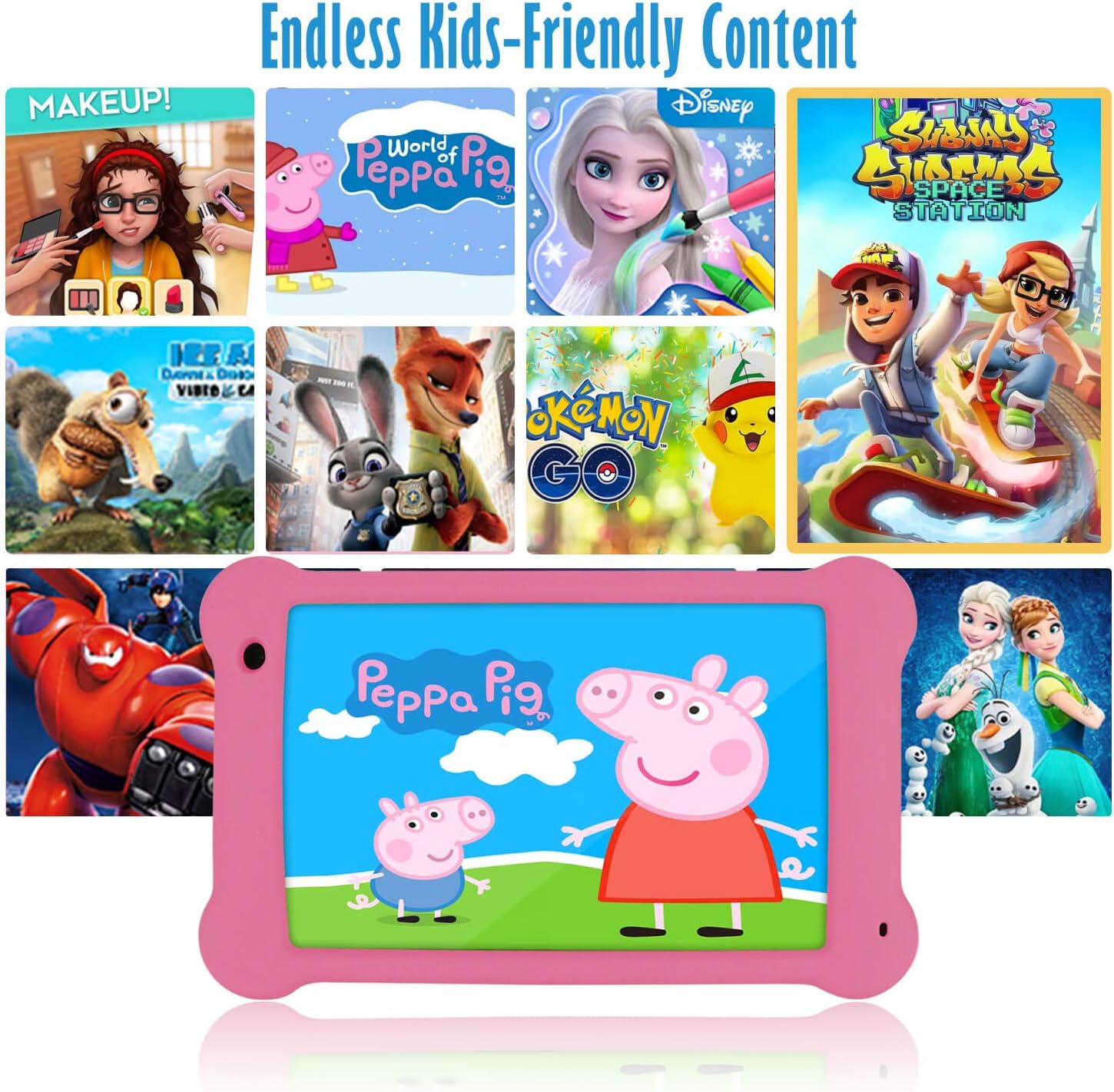
Image: The Surfans K7 Kids Tablet showcasing a variety of popular kid-friendly content, accessible through pre-installed apps and Google Play Store.
Режим на родителска контрола
The Surfans K7 tablet includes a dedicated Parental Control Mode to manage your child's usage and ensure a safe digital environment.
1. Accessing Parental Mode
To access and configure parental controls:
- Пронајдете и отворете го Родителски режим or iWAWA Parent апликација на таблетот.
- You will be prompted to set up a password or PIN for secure access. Remember this password.
2. Setting Time Limits
Manage how long your child can use the tablet:
- Configure daily usage limits for the tablet.
- Set specific time blocks during which the tablet can or cannot be used (e.g., bedtime restrictions).
3. Content Filtering
Ensure your child accesses only appropriate content:
- Select and approve specific applications, websites, and media content that your child is allowed to access.
- Block inappropriate content categories or specific webсајтови.
4. Managing Child Profiles
Create personalized experiences for each child:
- Создадете индивидуален професионалецfiles for multiple children.
- Customize settings, content access, and time limits for each profile based on age and preferences.

Image: A parent and child using the Surfans K7 Kids Tablet, demonstrating the ease of setting up and managing parental controls for time limits, child lock, and content filtering.
Одржување
1. Чистење на таблетот
За да го одржите вашиот таблет чист и функционален:
- Use a soft, lint-free cloth (e.g., microfiber cloth) to gently wipe the screen and tablet body.
- За тврдокорни дамки, малку дampen the cloth with water. Avoid using harsh chemicals, abrasive cleaners, or excessive moisture, as these can damage the screen or internal components.
- Пред чистење, проверете дали таблетот е исклучен и изваден од струја.
2. Нега на батерии
Proper battery care extends the tablet's lifespan:
- Avoid fully discharging the tablet frequently. Charge the tablet when the battery level is low (e.g., below 20%).
- Do not expose the tablet to extreme temperatures (hot or cold), as this can degrade battery performance.
- Користете го само испорачаниот полнач или сертифициран компатибилен полнач.
3. Софтверски ажурирања
Keep your tablet's software up-to-date for optimal performance and security:
- Periodically check for system updates by going to Поставки > Систем > Ажурирање на системот.
- Ensure your tablet is connected to Wi-Fi and has sufficient battery charge before starting an update.
4. Protective Case Care
The included kid-proof silicone case offers protection:
- Исчистете го случајот со рекламаamp крпа ако се извалка.
- Ensure the case is properly fitted around the tablet to provide maximum protection against drops and bumps.

Слика: Детална view of the Surfans K7 Kids Tablet's durable kid-proof case, highlighting its soft silicone material and anti-drop corner design for enhanced protection.
Решавање проблеми
This section addresses common issues you might encounter with your Surfans K7 Kids Tablet.
Таблетот не се вклучува
- Проверете ја батеријата: Проверете дали таблетот е наполнет. Поврзете го на полначот најмалку 30 минути, а потоа обидете се повторно да го вклучите.
- Присилно рестартирање: Press and hold the Power Button for about 10-15 seconds until the tablet restarts.
Screen is Black but Audio is Playing
This can sometimes occur:
- Briefly press the Power Button to put the screen to sleep, then press it again to wake it up.
- If the issue persists, perform a force restart by pressing and holding the Power Button for 10-15 seconds.
Проблеми со поврзувањето со Wi-Fi
- Овозможи Wi-Fi: Одете на Поставки > Мрежа и интернет > Wi-Fi and ensure Wi-Fi is turned on.
- Рестартирајте го рутерот: Рестартирајте го вашиот Wi-Fi рутер и модем.
- Заборави мрежа: Go to Wi-Fi settings, tap on your network, and select "Forget network." Then, reconnect to the network and re-enter the password.
- Јачина на сигналот: If the signal is weak, move closer to your Wi-Fi router.
Apps Are Slow or Crashing
- Затворете ги неискористените апликации: Swipe up from the bottom of the screen (or tap the square navigation button) to view recent apps, then swipe them away to close.
- Рестартирајте го таблетот: A simple restart can often resolve performance issues.
- Исчисти го кешот на апликацијата: Одете на Поставки > Апликации > [Име на апликација] > Складирање и кеш > Избриши кеш.
Tablet is Unresponsive
If the tablet freezes and does not respond to touch:
- Perform a force restart by pressing and holding the Power Button for approximately 10-15 seconds until the device powers off and restarts.
Ресетирање на фабрички поставки (последно средство)
If all other troubleshooting steps fail, a factory reset may be necessary. Warning: This will erase all data on the tablet, including apps, photos, and user settings. Back up any important data before proceeding.
- Одете на Поставки > Систем > Опции за ресетирање.
- Допрете Избриши ги сите податоци (фабрички ресетирање).
- Потврдете ја вашата одлука и следете ги упатствата на екранот.
Спецификации

Image: Visual comparison highlighting the superior clarity of the 1920x1200 FHD IPS display with a 178-degree wide viewing angle on the Surfans K7 Kids Tablet.
| Карактеристика | Спецификација |
|---|---|
| Бренд | Surfans |
| Име на моделот | K7 |
| Оперативен систем | Андроид 10.0 |
| Големина на екранот | 7 инчи |
| Максимална резолуција на екранот | 1920 x 1200 пиксели |
| Бренд на процесор | ARM (Quad-core 1.6GHz) |
| Installed RAM Memory | 2 GB |
| Капацитет за складирање на меморија | 32 GB |
| Складирање што може да се прошири | Слот за картичка MicroSD |
| Front Photo Sensor Resolution | 2 MP |
| Макс WebРезолуција на слика на камерата | 5 MP |
| Резолуција за снимање видео | FHD 1080p |
| Технологија за поврзување | Bluetooth, USB, Wi-Fi |
| Безжична компатибилност | 802.11a/b/g/n |
| Хардверско поврзување | 3.5 mm Audio Jack, USB-C Port |
| Тип на батерија | Литиум полимер |
| Капацитет на батеријата | 3000 mAh |
| Просечен век на траење на батеријата | 8 часа |
| Тежина на ставката | 450 грама |
| Боја | Розова |
| Опис на возрасниот опсег | Baby, Children (2-10 years) |
Гаранција и поддршка
The Surfans K7 Kids Tablet comes with a standard manufacturer's warranty. For specific warranty terms, conditions, and duration, please refer to the warranty card included in the product packaging or contact Surfans customer support.
For technical assistance, troubleshooting beyond this manual, or further inquiries, please visit the official Surfans webвеб-страница или контактирајте го нивниот оддел за услуги на клиентите преку контакт информациите дадени со вашата нарачка или на нивниот webсајт.