
AOGITKE AOGITKEv5-2
AOGITKE Audio Video Capture Card User Manual
Model: AOGITKEv5-2
Вовед
The AOGITKE Audio Video Capture Card is a versatile device designed for high-definition acquisition, streaming, recording, and live broadcasting. It allows you to connect HDMI output devices such as game consoles, DSLR cameras, camcorders, and action cameras to your computer via USB 2.0. This plug-and-play device supports 4K input and output resolutions, making it ideal for gaming, video conferencing, teaching, and various recording occasions.
Што има во кутијата
- 1 x AOGITKE Audio Video Capture Card
Спецификации
| Карактеристика | Детал |
|---|---|
| Бренд | АОГИТКЕ |
| Број на модел | AOGITKEv5-2 |
| Хардверски интерфејс | USB, USB 2.0 |
| Input Resolution (HDMI) | Max 3840x2160@60Hz |
| Output Resolution (USB) | Max 3840x2160@60Hz |
| Резолуција за снимање видео | 1080p, 4K |
| Компатибилност на оперативниот систем | Windows, Android, MacOS |
| Димензии | 22.61 x 9.5 x 2.69 cm |
| Тежина | 41 гр |
| Напојување | Не е потребно надворешно напојување |
Поставување
The AOGITKE Audio Video Capture Card is designed for plug-and-play operation, requiring no driver installation.
- Поврзете го HDMI влезот: Connect your HDMI source device (e.g., game console, DSLR camera, camcorder) to the HDMI input port on the capture card using an HDMI cable.
- Connect USB Output: Plug the USB 2.0 connector of the capture card into an available USB port on your computer (Windows, Android, or MacOS).
- Поставување софтвер: Open your preferred acquisition software on your computer (e.g., OBS Studio, VLC, Amcap). Configure the software to recognize the capture card as a video and audio input device.

Figure 1: Connection Diagram. This image illustrates how to connect various HDMI source devices (projector, phone, camcorder, Xbox, Apple TV) to the capture card's HDMI input, and then connect the capture card's USB output to a laptop, PC, or TV for display and recording.
Упатства за работа
Once connected and recognized by your software, the capture card will transmit the HDMI signal to your computer for various applications.
- Во реално време Preview: The capture card provides real-time preview of the HDMI input without significant delay, allowing for live monitoring.
- Снимање: Use your chosen software (e.g., OBS Studio) to record the video and audio stream directly to your computer's hard drive. Ensure your software settings match the desired resolution and frame rate.
- Пренос во живо: Integrate the capture card's feed into live streaming platforms (e.g., Twitch, YouTube Live, Facebook Live) through your broadcasting software.
- Video Conferencing/Screen Sharing: Utilize the capture card to share content from an external HDMI source (like a presentation from a separate device) in online meetings via software like OBS or other compatible applications.
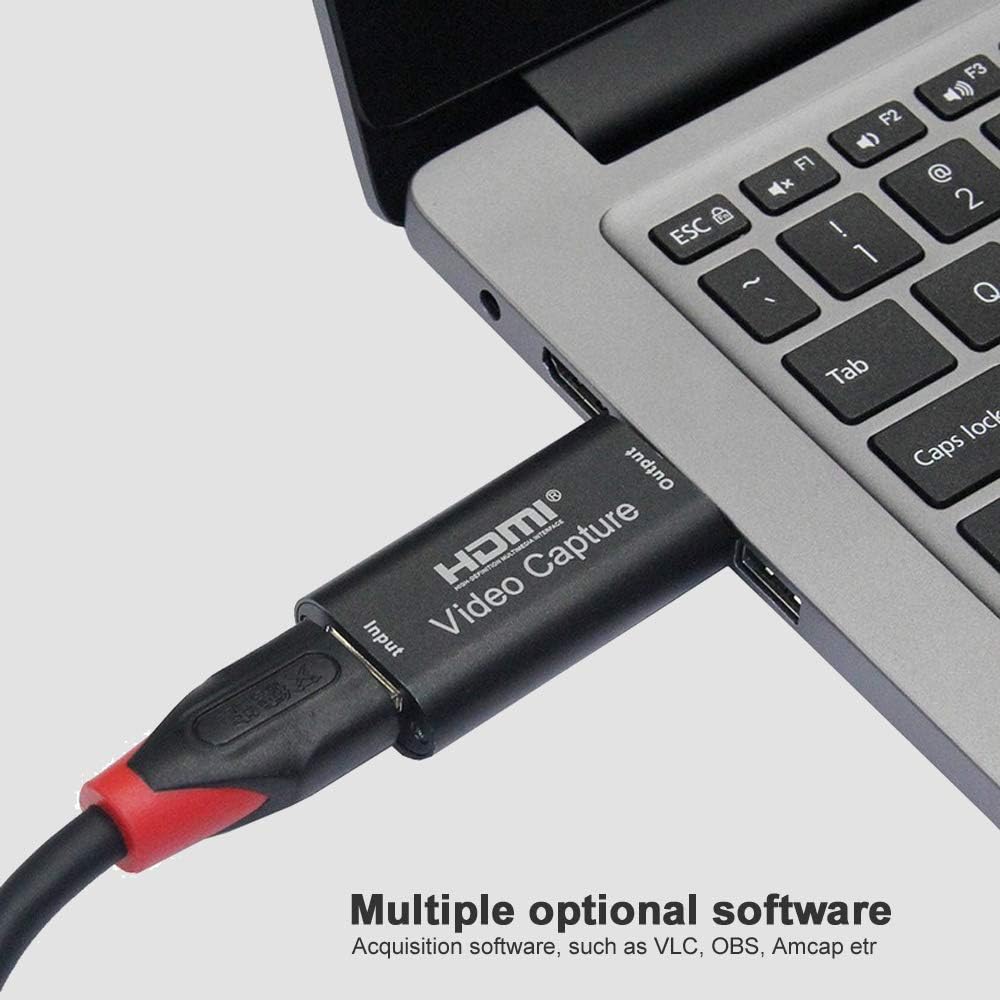
Figure 2: Software Compatibility. This image shows the capture card connected to a laptop, highlighting its compatibility with various acquisition software such as VLC, OBS, and Amcap, which are commonly used for video capture and streaming.
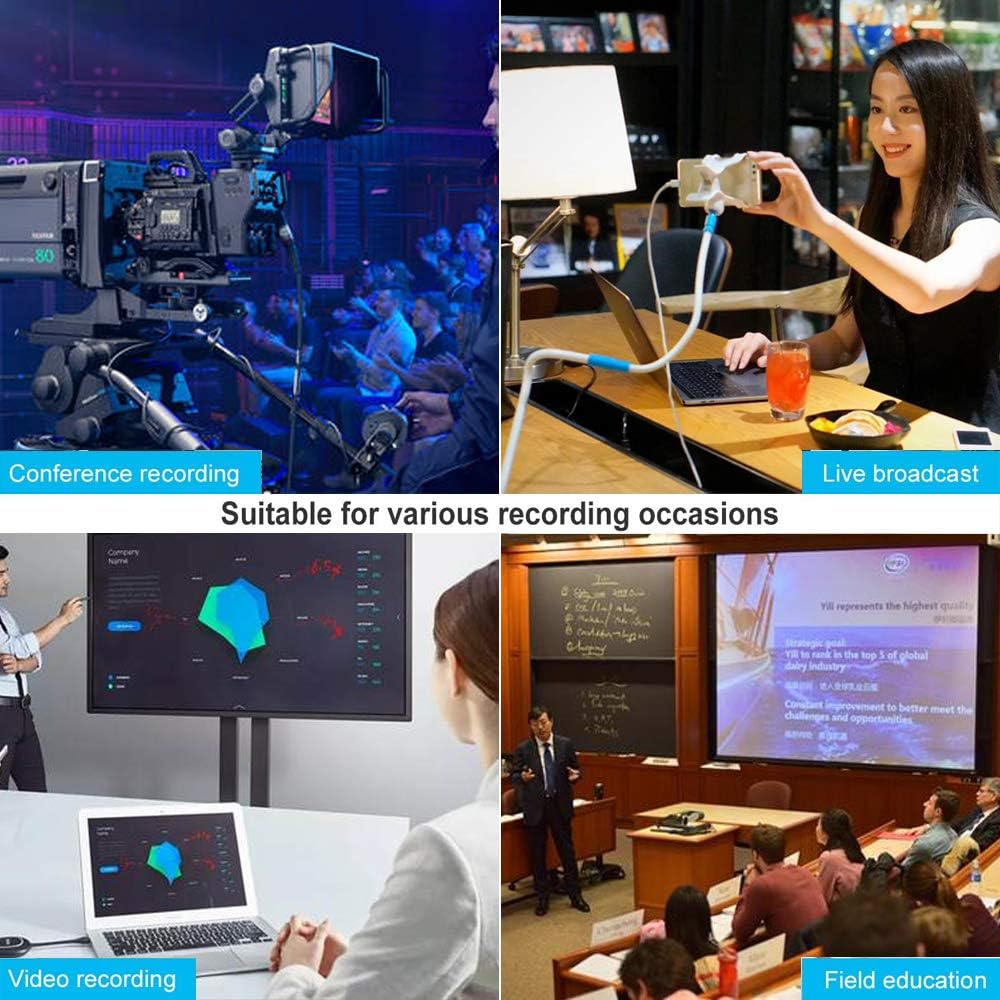
Figure 3: Versatile Applications. This image displays four common scenarios where the capture card can be used: recording conferences, conducting live broadcasts, general video recording, and for educational purposes in the field.
Решавање проблеми
| Проблем | Можна причина / решение |
|---|---|
| Нема видео сигнал |
|
| Нема аудио сигнал |
|
| Poor video quality / Lag |
|
| Уредот не е препознаен од компјутерот |
|
Одржување
- Чистење: Use a soft, dry cloth to clean the exterior of the capture card. Do not use liquid cleaners or aerosols.
- Складирање: Чувајте го уредот на ладно и суво место, подалеку од директна сончева светлина и екстремни температури кога не е во употреба.
- Ракување: Handle the capture card with care. Avoid dropping it or exposing it to excessive force.
- Поврзување: Always ensure cables are inserted and removed gently to prevent damage to the ports.
Гаранција и поддршка
Specific warranty information for the AOGITKE Audio Video Capture Card is not provided in this manual. Please refer to the product packaging or the retailer's website for details regarding warranty coverage and support options.
For technical support or further inquiries, please contact AOGITKE customer service through the contact information provided with your purchase or on the official AOGITKE webсајт.
Ask a question about this manual
Ask about setup, troubleshooting, compatibility, parts, safety, or missing instructions. Manuals+ will review the question and use this page’s manual context to help answer it.