
Вовед
This manual provides essential information for setting up, operating, maintaining, and troubleshooting your CyberpowerPC Gamer Xtreme Gaming PC. This system is designed for high-performance gaming and multitasking, featuring an AMD Ryzen 7 3700X processor, NVIDIA GeForce RTX 3060 graphics, 16GB DDR4 RAM, and a combination of SSD and HDD storage, running on Windows 10 Home 64-Bit.
1. Поставување
1.1 Отпакување
Carefully remove the PC from its packaging. Ensure all accessories, including the power cable, keyboard, and mouse, are present. Retain the original packaging for future transport or service needs.

Слика 1: Предна страна view of the CyberpowerPC Gamer Xtreme, highlighting its design and RGB lighting.
1.2 Поврзување на периферни уреди
Connect your monitor, keyboard, mouse, and other peripherals to the appropriate ports on the rear and top of the PC. Ensure all connections are secure.
- Монитор: Connect your monitor to the graphics card's HDMI or DisplayPort output.
- Тастатура и глушец: Connect to any available USB ports (USB 2.0 or USB 3.0).
- Моќност: Connect the power cable to the PC's power supply unit (PSU) and then to a grounded electrical outlet.
- Мрежа: For wired internet, connect an Ethernet cable to the LAN port. For wireless, ensure the Wi-Fi antenna (if included) is attached.

Слика 2: Аголна view of the CyberpowerPC Gamer Xtreme, highlighting the front panel design and side ventilation.

Слика 3: Врв view of the PC, illustrating the accessible front I/O ports and top ventilation.
1.3 Првично вклучување и поставување на Windows
Press the power button located on the top panel of the PC. The system will boot up. Follow the on-screen instructions to complete the Windows 10 Home setup, including language selection, network connection, and user account creation.
2. Упатства за работа
2.1 Вклучување/исклучување
- За вклучување: Press the power button on the top panel.
- За да се исклучи: Кликнете на копчето „Старт“ во Windows, потоа изберете „Напојување“ > „Исклучи“.
- За рестартирање: Кликнете на копчето „Старт“, потоа изберете Вклучување > Рестартирај.
- За спиење: Кликнете на копчето „Старт“, потоа изберете Вклучување > Спиење.
2.2 Поврзување на мрежа
Your PC supports both wired (Ethernet) and wireless (Wi-Fi) network connections.
- Wичен: Connect an Ethernet cable from your router/modem to the LAN port on the rear of the PC.
- Безжичен: In Windows, click the network icon in the taskbar, select your Wi-Fi network, enter the password, and click Connect.
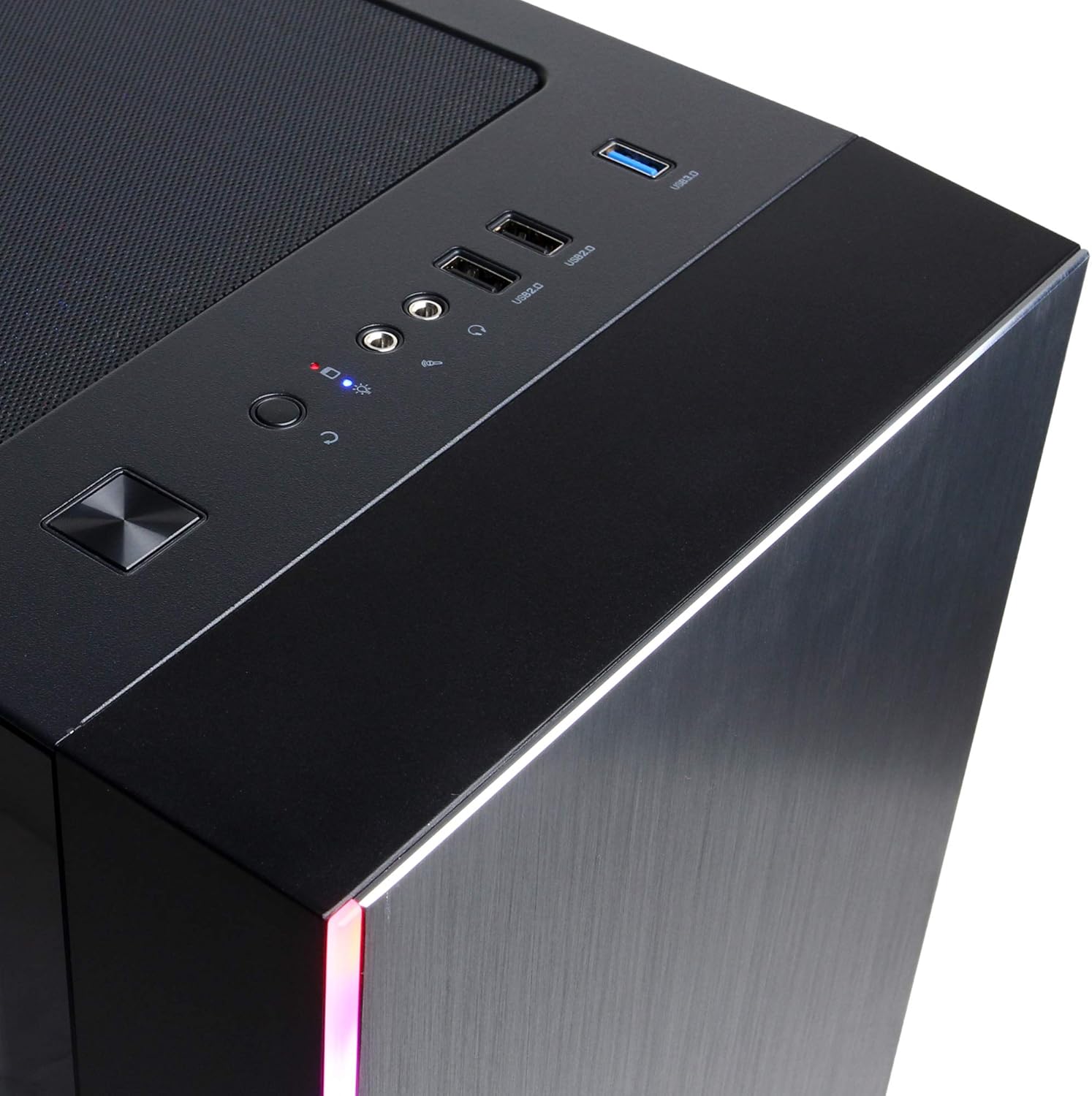
Figure 4: Detail of the top I/O panel, providing easy access to USB and audio connections.
3. Одржување
3.1 Чистење
Regular cleaning helps maintain optimal performance and extends the lifespan of your PC.
- Надворешност: Користете мека, гamp крпа за бришење на надворешноста. Избегнувајте јаки хемикалии.
- Прашина: Periodically use compressed air to clear dust from ventilation grilles and internal components. Ensure the PC is powered off and unplugged before cleaning.
3.2 Ажурирања на софтверот
Keep your operating system, drivers, and applications updated to ensure security, stability, and performance.
- Ажурирања на Windows: Одете во Поставки > Ажурирање и безбедност > Windows Update.
- Графички драјвери: Download the latest drivers directly from NVIDIA's official webсајт.
4 Смена на проблеми
4.1 Нема струја
- Осигурајте се дека кабелот за напојување е безбедно поврзан и со компјутерот и со ѕидниот штекер.
- Проверете дали штекерот во ѕидот е функционален со вклучување на друг уред.
- Check the power switch on the PSU (if present) is in the 'On' position.
4.2 Нема екран
- Confirm the monitor is powered on and connected to the graphics card's output, not the motherboard's integrated graphics ports (if applicable).
- Пробајте друг кабел за прикажување или монитор доколку е достапен.
- Проверете дали влезниот извор на мониторот е правилно избран.
4.3 Забавување или замрзнување на системот
- Проверете го „Управувачот со задачи“ (Ctrl+Shift+Esc) за голема употреба на процесорот, RAM меморијата или дискот од страна на одредени апликации.
- Осигурајте се дека Windows и драјверите се ажурирани.
- Извршете скенирање за вируси и малициозен софтвер.
- Ensure adequate ventilation and check for excessive dust buildup.
5. Спецификации
| Карактеристика | Детал |
|---|---|
| Бренд | CyberpowerPC |
| Име на моделот | Gamer Xtreme |
| Оперативен систем | Windows 10 Home |
| Модел на процесорот | AMD Ryzen 7 3700X |
| Брзина на процесорот | 3.6 GHz (база) |
| Графички копроцесор | NVIDIA GeForce RTX 3060 |
| Graphics Card RAM | 12 GB GDDR6 |
| Инсталирана RAM меморија | 16 GB DDR4 |
| Складирање | 240 GB SSD, 1 TB HDD |
| Поврзување | HDMI, Wi-Fi (802.11ab), USB 2.0, USB 3.0 |
| Димензии на ставката (ДxШxВ) | 18.6 x 17.4 x 8.9 инчи |
| Метод на ладење | Воздух |
| UPC | 811842073769 |
6. Информации за гаранцијата
Your CyberpowerPC Gamer Xtreme Gaming PC is covered by a manufacturer's limited warranty. Specific terms and conditions, including warranty duration and coverage details, are typically provided with your purchase documentation or can be found on the official CyberpowerPC webстраница. Ве молиме задржете го доказот за купување за гаранциски барања.
7. Поддршка
For technical assistance, troubleshooting, or further inquiries, please visit the official CyberpowerPC support website or contact their customer service. You may need your product model number (GMA3088W) and serial number for support.
- Службен Webсајт: www.cyberpowerpc.com
- Support Section: Look for a "Support" or "Contact Us" link on their webсајт.