
1. Вовед
Welcome to the HyperX Armada 25 Gaming Monitor user manual. This document provides essential information for setting up, operating, maintaining, and troubleshooting your new monitor. The HyperX Armada 25 is designed for competitive gaming, featuring a 24.5-inch Full HD (1920x1080) IPS panel, a 240Hz refresh rate, and a 1ms response time, ensuring smooth and responsive visuals. It also includes NVIDIA G-SYNC compatibility to eliminate screen tearing and minimize input latency. A desk mount is included for convenient setup and to maximize desk space.
Клучни карактеристики:
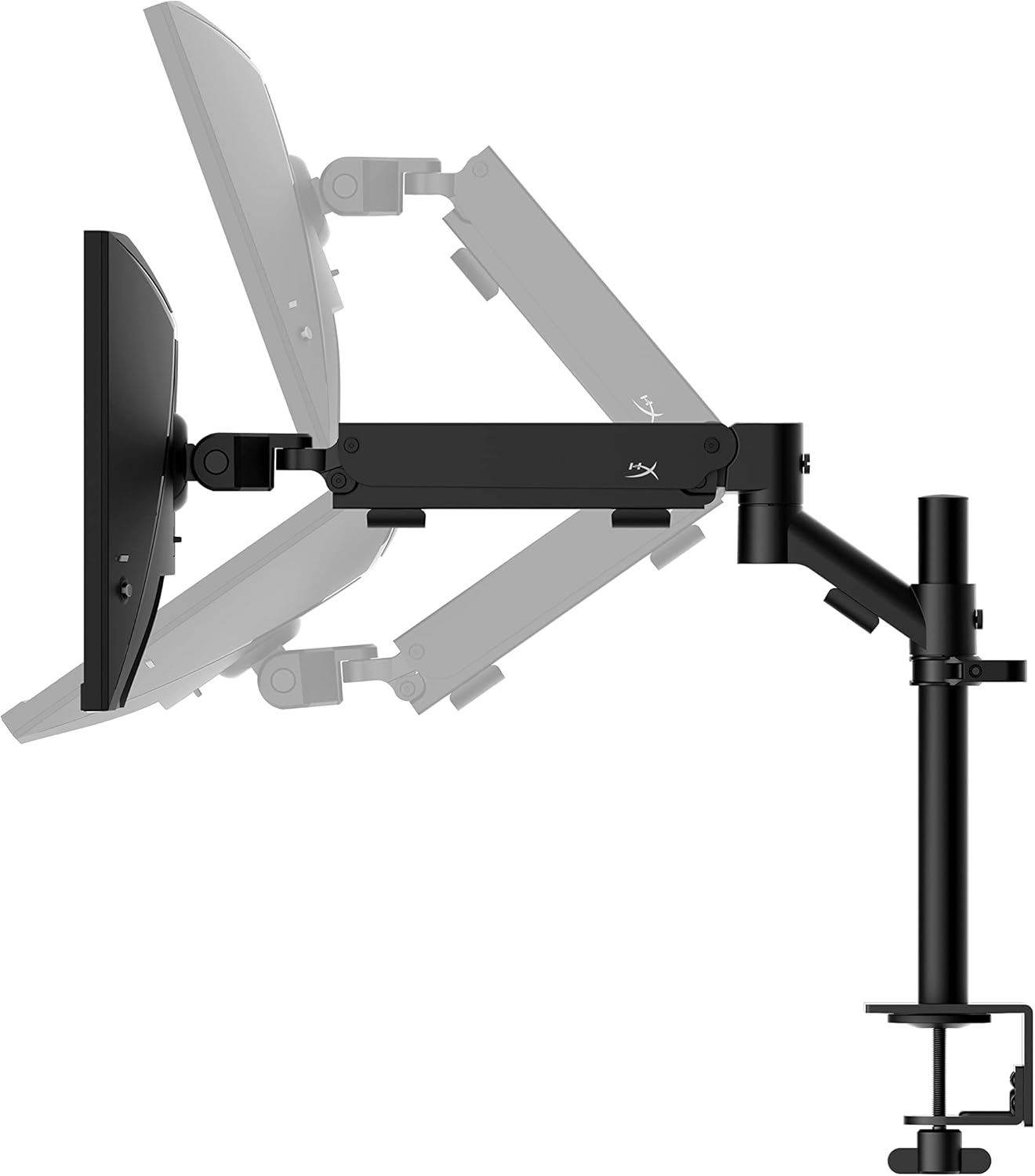
- Сè-во-едно пакет: Includes an ergonomic arm and desk mount for easy setup and space-saving.
- Висока брзина на освежување и време на одговор: 240Hz refresh rate and 1ms response time for ultra-smooth gaming.
- Vibrant IPS Panel: 24.5-inch Full HD (1920x1080) IPS panel delivers stunning visuals with accurate colors and wide viewинг агли.
- Компатибилен со NVIDIA G-SYNC: Eliminates screen tearing and reduces stuttering for a fluid gaming experience.

Официјално видео за производот:
2. Поставување
This section guides you through the initial setup of your HyperX Armada 25 Gaming Monitor, including assembly and connection to your computer.
2.1. Assembling the Desk Mount
The HyperX Armada 25 comes with an integrated ergonomic desk mount. Follow the instructions provided in the separate quick start guide for detailed assembly steps. The monitor head easily snaps into the arm, allowing for quick and secure installation.

2.2. Поврзување на мониторот
Connect the monitor to your computer using the appropriate cables. The HyperX Armada 25 supports both HDMI and DisplayPort connections.
- Поврзете го едниот крај од HDMI или DisplayPort кабелот со соодветниот порт на графичката картичка на вашиот компјутер.
- Connect the other end of the cable to an available HDMI 2.0 or DisplayPort 1.4 port on the back of your monitor.
- Поврзете го кабелот за напојување со мониторот, а потоа со штекер.
- Притиснете го копчето за вклучување на мониторот за да го вклучите.

3. Ракување со мониторот
This section covers basic operation and navigation of the monitor's On-Screen Display (OSD) menu.
3.1. Навигација на екранот (OSD)
The OSD menu is controlled using a joystick located on the back of the monitor. This joystick allows you to power on/off the monitor and navigate through various settings.
- Притиснете го џојстикот: За да го отворите менито на екранот или да потврдите избор.
- Move the joystick Up/Down/Left/Right: To navigate through menu options and adjust settings.
- Hold the joystick: To power off the monitor.

3.2. Прилагодување на положбата на мониторот
The ergonomic desk mount allows for flexible positioning of your monitor. You can adjust the height, tilt, swivel, and pivot to find your optimal viewинголен агол.

4. Одржување
Proper maintenance ensures the longevity and optimal performance of your HyperX Armada 25 Gaming Monitor.
- Чистење на екранот: Лесно користете мека крпа без влакненца dampened with water or a specialized screen cleaner. Avoid using harsh chemicals, abrasive materials, or direct spraying onto the screen.
- Чистење на Casing: Избришете го мониторот casing со мека, сува крпа.
- Вентилација: Осигурајте се дека отворите за вентилација на мониторот не се блокирани за да спречите прегревање.
- Исклучување кога не се користи: Исклучете го мониторот кога не го користите подолг период за да заштедите енергија и да го продолжите неговиот век на траење.
5 Смена на проблеми
If you encounter issues with your monitor, refer to the following common troubleshooting steps.
- Без моќност:
- Проверете дали кабелот за напојување е безбедно поврзан и со мониторот и со штекерот.
- Осигурајте се дека штекерот работи правилно.
- Притиснете го копчето за вклучување на мониторот.
- Нема сигнал:
- Verify that the HDMI or DisplayPort cable is securely connected to both the monitor and your computer.
- Осигурајте се дека вашиот компјутер е вклучен и не е во режим на спиење.
- Изберете го точниот влезен извор користејќи го менито на OSD.
- Flickering Screen or Image Issues:
- Проверете го кабелот за дисплеј за оштетување или лабави врски.
- Осигурајте се дека драјверите за вашата графичка картичка се ажурирани.
- Прилагодете ја брзината на освежување во поставките за екранот на вашиот компјутер.
- If G-SYNC is enabled, try disabling it temporarily to see if the issue persists.
- Buttons Not Responding (OSD Joystick):
- Проверете дали мониторот е вклучен.
- Try restarting the monitor by unplugging and replugging the power cable.
- Clean around the joystick to ensure no debris is obstructing its movement.
6. Спецификации
Detailed technical specifications for the HyperX Armada 25 Gaming Monitor.
| Карактеристика | Детал |
|---|---|
| Димензии на производот | 21.94 x 25.79 x 31.12 инчи; 16.98 фунти |
| Број на модел на ставка | HyperX Armada 25 |
| Датум прв на располагање | 24 август 2022 година |
| Производител | HP Inc. |
| ASIN | B0B2C1G356 |
| Големина на приказ | Дијагонала од 24.5 инчи |
| Резолуција | FHD (1920x1080) |
| Стапка на освежување | 240 Hz |
| Тип на панел | IPS панел |
| Време на одговор | 1 ms |
| Технологија за синхронизација | Компатибилен со NVIDIA® G-SYNC® |
| Included Mount | Desk Mount Included |
| Поврзување | HDMI and Display Port |
7. Гаранција и поддршка
For warranty information, technical support, or to access additional resources, please visit the official HyperX webсајт или контактирајте со нивната служба за корисници.
- Официјален HyperX Webсајт: www.hyperx.com
- Страница за поддршка на производот: Refer to the support section on the HyperX webстраница за вашиот специфичен модел.