
1. Вовед
This manual provides essential information for the proper installation, operation, and maintenance of your SUNMI T2s Lite 15.6-inch Android Point of Sale (POS) system. Please read this manual thoroughly before using the device to ensure optimal performance and safety. Keep this manual for future reference.
2. Информации за безбедност
- Не го изложувајте уредот на екстремни температури, влажност или директна сончева светлина.
- Избегнувајте паѓање или изложување на уредот на силни удари.
- Use only the power adapter supplied with the device. Using an incorrect adapter may cause damage or fire.
- Не обидувајте се сами да го расклопите или поправите уредот. Обратете се кај квалификуван сервисер.
- Чувајте го уредот подалеку од вода или други течности.
- Обезбедете соодветна вентилација околу уредот за време на работата.
3. Содржина на пакетот
Проверете дали сите артикли се присутни во пакувањето:
- SUNMI T2s Lite POS Terminal
- Адаптер за напојување
- Кабел за напојување
- Водич за брз почеток (доколку е применливо)
- Гарантна картичка (ако е применливо)
Доколку недостасуваат или се оштетени некои предмети, веднаш контактирајте го вашиот продавач.
4. Производот завршиview
The SUNMI T2s Lite is an integrated Android-based POS system designed for retail environments. It features a 15.6-inch capacitive touchscreen display and various connectivity options.
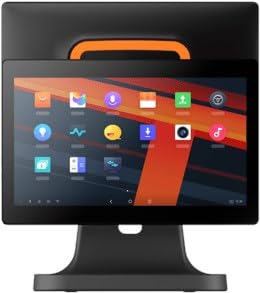
Слика 4.1: Предна страна view of the SUNMI T2s Lite POS system. This image displays the main 15.6-inch touchscreen, which is the primary interface for operating the device. The design is compact and suitable for various retail settings.
4.1 Клучни компоненти
- 15.6-инчен екран на допир: High-resolution (1920x1080) capacitive touch interface.
- Копче за вклучување: Located typically on the side or rear for turning the device on/off.
- USB порти: For connecting peripherals such as barcode scanners, external printers, or cash drawers.
- Етернет пристаниште: За поврзување со жична мрежа.
- Влез на енергија: За поврзување на адаптерот за напојување.
- Предна камера: For specific applications requiring image capture.
5. Поставување
5.1 Отпакување и поставување
- Внимателно извадете го уредот и сите додатоци од пакувањето.
- Place the POS terminal on a stable, flat surface in a well-ventilated area.
- Ensure there is sufficient space around the device for cable connections and heat dissipation.
5.2 Поврзување напојување
- Поврзете го кабелот за напојување со адаптерот за напојување.
- Plug the power adapter into the power input port on the back of the SUNMI T2s Lite.
- Вклучете го другиот крај од кабелот за напојување во заземјен електричен штекер.
5.3 Initial Boot and Network Connection
- Press and hold the power button until the screen lights up. The device will boot into the Android operating system.
- Следете ги упатствата на екранот за почетно поставување, вклучувајќи го изборот на јазик и временска зона.
- Wi-Fi конекција: Одете на Поставки > Мрежа и интернет > Wi-Fi, изберете ја вашата мрежа и внесете ја лозинката.
- Етернет конекција: Connect an Ethernet cable from your router/switch to the Ethernet port on the device. The device should automatically connect to the wired network.
5.4 Поврзување на периферни уреди
- USB-уреди: Plug USB peripherals (e.g., barcode scanner, external printer, cash drawer) into the available USB ports. The system will typically recognize them automatically.
- Уреди со Bluetooth: Одете на Поставки > Поврзани уреди > Bluetooth, enable Bluetooth, and pair with your desired device.
6. Упатства за работа
6.1 Вклучување/исклучување
- За вклучување: Притиснете и задржете го копчето за напојување додека не се запали екранот.
- За исклучување: Press and hold the power button until a power menu appears. Select "Power off" and confirm. Alternatively, a short press of the power button will put the device to sleep.
6.2 Употреба на екран на допир
- Допрете: За да изберете ставка или да активирате копче.
- Допрете и задржете: To open context menus or drag items.
- Повлечете: За да се движите низ листи или да се движите помеѓу екрани.
- Штипнете за зумирање: За зумирање или одзумирање на слики или web страници.
6.3 Навигација на Android OS
- Почетен екран: The central hub for your applications and widgets.
- Фиока за апликации: Пристап до сите инсталирани апликации.
- Панел за известување: Повлечете надолу од горниот дел на екранот до view известувања и брзи поставки.
- Поставки: Configure Wi-Fi, Bluetooth, display, sound, and other system options.
6.4 Basic POS Functions
The specific POS functions will depend on the software application installed on your device. Refer to the documentation provided with your POS software for detailed instructions. Generally, you will:
- Launch your POS application from the home screen or app drawer.
- Најавете се со вашите кориснички акредитиви.
- Process transactions using the touchscreen and connected peripherals (e.g., scanning items, accepting payments).
- Print receipts if an external or integrated printer is configured.
7. Одржување
7.1 Чистење на уредот
- Секогаш исклучувајте го уредот од струја и исклучете го од струја пред чистење.
- Користете мека крпа без влакненца малку гampened with water or a mild, non-abrasive cleaner to wipe the screen and exterior surfaces.
- Не прскајте течности директно на уредот.
- Избегнувајте употреба на груби хемикалии, растворувачи или абразивни материјали.
7.2 Ажурирања на софтверот
Regularly check for and install system and application updates to ensure optimal performance, security, and access to new features. You can usually find system updates in Поставки > Систем > Ажурирање на системот.
7.3 Складирање
When not in use for extended periods, store the device in a cool, dry place, away from direct sunlight and extreme temperatures. If storing for a long time, ensure the battery is charged to about 50% to prolong its lifespan.
8 Смена на проблеми
Овој дел се однесува на вообичаени проблеми со кои може да се соочите. За посложени проблеми, контактирајте ја службата за корисници.
- Уредот не се вклучува:
- Осигурајте се дека адаптерот за напојување е безбедно поврзан со уредот и со функционален штекер.
- Проверете дали штекерот е функционален.
- Try holding the power button for 10-15 seconds to force a restart.
- Touchscreen is unresponsive:
- Рестартирајте го уредот.
- Ensure the screen is clean and free of debris or liquids.
- Network connection issues (Wi-Fi/Ethernet):
- Check if the Wi-Fi is enabled and you are connected to the correct network with the right password.
- For Ethernet, ensure the cable is properly connected and your router/switch is working.
- Рестартирајте го вашиот рутер/модем.
- Peripherals (e.g., printer, scanner) not working:
- Осигурајте се дека периферниот уред е правилно поврзан со точниот порт.
- Check if the peripheral has its own power supply and is turned on.
- Verify that the necessary drivers or software for the peripheral are installed and configured within your POS application.
9. Спецификации
The following are key technical specifications for the SUNMI T2s Lite:
| Карактеристика | Спецификација |
|---|---|
| Бренд | SUNMI |
| Производител | Сунми |
| Природна резолуција на екранот | 1920x1080 пиксели |
| Технологија за поврзување | Bluetooth, Ethernet, USB, WLAN |
| Опис на камерата | Фронтална |
| ASIN | B0B53FLFT8 |
10. Гаранција и поддршка
The SUNMI T2s Lite POS system comes with a standard manufacturer's warranty. Please refer to the warranty card included in your package for specific terms and conditions, including warranty period and coverage details.
For technical support, service, or warranty claims, please contact your authorized SUNMI dealer or the customer support channel specified in your purchase documentation. Ensure you have your product model number (T2s Lite) and ASIN (B0B53FLFT8) ready when contacting support.