
1. Вовед
Ви благодарам за купувањетоasing the Ysametp 5G WiFi Bluetooth Projector. This device is designed to provide a high-quality home theater experience with its native 1080p Full HD resolution, 4K support, and integrated Android system. Please read this manual thoroughly before using the projector to ensure proper operation and to maximize its lifespan.
2. Информации за безбедност
Please observe the following safety precautions to prevent damage to the projector and ensure user safety:
- Напојување: Use only the specified power adapter. Ensure the power outlet voltage одговара на барањата на проекторот.
- Вентилација: Не ги блокирајте отворите за вентилација. Обезбедете соодветен проток на воздух околу проекторот за да спречите прегревање.
- Поставување: Поставете го проекторот на стабилна, рамна површина. Избегнувајте да го поставувате на директна сончева светлина, во близина на извори на топлина или во средини со висока влажност или прашина.
- Чистење: Исклучете го од струја пред чистење. Користете мека, сува крпа. Не користете течни или аеросолни средства за чистење.
- Заштита на очите: Не гледајте директно во објективот на проекторот кога lamp е вклучено, бидејќи силната светлина може да предизвика оштетување на очите.
- Поправки: Не обидувајте се сами да го поправите проекторот. Сите услуги обратете се кај квалификуван персонал.
3. Содржина на пакетот
Проверете дали сите артикли се присутни во пакувањето:
- Ysametp 5G WiFi Bluetooth Projector (Model DE-M8-E-An)
- Далечински управувач
- Power Cable (AC 220V with Schuko plug)
- HDMI кабел
- Упатство за употреба
4. Производот завршиview
Запознајте се со компонентите и интерфејсите на проекторот.
4.1 фронт View

Слика: напред view of the Ysametp Projector, highlighting the projection lens and side ventilation grilles.
4.2 Rear and Side Interfaces
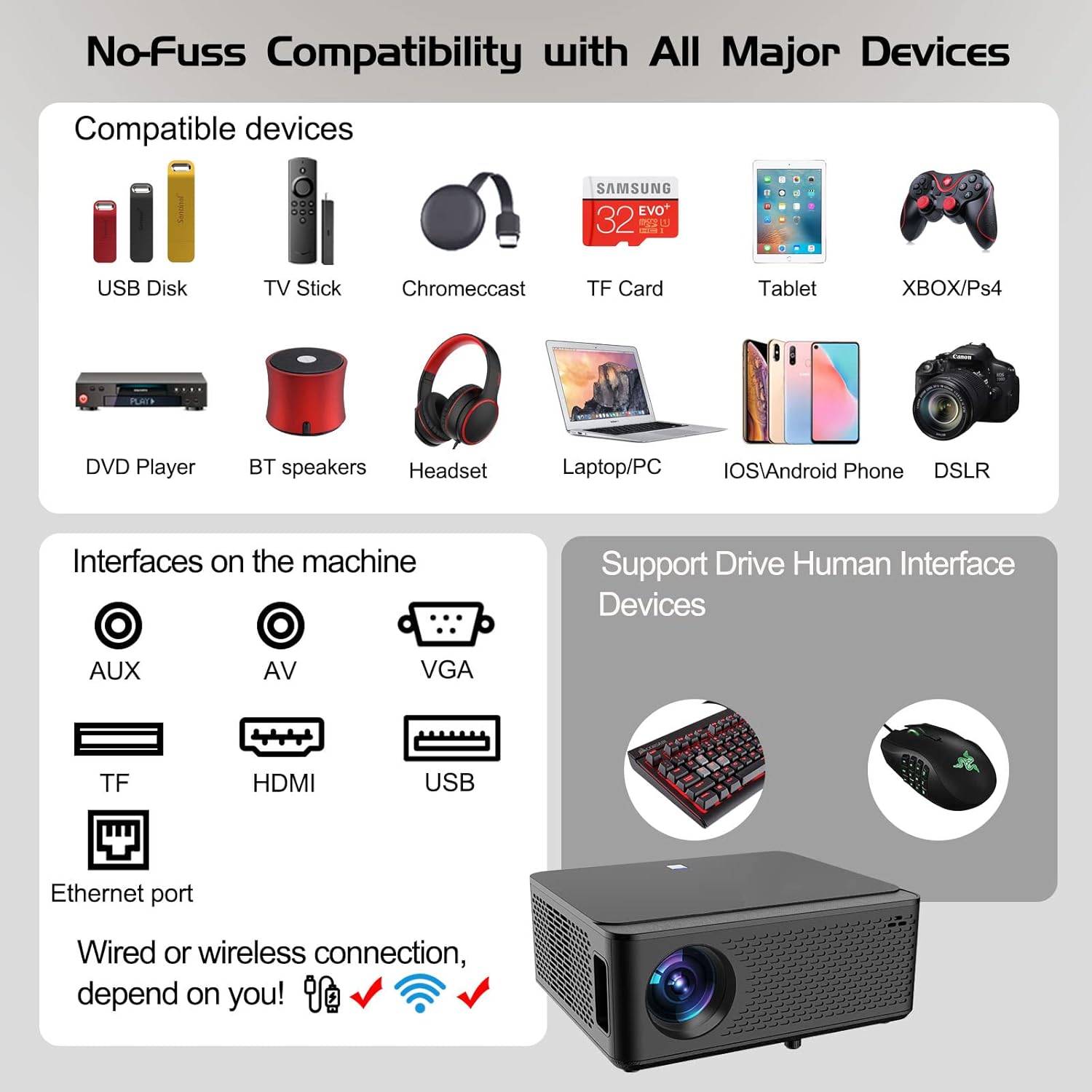
Image: Diagram illustrating the various input and output ports available on the Ysametp Projector, including USB, HDMI, AV, VGA, TF card slot, and Ethernet port.
The projector features a comprehensive set of ports for versatile connectivity:
- Етернет пристаниште: За жична интернет конекција.
- VGA порта: For connecting to older computers.
- USB-A порта: For connecting USB flash drives or external devices.
- HDMI порта: For high-definition audio and video input from various sources.
- AV влез: For connecting analog audio/video devices.
- Аудио излез од 3.5 мм: За поврзување на надворешни звучници или слушалки.
- Слот за картичка TF: For reading media from Micro SD cards.
- Влез на енергија: За поврзување на кабелот за наизменична струја.
4.3 Топ контроли
The top of the projector includes a power button for basic on/off functionality. Further controls are available via the remote control and the on-screen display.
4.4 Прилагодување на фокусот
A mechanical focus adjustment screw is located on the side of the lens for manual image clarity control.
5. Поставување
5.1 Поставување
Position the projector on a stable surface. The projection distance will determine the screen size. For optimal viewing, ensure the projector is perpendicular to the projection surface.
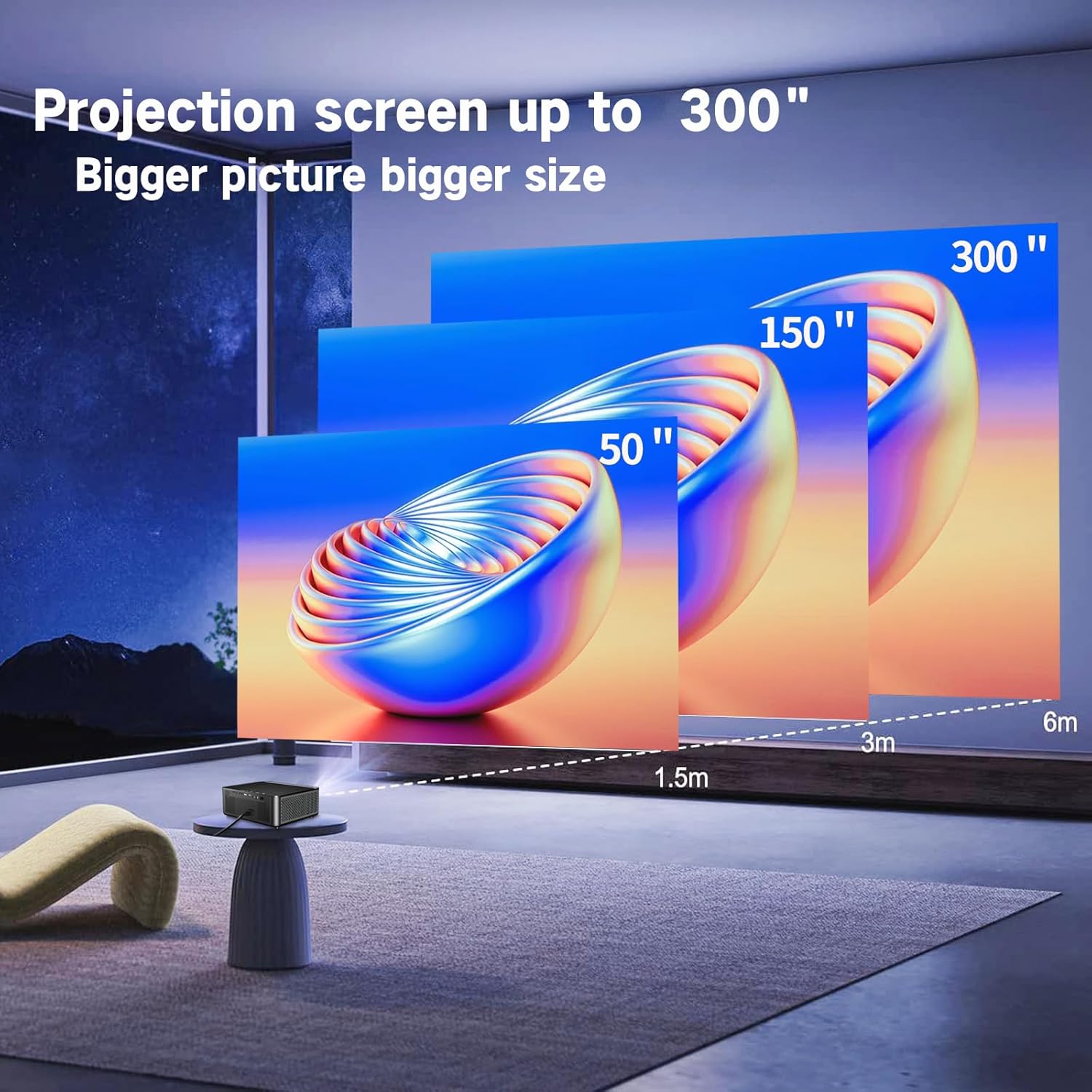
Image: Illustration demonstrating recommended projection distances for achieving screen sizes of 50, 150, and 300 inches.
5.2 Поврзување за напојување
- Поврзете го кабелот за напојување со влезот за напојување на проекторот.
- Вклучете го другиот крај од кабелот за напојување во соодветен штекер.
5.3 Почетно вклучување
- Притиснете го копчето за вклучување на проекторот или далечинскиот управувач за да го вклучите уредот.
- Allow a few moments for the projector to boot up.
5.4 Фокус и корекција на трапезоидот
After powering on, adjust the image for clarity and proper geometry:
- Фокус: Rotate the mechanical focus adjustment screw near the lens until the image appears sharp and clear.
- Корекција на клучниот камен: If the projected image is trapezoidal (wider at the top or bottom), use the 4D keystone correction feature via the on-screen menu to adjust the image corners until it forms a perfect rectangle.

Image: Diagram showing how 4P/4D keystone correction can be used to adjust the corners of a projected image to achieve a rectangular shape.
6. Упатства за работа
6.1 Поврзување на надворешни уреди
The projector supports various connection methods:
- HDMI: Connect gaming consoles (PS4, Xbox), laptops, or other HDMI-enabled devices using an HDMI cable.
- USB: Insert a USB flash drive into the USB-A port to play media fileи директно.
- TF картичка: Insert a Micro SD (TF) card into the TF card slot to access media.
- VGA/AV: Use these ports for older devices requiring analog connections.
- Bluetooth: Спарете Bluetooth звучници или слушалки за подобрен звук.

Image: The projector shown with various compatible devices, including laptops, smartphones, gaming consoles, USB drives, and external speakers, demonstrating its versatile connectivity.
6.2 Using the Integrated Android System
The projector comes with an integrated Android system, allowing access to a wide range of applications.

Image: The projector displaying its Android interface, featuring icons for popular streaming services and apps such as Netflix, YouTube, Prime Video, Hulu, Spotify, and TikTok.
- Мрежна конекција: Connect the projector to your home Wi-Fi network via the settings menu or use an Ethernet cable for a wired connection.
- Пристап до апликацијата: Navigate the Android interface using the remote control. You can download and install applications from the Google Play Store.
- Стриминг: Enjoy content from pre-installed or downloaded streaming services.
6.3 5G WiFi Screen Mirroring
Mirror your smartphone, tablet, or PC screen wirelessly to the projector.

Image: A family enjoying content mirrored from a smartphone onto the large projected screen, illustrating the 5G WiFi Screen Mirroring feature for iOS, Android, and Windows devices.
- Ensure both the projector and your device are connected to the same 5G WiFi network.
- Select the "Screen Mirroring" option on the projector's menu.
- On your smartphone/tablet/PC, activate its screen mirroring function (e.g., "Smart View" for Android, "AirPlay" for iOS, "Cast" for Windows).
- Изберете го проекторот од листата на достапни уреди за да ја воспоставите врската.
7. Одржување
7.1 Чистење на објективот
Нежно избришете го објективот на проекторот со мека крпа без влакненца, специјално дизајнирана за оптички површини. Не користете абразивни средства за чистење или прекумерна сила.
7.2 Чистење на куќиштето на проекторот
Use a soft, dry cloth to clean the exterior of the projector. Avoid using harsh chemicals or solvents.
7.3 Optical Engine Protection
The projector features a full-sealed optical engine designed to prevent dust from entering the internal components, reducing the need for frequent internal cleaning and extending the device's lifespan.

Слика: Внатрешен view diagram of the projector's full-sealed optical engine, highlighting its design to prevent dust from entering and affecting performance.
7.4 лamp Животот
The projector utilizes advanced SmarEco technology to minimize energy consumption and extend the lamp's lifespan up to 60,000 hours, providing long-term reliability.

Слика: Детален дијаграм прикажанasing the projector's lamp technology, indicating a lifespan of over 30,000 hours.
8 Смена на проблеми
Доколку наидете на проблеми со вашиот проектор, погледнете ги следните вообичаени проблеми и решенија:
| Проблем | Можна причина | Решение |
|---|---|---|
| Нема слика на екранот. | Power cable loose; incorrect input source; device not connected. | Check power connections. Select correct input source (HDMI, AV, etc.). Ensure external device is powered on and connected properly. |
| Сликата е заматена. | Focus not adjusted; projector too far/close. | Adjust the focus ring on the lens. Ensure projector is within optimal projection distance. |
| Сликата е трапезоидна. | Проекторот не е нормален на екранот. | Use the 4D keystone correction feature in the settings menu to adjust the image shape. |
| Нема звук. | Јачината на звукот е прениска; надворешен аудио уред не е поврзан; избран е неправилен аудио излез. | Increase volume. Check external speaker/headphone connection. Ensure correct audio output is selected in settings. |
| Не може да се поврзе со WiFi. | Неточна лозинка; надвор од опсег; проблем со мрежата. | Verify WiFi password. Move projector closer to router. Restart router and projector. |
9. Спецификации
Key technical specifications for the Ysametp 5G WiFi Bluetooth Projector (Model DE-M8-E-An):
- Бренд: Исметп
- Број на модел: DE-M8-E-An
- Боја: Црното
- Тип на производ: Пренослив проектор
- Технологија за поврзување: HDMI, USB, Wi-Fi (5G), Bluetooth
- Посебни карактеристики: Integrated WiFi, Android System, 4D Keystone Correction
- Компатибилни уреди: Game Consoles, Speakers, Laptops, Smartphones, Tablets
- Резолуција на екранот: Native 1920 x 1080 (Full HD)
- Максимална резолуција на екранот: 4096 x 2160 (4K Support)
- Тип на приказ: DLP
- Димензии на производот: 26L x 23W x 11H сантиметри
- Форма фактор: Пренослив
- Тип на монтирање: Монтирање на маса
- Lamp Животниот век: До 60,000 часа

Image: A visual comparison highlighting the projector's 20,000 Lumens brightness, Native 1080P resolution, and 4K support, contrasting it with a lower specification projector.
10. Гаранција и поддршка
The Ysametp Projector comes with a 3-year service warranty. For technical support or warranty claims, please contact Ysametp customer service through your purchase platform or the official Ysametp webсајт.