
1. Вовед
This manual provides detailed instructions for the setup, operation, and maintenance of your Logitech MK670 Comfort Wave Wireless Keyboard and Mouse Combo, along with the included Mini Bluetooth Speaker, Gel Wrist Pad, and Gel Mouse Pad. Please read this manual thoroughly before using the products to ensure optimal performance and longevity.

Image 1.1: Complete bundle including the Logitech MK670 keyboard, mouse, mini Bluetooth speaker, and gel pads.
2. Компоненти на производот
Вашиот пакет треба да ги содржи следните ставки:
- Logitech MK670 Comfort Wave Wireless Keyboard
- Безжичен глушец Logitech
- USB приемник Logitech Unifying
- Мини пренослив безжичен Bluetooth звучник
- Gel Wrist Pad
- Gel Mouse Pad
- Micro USB Charging Cable (for speaker)
- Корисничка документација (овој прирачник)
3. Упатства за поставување
3.1. Logitech Keyboard and Mouse Setup
- Отпакувај: Внимателно извадете ја тастатурата и глувчето од нивното пакување.
- Вметнете батерии: The keyboard and mouse typically come with pre-installed batteries or require standard AA/AAA batteries. Open the battery compartments (usually on the underside of each device) and ensure batteries are correctly inserted.
- Locate Unifying Receiver: The small USB Unifying receiver is often stored inside the mouse's battery compartment for safekeeping. Remove it.
- Поврзете го приемникот: Приклучете го USB-приемникот Logitech Unifying во слободен USB-порт на вашиот компјутер.
- Вклучување: Turn on the keyboard and mouse using their respective power switches (usually located on the underside or side). The devices should automatically connect to your computer.

Image 3.1: The Logitech MK670 wireless keyboard and mouse, ready for connection via the Unifying receiver.
3.2. Mini Bluetooth Speaker Setup
- Звучник за полнење: Before first use, fully charge the mini Bluetooth speaker using the provided Micro USB charging cable. Connect the Micro USB end to the speaker and the USB-A end to a power source (e.g., computer USB port, USB wall adapter). The charging indicator light will typically turn off or change color when fully charged.
- Вклучување: Press and hold the power button on the speaker until you hear an audible prompt or see an indicator light flash, indicating it is in pairing mode.
- Спарете преку Bluetooth:
- На вашиот уред (паметен телефон, таблет, лаптоп), одете во поставките за Bluetooth.
- Осигурете се дека е вклучен Bluetooth.
- Пребарај за available devices. The speaker will typically appear as a name like "Mini Speaker" or similar.
- Select the speaker to pair. Once paired, you will hear a confirmation sound.
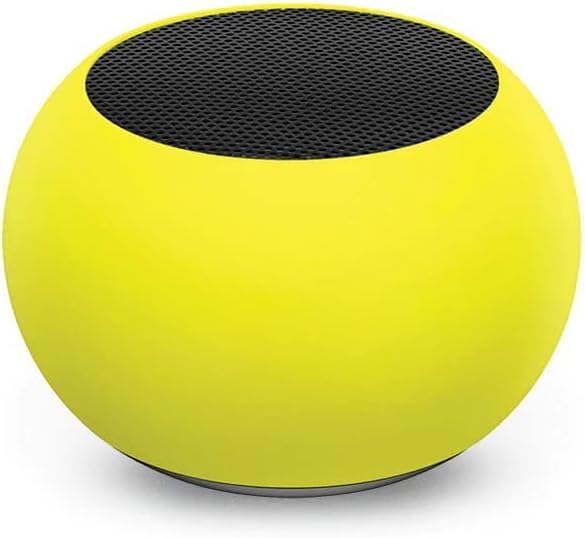
Слика 3.2: Крупен план view of the compact mini Bluetooth speaker, highlighting its design.
3.3. Gel Pads Placement
- Keyboard Wrist Rest: Place the longer gel wrist pad directly in front of your Logitech MK670 keyboard, aligning it to support your wrists while typing.
- Mouse Pad with Wrist Rest: Position the gel mouse pad on your desk where you typically use your mouse. Ensure the integrated wrist rest provides comfortable support for your mousing hand.

Image 3.3: The ergonomic gel wrist pad and gel mouse pad, designed for comfort and support.
4. Упатства за работа
4.1. Употреба на тастатура
- Пишување: The Comfort Wave design provides an ergonomic layout for natural hand and wrist positioning.
- Нумеричка тастатура: Utilize the full-size numeric keypad for efficient data entry.
- Копчиња за кратенки: Access common functions quickly using the dedicated shortcut keys (e.g., media controls, volume, application launch). Refer to the key legends for specific functions.
- Прилагодливи ногарки за навалување: Flip out the tilt legs on the underside of the keyboard to adjust the typing angle for personalized comfort.

Слика 4.1: Страна view of the Logitech MK670 keyboard, illustrating the adjustable tilt legs for ergonomic customization.
4.2. Употреба на глушец
- Посочување и кликнување: Use the mouse for precise cursor control, left-clicks, and right-clicks.
- Лизгање: The scroll wheel allows for smooth navigation through documents and web страници.
- Амбидекстрен дизајн: Глувчето е дизајнирано за удобна употреба и од леваци и од деснаци.
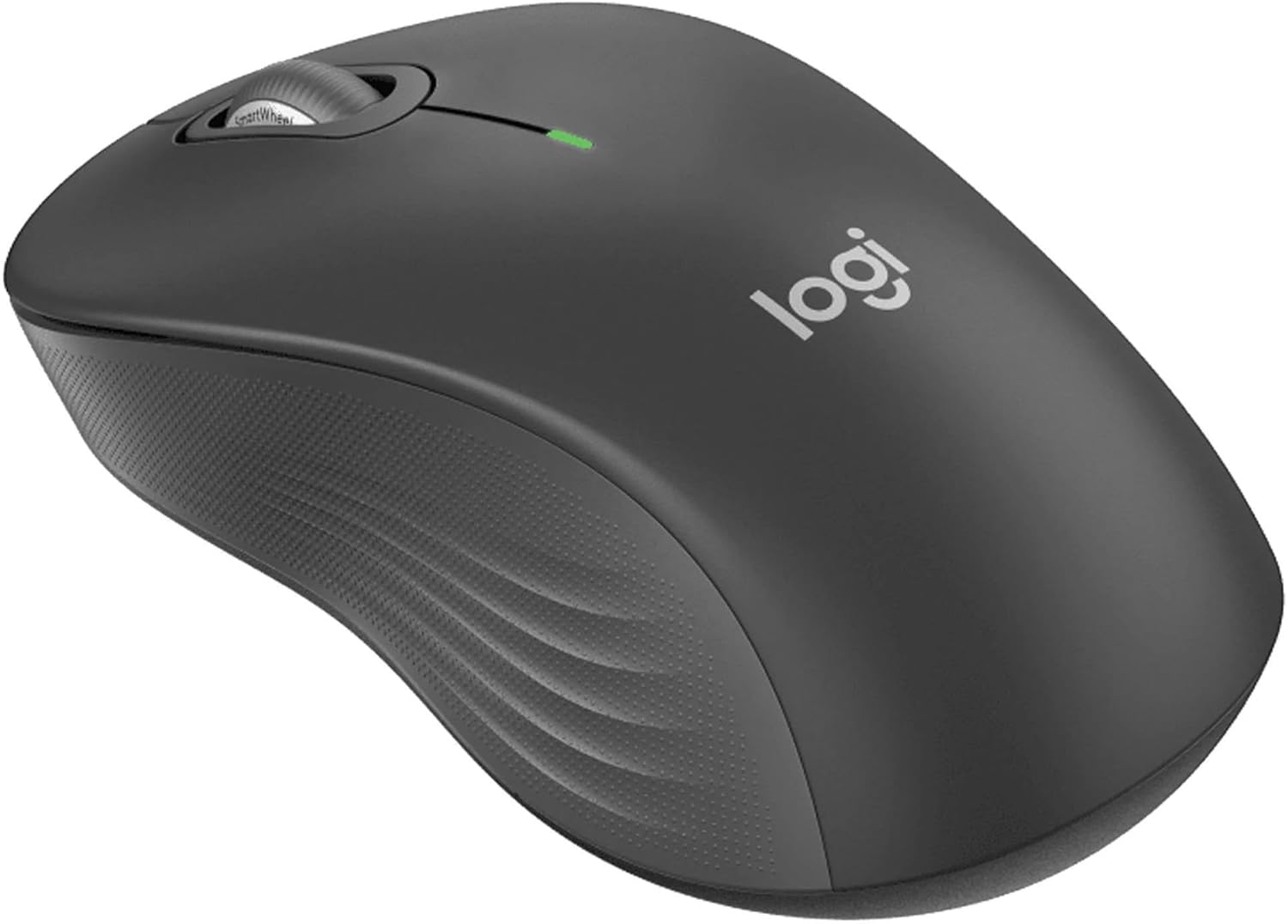
Слика 4.2: Детален view of the Logitech wireless mouse, showcasing its ergonomic shape.
4.3. Mini Bluetooth Speaker Usage
- Вклучување/исклучување: Притиснете и задржете го копчето за вклучување за да го вклучите или исклучите звучникот.
- Спарување на Bluetooth: Once powered on, the speaker will automatically attempt to connect to the last paired device. If not, it will enter pairing mode for new connections (refer to Section 3.2).
- Контрола на јачината на звукот: Volume is typically controlled via the connected device. Some speakers may have integrated volume buttons.
- Selfie Remote: The speaker may feature a remote selfie button. Consult the speaker's specific instructions for activation and use with your device's camera.
- Повикување без раце: With its built-in microphone, the speaker can be used for hands-free calls when connected to a smartphone.
5. Одржување
5.1. Чистење
- Тастатура и глушец: Користете мека крпа без влакненца малку гampened with water or a mild cleaning solution. Avoid harsh chemicals or abrasive materials. For dust between keys, use compressed air.
- Mini Bluetooth Speaker: Wipe the exterior with a soft, dry cloth. Do not immerse in water.
- Gel Pads: Избришете со рекламаamp cloth and mild soap if necessary. Allow to air dry completely before reuse.
5.2. Battery Replacement (Keyboard and Mouse)
When the battery indicator light on your keyboard or mouse signals low power, replace the batteries with new ones of the same type (e.g., AA or AAA). Ensure correct polarity when inserting new batteries.
6 Смена на проблеми
6.1. Тастатурата/глушецот не реагираат
- Проверете ги батериите: Проверете дали батериите се правилно вметнати и имаат доволно полнење. Заменете ги доколку е потребно.
- Прекинувачи за напојување: Verify that both the keyboard and mouse power switches are in the 'ON' position.
- USB-приемник: Ensure the Logitech Unifying USB receiver is securely plugged into a working USB port on your computer. Try a different USB port.
- Близина: Ensure the keyboard and mouse are within the operational range (up to 33 feet) of the USB receiver.
- Повторно спарување: If issues persist, you may need to re-pair the devices using Logitech's Unifying software (downloadable from the Logitech support webстраница).
6.2. Mini Bluetooth Speaker Connection Issues
- Моќност на звучникот: Осигурајте се дека звучникот е наполнет и вклучен.
- Вклучено Bluetooth: Verify Bluetooth is enabled on your source device.
- Заборавете на уредот: On your source device, 'forget' or 'unpair' the speaker from your Bluetooth device list, then attempt to pair again.
- Близина: Keep the speaker and source device within close range (typically 10 meters or 33 feet) for stable connection.
- Пречки: Оддалечете се од други безжични уреди што може да предизвикаат пречки.
6.3. No Sound from Speaker
- Нивоа на гласност: Check the volume on both the speaker and the connected device.
- Излез на изворниот уред: Ensure your device's audio output is set to the Bluetooth speaker.
- Репродукција на медиуми: Verify that media is playing on your source device.
7. Спецификации
| Карактеристика | Детал |
|---|---|
| Бренд | Логитек |
| Модел | MK670 (Keyboard & Mouse Combo) |
| Технологија за поврзување | 2.4GHz Wireless (Keyboard & Mouse), Bluetooth 5.0 (Speaker) |
| Опсег | До 33 стапки (10 метри) |
| Карактеристики на тастатурата | Ergonomic Comfort Wave design, Full-size with numeric keypad, Shortcut keys, Cushioned palm rest, Adjustable tilt legs |
| Карактеристики на глувчето | Ambidextrous design, Precise tracking |
| Димензии на звучникот | 45.45 mm x 33 mm (1.75” x 1.3”) |
| Тежина на звучникот | 2.46 oz |
| Капацитет на батеријата на звучникот | 400 mAh |
| Speaker Playback Time | До 4 часа |
| Speaker Special Features | Magnetic base, Built-in mic, Remote selfie button, Glow in the Dark (Yellow variant) |
| Компатибилни уреди | Laptops, Gaming Consoles (for keyboard/mouse functionality), Bluetooth-enabled devices (for speaker) |
| Item Weight (Bundle) | 4 фунти |
| Димензии на пакетот | 23 x 10 x 10 инчи |
8. Информации за гаранцијата
Logitech products are typically covered by a limited hardware warranty. For specific warranty terms and conditions, including duration and coverage details, please refer to the warranty card included with your product or visit the official Logitech webстраница. Зачувајте го доказот за купување за гаранциски побарувања.
9. Поддршка
For further assistance, technical support, or to download the latest drivers and software for your Logitech products, please visit the official Logitech support webстраница. Таму можете да најдете и најчесто поставувани прашања и форуми на заедницата.
Поддршка на Logitech Webсајт: https://support.logi.com/