
1. Вовед
This manual provides instructions for the installation, operation, and maintenance of your NETGEAR GS305P 5-Port PoE Gigabit Ethernet Unmanaged Switch. This device is designed to expand your network connectivity with both standard Gigabit Ethernet and Power over Ethernet (PoE+) capabilities, ideal for small office or home network environments.
2. Содржина на пакетот
Потврдете дека вашиот пакет ги содржи следниве ставки:
- NETGEAR GS305P 5-Port PoE Gigabit Ethernet Unmanaged Switch (GS305Pv3)
- Адаптер за напојување
- Комплет Волмаунт
- Упатство за брзо инсталирање

Image: The NETGEAR GS305P switch, power adapter, and power cord as typically found in the package.
3. Производот завршиview
The NETGEAR GS305P is an unmanaged switch featuring 5 Gigabit Ethernet ports, with 4 of these ports supporting PoE+ (Power over Ethernet Plus). It provides a total power budget of 63W for connected PoE devices. The switch is designed for plug-and-play operation, requiring no software installation or configuration.
Видео: Оверview of the NETGEAR 5-Port PoE Switch, demonstrating its features and ease of use.
Преден панел

Image: Front panel of the GS305P switch, highlighting the 5 Gigabit Ethernet ports and LED indicators for power, PoE Max, link/activity, and PoE fault.
- Напојување LED: Покажува статус на моќност.
- PoE Max LED: Illuminates when PoE power consumption is near maximum capacity.
- LED диоди за врска/активност (порти 1-5): Green for 1000Mbps link, Yellow for 10/100Mbps link. Blinks to indicate activity.
- PoE Status LEDs (Ports 1-4): Green for PoE powered, Yellow for PoE fault.
- Етернет порти (1-5): RJ-45 ports for network connections. Ports 1-4 support PoE+.
4. Поставување и инсталација
The NETGEAR GS305P switch is designed for simple plug-and-play installation. No software configuration is required.
4.1 Поврзување на прекинувачот
- Connect the power adapter to the switch's power input and then plug the power adapter into an electrical outlet. The Power LED on the switch will illuminate.
- Connect your router or modem to any of the 5 Gigabit Ethernet ports on the switch using an Ethernet cable.
- Connect your network devices (computers, printers, network storage) to the remaining Gigabit Ethernet ports. For PoE-powered devices (e.g., IP cameras, wireless access points), connect them to ports 1-4.

Image: A diagram illustrating the plug-and-play nature of the unmanaged switch, connecting various devices like WiFi Access Points, IP Cameras, Computers, and NAS.
4.2 Опции за монтирање
The GS305P switch can be placed on a desktop or mounted on a wall. A wallmount kit is included for secure installation.
- Поставување на работна површина: Осигурајте се дека прекинувачот е поставен на рамна, стабилна површина со соодветна вентилација.
- Монтирање на Wallид: Use the provided wallmount kit to secure the switch to a wall. Refer to the quick installation guide for detailed steps on wall mounting.
5. Ракување со прекинувачот
Once connected, the switch operates automatically. The LEDs provide visual feedback on the network status.
- Вклучување: The Power LED will be green when the switch is receiving power.
- Network Activity: The Link/Activity LEDs will light up when a device is connected and blink to indicate data transmission.
- Моќта на PoE: For PoE-powered devices, the PoE Status LED will be green when power is being supplied. If a PoE fault occurs, the LED will turn yellow.
- Тивко операција: The fanless design ensures quiet operation, making it suitable for noise-sensitive environments.
6. Одржување
To ensure optimal performance and longevity of your switch, follow these maintenance guidelines:
- Чистење: Користете мека, сува крпа за чистење на надворешноста на прекинувачот. Не користете течни или аеросолни средства за чистење.
- Вентилација: Погрижете се отворите за вентилација да не се блокирани за да се спречи прегревање.
- Животна средина: Operate the switch within its specified temperature and humidity ranges. Avoid direct sunlight or extreme temperatures.
- Управување со кабли: Одржувајте ги мрежните кабли организирани за да спречите оптоварување на портите и да го подобрите протокот на воздух.
7 Смена на проблеми
If you encounter issues with your NETGEAR GS305P switch, refer to the following common troubleshooting steps:
- Без моќност: Ensure the power adapter is securely connected to the switch and a working electrical outlet. Check the Power LED.
- Нема линк/активност: Verify that Ethernet cables are properly connected to both the switch and the connected device. Try a different cable or port. Check the Link/Activity LED.
- PoE уредот не се вклучува: Ensure the device is PoE-compatible and connected to one of the PoE+ ports (1-4). Check the PoE Status LED for the port; a yellow light indicates a fault. Verify the total power budget (63W) is not exceeded by all connected PoE devices.
- Бавна брзина на мрежата: Ensure all connected devices and cables support Gigabit Ethernet for optimal performance. Check for excessive network traffic.
8. Спецификации
Key technical specifications for the NETGEAR GS305P switch:
| Карактеристика | Опис |
|---|---|
| Модел | GS305P (GS305Pv3) |
| Број на пристаништа | 5 гигабитни етернет порти |
| PoE+ Порти | 4 (Ports 1-4) |
| Вкупен буџет за моќност на PoE | 63 W |
| Стапка на пренос на податоци | 1000 Mbps (гигабит) |
| Тип на прекинувач | Неуправувано |
| Материјал на случајот | Метал |
| Димензии (Д x Ш x В) | 9.5" x 6.7" x 3.4" (approximate, from product data) |
| Voltage | 240 Volts (Power adapter input) |
| Оперативна средина | Designed for indoor use in U.S. & CA. |
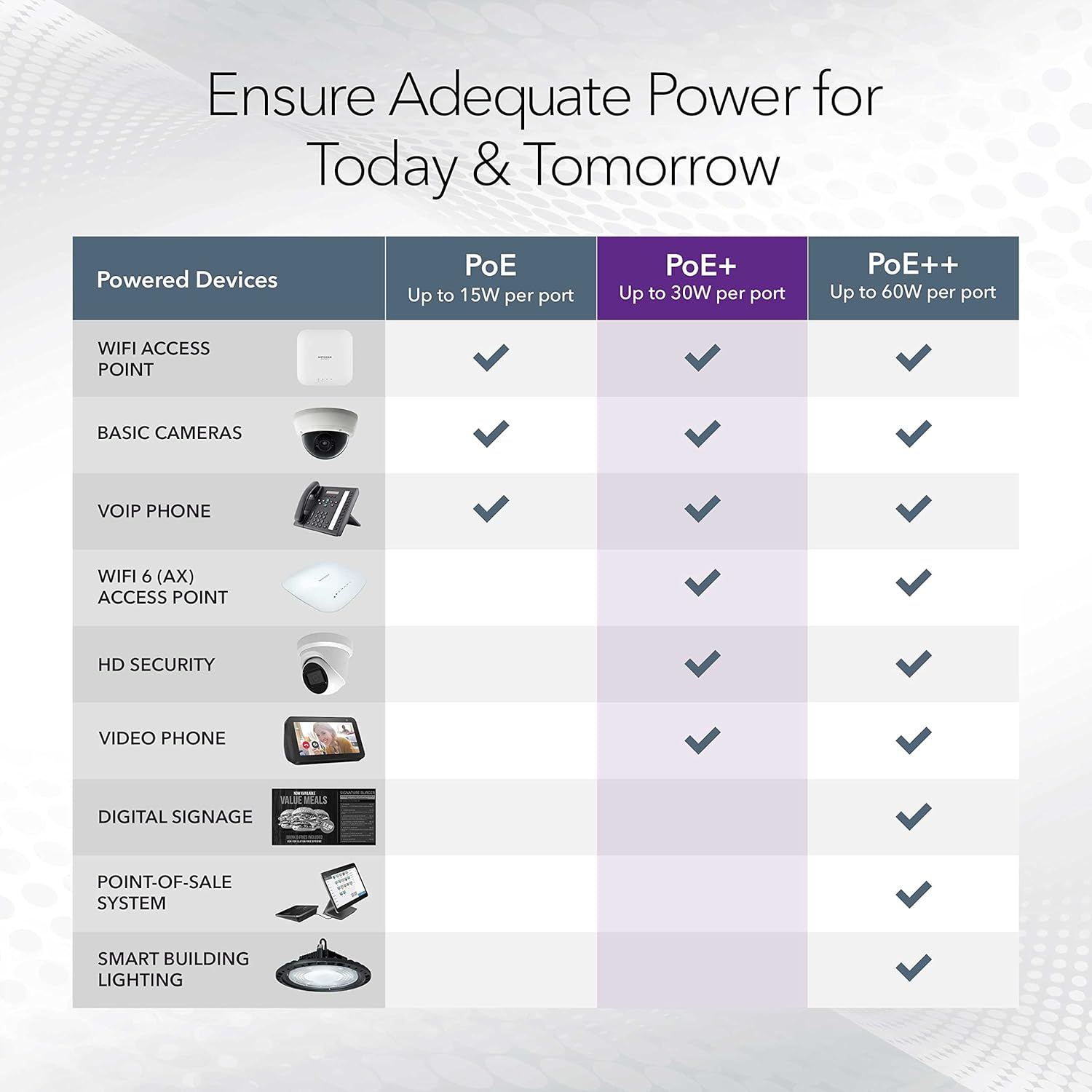
Image: A table illustrating the power capabilities of PoE, PoE+, and PoE++ for different powered devices.
9. Гаранција и поддршка
9.1 Информации за гаранцијата
The NETGEAR GS305P switch comes with an industry-leading 3-годишна ограничена хардверска гаранција. Please retain your proof of purchase for warranty claims. For full warranty terms and conditions, refer to the official NETGEAR webстраницата или документацијата вклучена со вашиот производ.
9.2 Техничка поддршка
For technical assistance, product registration, or to access additional resources, visit the official NETGEAR support website. You can find FAQs, firmware updates, and community forums there.
Поддршка на NETGEAR Webсајт: www.netgear.com/support