
1. Вовед
Welcome to the BOSGAME H77 Mini PC user manual. This guide provides essential information for setting up, operating, maintaining, and troubleshooting your new mini PC. Please read this manual thoroughly to ensure proper usage and to maximize the performance and longevity of your device.
2. Производот завршиview
The BOSGAME H77 is a compact yet powerful mini PC designed for a wide range of applications, from daily productivity to light gaming. It features an AMD Ryzen 7 7735HS processor, 32GB DDR5 RAM, and a 512GB NVMe M.2 SSD, offering high performance in a small form factor.

Figure 2.1: Powerful Performance. This image illustrates the core specifications of the BOSGAME H77 Mini PC, emphasizing its AMD Ryzen 7 7735HS processor with 8 cores, 16 threads, a clock speed range of 3.2 to 4.75GHz, and a Thermal Design Power (TDP) of 35W. A benchmark comparison for Cinebench R23 (Multi-Core) is also shown, positioning the 7735HS favorably against other Ryzen models.

Figure 2.2: Speedy Response. This image highlights the gaming capabilities of the BOSGAME H77 Mini PC, powered by AMD Radeon 680M integrated graphics. It displays estimated frames per second (FPS) for popular games such as League of Legends (148.0 FPS), Fortnite (132.0 FPS), CS:GO (135.0 FPS), Grand Theft Auto (98.0 FPS), and DOTA 2 (178.0 FPS), indicating smooth performance. The image also notes the system's 32GB DDR5 RAM, 512GB SSD, and support for up to 2TB HDD.

Figure 2.3: Triple Screen Display Support. This image demonstrates the BOSGAME H77 Mini PC's ability to support up to three displays simultaneously. It features two HDMI 2.0 ports and one Type-C (USB4.0) port, allowing for a versatile multi-monitor setup suitable for daily tasks, work, and entertainment. Key features like Wi-Fi 6, Bluetooth 5.2, cooling fan with heat sink, and 4K 60Hz support are also highlighted.
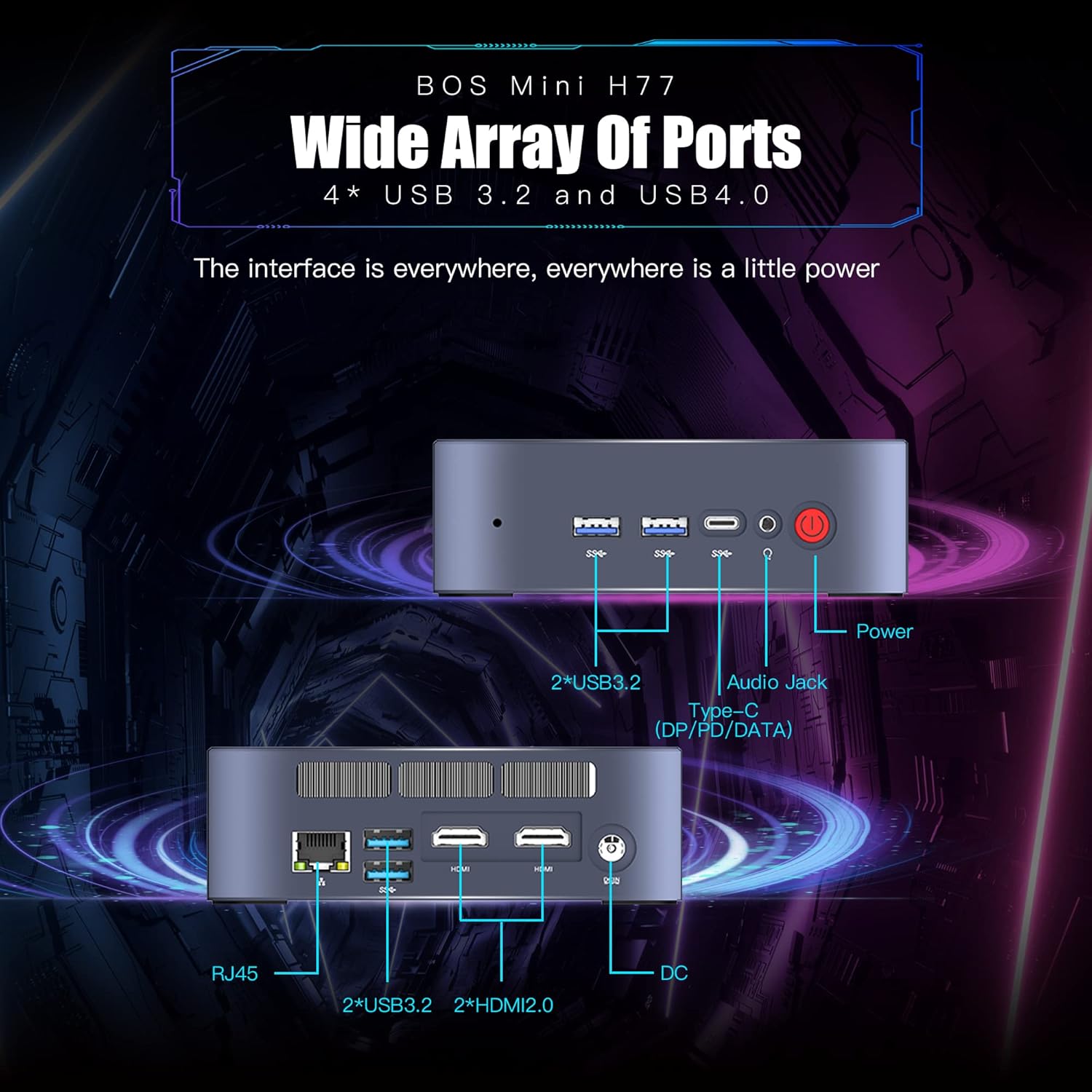
Figure 2.4: Wide Array of Ports. Оваа слика дава детален view of the BOSGAME H77 Mini PC's connectivity options. The front panel includes two USB 3.2 ports, one USB4.0 Type-C port (supporting DP/PD/DATA), an audio jack, and the power button. The rear panel features an RJ45 Ethernet port, two additional USB 3.2 ports, two HDMI 2.0 ports, and the DC power input. This comprehensive selection of ports ensures broad compatibility with various peripherals and displays.

Figure 2.5: Compact Design. This image emphasizes the compact and space-saving design of the BOSGAME H77 Mini PC. With a 0.6L body and dimensions of 126mm (length), 112mm (width), and 40.8mm (height), its honeycomb design is both aesthetically pleasing and functional, allowing it to fit into various environments without occupying much space.
3. Водич за поставување
3.1 Содржина на пакетот
Пред да продолжите, проверете дали сите елементи се присутни во пакувањето:
- BOSGAME H77 Mini PC
- Адаптер за напојување
- HDMI кабел
- Упатство за употреба (овој документ)
3.2 Поврзување на периферни уреди
- Поврзување на дисплеј: Use the provided HDMI cable to connect your monitor to one of the HDMI ports on the rear of the Mini PC. For triple display, connect additional monitors using the second HDMI port and the USB4.0 Type-C port (requires a compatible adapter, not included).
- Поврзете ја тастатурата и глувчето: Plug your USB keyboard and mouse into any available USB 3.2 ports on the front or rear of the Mini PC.
- Поврзете напојување: Поврзете го адаптерот за напојување со влезниот порт за еднонасочна струја на задната страна од мини компјутерот, а потоа вклучете го адаптерот во штекер.
- Мрежна конекција (опционално): For a wired connection, plug an Ethernet cable into the RJ45 port on the rear. For wireless, ensure Wi-Fi is enabled during initial setup or via Windows settings.
3.3 Првично стартување
- Притиснете го копчето за вклучување на предната страна од мини компјутерот. Индикаторското светло за напојување ќе светне.
- Follow the on-screen instructions to complete the Windows 11 Pro setup. This typically involves selecting your region, language, creating a user account, and connecting to a network.
4. Упатства за работа
4.1 Вклучување/исклучување
- Вклучување: Притиснете го копчето за вклучување еднаш.
- Исклучи: Click the Windows Start button, then select Power > Shut down. Do not unplug the power adapter directly without proper shutdown to prevent data loss.
- Рестартирајте: Кликнете на копчето „Старт“ на Windows, потоа изберете Вклучување > Рестартирање.
4.2 Мрежна поврзаност
- Wi-Fi: To connect to a wireless network, click the Wi-Fi icon in the taskbar, select your desired network, and enter the password. The device supports Wi-Fi 6 for fast wireless speeds.
- Етернет: If an Ethernet cable is connected, the system will automatically detect and connect to the wired network.
- Bluetooth: To connect Bluetooth devices (e.g., headphones, speakers), go to Windows Settings > Bluetooth & devices, and pair your device. The Mini PC supports Bluetooth 5.2.
4.3 Користење на USB порти
The BOSGAME H77 features multiple USB 3.2 ports and a versatile USB4.0 Type-C port. These ports can be used for connecting external storage, peripherals, or for data transfer.
- USB 3.2: Provides high-speed data transfer for compatible devices.
- USB4.0 Type-C: This port supports DisplayPort (DP) for video output, Power Delivery (PD) for charging compatible devices, and high-speed data transfer.
4.4 Triple Display Setup
To utilize the triple display feature:
- Connect your primary monitor to one HDMI port.
- Connect your second monitor to the other HDMI port.
- Connect your third monitor to the USB4.0 Type-C port using a compatible USB-C to DisplayPort or USB-C to HDMI adapter (sold separately).
- Once connected, right-click on the desktop, select "Display settings," and configure your displays (extend, duplicate, etc.) as needed.
5. Одржување
5.1 Cleaning the Mini PC
Regular cleaning helps maintain optimal performance and extends the lifespan of your device.
- Надворешност: Use a soft, dry, lint-free cloth to wipe the exterior surfaces. For stubborn marks, slightly dampИзмијте ја крпата со вода. Избегнувајте груби хемикалии.
- Вентилација: Периодично користете компримиран воздух за отстранување на прашината од вентилациските решетки за да се обезбеди правилен проток на воздух и да се спречи прегревање.
5.2 Ажурирања на софтверот
Keep your Windows 11 Pro operating system and drivers updated to ensure security, stability, and performance.
- Ажурирања на Windows: Go to Windows Settings > Windows Update and check for available updates.
- Ажурирања на возачот: Visit the BOSGAME official website for the latest drivers for your H77 Mini PC.
5.3 Управување со складирање
The 512GB NVMe M.2 SSD provides fast storage. To maintain performance:
- Редовно бришете ги непотребните fileи апликации.
- Utilize Windows Disk Cleanup tool to free up space.
- Consider external storage solutions for large files if the internal SSD becomes full.
6 Смена на проблеми
This section addresses common issues you might encounter with your BOSGAME H77 Mini PC.
6.1 Нема струја
- Осигурајте се дека адаптерот за напојување е безбедно поврзан и со мини компјутерот и со функционален штекер.
- Проверете дали штекерот е функционален со вклучување на друг уред.
- Проверете го адаптерот за напојување за видливи оштетувања.
6.2 Нема екран
- Confirm the HDMI cable (or USB-C display cable) is securely connected to both the Mini PC and the monitor.
- Ensure the monitor is powered on and set to the correct input source (HDMI 1, HDMI 2, DisplayPort, etc.).
- Try connecting the Mini PC to a different monitor or TV to rule out monitor issues.
6.3 Проблеми со мрежната поврзаност
- Wi-Fi: Check if Wi-Fi is enabled in Windows settings. Restart your router/modem. Ensure you are within range of your Wi-Fi network.
- Етернет: Verify the Ethernet cable is properly connected. Check your router/modem for internet access.
6.4 Забавување или замрзнување на системот
- Затворете ги непотребните апликации што работат во позадина.
- Проверете го „Управувачот со задачи“ (Ctrl+Shift+Esc) за процеси што трошат голема количина на процесор, RAM или диск.
- Ensure your system is up-to-date with the latest Windows and driver updates.
- Извршете чистење на дискот и проверете за малициозен софтвер.
If you encounter issues not covered here, please refer to the support section for further assistance.
7. Спецификации
| Карактеристика | Спецификација |
|---|---|
| Бренд | BOSGAME |
| Број на модел | H77 |
| Оперативен систем | Windows 11 Pro |
| Модел на процесорот | AMD Ryzen 7 7735HS (8 Cores, 16 Threads) |
| Брзина на процесорот | Up to 4.75 GHz (Base 3.2 GHz) |
| Графички копроцесор | Интегрирана графичка картичка AMD Radeon 680M |
| Големина на инсталирана RAM меморија | 32 GB DDR5 SDRAM |
| Достапни слотови за меморија | 2 |
| Опис на тврдиот диск | 512 GB NVMe M.2 SSD |
| Интерфејс за видео излез | 2x HDMI, 1x USB4.0 Type-C (DP support) |
| Максимална резолуција на екранот | 3840 x 2160 пиксели (4K) |
| Вкупно USB порти | 4x USB 3.2, 1x USB4.0 Type-C |
| Технологија за поврзување | Ethernet, HDMI, LAN, Wi-Fi |
| Безжична компатибилност | Wi-Fi 6 (802.11ax), Bluetooth 5.2 |
| Метод на ладење | Воздух |
| Боја | Црното |
| Дополнителни карактеристики | Читач на мемориски картички |
8. Гаранција и поддршка
Your BOSGAME H77 Mini PC comes with a standard manufacturer's warranty. Please refer to the warranty card included in your package for specific terms and conditions, including warranty duration and coverage details.
For technical support, troubleshooting assistance, or warranty claims, please visit the official BOSGAME webстраницата или контактирајте ја нивната служба за корисници. Чувајте ја сметката за купување и серискиот број на производот при рака кога барате поддршка.