Вовед
This manual provides detailed instructions for setting up, operating, maintaining, and troubleshooting your Generic C4000LZ xDSL Gigabit WiFi Modem Router. Designed for compatibility with Centurylink services, this device offers high-speed internet connectivity for both home and business environments. Please read this manual thoroughly before installation and use.
Производот завршиview
The C4000LZ is a compact and efficient modem router, designed to blend seamlessly into your environment while providing robust internet performance. It features a sleek, vertical design with essential ports located on the rear for a clean setup.
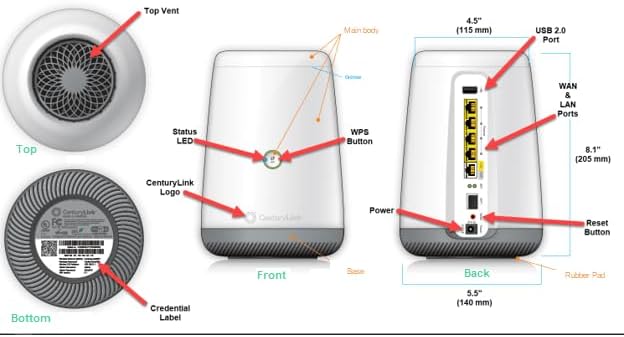
Figure 1: Detailed component diagram of the C4000LZ Modem Router.
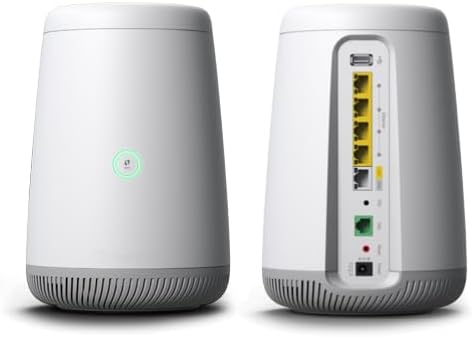
Слика 2: Напред и назад views of the C4000LZ Modem Router.
Клучни компоненти:
- LED статус: Ја означува оперативната состојба на уредот.
- Копче WPS: For quick and secure wireless connection setup.
- USB 2.0 порт: За поврзување на надворешни уреди.
- WAN & LAN Ports: Multiple Gigabit Ethernet ports for wired connections.
- DSL порт: For connecting to your DSL line.
- Влез на енергија: За поврзување на адаптерот за напојување.
- Копче за ресетирање: За враќање на фабричките стандардни поставки.
- Credential Label: Contains important network information (e.g., default Wi-Fi name and password).
Поставување
1. Отпакување и поставување:
- Внимателно отстранете ги сите компоненти од пакувањето.
- Place the modem router in a central location in your home or office, away from obstructions and other electronic devices that may cause interference. Ensure adequate ventilation.
2. Connecting the Modem Router:
- Connect the DSL cable from your wall jack to the DSL port on the back of the C4000LZ.
- If you plan to use wired devices, connect Ethernet cables from your computer or other network devices to the LAN ports on the back of the C4000LZ.
- Connect the power adapter to the Power Input port on the modem router and then plug it into an electrical outlet.
3. Почетна конфигурација:
- Allow a few minutes for the modem router to power on and initialize. The Status LED on the front will change color to indicate its status (typically green when ready).
- For Centurylink users, the device may automatically configure itself. If not, open a web browser on a connected device and follow the on-screen instructions for activation or refer to your Centurylink account information.
- Locate the Wi-Fi network name (SSID) and password on the Credential Label on the bottom of the device. Use these credentials to connect your wireless devices.
Упатства за работа
Wi-Fi поврзување:
- The C4000LZ supports dual-band Wi-Fi (2.4 GHz and 5 GHz) for optimal performance across various devices.
- Connect your devices to the appropriate Wi-Fi network. The 5 GHz band offers faster speeds over shorter distances, while the 2.4 GHz band provides better range.
WPS (заштитено поставување преку Wi-Fi):
- To connect a WPS-compatible device, press the WPS button on the front of the modem router.
- Within two minutes, activate WPS on your device. The device will automatically connect to the Wi-Fi network without needing to enter the password.
Напредни поставки:
- To access advanced settings (e.g., port forwarding, parental controls, guest networks), open a web browser and enter the modem router's IP address (usually found on the Credential Label or in your Centurylink documentation).
- Log in using the administrator username and password (also on the Credential Label).
Одржување
- Одржувајте вентилација: Ensure the modem router is placed in an area with good airflow to prevent overheating.
- Редовни рестартирања: Periodically rebooting your modem router (unplugging for 30 seconds and plugging back in) can help resolve minor connectivity issues and improve performance.
- Ажурирања на фирмверот: Check the manufacturer's or Centurylink's webстраница за достапни ажурирања на фирмверот за да се обезбедат оптимални перформанси и безбедност.
- Чистење: Gently wipe the exterior with a soft, dry cloth. Avoid using liquid cleaners or abrasive materials.
Решавање проблеми
Нема интернет конекција:
- Проверете ги сите кабли за поврзување (DSL, Ethernet, напојување) за да се осигурате дека се безбедни.
- Verify the Status LED. If it's not green, refer to the LED indicator guide in your Centurylink documentation or online resources.
- Reboot the modem router.
- Contact your internet service provider (Centurylink) if the issue persists.
Бавна брзина на Wi-Fi:
- Ensure your device is connected to the 5 GHz band if available and within close range.
- Reduce interference by moving the modem router away from other electronics (e.g., cordless phones, microwaves).
- Consider the number of devices connected. Too many active devices can reduce overall speed.
Не можам да пристапам до поставките на рутерот:
- Осигурајте се дека вашиот уред е поврзан со мрежата на рутерот (жичен или безжичен).
- Double-check the IP address and login credentials.
- Пробајте поинаку web прелистувач.
Ресетирање на фабрички поставки:
- If all other troubleshooting steps fail, you may need to reset the modem router to its factory default settings.
- With the modem router powered on, use a paperclip or similar pointed object to press and hold the Reset Button for approximately 10-15 seconds until the lights flash.
- Note: Resetting will erase all custom settings, and you will need to reconfigure the device.
Спецификации
| Карактеристика | Детал |
|---|---|
| Име на моделот | C4000LZ |
| Бренд | Генерички |
| Производител | Зиксел |
| Димензии на производот | 4 x 5 x 9 инчи |
| Тежина на ставката | 2 фунти |
| Технологија за поврзување | Етернет |
| Стандард за безжична комуникација | 802.11ac |
| Класа на фреквентен опсег | Двобенд |
| Специјална карактеристика | WPS |
| Компатибилни уреди | Личен компјутер |
| Препорачана употреба | Бизнис, Дом |
| Боја | Црно или бело |
| Тип на антена | Внатрешна |
Гаранција и поддршка
For warranty information and technical support, please refer to the documentation provided with your purchase or contact your internet service provider (Centurylink) directly. You may also visit the manufacturer's (Zyxel) website for additional resources and support options.
