
1. Производот завршиview
This product is a high-quality touch screen digitizer glass designed for the Mediacom Smartpad 10 Azimut 3 Lite M-SP1AZ3L tablet. It serves as a replacement part for defective, broken, cracked, or damaged touch screens, restoring full touch functionality to your device.
Главните карактеристики вклучуваат:
- High-quality touch screen digitizer.
- Comes with pre-cut adhesive on the back for easier installation.
- Designed for precise fit and function with the specified tablet model.
2. Важни размислувања пред инсталацијата
Before proceeding with the replacement, it is crucial to verify compatibility and ensure you have the correct part. Tablet models, even those with similar names, can sometimes use different internal components.
- Verify Connector Cable: Always open your tablet and visually inspect the touch screen connector cable and its code number. There can be variations in connector cables for the same tablet model.
- Match Part Numbers: Ensure that the replacement part number matches the part you are replacing to guarantee compatibility.
- Тестирање пред испорака: Each screen is tested before shipment to ensure functionality.
3. Водич за поставување и инсталација
Replacing a tablet screen requires careful handling and appropriate tools. If you are not confident in performing this repair, it is recommended to seek professional assistance.
3.1 Подготовка
- Power off your Mediacom Smartpad 10 Azimut 3 Lite completely.
- Gather necessary tools, which typically include a heat gun or hairdryer, plastic prying tools, small screwdrivers, and tweezers.
- Работете во чиста, добро осветлена и без статички електрицитет средина.
3.2 Removing the Damaged Digitizer
- Carefully apply heat to the edges of the tablet's screen to soften the adhesive holding the digitizer in place.
- Using a plastic prying tool, gently separate the damaged digitizer from the tablet frame. Start from a corner and work your way around.
- Once the digitizer is loose, carefully disconnect the flex cable from the tablet's motherboard.
- Remove any remaining adhesive residue from the tablet frame.
3.3 Installing the New Digitizer
- Before fully installing, connect the new digitizer's flex cable to the motherboard and power on the tablet to test its functionality (touch response, display). Power off the tablet after testing.
- Carefully peel off the protective film from the pre-cut adhesive on the back of the new digitizer.
- Align the new digitizer precisely with the tablet frame.
- Gently press down along the edges to secure the digitizer in place, ensuring the adhesive bonds properly.
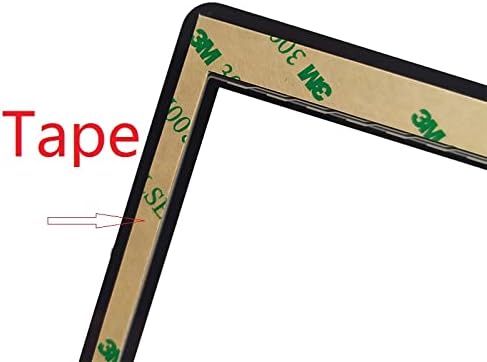
Image 1: Detail of the pre-cut adhesive tape along the digitizer's edge, ready for installation.
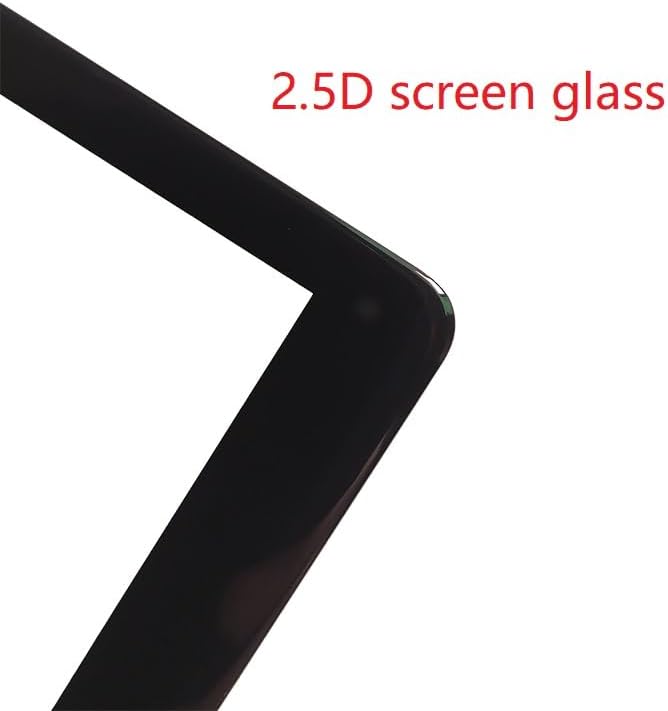
Image 2: Illustration of the 2.5D screen glass, indicating a slight curve at the edges for a smooth finish.
4. Упатства за работа
After successful installation, the tablet's touch screen functionality should be fully restored. Power on your device and test all areas of the screen for touch responsiveness and accuracy. Ensure multi-touch gestures work as expected.
5. Одржување
To prolong the life of your new digitizer and maintain optimal performance:
- Clean the screen regularly with a soft, lint-free cloth, preferably microfiber, and a screen-safe cleaning solution.
- Avoid using harsh chemicals or abrasive materials that could damage the screen coating.
- Consider using a screen protector for added scratch resistance.
- Protect the tablet from drops and impacts, which can damage the digitizer.
6 Смена на проблеми
Ако наидете на проблеми по инсталацијата, разгледајте го следново:
- Без одговор на допир: Ensure the flex cable is securely and correctly connected to the motherboard. Re-seat the connector if necessary.
- Partial Touch Response: This could indicate a loose connection or a faulty digitizer. Double-check the connection.
- Ghost Touches/Erratic Behavior: Ensure there is no debris or static interference. A factory reset (after backing up data) might resolve software-related issues.
- Screen Not Sticking: Ensure the tablet frame was thoroughly cleaned of old adhesive and that the new adhesive was properly pressed.
If problems persist, it may indicate a faulty replacement part or an underlying issue with the tablet's motherboard. Contact customer support for further assistance.
7. Спецификации
| Бренд | Генерички |
| Компатибилен модел | Mediacom Smartpad 10 Azimut 3 Lite M-SP1AZ3L |
| Тип на дел | Touch Screen Digitizer Glass |
| Боја | Црното |
| ASIN | B0CLD3624W |
8. Гаранција и поддршка
This product is typically covered by a return policy allowing for refund or replacement within 30 days of purchase, subject to the seller's terms and conditions. Please refer to your purchase documentation for specific warranty details and return procedures.
For technical support or assistance with installation, please contact the seller or a qualified repair technician.