
1. Вовед
This manual provides essential instructions for the safe and efficient use of your Brother DCP-L2605DW Auto Duplex Laser Printer. This multifunction device offers print, scan, and copy capabilities, designed for home and small office environments. Please read this manual thoroughly before operating the printer and keep it for future reference.

Image: The Brother DCP-L2605DW multifunction laser printer, a compact device for printing, scanning, and copying.
2. Што има во кутијата
Проверете дали сите компоненти се присутни во пакувањето:
- Brother DCP-L2605DW Laser Printer Unit
- Кабел за напојување
- USB кабел
- ЦД за инсталација (за драјвери и софтвер)
- Inbox Toner Cartridge (TN-2570XL, approximately 3000 pages yield)
3. Поставување
3.1 Распакување и почетно поставување
Carefully remove the printer from its packaging. Place the printer on a stable, flat surface with adequate ventilation. Ensure sufficient space around the printer for paper trays and cable connections.
3.2 Инсталација на кертриџ за тонер
- Отворете го предниот капак на печатачот.
- Извадете го склопот на барабанот и кертриџот за тонер од неговата заштитна кеса.
- Gently shake the toner cartridge horizontally several times to distribute the toner evenly.
- Вметнете ја касетата со тонер цврсто во единицата на барабанот додека не се заклучи на своето место.
- Вратете го склопот на барабанот и касетата со тонер назад во печатачот.
- Затворете го предниот капак.
3.3 Ставање хартија
- Извлечете ја фиоката за хартија целосно од печатачот.
- Прилагодете ги водилките за хартија за да одговараат на големината на хартијата што ја вчитувате.
- Load up to 250 sheets of paper (up to 163 GSM) into the tray. Ensure the paper is flat and not curlед.
- Нежно турнете ја фиоката за хартија назад во печатачот додека не кликне на своето место.
3.4 Поврзување за напојување
Connect the power cable to the printer and then to a grounded electrical outlet. Turn on the printer using the power button.
3.5 Опции за поврзување
Your printer supports multiple connectivity methods:
- USB 2.0: Connect the printer directly to your computer using the provided USB cable.
- Етернет (LAN): Connect the printer to your network router or switch using an Ethernet cable for wired network access.
- Wi-Fi (Wireless LAN): Connect the printer to your wireless network. Follow the on-screen instructions on the printer's LCD display to configure Wi-Fi settings.
- Wi-Fi Direct: Allows direct connection from mobile devices without a router. Refer to the printer's LCD menu for Wi-Fi Direct setup.
3.6 Инсталација на драјвери и софтвер
Insert the included Installation CD into your computer's CD-ROM drive and follow the on-screen instructions to install the necessary drivers and software. Alternatively, download the latest drivers from the official Brother support webсајт.
Видео: Краток прегледview of the Brother DCP-L2605DW printer, highlighting its features and specifications. This video provides a visual summary of the product's capabilities and design.
4. Упатства за работа
4.1 Печатење документи
За печатење од вашиот компјутер или мобилен уред:
- Проверете дали печатачот е вклучен и поврзан со вашиот уред или мрежа.
- Отворете го документот или сликата што сакате да ја испечатите.
- Изберете Печати од менито на апликацијата.
- Изберете Brother DCP-L2605DW as your printer.
- Adjust print settings such as paper size, orientation, and number of copies.
- За Automatic Duplex Printing (2-sided printing), select the duplex option in your printer settings.
- Кликнете Печати.

Image: Icon representing automatic duplex printing, a feature that allows printing on both sides of the paper automatically.
4.2 Скенирање документи
You can scan documents using the flatbed scanner:
- Ставете го документот со лицето надолу на стаклото од скенерот.
- From your computer, open the Brother ControlCenter software or a compatible scanning application.
- Изберете Скенирајте and choose your desired scan settings (e.g., resolution, color mode, destination).
- Initiate the scan. The scanned image will be saved to your specified location.
4.3 Копирање документи
To make copies directly from the printer:
- Ставете го документот со лицето надолу на стаклото од скенерот.
- Use the control panel on the printer to select Копирај.
- Adjust settings such as number of copies, enlarge/reduce, and quality.
- Притиснете го Започнете копчето за да започне копирањето.
4.3.1 2-in-1 (ID) Copy Function
This feature allows you to copy both sides of an ID card onto a single sheet of paper.
- Place the ID card on the scanner glass, aligning it with the indicated marks.
- Притиснете го 2 во 1 (ID) Копија копче на контролната табла.
- Follow the prompts on the LCD display to scan the first side, then flip the card and scan the second side.
- The printer will print both sides onto one page.

Image: Close-up of the printer's control panel, highlighting the '2 in 1 (ID) Copy' button for convenient ID card copying.
5. Одржување
5.1 Замена на касетата со тонер
When the 'Toner Low' or 'Replace Toner' message appears on the LCD, it's time to replace the toner cartridge.
- Отворете го предниот капак на печатачот.
- Remove the drum unit and old toner cartridge assembly.
- Press the release lever on the drum unit and remove the old toner cartridge.
- Unpack the new TN-2570XL toner cartridge and gently shake it.
- Insert the new toner cartridge into the drum unit until it clicks.
- Slide the drum unit and new toner cartridge assembly back into the printer.
- Затворете го предниот капак.
5.2 Чистење на печатачот
Редовното чистење помага во одржувањето на квалитетот на печатењето и го продолжува животниот век на печатачот.
- Надворешност: Избришете ја надворешноста на печатачот со мека крпа што не остава влакненца.
- Стакло за скенер: Чистете го стаклото на скенерот со мека, сува крпа. За тврдокорни дамки, нанесете мала количина средство за чистење стакло на крпата (не директно на стаклото).
- Корона жица: Periodically clean the corona wire inside the drum unit by sliding the green tab from left to right several times. Return the tab to its home position.
5.3 Расчистување на заглавена хартија
If a paper jam occurs, the printer's LCD will display an error message. Follow the on-screen instructions or refer to the full user guide for detailed steps to clear the jam from various locations (e.g., paper tray, fuser unit, back cover).
6 Смена на проблеми
This section addresses common issues you might encounter. For more detailed troubleshooting, refer to the comprehensive user manual or Brother's support webсајт.
- Печатачот не реагира: Check power connections, USB/Ethernet cables, and Wi-Fi status. Restart the printer and computer.
- Лош квалитет на печатење: Check toner levels. Clean the corona wire. Ensure correct paper type and quality settings.
- Заглавување на хартија: Follow the instructions in Section 5.3 to clear any jammed paper. Ensure paper is loaded correctly and not overfilled.
- Проблеми со мрежната поврзаност: Verify Wi-Fi password, network cable connection, and router status. Try restarting your router and printer.
- Проблеми со возачот: Reinstall printer drivers from the installation CD or Brother's webсајт.
7. Спецификации
| Карактеристика | Опис |
|---|---|
| Тип на печатач | Монохроматски ласер |
| Функции | Печатете, скенирајте, копирајте |
| Брзина на печатење (монохроматски) | До 30 стр./мин. (страници во минута) |
| Резолуција за печатење | До 1200 x 1200 dpi |
| Дуплекс печатење | Автоматски (двострано) |
| Поврзување | Hi-Speed USB 2.0, Ethernet, Wi-Fi (IEEE 802.11a/b/g/n), Wi-Fi Direct |
| Меморија | 256 MB |
| Капацитет за влез на хартија | 250 листови (стандарден послужавник) |
| Видови медиуми | Обична хартија |
| Големини на медиумите | A4, Letter, B5 (JIS), B5 (ISO), A5, A6, Executive, Legal, Folio, etc. |
| Тип на скенер | Рамен кревет |
| Copy Speed (Monochrome) | Up to 30 cpm (copies per minute) |
| Димензии (Д x Ш x В) | 39.9D x 41W x 27.2H сантиметри |
| Тежина | 10.1 килограми |
| Компатибилен ОС | Windows, Mac, Linux |
| Мобилна компатибилност | Андроид, iOS |
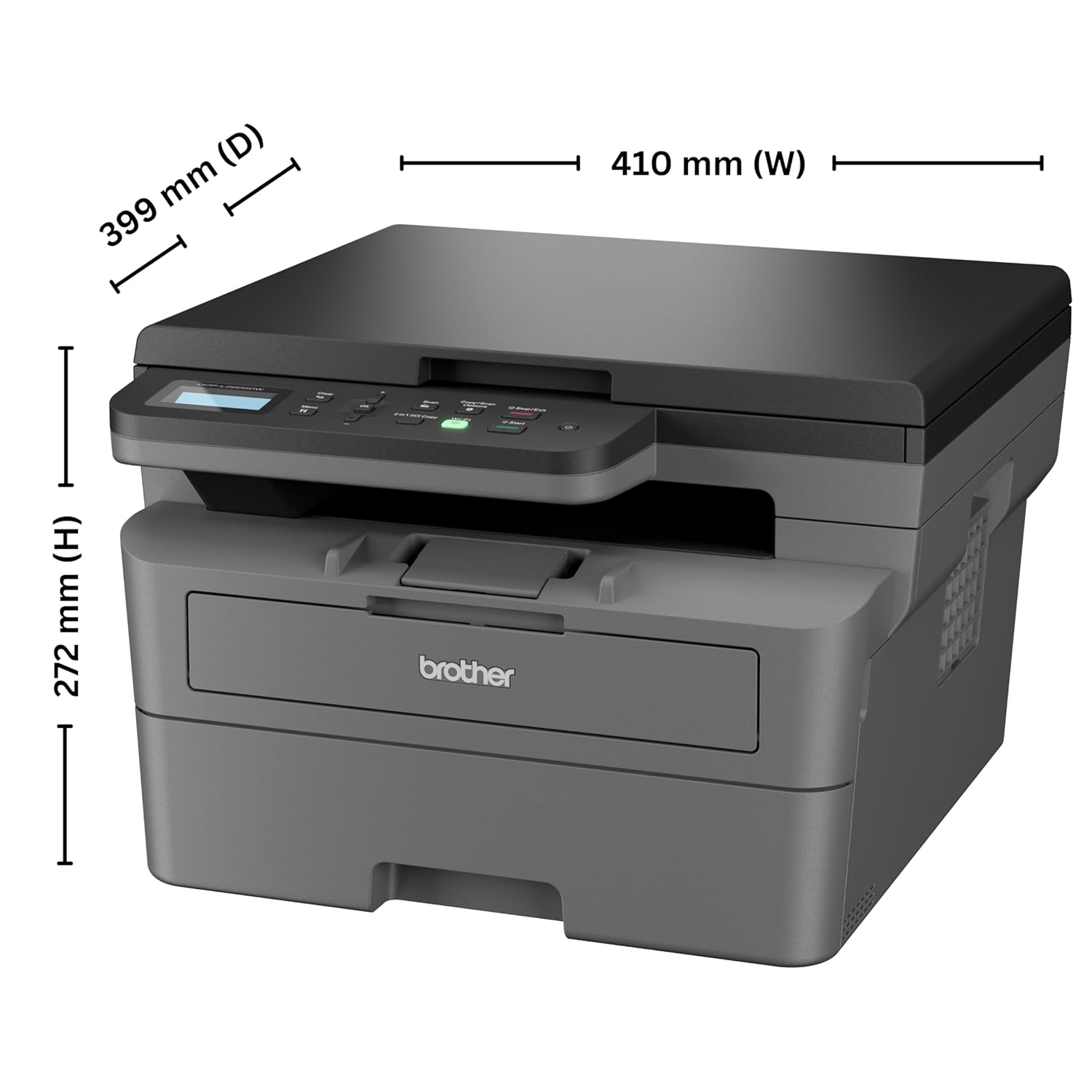
Image: Diagram showing the dimensions of the Brother DCP-L2605DW printer: 399 mm (D), 410 mm (W), 272 mm (H).
8. Информации за гаранцијата
Your Brother DCP-L2605DW printer comes with a 1 години гаранција на производителот. Please retain your purchase receipt as proof of purchase for warranty claims. For detailed terms and conditions, refer to the warranty card included with your product or visit the official Brother webсајт.
9. Поддршка и контакт
For technical assistance, product inquiries, or service requests, please contact Brother support:
- Бесплатни броеви:
- 1-800-222-422 (За корисници на MTNL и BSNL)
- 1-800-209-8904 (За други и сите мобилни телефони)
Operating Hours: Monday to Friday - 8:30 AM - 6:30 PM | Saturday - 9:00 AM - 6:00 PM
- Поддршка за е-пошта: customercare@brother.in
- Поддршка за WhatsApp: 7045 450 450
- Службен Webсајт: www.brother.in

Image: Graphic displaying Brother's customer support contact details, including toll-free numbers, email, WhatsApp, and webсајт.