
Вовед
The Logitech Zone 305 is a wireless Bluetooth headset designed for business professionals. It offers clear audio and reliable connectivity for calls and video meetings, certified for platforms like Google Meet, Google Voice, and Zoom. This manual provides essential information for setting up, operating, and maintaining your headset.

Image: The Logitech Zone 305 wireless headset shown alongside its retail packaging.
Што има во кутијата
Проверете дали сите компоненти се присутни во пакувањето:
- Безжични слушалки Logitech Zone 305
- USB-C ресивер
- Адаптер USB-C на USB-A
- USB-C кабел за полнење
- Патничка торба
- Упатство за употреба (овој документ)
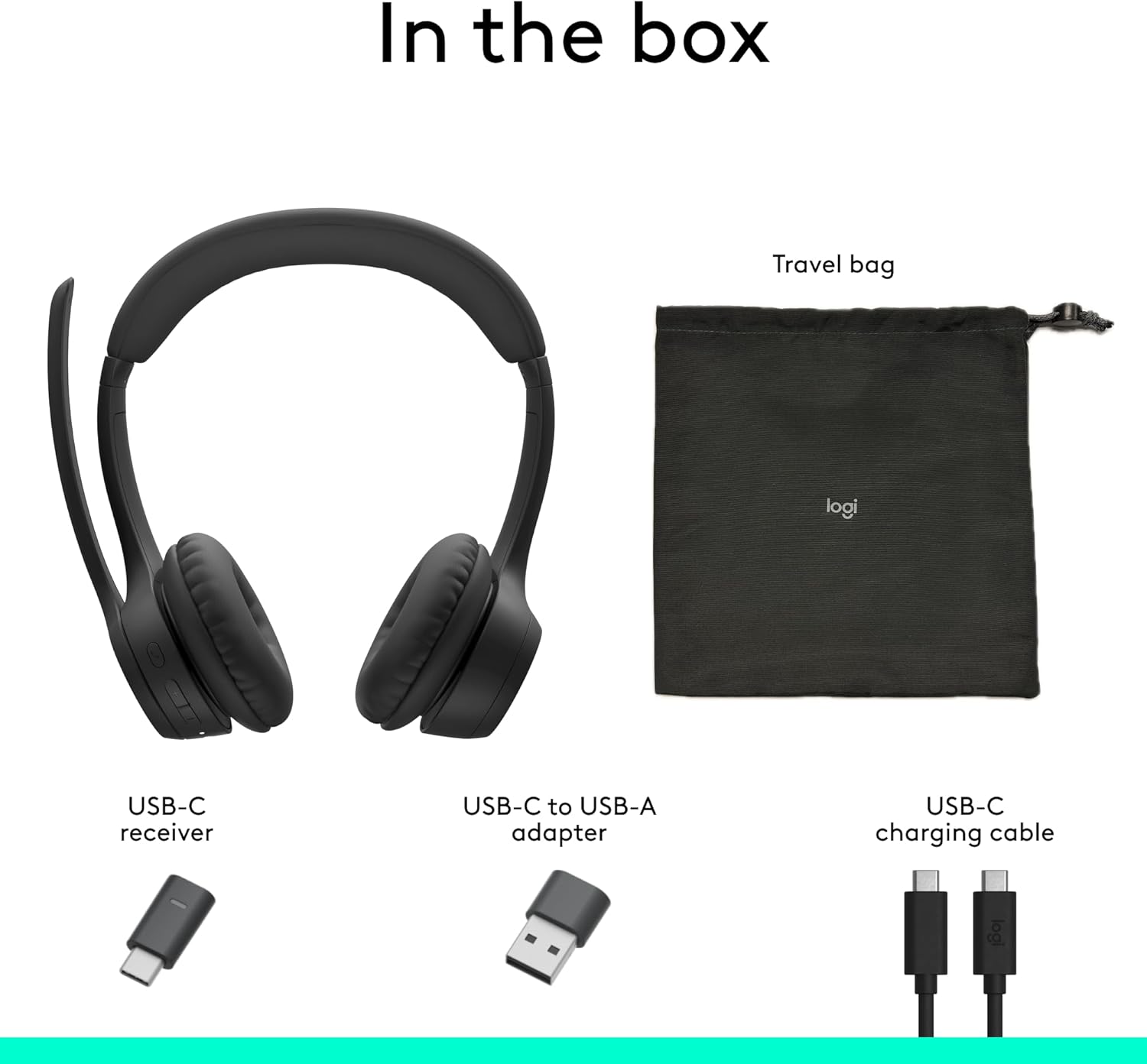
Image: A visual representation of all items included in the Logitech Zone 305 product box, including the headset, cables, and travel bag.
Поставување
Полнење на слушалките
Before first use, fully charge your Zone 305 headset. Connect the USB-C charging cable to the headset's USB-C port and the other end to a power source (e.g., computer USB port, wall adapter). The LED indicator on the headset will show charging status.

Image: A detailed diagram highlighting various features of the Logitech Zone 305 headset, including the USB-C charging port.
Поврзување преку USB приемник
- Insert the USB-C receiver into an available USB-C port on your computer. If your computer only has USB-A ports, use the provided USB-C to USB-A adapter.
- Вклучете ги слушалките Zone 305.
- The headset should automatically connect to the receiver. A solid LED indicator on the headset confirms a successful connection.
Поврзување преку Bluetooth
- Вклучете ги слушалките Zone 305.
- Press and hold the Bluetooth pairing button on the headset until the LED indicator flashes rapidly, indicating pairing mode.
- On your device (computer, smartphone, tablet), navigate to Bluetooth settings and select "Logitech Zone 305" from the list of available devices.
- Once connected, the LED indicator on the headset will turn solid.
The headset can maintain a reliable connection to two devices simultaneously with a wireless range of up to 30 meters.
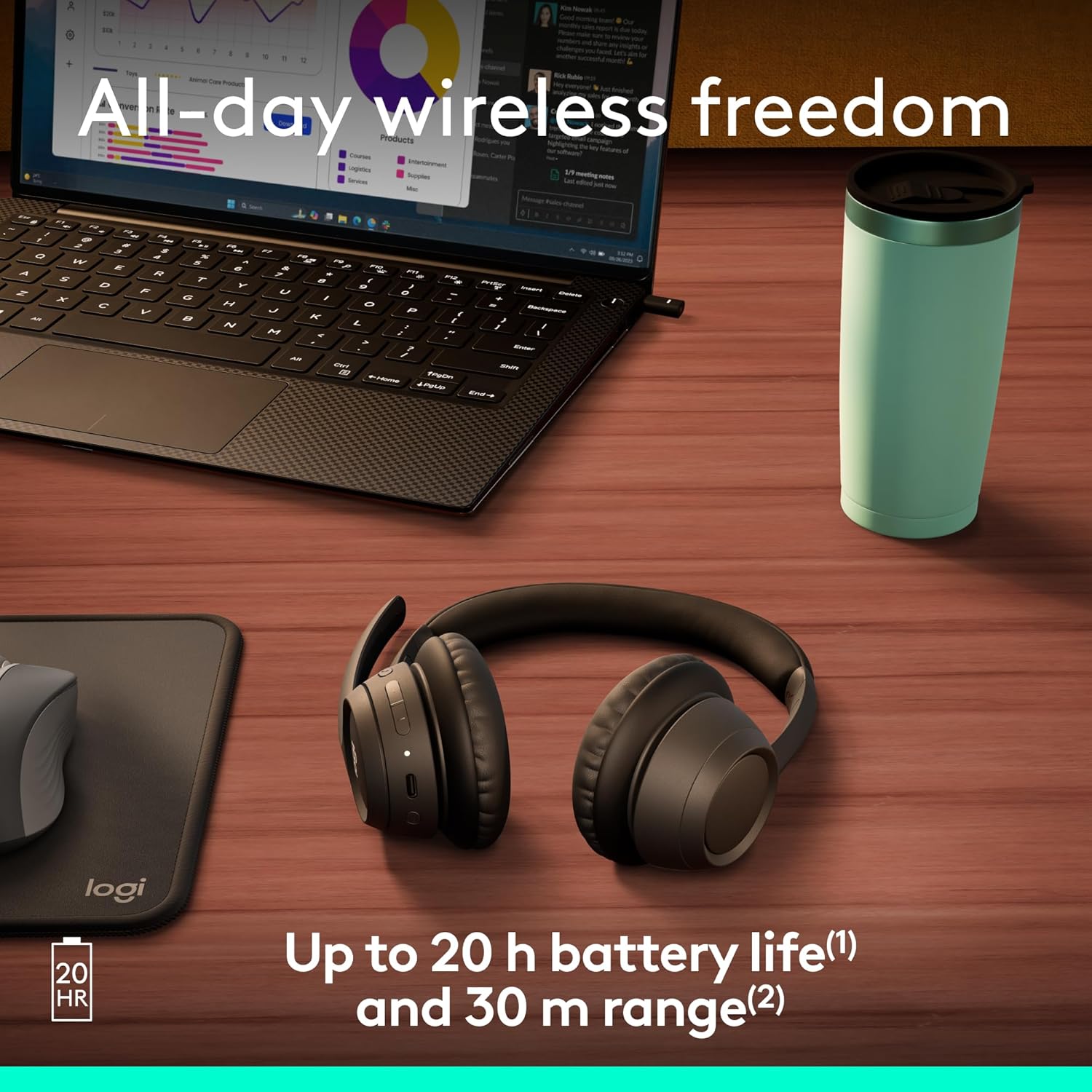
Image: The Logitech Zone 305 headset positioned on a wooden desk, illustrating its wireless capability next to a laptop.
Упатства за работа
Основни контроли
- Вклучување/исклучување: Притиснете и задржете го копчето за вклучување.
- Контрола на јачината на звукот: Користете ги копчињата за зголемување на јачината на звукот (+) и намалување на јачината на звукот (-) што се наоѓаат на слушалките.
- Пушти/Пауза: Притиснете го копчето за повеќе функции еднаш.
- Одговори/заврши повик: Притиснете го повеќефункционалното копче еднаш за време на дојдовен повик или активен повик.
- Одбијте го повикот: Притиснете и задржете го повеќефункционалното копче за време на дојдовен повик.
Употреба на микрофон
The Zone 305 features a flip-to-mute boom microphone with dual noise-canceling mics for clear voice capture.
- Исклучи/вклучи звук: Flip the microphone boom arm up to mute, and flip it down to unmute.
- Позиционирање: For optimal voice clarity, position the microphone approximately two fingers' width from your mouth.

Слика: Крупен план view of the microphone boom on the Logitech Zone 305 headset, highlighting the dual noise-canceling microphone elements.
Compatibility and Certifications
The Zone 305 is certified for use with Google Meet, Google Voice, and Zoom, ensuring seamless integration and optimal performance with these communication platforms. It is also compatible with Windows, Mac, Chrome, Linux, iOS, iPadOS, and Android operating systems.
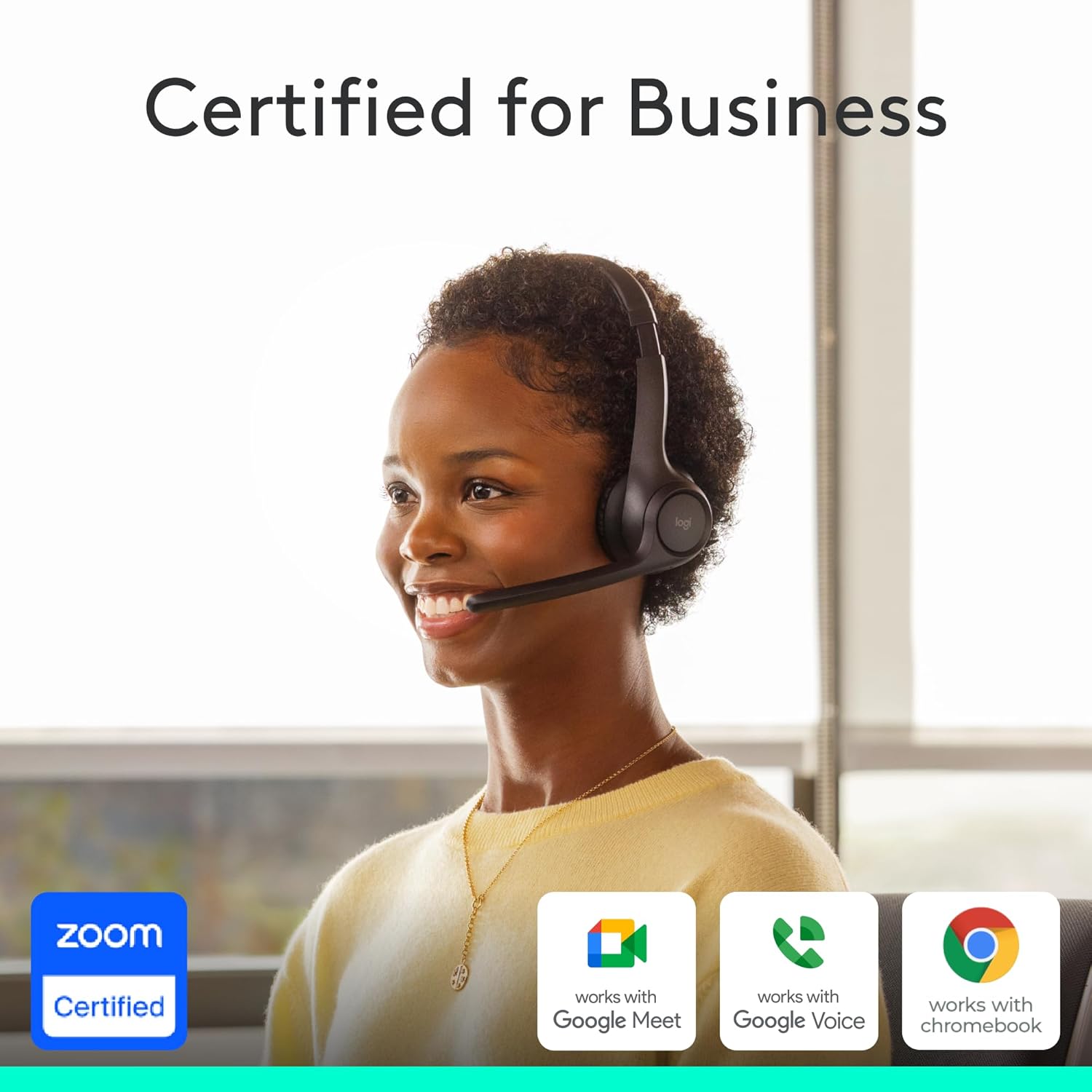
Image: A person wearing the Logitech Zone 305 headset, with logos indicating certification for Zoom, Google Meet, Google Voice, and Works With Chromebook.
Одржување
Чистење
- Избришете ги слушалките со мека, дamp крпа.
- Не користете абразивни средства за чистење или растворувачи.
- Ensure the USB-C charging port is free of dust and debris.
Замена на перничиња за уши
The earpads on the Zone 305 are replaceable to extend the product's life. Contact Logitech support for replacement parts and instructions.
Складирање
When not in use, store the headset in the provided travel bag to protect it from dust and damage.

Image: The Logitech Zone 305 headset resting on a minimalist white stand, demonstrating its lightweight design.
Решавање проблеми
- Нема аудио:
- Ensure the headset is powered on and connected to your device.
- Check your device's volume settings and ensure the headset is selected as the audio output.
- Verify the headset is not muted.
- Микрофонот не работи:
- Уверете се дека стрелката на микрофонот е префрлена надолу и не е исклучена.
- Check your device's sound settings to ensure the headset microphone is selected as the input device.
- Restart your communication application (e.g., Zoom, Google Meet).
- Проблеми со поврзувањето:
- Ensure the headset is within the 30-meter wireless range of your device.
- Try re-pairing the headset via Bluetooth or re-inserting the USB receiver.
- Ensure there are no strong interfering signals (e.g., other wireless devices) nearby.
- Краток век на батеријата:
- Ensure the headset is fully charged before use. Battery life is up to 20 hours listening time and 16 hours talk time.
- A 5-minute quick charge provides up to 1 hour of talk time.
Спецификации
| Карактеристика | Детал |
|---|---|
| Име на моделот | Зона 305 |
| Број на модел на ставка | 981-001452 |
| Технологија за поврзување | Безжичен (Bluetooth) |
| Опсег | До 30 метри (100 стапки) |
| Траење на батеријата (слушање) | До 20 часа |
| Живот на батеријата (време за разговор) | До 16 часа |
| Брзо полнење | 5 minutes charge for 1 hour talk time |
| Тип на микрофон | Dual noise-canceling mics on flip-to-mute boom |
| Тежина | 122 грама (4.3 унци) |
| Материјал | Plastic (55% Post-Consumer Recycled Plastic) |
| Компатибилност | Windows, Mac, Chrome, Linux, iOS, iPadOS, Android |
| Сертификати | Google Meet, Google Voice, Zoom, Works With Chromebook |
Гаранција и поддршка
Logitech products are designed for reliability and performance. For warranty information, please refer to the warranty card included with your product or visit the official Logitech support webсајт.
For technical assistance, frequently asked questions, and driver downloads, please visit the Поддршка на Logitech Webсајт. You can also manage device usage and firmware updates via Logitech Sync.

Image: Two individuals working in an office setting, one utilizing the Logitech Zone 305 headset, illustrating its use in a business environment and manageability with Logitech Sync.