
Вовед
This manual provides essential instructions for the setup, operation, maintenance, and troubleshooting of your MUNBYN ITP02 Portable Thermal Printer. The ITP02 is a compact, inkless thermal printer designed for convenient printing of documents up to 8.5"x11" (US Letter) and A4 sizes, compatible with Android, iOS, and Windows devices.
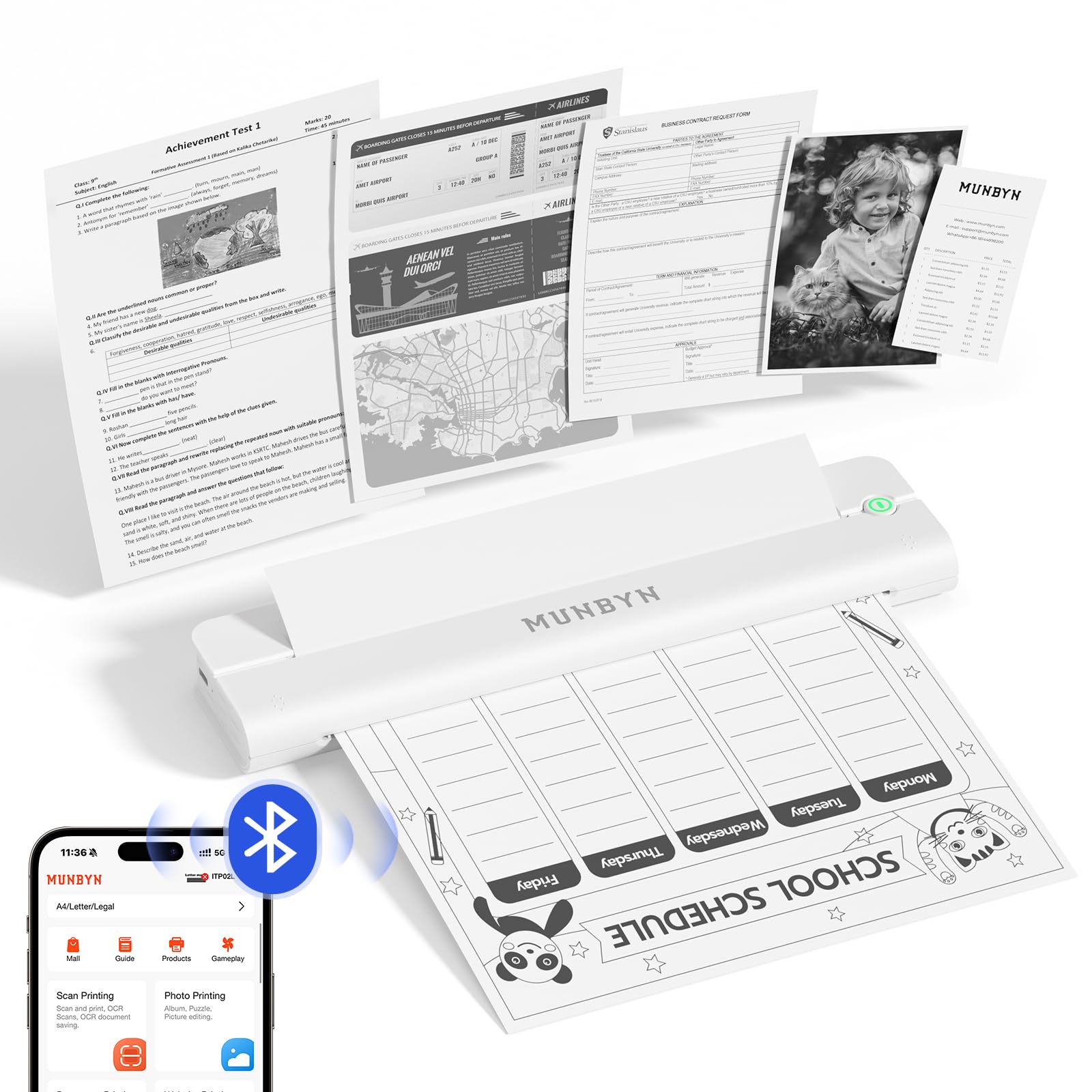
Figure 1: The MUNBYN ITP02 printer demonstrating its ultra-portable design and printing capabilities.
Поставување
1. Откачување и првична проверка
Carefully remove all components from the packaging. Verify that all items are present: the MUNBYN ITP02 printer, a USB-C charging cable, and a user manual. Inspect the printer for any visible damage.
Видео 1: Оверview of the MUNBYN ITP02 Portable Thermal Printer, showcasing неговите карактеристики и компактен дизајн.
2. Вклучување и полнење
Press and hold the power button for 3 seconds to turn on the printer. The power indicator light will illuminate. For optimal performance, ensure the printer is fully charged using the provided USB-C cable before first use. The built-in 2000mAh battery provides extended use.

Figure 2: The printer's internal battery, illustrating its 2000mAh capacity for long-lasting performance.
3. Вчитување на термичка хартија
The MUNBYN ITP02 uses thermal paper only. Ensure the paper is loaded with the print-side down (the side without black marks). The printer will auto-feed the paper once correctly inserted. It supports A4, US Letter, A5, and B5 thermal paper sizes.

Figure 3: Proper paper loading technique, emphasizing that the black mark on the thermal paper should face upwards.
4. Поврзување со уреди
4.1. Bluetooth Connection (Android/iOS)
- Download the "Munbyn Print" app from the App Store (iOS) or Google Play Store (Android).
- Овозможете Bluetooth на вашиот паметен телефон или таблет.
- Open the "Munbyn Print" app and follow the in-app instructions to connect to the printer. Do not pair the printer directly in your phone's Bluetooth settings.
- Select your printer model (ITP02 or ITP02L) within the app to establish the connection.
Video 2: Step-by-step guide on how to download the Munbyn Print app and connect the printer via Bluetooth to a mobile device.
4.2. USB Connection (Windows/Mac)
- Windows: Connect the printer to your Windows computer using the provided USB-C cable. Download and install the necessary drivers from the MUNBYN webсајт.
- Mac: Connect the printer to your Mac computer via USB. Note that Mac computers require a USB connection for printing, as Bluetooth is not supported for this model. Download and install the necessary drivers from the MUNBYN webсајт.

Figure 4: The MUNBYN ITP02 printer connected to a laptop via USB for printing.
Упатства за работа
1. Printing from the Munbyn Print App
- Ensure your printer is connected via Bluetooth (see Setup section).
- Open the Munbyn Print app.
- Select the type of printing you wish to perform (e.g., Document Printing, Photo Printing, Scan Printing).
- Изберете го вашиот file (supports Word, Excel, PowerPoint, TXT, JPG, PDF).
- Adjust print settings such as paper size, quantity, and density within the app.
- Tap "Print" to send the document to the printer.

Figure 5: The powerful Munbyn Print app interface, offering multiple printing options and templates.
2. Печатење од компјутер
Once drivers are installed and the printer is connected via USB (or Bluetooth for Windows), you can print from any application on your computer as you would with a standard printer. Select the MUNBYN ITP02 from your list of available printers.
Одржување
1. Inkless Operation
The ITP02 is a thermal printer and does not require ink, toner, or ribbons. This eliminates the need for cartridge replacement and reduces maintenance efforts. It only prints in black and white.

Figure 6: The inkless printing feature of the ITP02, highlighting no toner cartridge, no ink, and no hassle.
2. Чистење на печатачот
To maintain print quality, periodically clean the print head and paper path. Use a soft, lint-free cloth slightly dampened with isopropyl alcohol. Ensure the printer is turned off and disconnected from power before cleaning. Allow to dry completely before use.
3. Нега на батерии
To prolong battery life, avoid fully discharging the printer frequently. Charge the printer regularly, especially if it will be stored for an extended period. Use only the provided USB-C cable for charging.
Решавање проблеми
1. Печатачот не се поврзува преку Bluetooth
- Проверете дали Bluetooth е овозможен на вашиот уред.
- Confirm you are connecting through the "Munbyn Print" app, not directly through your device's Bluetooth settings.
- Restart the printer and your device.
- If the issue persists, try forgetting the printer in your device's Bluetooth settings (if it was previously paired directly) and reconnect through the app.
2. Лош квалитет на печатење
- Ensure you are using genuine MUNBYN thermal paper. Other brands' paper may not be compatible or may result in unclear printing.
- Check if the paper is loaded correctly (print-side down).
- Clean the print head (refer to Maintenance section).
- Adjust the print density settings within the Munbyn Print app.
- Verify the image or document quality before printing.

Слика 7: Прample of 203 DPI print quality from the ITP02 printer.
3. Paper Jam or Misfeed
- Веднаш исклучете го печатачот.
- Gently pull out any jammed paper. Avoid tearing the paper inside the printer.
- Ensure the paper is aligned properly when loading.
Спецификации
| Карактеристика | Детал |
|---|---|
| Бренд | МАНБИН |
| Име на моделот | ИТП02 |
| Технологија на печатење | Термички |
| Тип на мастило за печатач | Inkless (Thermal) |
| Максимална брзина на печатење монохроматски | 4 ppm |
| Максимална брзина на копирање (црно-бело) | 5 ppm |
| Максимална црно-бела резолуција за печатење | 203 x 203 dpi |
| Поддржани големини на медиуми | A4, US Letter, A5, B5 |
| Максимален капацитет на влезен лист | 25 листови |
| Хардверски интерфејс | Bluetooth, USB |
| Димензии на производот | 11.22 x 4.13 x 2.56 инчи |
| Тежина на ставката | 0.704 унци |
| Капацитет на батеријата | 2000 mAh |
| Боја | Бело |
Информации за гаранцијата
The MUNBYN ITP02 Portable Thermal Printer comes with a ограничена гаранција. For specific terms and conditions, please refer to the warranty card included in your product packaging or contact MUNBYN customer support.
Поддршка
For further assistance, MUNBYN offers comprehensive support services:
- Видео упатства: Access helpful video guides for setup and operation.
- Printing Tips: Find advice for optimizing your printing experience.
- Телефонска поддршка: Contact technical support for direct assistance.
- Computer Remote Help: Receive remote assistance for driver installation or software issues.
- 24/7 Интернет поддршка: Get prompt replies to your queries through online channels.
You can find contact information and additional resources on the official MUNBYN website or through the QR codes provided in the product packaging.