
1. Вовед
Welcome to the CyberpowerPC Gamer Xtreme GXi3200BSTV10 Gaming Desktop PC. This manual provides essential information for setting up, operating, maintaining, and troubleshooting your new gaming system. Designed for high-performance gaming and demanding applications, this PC features an Intel Core i5-14400F processor, NVIDIA GeForce RTX 5060 graphics, 16GB DDR5 RAM, and a 1TB PCIe SSD, all running on Windows 11 Home.
За оптимални перформанси и долготрајност, ве молиме внимателно прочитајте го ова упатство пред да го користите вашиот компјутер.
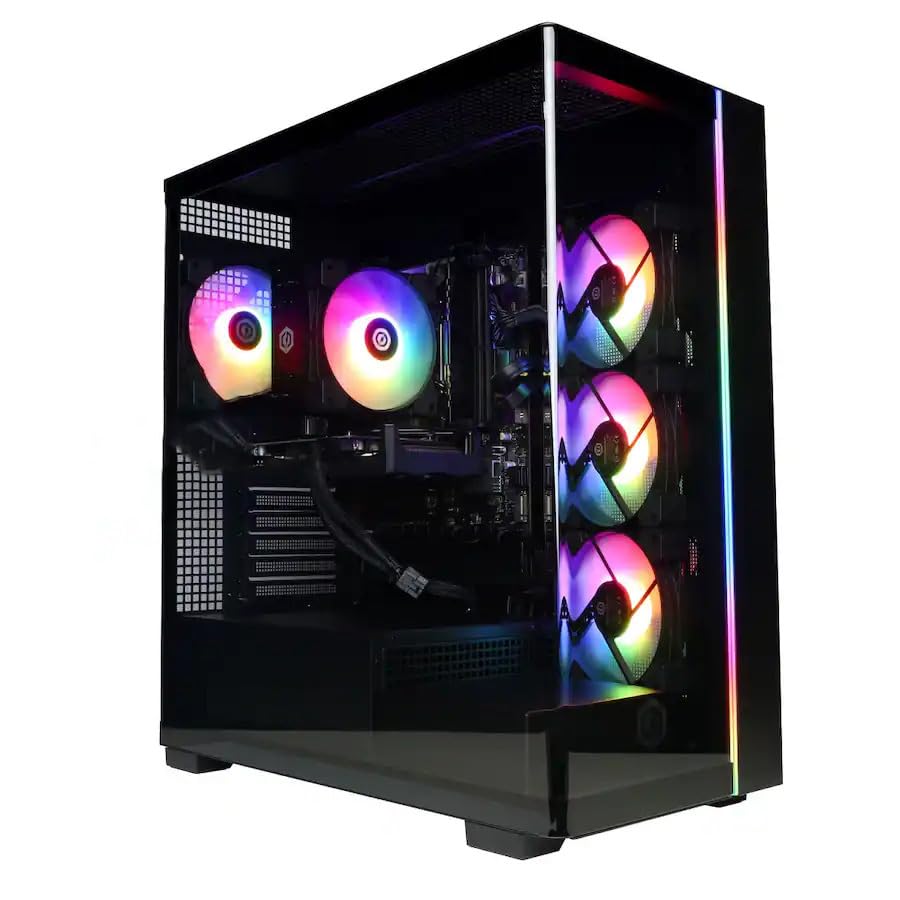
Слика: напред view of the CyberpowerPC Gamer Xtreme GXi3200BSTV10 Gaming Desktop PC, showcasing its sleek design and RGB lighting elements.
2. Што има во кутијата
Upon unpacking your CyberpowerPC Gamer Xtreme GXi3200BSTV10, please ensure all the following items are present:
- CyberpowerPC Gamer Xtreme GXi3200BSTV10 Desktop PC
- Кабел за напојување
- RGB игри тастатура
- RGB гејмерски глушец
- Документација (вклучувајќи го и ова упатство)

Image: The included CyberpowerPC NOHI 2 Black Wired RGB 104-Key Keyboard and CyberPowerPC Elite M2 Black Wired RGB 4-Button Mouse.
3. Водич за поставување
Follow these steps to set up your new CyberpowerPC Gamer Xtreme desktop:
3.1 Отпакување и поставување
- Carefully remove the PC and all accessories from the packaging. Retain the packaging for future transport or warranty claims.
- Place the PC on a stable, flat surface with adequate ventilation. Ensure there is clear space around the air intake and exhaust vents.
- Remove any protective films or internal packing materials from the PC case.
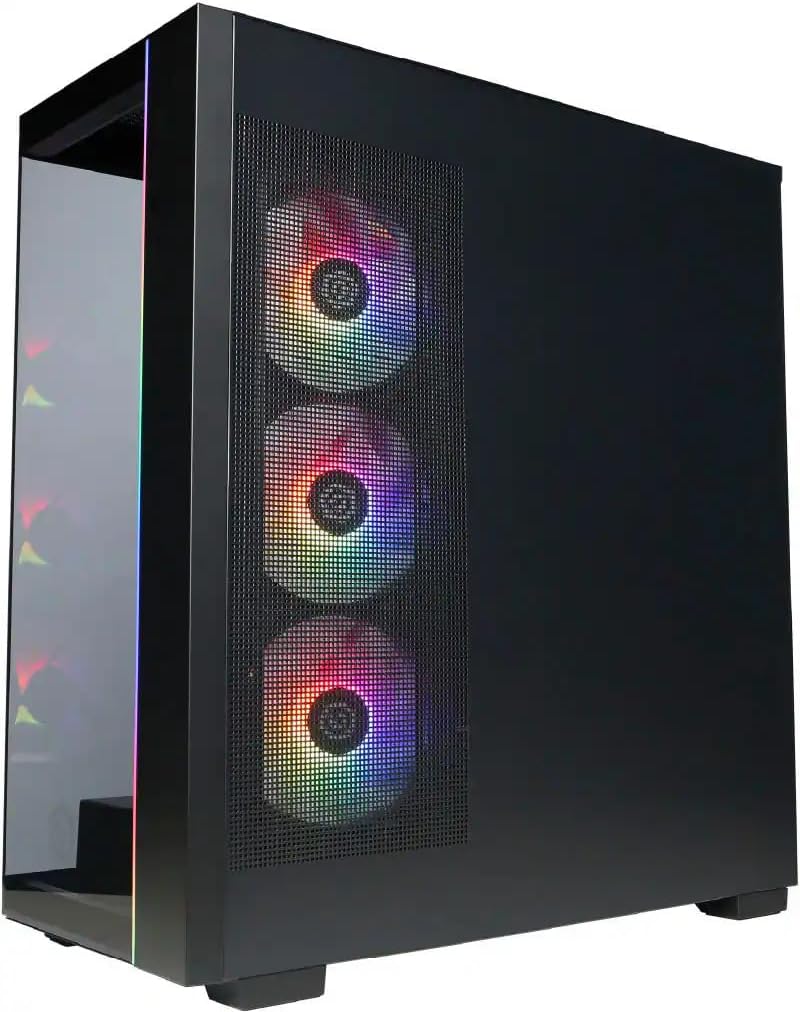
Слика: Страна view of the PC case, highlighting the mesh panel for airflow and the RGB fans visible through it.
3.2 Поврзување на периферни уреди
Connect your monitor, keyboard, mouse, and other devices to the appropriate ports on the back of the PC.
- Монитор: Connect your monitor to one of the graphics card's display outputs (DisplayPort or HDMI). Ensure it's connected to the dedicated graphics card (NVIDIA GeForce RTX 5060), not the motherboard's integrated graphics ports.
- Тастатура и глушец: Connect the included RGB keyboard and mouse to any available USB ports.
- Мрежа: For wired internet, connect an Ethernet cable to the RJ-45 port. For wireless internet, ensure the Wi-Fi antennas (if provided) are attached.
- Аудио: Connect speakers or headphones to the audio output jacks.
3.3 Приклучок за напојување и почетно стартување
- Connect the power cable to the PC's power supply unit (PSU) and then to a grounded electrical outlet.
- Притиснете го копчето за вклучување што се наоѓа на предната или горната страна од компјутерот.
- Follow the on-screen instructions to complete the Windows 11 Home setup process. This may include setting up your user account, network connection, and privacy settings.
4. Ракување со вашиот компјутер
This section covers basic operation of your CyberpowerPC Gamer Xtreme.
4.1 Вклучување/исклучување и рестартирање
- Вклучување: Притиснете го копчето за вклучување еднаш.
- Исклучи: Кликнете на копчето „Старт“ во Windows, потоа изберете „Напојување“ > „Исклучи“.
- Рестартирајте: Кликнете на копчето „Старт“ во Windows, потоа изберете Вклучување > Рестартирај.
- Force Shut Down: If the system is unresponsive, press and hold the power button for 5-10 seconds until the PC turns off. Use this only as a last resort.
4.2 Мрежна поврзаност
- Жичен (Етернет): Once the Ethernet cable is connected, Windows 11 should automatically detect and connect to the network.
- Безжичен (Wi-Fi): Кликнете на иконата Wi-Fi во лентата со задачи, изберете ја саканата мрежа, внесете ја лозинката и кликнете на Поврзи.
4.3 RGB контрола на осветлувањето
Your system features customizable RGB lighting for fans, case, and CPU cooler. Control software for RGB lighting may be pre-installed or available for download from the CyberpowerPC website. Refer to the specific software's instructions for detailed customization options.

Слика: Детална view of the RGB fans, illustrating the vibrant lighting effects within the PC case.

Image: Close-up of the CPU cooler, showing its design and integrated RGB lighting.
5. Одржување
Редовното одржување помага да се обезбеди долготрајност и оптимални перформанси на вашиот компјутер.
5.1 Чистење
- Надворешност: Користете мека, гamp cloth to clean the exterior of the case. Avoid harsh chemicals.
- Прашина: Periodically clean dust from the internal components, especially fans and heatsinks, using compressed air. Ensure the PC is powered off and unplugged before opening the case.
- Филтри за воздух: If your case has removable air filters, clean them regularly to maintain optimal airflow.
5.2 Ажурирања на софтверот
- Ажурирања на Windows: Regularly check for and install Windows updates to ensure security and performance improvements. Go to Settings > Windows Update.
- Ажурирања на возачот: Keep your graphics card drivers (NVIDIA GeForce) and other component drivers updated for best performance and compatibility. Visit the respective manufacturer's webсајтови за најновите драјвери.
5.3 Бекап на податоци
Regularly back up your important data to an external drive or cloud storage to prevent data loss in case of hardware failure or other issues.
6 Смена на проблеми
Овој дел нуди решенија за вообичаени проблеми со кои може да се соочите.
6.1 Нема струја
- Осигурајте се дека кабелот за напојување е безбедно поврзан и со компјутерот и со ѕидниот штекер.
- Check if the power switch on the PSU (located at the back of the PC) is in the 'ON' position.
- Тестирајте го штекерот со друг уред за да потврдите дека има струја.
6.2 Нема приказ на мониторот
- Verify that the monitor is powered on and its video cable is securely connected to the graphics card (NVIDIA GeForce RTX 5060) on the PC.
- Ensure the monitor's input source is set correctly (e.g., HDMI 1, DisplayPort).
- Обидете се да го поврзете мониторот со друг излезен порт за прикажување на графичката картичка.
6.3 System Running Slowly
- Проверете го „Управувачот со задачи“ (Ctrl+Shift+Esc) за апликации што трошат прекумерно многу ресурси на процесорот, RAM меморијата или дискот.
- Осигурајте се дека Windows и драјверите се ажурирани.
- Извршете целосно скенирање на системот за малициозен софтвер или вируси.
- Verify that the PC has adequate ventilation and is not overheating.
7. Спецификации
Detailed technical specifications for your CyberpowerPC Gamer Xtreme GXi3200BSTV10:

Image: Infographic summarizing key specifications including Intel Core i5-14400F, NVIDIA GeForce RTX 5060, 16GB DDR5 RAM, and 1TB PCIe NVMe M.2 SSD.
| Компонента | Спецификација |
|---|---|
| Процесор | Intel Core i5-14400F (10-Core, 2.5 GHz base, up to 4.7 GHz Turbo Boost) |
| Графичка картичка | NVIDIA GeForce RTX 5060 8GB GDDR7 |
| RAM меморија | 16GB DDR5 6000 MHz |
| Складирање | 1TB PCIe NVMe M.2 SSD |
| Оперативен систем | Windows 11 Home |
| Безжично поврзување | Wi-Fi (802.11ax), Bluetooth |
| Аудио | 7.1-канален звук со висока дефиниција |
| Прикажи излези | 3x DisplayPort, 1x HDMI |
| USB порти | 1x USB-C 3.2, 3x USB-A 3.2, 4x USB-A 2.0 |
| Димензии (ДxШxВ) | 18.1 x 9.2 x 20 инчи |
| Тежина на ставката | 40 фунти |
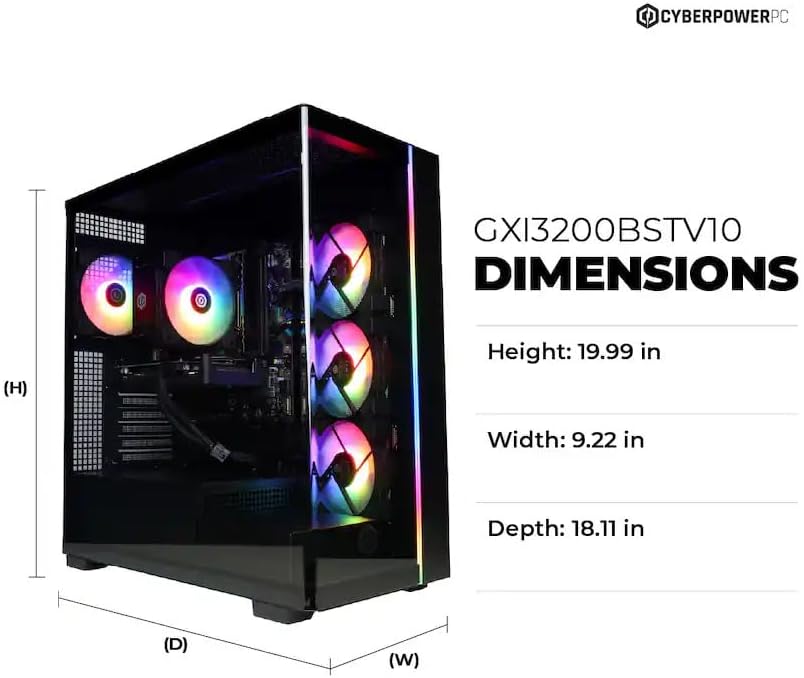
Image: Diagram illustrating the dimensions of the CyberpowerPC Gamer Xtreme GXi3200BSTV10: Height 19.99 in, Width 9.22 in, Depth 18.11 in.
8. Гаранција и поддршка
8.1 Гаранција на производителот
Your CyberpowerPC Gamer Xtreme GXi3200BSTV10 comes with a 1-годишна гаранција на производителотОваа гаранција ги покрива дефектите во материјалите и изработката при нормална употреба. Ве молиме задржете го доказот за купување за гаранциски барања.
For specific terms and conditions of the warranty, please refer to the documentation included with your PC or visit the official CyberpowerPC webсајт.
8.2 Техничка поддршка
If you encounter issues that cannot be resolved using the troubleshooting steps in this manual, please contact CyberpowerPC technical support. Have your model number (GXi3200BSTV10) and serial number ready when contacting support.
You can typically find support contact information on the CyberpowerPC website or in the documentation provided with your system.