Вовед
This manual provides detailed instructions for the setup, operation, and maintenance of your Generic Delux T11 One-Handed Mechanical Keyboard. Designed for left-handed users, this compact keyboard features customizable shortcut keys to enhance your workflow.
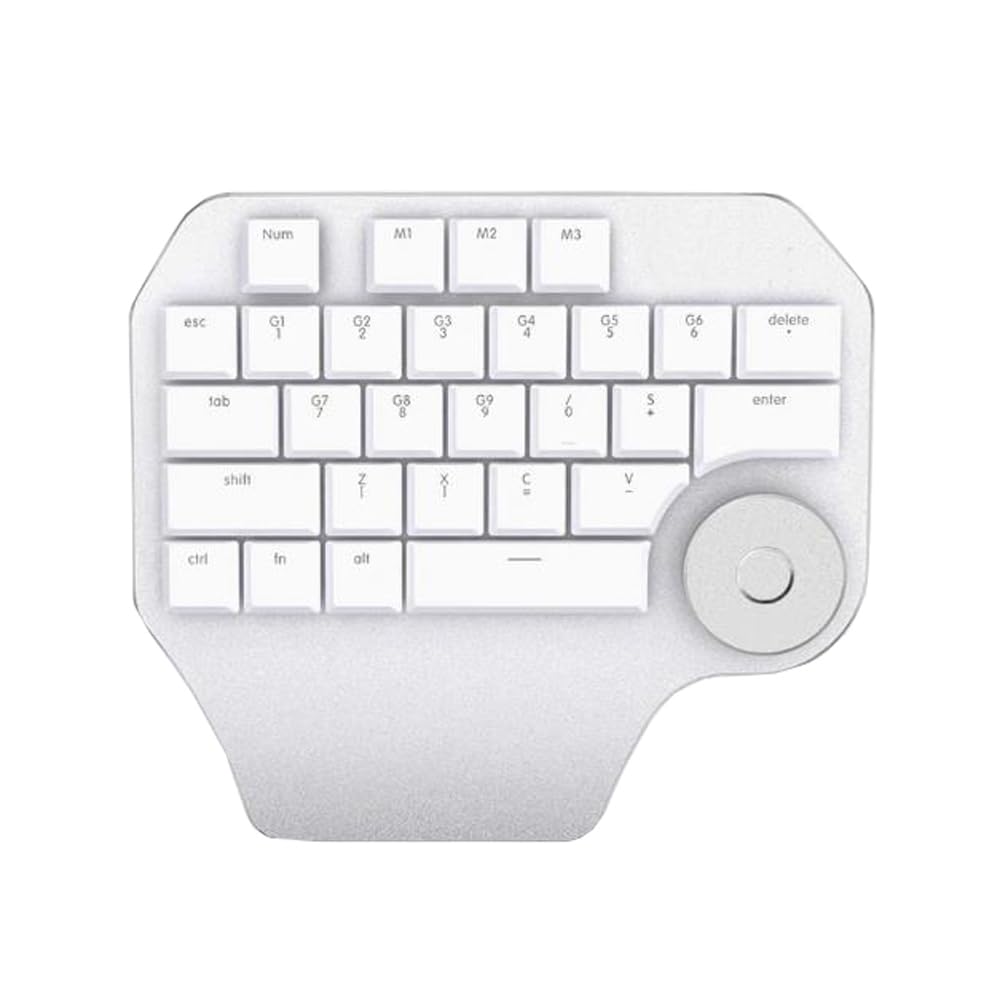
Image: The Delux T11 One-Handed Mechanical Keyboard. This image displays the compact design and key layout of the device, highlighting its ergonomic form factor for single-hand use.
Поставување
1. Отпакување
Carefully remove the keyboard from its packaging. Ensure all components, including the keyboard and any included cables, are present and undamaged.
2. Опции за поврзување
Your Delux T11 keyboard supports two primary connectivity methods: USB-C (жичен) и Bluetooth (безжичен).
2.1. Жична врска (USB-C)
- Лоцирајте го USB-C портот на тастатурата.
- Поврзете го едниот крај од испорачаниот USB-C кабел со тастатурата.
- Connect the other end of the USB-C cable to an available USB port on your computer or laptop.
- Тастатурата треба автоматски да биде препознаена од вашиот оперативен систем. Обично не се потребни дополнителни драјвери за основна функционалност.
2.2. Bluetooth конекција (безжична)
- Ensure your computer or laptop has Bluetooth enabled.
- Put the keyboard into Bluetooth pairing mode. (Refer to the specific instructions on the keyboard itself or a small included guide for the exact key combination, as this information is not provided. Typically, this involves holding a function key + a Bluetooth key.)
- On your computer, navigate to Поставки за Bluetooth.
- Пребарај за new devices. The keyboard should appear as "Delux T11" or a similar identifier.
- Select the keyboard and follow any on-screen prompts to complete the pairing process.
Упатства за работа
Основна употреба
The Delux T11 is a compact, left-handed mechanical keyboard designed for efficiency. Its QWERTY layout provides familiar key placement for common functions.
Custom Shortcut Keys
A key feature of this keyboard is its customizable shortcut keys. These keys are pre-programmed for common design or editing functions, but can often be remapped using dedicated software (if available from the manufacturer) or operating system settings. Consult the manufacturer's website for any specific software tools.
- Identify Programmable Keys: Look for keys with special markings or those designated as "custom" or "macro" keys.
- Конфигурација на софтвер: If manufacturer software is available, install it and follow its instructions to assign new functions or macros to the programmable keys.
- Operating System Shortcuts: For basic remapping, your operating system's keyboard settings may allow some customization.
Одржување
Чистење
- Исклучено: Исклучете ја тастатурата од компјутерот пред чистење.
- Отстранување прашина: Use a can of compressed air to remove dust and debris from between the keys.
- Површинско чистење: Нежно избришете ги капачињата на копчињата и површината на тастатурата со мека крпа што не остава влакненца.ampсо вода или со благ, неабразивен раствор за чистење. Избегнувајте прекумерна влага.
- Избегнувајте груби хемикалии: Do not use strong solvents, alcohol, or abrasive cleaners, as these can damage the keyboard's finish or keycap legends.
Складирање
When not in use, store the keyboard in a clean, dry environment away from direct sunlight and extreme temperatures. Protect it from dust and spills.
Решавање проблеми
- Тастатурата не реагира (жична):
- Проверете дали USB-C кабелот е безбедно поврзан и со тастатурата и со компјутерот.
- Обидете се да ја поврзете тастатурата со друг USB порт на вашиот компјутер.
- Тестирајте ја тастатурата на друг компјутер за да исклучите проблем специфичен за системот.
- Keyboard Not Responding (Bluetooth):
- Ensure Bluetooth is enabled on your computer and the keyboard is in pairing mode.
- Remove the keyboard from your computer's Bluetooth device list and attempt to re-pair it.
- Check the keyboard's battery level if it's a wireless-only model (though this model is listed as "Wired" for power source, Bluetooth implies a battery for wireless use).
- Копчињата не функционираат правилно:
- Clean the keyboard to remove any debris that might be obstructing the key switches.
- If specific keys are not working, it might indicate a hardware issue.
- Custom Shortcuts Not Working:
- Verify that any necessary software for customization is installed and running.
- Check the software settings to ensure the shortcuts are correctly configured.
- Ensure there are no conflicts with other software or operating system shortcuts.
Спецификации
| Димензии на производот | 3.94 x 7.87 x 11.81 инчи |
| Тежина на ставката | 2.2 фунти |
| Производител | Генерички |
| Број на модел на ставка | Laptop Parts-24-1-22-18 |
| Бренд | Генерички |
| Компатибилни уреди | Лаптоп |
| Технологија за поврзување | Bluetooth, USB-C |
| Опис на тастатурата | Compact, Left-Handed, Mechanical, Customizable |
| Извор на енергија | Жичен |
| Тип на прекинувач | Механички |
| Распоред на тастатура | QWERTY |
| Ориентација на рацете | Лево |
Информации за гаранцијата
Овој производ доаѓа со а 90 дена гаранција од датумот на купување. Оваа гаранција ги покрива производствените дефекти при нормална употреба. Не ги покрива штетите предизвикани од злоупотреба, несреќи, неовластени модификации или нормално абење. Ве молиме задржете го доказот за купување за гаранциски барања.
Поддршка
For further assistance, technical support, or warranty inquiries, please refer to the contact information provided with your purchase or visit the manufacturer's official website. When contacting support, please have your product model number (Laptop Parts-24-1-22-18) and proof of purchase readily available.
Note: As this is a generic product, specific support channels may vary.


