
Вовед
Thank you for choosing the Trueque Wireless Keyboard and Mouse Combo. This full-size set features vibrant RGB backlighting, light-up keycaps, and a comfortable, quiet typing experience. Designed for versatility, it offers a 2.4GHz wireless connection and dual-system layout compatibility for both Mac and Windows devices. This manual provides essential information for setup, operation, maintenance, and troubleshooting to ensure optimal performance.
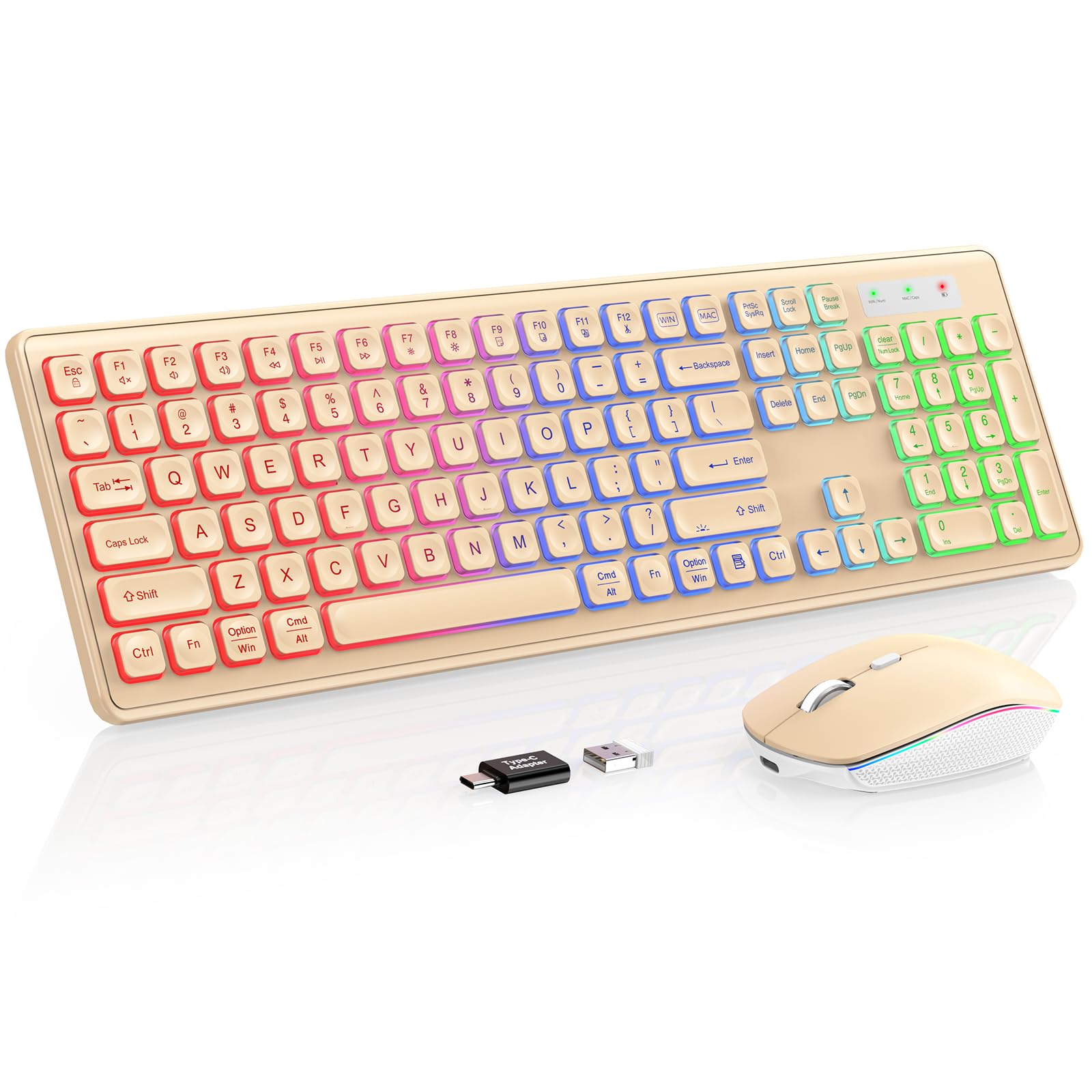
Image: The Trueque Wireless Keyboard and Mouse Combo, showcasing its full-size layout and vibrant RGB backlighting in a warm sand color.
Инструкции за поставување
- Отпакувајте ги компонентите: Carefully remove the keyboard, mouse, USB receiver, and USB-C charging cable from the packaging.
- Лоцирајте го USB приемникот: The USB receiver is typically stored in a compartment on the underside of the mouse. Remove it before use.
- Поврзете го приемникот: Plug the 2.4GHz USB receiver into an available USB-A port on your computer. If your computer only has USB-C ports, use the provided USB-A to Type-C adapter.
- Вклучување: Locate the ON/OFF switches on the underside of both the keyboard and the mouse. Slide them to the "ON" position.
- Системска компатибилност: The keyboard supports dual Mac and Windows layouts. Switch between layouts by pressing the dedicated "WIN" or "MAC" key. The corresponding indicator light (WIN/Num or MAC/Caps) will turn green to confirm the active layout.
- Почетна наплата: For optimal performance, it is recommended to fully charge both the keyboard and mouse before first use. Use the supplied USB-C charging cable.
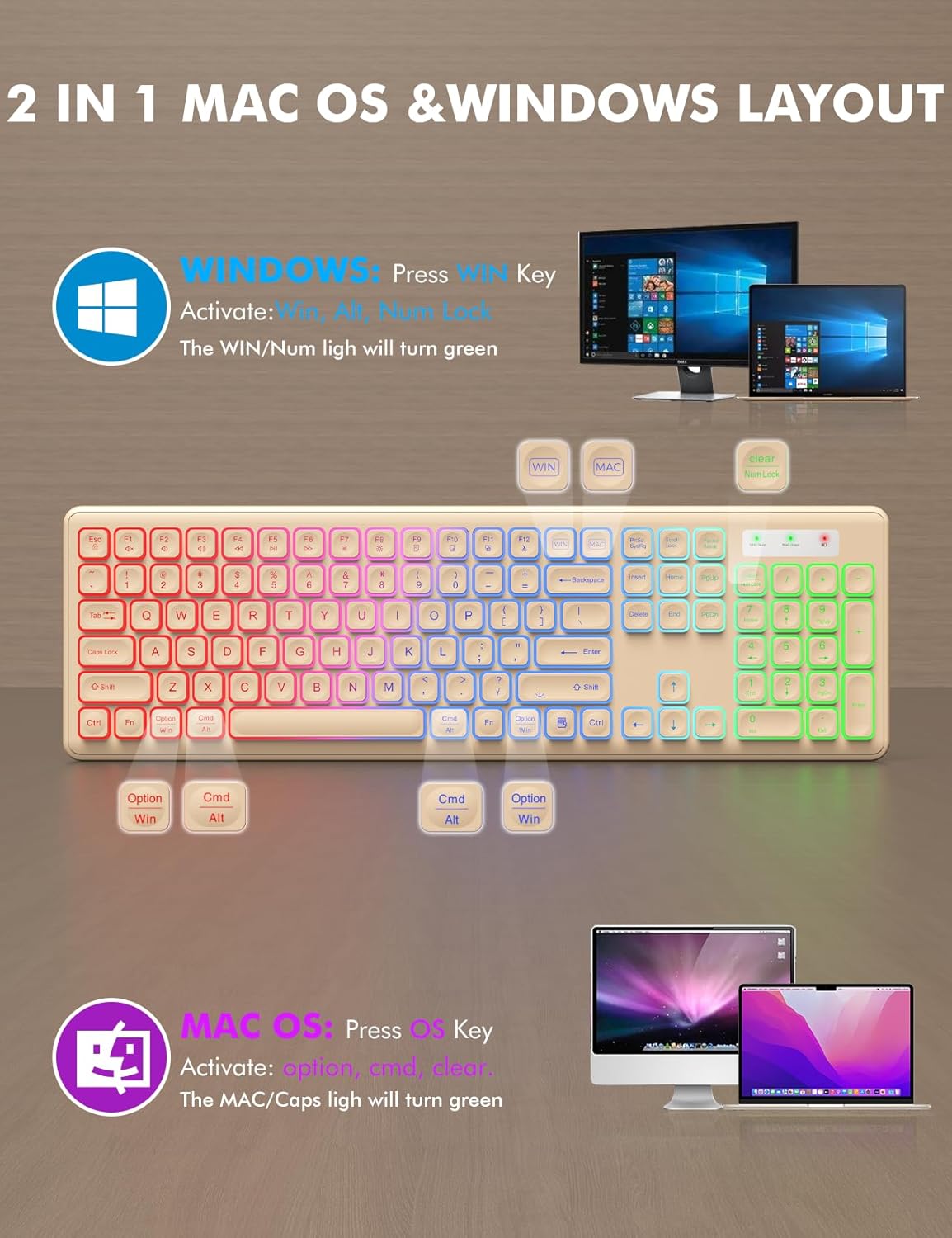
Image: Visual guide for switching between Mac OS and Windows layouts on the keyboard, highlighting the dedicated keys.
Video: An unboxing and demonstration of the wireless keyboard and mouse, including initial setup steps.
Упатства за работа
Функции на тастатура:
- RGB позадинско осветлување: The keyboard features a rainbow color backlight with 3 adjustable brightness levels. Press Fn+Shift to cycle through brightness levels or turn the backlight ON/OFF.
- Удобно пишување: Тастатурата е дизајнирана со low-profile, crater-mechanism keys for soft, quiet typing. Foldable stands on the underside allow for a 15-degree tilt angle to reduce wrist pressure.
- Индикаторски светла: The keyboard includes indicator lights for Power, Mac, Caps Lock, Win, and Num Lock.

Image: The keyboard demonstrating its three adjustable RGB backlight brightness levels.

Image: A user demonstrating the ergonomic tilt angle provided by the keyboard's foldable stands, designed to reduce wrist pressure.
Функции на глувчето:
- RGB светлосни ефекти: The mouse features 15 switchable lighting effects. A button on the underside allows you to cycle through these effects.
- Прилагодлив DPI: The mouse offers 3 DPI levels (1000, 1500, 2000) for adjustable sensitivity. Use the DPI button to switch between settings.
- Тивок клик: Глувчето е дизајнирано за тивко работење, минимизирајќи го шумот од кликање.
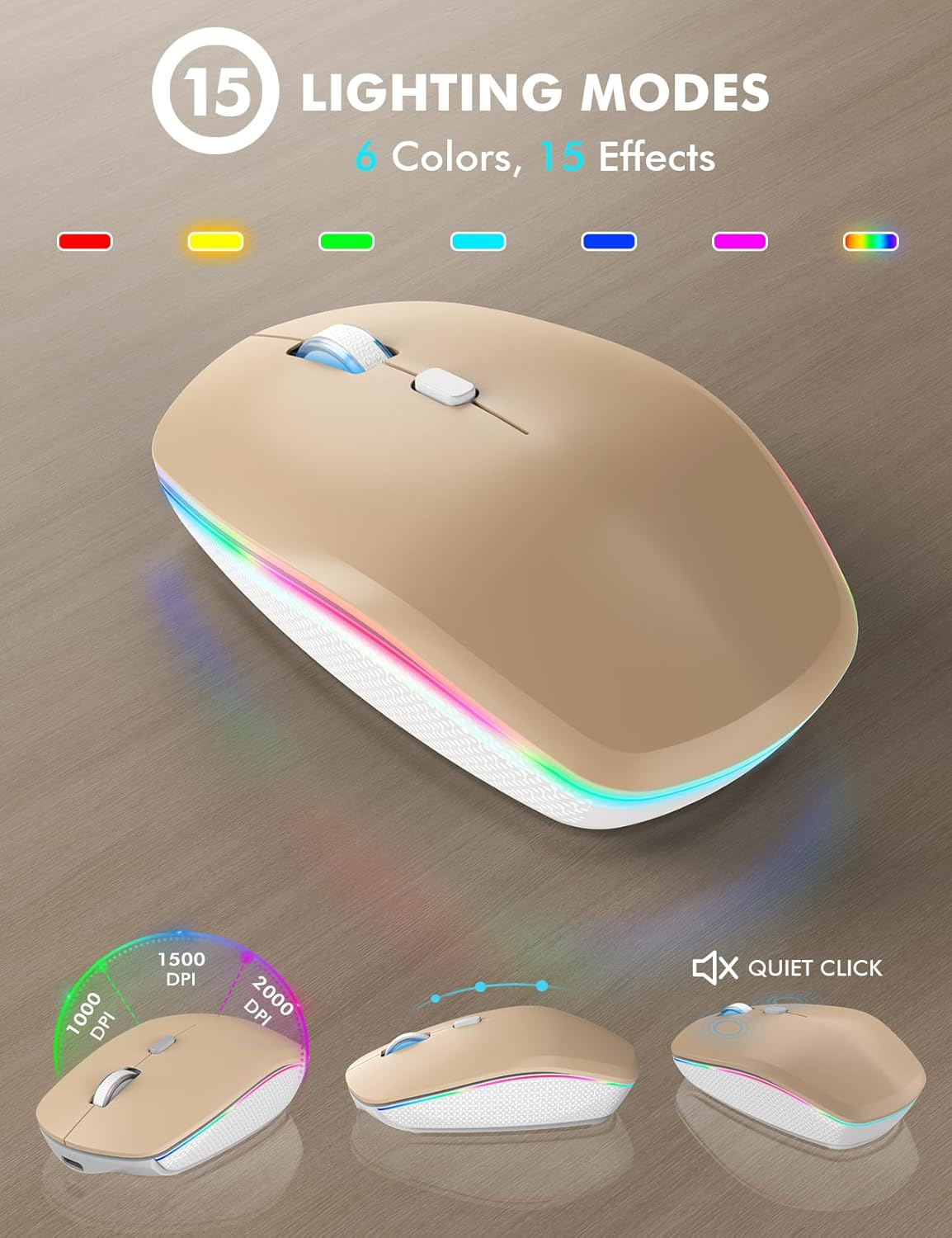
Image: The mouse highlighting its 15 lighting modes and adjustable DPI settings for customized sensitivity.
Video: Demonstration of the wireless keyboard and mouse showcasing its 7-color backlit effects.
Видео: Надview of the features of the wireless keyboard and mouse, including its backlit keys and phone holder.
Одржување
- Полнење: Both the keyboard and mouse are rechargeable via the supplied USB-C cable. Connect the cable to the respective charging ports.
- Траење на батеријата: The devices feature a smart auto-sleep function to conserve power. The keyboard enters sleep mode after 30 minutes of inactivity, and the mouse after 90 seconds. Simply type or click any key to wake them up.
- Прекинувачи за напојување: Use the ON/OFF switches on both devices to manually save power when not in use for extended periods.
- Чистење: The keyboard is designed to be spill-resistant. For general cleaning, use a soft, dry cloth. Avoid harsh chemicals or abrasive materials.

Image: Illustration of the smart power-saving features and USB-C charging capability for both the keyboard and mouse.
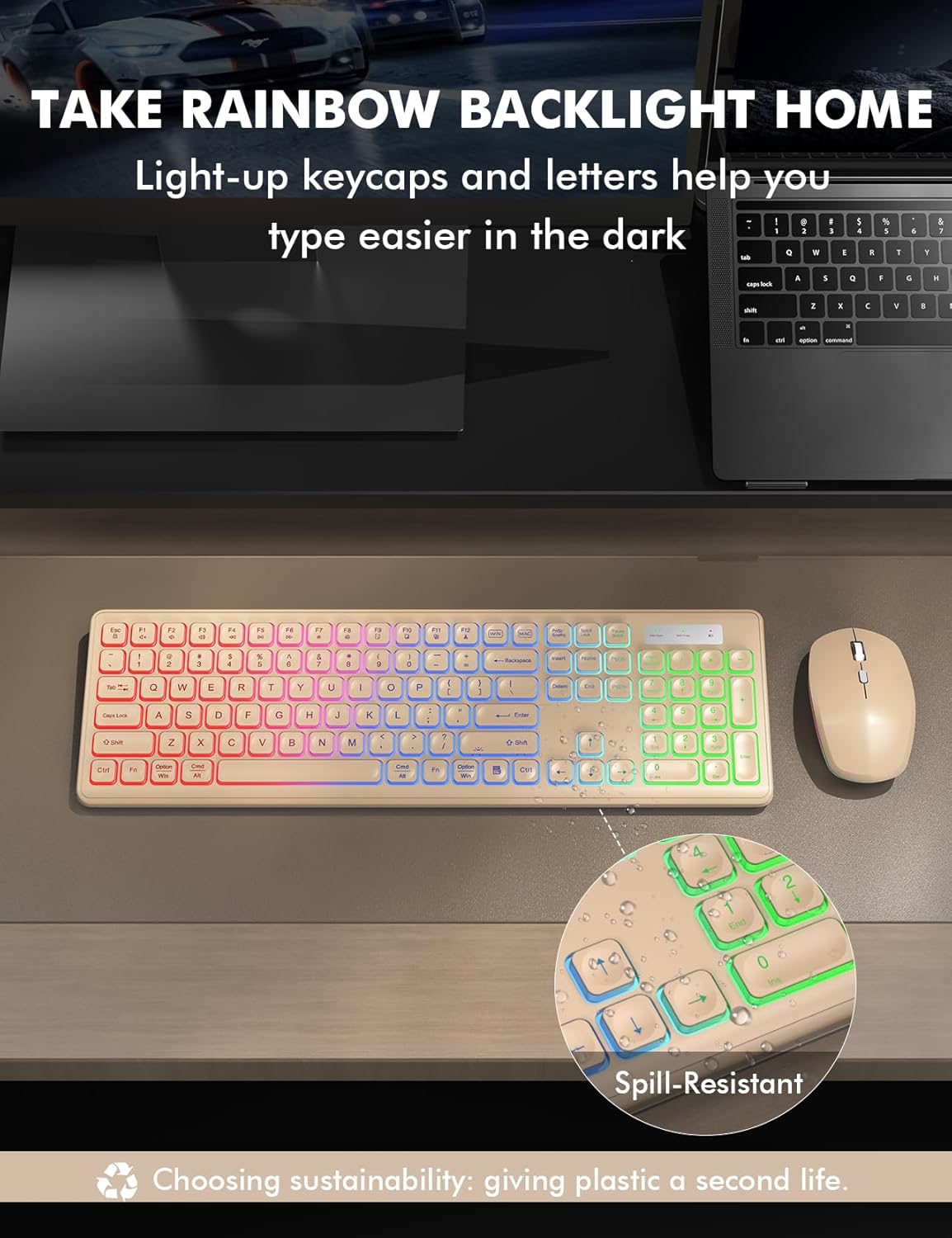
Image: The keyboard highlighting its spill-resistant design, indicating durability against accidental liquid exposure.
Решавање проблеми
| Проблем | Можна причина / решение |
|---|---|
| No Connection / Lagging: |
|
| Задно осветлување не работи: |
|
| Копчињата не реагираат / Лепливи копчиња: |
|
| Mouse Not Tracking Smoothly: |
|
Спецификации
- Бренд: Замена
- Модел: B0F5GQLDH6
- Боја: Warm Sand
- Технологија за поврзување: 2.4 GHz USB безжичен
- Специјална карактеристика: Rechargeable, RGB Backlit, Light-Up Letters, Dual System Layout (Mac/Windows), Foldable Stands, Quiet Click, Spill-Resistant
- Компатибилни уреди: Chromebook, Laptop, MacBook Pro, MacBook Air, iMac, Dell XPS 13/15, Inspiron, HP ENVY, Pavilion, Personal Computer, Television
- Movement Detection (Mouse): Оптички
- Поддршка за боја за осветлување на тастатурата: RGB (Rainbow, 3 adjustable brightness levels)
- Mouse Lighting Effects: 15 switchable effects
- Компатибилност со оперативен систем: All Windows Server Versions 2000, Chrome OS, Linux, Mac OS, Windows XP, Windows 7, Windows 8, Windows 10, Windows 11
- Ориентација на рака (глушец): Во право
- Number of Keys (Keyboard): 102
- Извор на енергија: Напојува со батерија (вклучена е 1 литиум-јонска батерија)
- Распоред на тастатура: QWERTY
- Опис на тастатура: Мембрана
- Тежина на ставката: 0.87 килограми

Image: An illustration highlighting the wide compatibility of the keyboard and mouse with different operating systems and device types.
Информации за гаранцијата
This Trueque Wireless Keyboard and Mouse Combo comes with a ДВЕ ГОДИНА manufacturer's warranty. Please retain your proof of purchase for warranty claims. For any issues covered under warranty, refer to the customer support section for contact details.
Поддршка за корисници
For pre-sales questions, troubleshooting assistance, accessory reissues, or returns and exchanges, please contact Trueque customer support:
- Поддршка за е-пошта: truequeservice@outlook.com (24-hour reply)
- Phone Support (US): 1-866-608-6766 (Mon-Fri, 9am-1pm, 2pm-6pm PST)
Trueque is committed to providing 12-month warranty and 360-day brand care for its products.

Image: Trueque customer service details, showing email and phone contact for support.