
Вовед
This manual provides comprehensive instructions for the setup, operation, maintenance, and troubleshooting of your KOORUI GN10 27-inch QHD 240Hz Mini-LED Gaming Monitor. Please read this manual thoroughly before using the product to ensure proper functionality and to prevent damage.
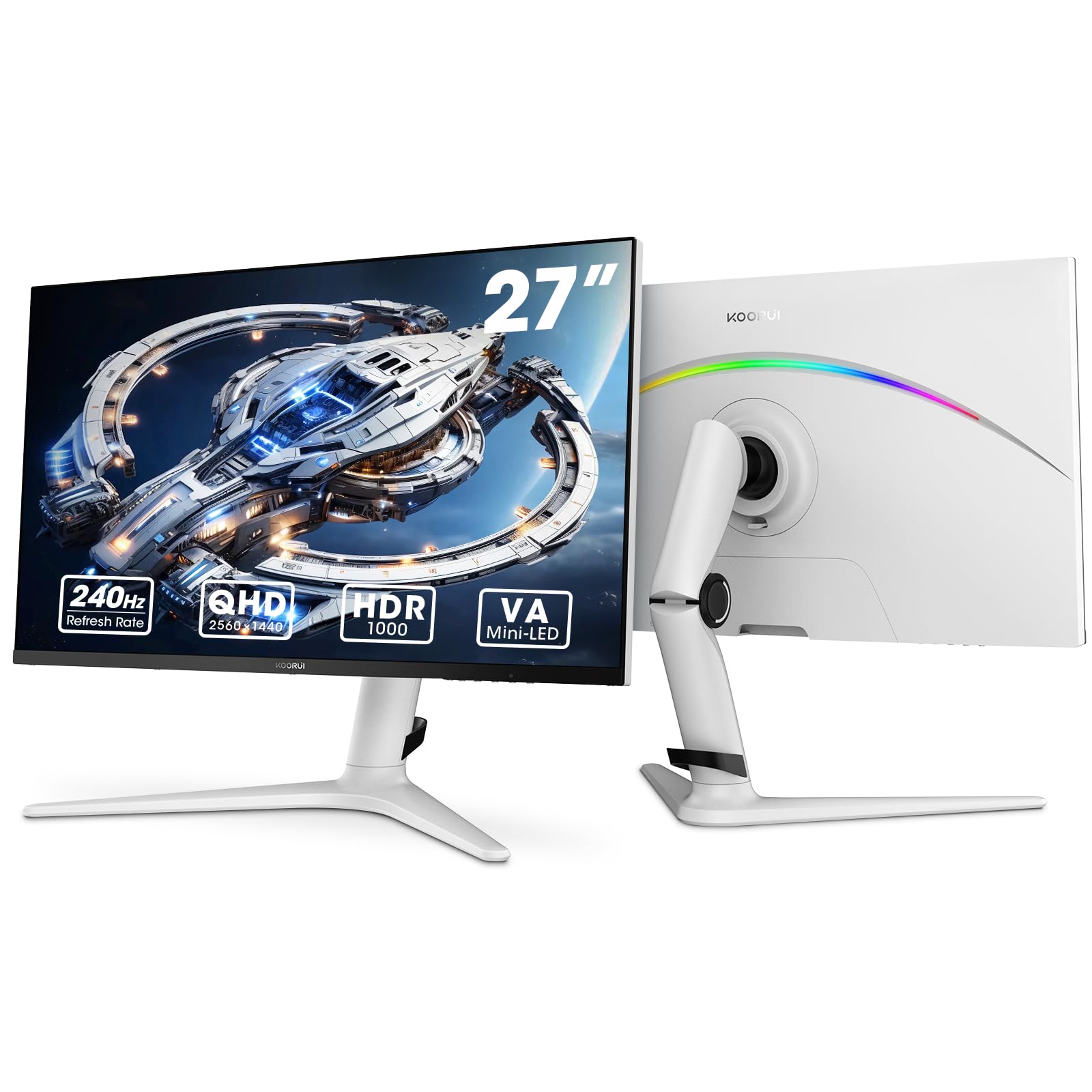
Figure 1: KOORUI GN10 27-inch QHD 240Hz Mini-LED Gaming Monitor.
1. Поставување
1.1 Распакување и содржина на пакувањето
Внимателно отстранете ги сите компоненти од пакувањето. Проверете дали се присутни сите ставки наведени подолу:
- KOORUI GN10 Monitor
- Поставка за монитор (основа и рачка)
- Кабел за напојување
- HDMI кабел (x2)
- DisplayPort (DP) кабел
- Упатство за употреба (овој документ)
1.2 Склопување на држачот
Следете ги овие чекори за да го составите држачот за монитор:
- Attach the stand arm to the monitor panel. Ensure it clicks securely into place or is fastened with screws if provided.
- Connect the stand base to the stand arm. Tighten any screws to secure the base.
- Поставете го склопениот монитор на стабилна, рамна површина.

Figure 2: Monitor stand showing height, tilt, swivel, and pivot adjustments.
The ergonomic stand allows for height, tilt, swivel, and pivot adjustments to optimize your viewинголен агол.

Figure 3: Monitor dimensions for placement planning.
1.3 Поврзување со уреди
The monitor supports multiple input sources. Connect your computer or gaming console using the provided cables.
- DisplayPort (DP): For optimal performance, especially at 240Hz refresh rate and QHD resolution, use the DisplayPort cable.
- HDMI: Two HDMI 2.0 ports are available for connecting other devices such as gaming consoles (PS5, Xbox, Switch) or additional computers.
- Аудио излез: Поврзете надворешни звучници или слушалки во 3.5 мм аудио излезниот приклучок.

Слика 4: Заден дел view of the monitor showing available ports (Audio Out, DP 1.4, HDMI 2.0 x2) and VESA mount points.
1.4 Почетно вклучување
- Поврзете го кабелот за напојување со мониторот, а потоа со штекер.
- Press the power button, usually located on the back or bottom of the monitor, to turn it on.
- The monitor will automatically detect the input source. If not, use the OSD menu to select the correct input.
2. Упатства за работа
2.1 Мени за приказ на екран (OSD).
The OSD menu allows you to adjust various monitor settings. Access the OSD menu using the joystick or buttons typically located on the back or bottom of the monitor.
Вообичаените опции на менито на OSD вклучуваат:
- Поставки за слика: Brightness, Contrast, Sharpness, Gamma.
- Поставки за боја: Color Temperature, Hue, Saturation, Color Space (sRGB, DCI-P3).
- Избор на внесување: Рачно префрлајте помеѓу DisplayPort и HDMI влезовите.
- Аудио: Volume control for the audio output.
- Карактеристики на игри: Adaptive Sync, Response Time (Overdrive), Game Modes.
- Поставки за OSD: Language, OSD Timeout, Transparency.
2.2 Поставки на екранот
The KOORUI GN10 monitor offers advanced display features for an enhanced visual experience.
- Резолуција: The native resolution is QHD (2560 x 1440). Ensure your connected device is set to this resolution for optimal clarity.
- Стапка на освежување: Supports up to 240Hz. Configure your graphics card settings to utilize this high refresh rate for smoother motion.
- Време на одговор: Features a 1ms (GtG) response time, reducing motion blur and ghosting in fast-paced content.
- HDR 1000: High Dynamic Range 1000 provides superior contrast and color depth. Enable HDR in your operating system and monitor settings for compatible content.

Figure 5: Visual comparison illustrating the enhanced contrast and detail with HDR 1000 enabled.

Figure 6: Comparison of QHD (2560x1440) and FHD (1920x1080) resolutions, highlighting increased detail with QHD.
2.3 Карактеристики за игри
Мониторот вклучува функции дизајнирани да го подобрат вашето искуство со игри:
- Adaptive Sync (G-Sync Compatible): Synchronizes the monitor's refresh rate with your GPU's frame rate to eliminate screen tearing and stuttering. Ensure this feature is enabled in both the monitor OSD and your graphics card control panel.
- Game Display Modes: Access specific on-screen overlays via the OSD menu, such as:
- Крос: Обезбедува нишан на екранот за подобро насочување.
- Тајмер: Displays a countdown timer.
- Бројач FPS: Shows your current frames per second.
- RTS Counter: A specific counter for Real-Time Strategy games.

Figure 7: Illustration of various exclusive game display modes and Adaptive Sync functionality.

Figure 8: Visual representation of smooth gaming experience with 240Hz refresh rate and 1ms response time.
2.4 RGB осветлување
The monitor features a crescent RGB light strip on the back. This lighting can be customized through the OSD menu to match your preference or gaming setup.

Слика 9: Заден дел view of the monitor highlighting the customizable RGB light strip.
3. Одржување
3.1 Чистење на мониторот
За да го одржите изгледот и перформансите на мониторот, следете ги овие упатства за чистење:
- Секогаш исклучувајте го мониторот од струја и извадете го кабелот за напојување пред чистење.
- Користете мека крпа без влакненца малку гampизмиено со вода или неабразивно средство за чистење екрани.
- Не прскајте средство за чистење директно врз екранот. Прво нанесете го на крпата.
- Избегнувајте употреба на алкохол, амонијак или абразивни средства за чистење, бидејќи тие можат да ја оштетат површината на екранот.
- Нежно избришете го екранот за да отстраните прашина и дамки.
- Исчистете го мониторот casing со мека, сува крпа.
3.2 Општа нега
- Избегнувајте поставување тешки предмети врз мониторот или неговите кабли.
- Не го изложувајте мониторот на директна сончева светлина, прекумерна топлина или екстремен студ.
- Keep the monitor away from liquids and high humidity environments.
- Обезбедете соодветна вентилација околу мониторот за да спречите прегревање.
4 Смена на проблеми
Доколку наидете на проблеми со вашиот монитор, погледнете ги следните вообичаени проблеми и решенија:
| Проблем | Можна причина | Решение |
|---|---|---|
| Нема слика на екранот |
|
|
| Треперење или искривена слика |
|
|
| Нема звук од аудио излезот |
|
|
| Адаптивното синхронизирање не работи |
|
|
Ако проблемот продолжи откако ќе ги испробате овие решенија, контактирајте ја корисничката поддршка.
5. Спецификации
| Карактеристика | Детал |
|---|---|
| Бренд | КООРУИ |
| Број на модел | GN10 |
| Големина на екранот | 27 инчи |
| Резолуција | QHD широко 1440p (2560 x 1440) |
| Сооднос на аспект | 16:9 |
| Површина на екранот | Мат |
| Сооднос на контраст | 20,000,000:1 |
| Стапка на освежување | 240 Hz |
| Технологија на прикажување | Мини-LED |
| Viewинголен агол | 178 степени |
| Осветленост | 350 Кандела |
| Гама на бои | 100% sRGB, 95% DCI-P3 |
| Време на одговор | 1 Millisecond (GtG) |
| HDMI порти | 2 (HDMI 2.0) |
| DisplayPort | 1 (DP 1.4) |
| Аудио излез | Да |
| Адаптивна синхронизација | Компатибилен со G-Sync |
| Дополнителни карактеристики | Flicker-Free, Frameless, Height Adjustable, Tilt Adjustable, Swivel Adjustable, Rotatable |
| Боја | Бело/Сиво |
| Тип на монтирање | Desk Mount, VESA 75x75mm compatible |
6. Гаранција и поддршка
6.1 Информации за гаранцијата
The KOORUI GN10 monitor comes with a 3-годишна ограничена гаранција. The display screen is backed for 1 year, and other accessories for 3 years. A 12-month replacement service is also provided for eligible issues.
This warranty covers manufacturing defects and malfunctions under normal use. It does not cover damage caused by misuse, accidents, unauthorized modifications, or external factors.
6.2 Поддршка за корисници
For technical assistance, warranty claims, or inquiries regarding missing accessories, please contact KOORUI customer support. Have your product model (GN10) and purchase information ready when contacting support.
Contact information can typically be found on the KOORUI official webстраницата или преку каналите за поддршка на вашиот продавач.
7. Видео демонстрација на производот
Видео 1: Официјално видео претставување на производотasing the KOORUI GN10 Gaming Monitor's features and design.