
Вовед
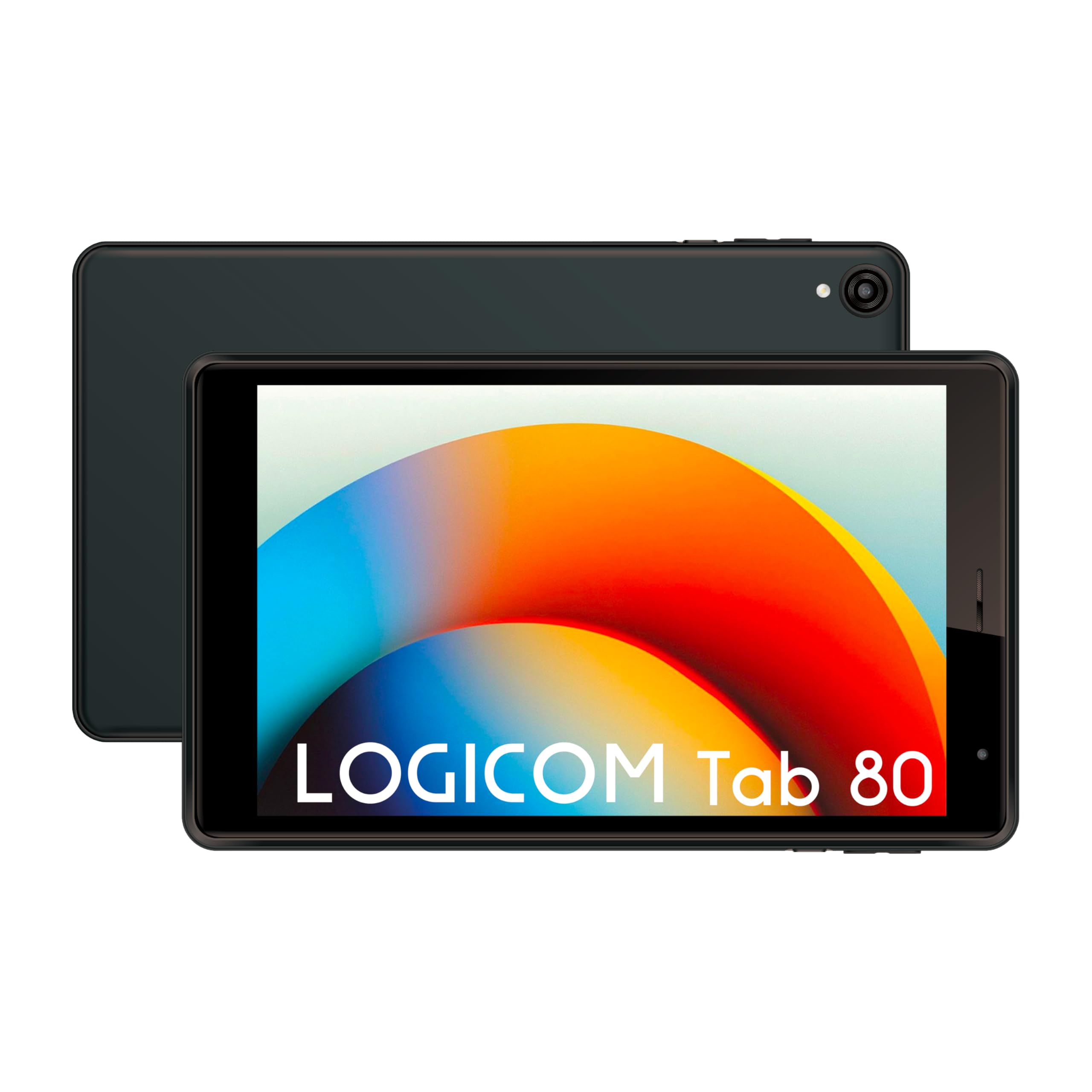
Welcome to the Logicom Tab 80 user manual. This guide provides essential information to help you set up, operate, maintain, and troubleshoot your new tablet. The Logicom Tab 80 is a versatile 8-inch Android 15 tablet designed for everyday use, offering a balance of performance and portability. Featuring an 8-inch IPS display, a powerful 1.8 GHz Octa-Core processor, 4 GB of RAM, and 64 GB of expandable storage, it offers a smooth experience with Android 15. With modern connectivity including Wi-Fi 6, USB-C, and Bluetooth 5.2, it is ready to meet all your needs.
Што има во кутијата
Upon opening your Logicom Tab 80 package, please ensure all the following items are present:
- Logicom Tab 80 Tablet
- USB Type-C to USB 2.0 Cable
- Упатство за употреба
Unboxing Demonstration (UMIDIGI G1 TAB MINI)
Video: A demonstration of unboxing a similar 8-inch tablet (UMIDIGI G1 TAB MINI), showcasing the contents and initial handling. This video is provided by a seller and illustrates general unboxing procedures and accessories typically found with compact tablets.
Unboxing and Features Overview (Blackview ZENO 1)
Видео: Реакција на клиентview video for a similar 8-inch tablet (Blackview ZENO 1), demonstrating the unboxing experience, included accessories, and key features. This seller-provided video offers insights into the physical aspects and functionality common to tablets of this size and specification.
Почетно поставување
Полнење на таблетот
Before first use, fully charge your Logicom Tab 80. Connect the provided USB Type-C cable to the tablet's USB-C port and the other end to a compatible USB power adapter (not included) or a computer's USB port. The charging indicator will show the charging status.
Вклучување/исклучување
- За вклучување: Press and hold the Power button located on the side of the tablet until the Logicom logo appears on the screen.
- За исклучување: Притиснете го и задржете го копчето за вклучување додека не се појави менито со опции за вклучување. Изберете „Исклучи“ и потврдете.
- За рестартирање: Од менито со опции за напојување, изберете „Рестартирај“ и потврдете.
Вметнување MicroSD картичка
The Logicom Tab 80 supports storage expansion up to 256 GB using a MicroSDXC card. To insert the card:
- Пронајдете го држачот за SIM/MicroSD картичка од страната на таблетот.
- Use the provided SIM ejector tool (if applicable) or a small paperclip to gently press into the small hole on the tray to eject it.
- Place the MicroSD card into the designated slot on the tray, ensuring the correct orientation.
- Внимателно вратете ја фиоката во таблетот додека не кликне на своето место.

Основно работење
Навигација низ интерфејсот на Android 15
Your Logicom Tab 80 runs on Android 15, offering an intuitive and user-friendly experience. Familiarize yourself with basic gestures:
- Допрете: За да изберете ставка или да отворите апликација.
- Повлечете: To scroll through screens, menus, or content.
- Штипнете за зумирање: За зумирање или одзумирање на слики и web страници.
- Долг печат: За пристап до контекстуални менија или преместување икони на апликации.
Поврзување на Wi-Fi
За да се поврзете на Wi-Fi мрежа:
- Одете на Поставки > Мрежа и интернет > Wi-Fi.
- Вклучи/исклучи Wi-Fi On.
- Изберете ја саканата мрежа од листата.
- Внесете ја лозинката ако се побара и допрете Поврзете се.
Bluetooth спарување
За спарување со уред со Bluetooth:
- Одете на Поставки > Поврзани уреди > Bluetooth.
- Вклучете Bluetooth On.
- Проверете дали вашиот Bluetooth уред е во режим на спарување.
- Изберете го уредот од листата „Достапни уреди“ и следете ги сите упатства на екранот.
Користење на камерите
The tablet features a 5 MP rear camera for capturing photos and videos, and a 2 MP front camera ideal for video calls and selfies. Open the Camera app from your home screen or app drawer to start capturing moments.
General Tablet Features Demonstration (iPlay 60 mini Tablet)
Video: A seller-provided video demonstrating general features of a similar Android 15 tablet (iPlay 60 mini Tablet), including its compact design, Octa-core processor performance, display refresh rate, dual speakers, and connectivity options. This video highlights functionalities that are also present in the Logicom Tab 80.
Технички спецификации
| Карактеристика | Опис |
|---|---|
| Име на моделот | Картичка 80 |
| Бренд | LOGICOM |
| Приказ | 8-инчен IPS HD (1280 x 800 пиксели) |
| Процесор | Octa-Core 1.8 GHz (Allwinner) |
| RAM меморија | 4 GB |
| Внатрешно складирање | 64 GB (expandable up to 256 GB via SDXC card) |
| Оперативен систем | Андроид 15 |
| Задна камера | 5 MP |
| Предна камера | 2 MP |
| Батерија | 5000 mAh Li-ion |
| Поврзување | Wi-Fi 6 (802.11ax), Bluetooth 5.2, USB-C |
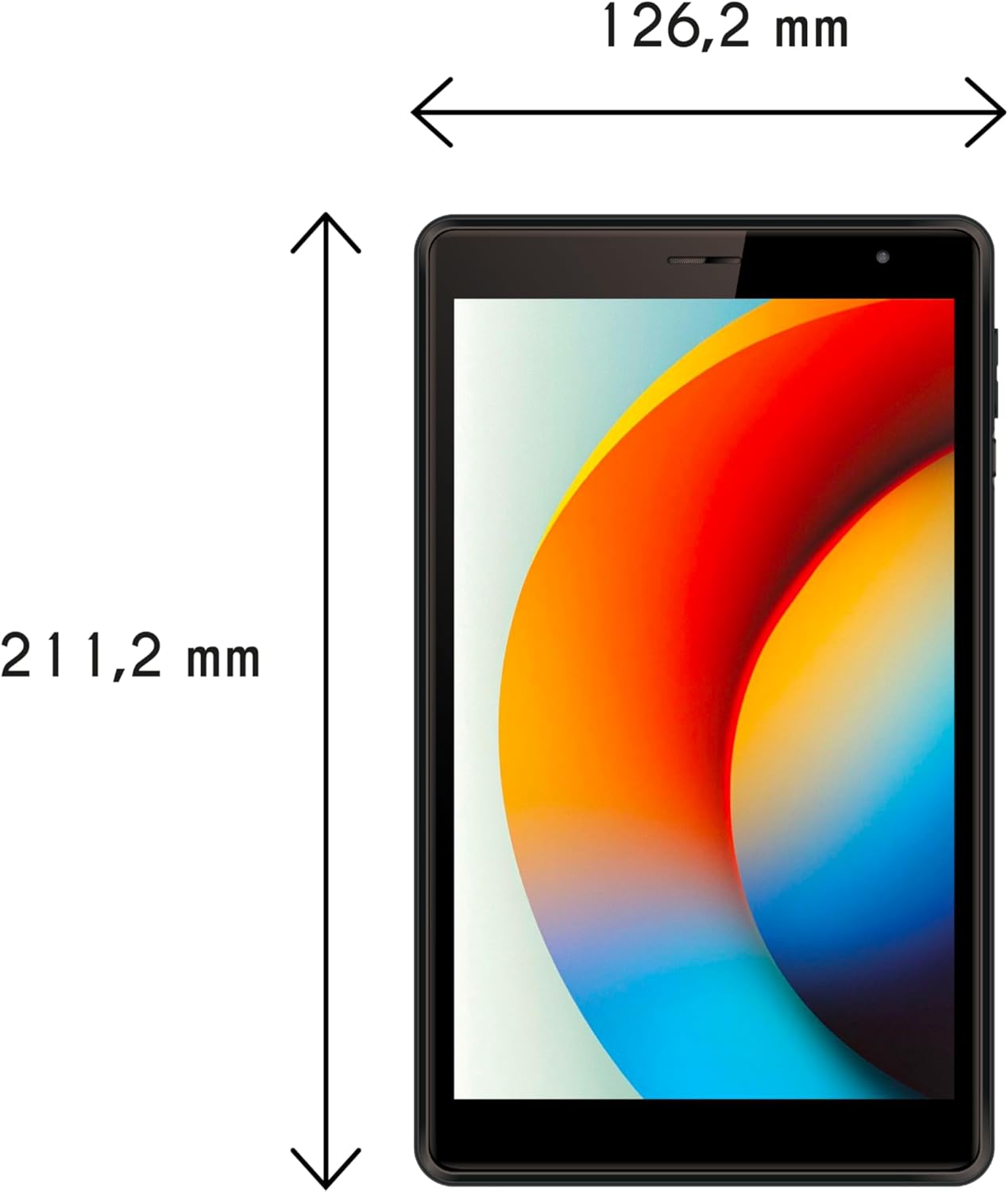
| Димензии | 14 x 25 x 12 cm |
| Тежина | 610 грама |
| Боја | Црното |

Нега и одржување
To ensure the longevity and optimal performance of your Logicom Tab 80, follow these care guidelines:
- Чистење: Користете мека крпа што не остава влакненца за чистење на екранот и телото на таблетот. Избегнувајте употреба на груби хемикалии или абразивни материјали.
- Нега на батеријата: To prolong battery life, avoid exposing the tablet to extreme temperatures. Do not let the battery completely drain frequently.
- Ажурирања на софтверот: Редовно проверувајте и инсталирајте системски ажурирања за да се осигурате дека вашиот таблет ги има најновите функции, безбедносни закрпи и подобрувања на перформансите. Одете на Поставки > Систем > Системско ажурирање.
- Управување со складирање: Периодично бришете непотребно files and apps to free up storage space and maintain smooth operation. Utilize the MicroSD card slot for additional storage.
- Заштита: Consider using a protective case and screen protector to guard against scratches and accidental damage.
Решавање проблеми
Еве решенија за некои вообичаени проблеми со кои може да се соочите:
- Таблетот не се вклучува: Ensure the battery is charged. Connect the tablet to a charger and wait a few minutes before attempting to power it on again. If it still doesn't turn on, try a forced restart by holding the power button for 10-15 seconds.
- Apps are crashing or freezing: Close the problematic app and reopen it. If the issue persists, clear the app's cache (Settings > Apps > [App Name] > Storage & cache > Clear cache). If still unresolved, consider uninstalling and reinstalling the app.
- Проблеми со Wi-Fi конекцијата: Ensure Wi-Fi is enabled and you are within range of a known network. Try restarting your Wi-Fi router and the tablet. Forget the network and reconnect if necessary.
- Бавни перформанси: Затворете ги неискористените апликации што работат во позадина. Исчистете го кешот и привремените files. Consider uninstalling apps you no longer use. If performance remains slow, a factory reset might be necessary (back up your data first).
- Екранот не реагира: Try restarting the tablet. If the screen remains unresponsive, contact customer support.
Гаранција и поддршка
Your Logicom Tab 80 is covered by a standard manufacturer's warranty. Please refer to the warranty card included in your product packaging for specific terms and conditions, including the warranty period and coverage details. Keep your proof of purchase for warranty claims.
For technical support, troubleshooting assistance beyond this manual, or warranty service, please visit the official LOGICOM webвеб-страница или контактирајте го нивниот оддел за услуги на клиентите. Контакт информациите обично може да се најдат на производителот website or in the documentation provided with your tablet.