
1. Производот завршиview
The iCAN M-2121 is a dual-mode wireless gaming mouse designed for versatility and comfort. It supports both 2.4GHz USB and Bluetooth connectivity, allowing seamless switching between devices. Key features include silent click technology, adjustable DPI, RGB lighting, and an ergonomic design for extended use.
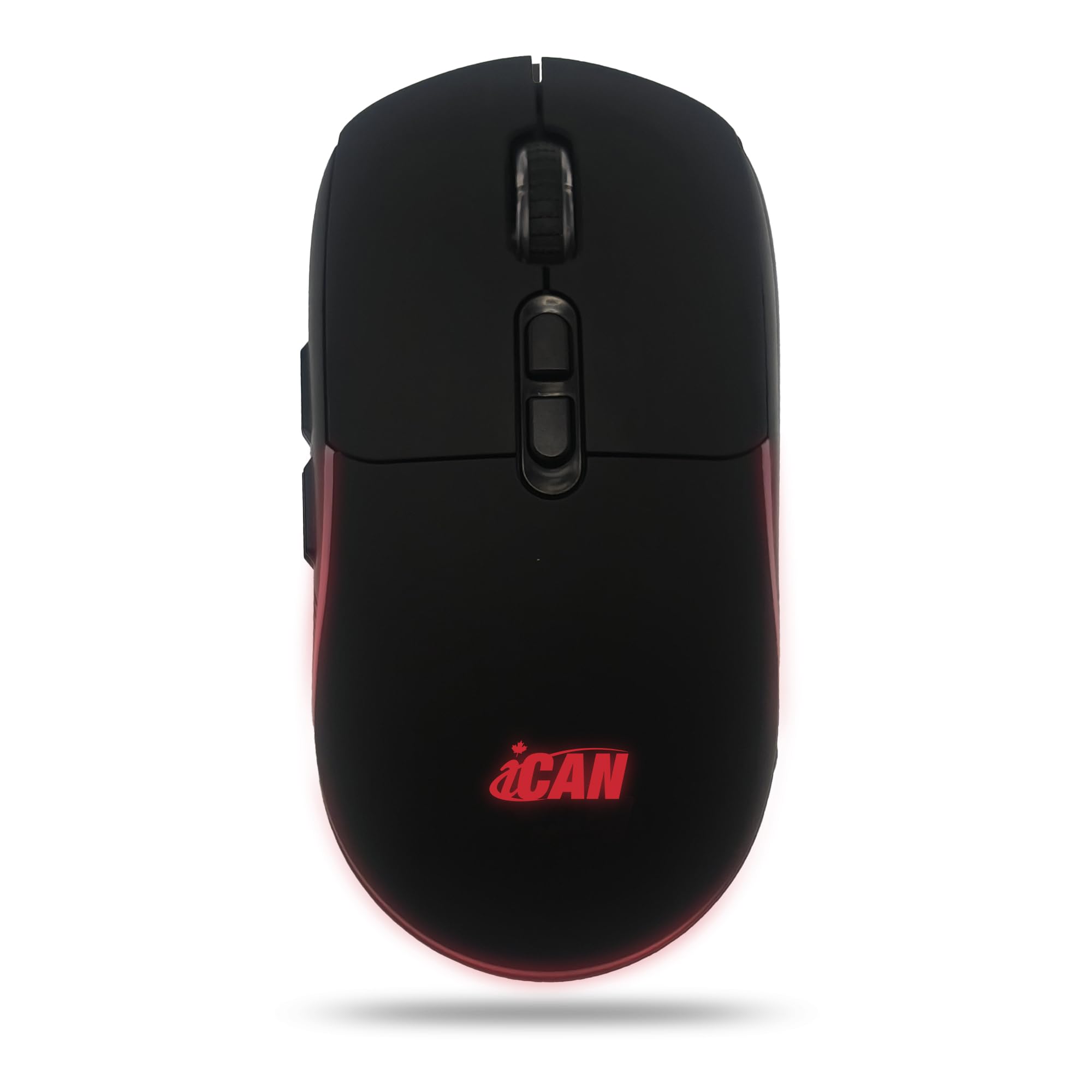
Слика 1: Врв view of the iCAN M-2121 Wireless Gaming Mouse.
2. Содржина на пакетот
- 1 x iCAN M-2121 Wireless Mouse
- 1 x USB ресивер (зачуван на дното на глувчето)
- 1 x Кабел за полнење
- 1 x Упатство за употреба
3. Карактеристики
- Двоен режим на поврзување: Supports both 2.4GHz wireless (via USB receiver) and Bluetooth 5.0/4.0 for flexible connection to various devices.
- Батерија на полнење: Built-in 600mAh rechargeable battery with automatic sleep mode for power saving.
- Тивки кликови: Reduces click noise by up to 90% for quiet operation.
- RGB позадинско осветлување: Dynamic RGB lighting belt (can be toggled on/off).
- Прилагодлив DPI: 3 adjustable DPI levels up to 3200 DPI for precise control.
- 7 програмабилни копчиња: Includes forward/backward side buttons for enhanced productivity and gaming.
- Ергономски дизајн: Shaped to fit naturally in hand, reducing fatigue during prolonged use.
4. Поставување и поврзување
4.1. 2.4GHz Wireless Mode Setup
- Пронајдете го USB-приемникот складиран во преградата на дното од глувчето.
- Вклучете го глувчето користејќи го прекинувачот ВКЛУЧЕНО/ИСКЛУЧЕНО што се наоѓа на долната страна.
- Вметнете го USB приемникот во слободен USB порт на вашиот компјутер или уред.
- The mouse should automatically connect. You can now move and click to use.
Video 1: Demonstrates how to set up the mouse using the 2.4GHz USB receiver. This video shows turning on the mouse, removing the USB receiver from its storage compartment, inserting it into a laptop's USB port, and then using the mouse.
Video 2: Illustrates the process of connecting the 2.4GHz USB mouse. This video shows the mouse being turned on, the USB receiver being removed and inserted into a laptop, and the mouse being used immediately.
4.2. Bluetooth Mode Setup
- Вклучете го глувчето користејќи го прекинувачот ВКЛУЧЕНО/ИСКЛУЧЕНО на долната страна.
- Press the mode switch button (usually on the underside or top) to switch to Bluetooth mode. An indicator light (often blue) will flash, indicating pairing mode.
- On your device (laptop, tablet, etc.), go to Bluetooth settings and search for new devices.
- Select "iCAN M-2121" or a similar name from the list of available devices to pair.
- Once paired, the indicator light will become solid, and you can use the mouse.
Video 3: Shows the setup for both 2.4GHz and Bluetooth modes. This video demonstrates switching between modes, pairing via Bluetooth, and the plug-and-play nature of the 2.4GHz connection.
5. Упатства за работа
5.1. Прилагодување на DPI
The mouse features a DPI button, typically located behind the scroll wheel. Press this button to cycle through the available DPI settings (e.g., 800, 1200, 1600, 2400, 3200 DPI). Each press changes the cursor speed, allowing you to select the sensitivity that best suits your task or game.
Video 4: Highlights various features of a similar wireless mouse, including DPI adjustment. This video shows the DPI button being pressed and the corresponding change in indicator lights, demonstrating the adjustable sensitivity.
5.2. Функции на копчињата
The iCAN M-2121 mouse is equipped with 7 buttons:
- Копче за лево кликнување
- Десен клик на копче
- Scroll Wheel (also functions as a middle click button)
- Копче за прилагодување на DPI
- Forward Button (side button)
- Backward Button (side button)
- Mode Switch Button (usually on the underside, for switching between 2.4GHz and Bluetooth)
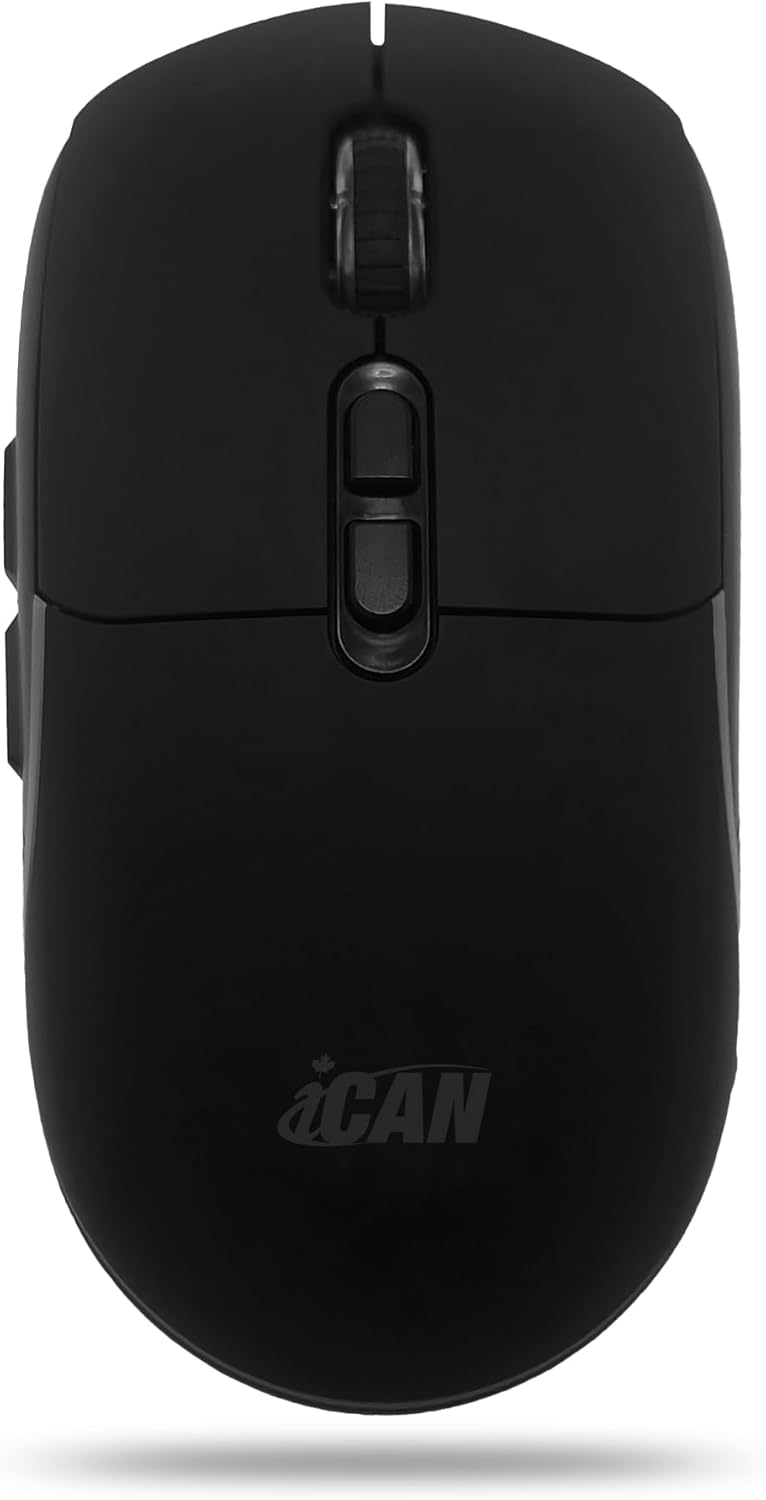
Слика 2: Од горе надолу view of the iCAN M-2121 mouse, illustrating the main buttons and scroll wheel.
5.3. RGB контрола на осветлувањето
The RGB lighting belt can be toggled on or off. Refer to the specific instructions in your package for the exact button or combination of buttons to control the lighting. This feature allows customization of the mouse's aesthetic.
6. Упатство за полнење
The iCAN M-2121 mouse has a built-in rechargeable 600mAh battery. Use the provided charging cable to recharge the mouse.
- Connect the small end of the charging cable to the charging port on the front of the mouse.
- Поврзете го USB-A крајот од кабелот за полнење со USB извор на напојување (на пр., USB порт на компјутер, USB адаптер за ѕид).
- During charging, an indicator light (often blue) will illuminate.
- The light will turn off or change color when the mouse is fully charged.
- Глувчето може да се користи додека се полни.
Video 5: Demonstrates the charging process of a wireless mouse. This video shows connecting the charging cable to the mouse and a laptop, and the blue indicator light confirming charging status.
7. Одржување
- Чувајте го глувчето чисто бришејќи го со мека, сува крпа.
- Избегнувајте изложување на глувчето на екстремни температури, влажност или директна сончева светлина.
- Не го расклопувајте глувчето, бидејќи тоа може да ја поништи гаранцијата.
- Чувајте го USB приемникот во задолжителниот дел кога не е во употреба за да спречите губење.
8 Смена на проблеми
8.1. Глувчето не реагира
- Осигурајте се дека глувчето е ВКЛУЧЕНО.
- Проверете го нивото на батеријата и наполнете го глувчето доколку е потребно.
- For 2.4GHz mode: Ensure the USB receiver is securely plugged into a working USB port. Try a different USB port.
- For Bluetooth mode: Ensure Bluetooth is enabled on your device and the mouse is properly paired. Try unpairing and re-pairing the mouse.
- Обидете се да го рестартирате компјутерот или уредот.
8.2. Lag or Intermittent Connection
- Ensure there are no strong interference sources (e.g., other wireless devices, large metal objects) between the mouse and the receiver/device.
- Move the mouse closer to the receiver/device.
- For 2.4GHz mode: Try plugging the USB receiver into a different USB port, preferably one closer to the mouse.
- For Bluetooth mode: Disconnect other Bluetooth devices that might be causing interference.
8.3. DPI не се менува
- Проверете дали го притискате правилното копче DPI.
- If the issue persists, try restarting the mouse and your device.
9. Спецификации
| Карактеристика | Опис |
|---|---|
| Модел | М-2121 |
| Поврзување | Dual Mode (Bluetooth + 2.4GHz Wireless) |
| Тип на сензор | Оптички |
| Нивоа на DPI | Прилагодлив до 3200 DPI |
| Копчиња | 7 копчиња |
| Капацитет на батеријата | 600mAh на полнење |
| Стапка на анкети | 125 Hz |
| Животен век на притискање на копче | 3 милиони циклуси |
| Осветлување | RGB LED позадинско осветлување |
| Компатибилност | Windows, macOS, iPadOS, Android, Linux |
10. Гаранција и поддршка
10.1. Информации за гаранцијата
This iCAN M-2121 Wireless Gaming Mouse comes with a 2 година гаранција од датумот на купување. Оваа гаранција ги покрива производствените дефекти и неисправностите при нормална употреба. Ве молиме задржете го доказот за купување за гаранциски барања.
10.2. Поддршка за корисници
For any questions, technical assistance, or warranty inquiries, please contact our customer support team:
- Е-пошта: Support.Lekvey@foxmail.com