
1. Вовед
The Huawei OptiXstar K251a-21 is a sub-FTTR (Fiber to the Room) unit designed to extend the high-speed network provided by the Huawei FTTR OptiXstar F50 Plus main unit. This device supports ultra-Gigabit high-speed access via upstream fiber optic lines and delivers Ultra Gigabit dual-band Wi-Fi and ultra-Gigabit network ports to users. It integrates next-generation Wi-Fi 7 technology for higher speeds and lower latency, ensuring a superior home network experience.
2. Информации за безбедност
Please read and understand all safety instructions before using this device. Failure to follow these instructions may result in injury, damage to the device, or property damage.
- Користете го само адаптерот за напојување испорачан со уредот.
- Не го изложувајте уредот на вода, влага или екстремни температури.
- Избегнувајте да го ставате уредот во близина на извори на топлина или на директна сончева светлина.
- Обезбедете соодветна вентилација за да спречите прегревање.
- Не обидувајте се сами да го отворите или поправите уредот. Контактирајте квалификуван сервисер за помош.
- Чувајте го уредот подалеку од деца и домашни миленици.
3. Содржина на пакетот
Проверете дали сите артикли се присутни во вашиот пакет:
- Huawei OptiXstar K251a-21 Sub FTTR Device
- Кабел за напојување
- Водич за брз почеток (доколку е вклучен)
4. Производот завршиview
Запознајте се со компонентите и индикаторите на уредот.
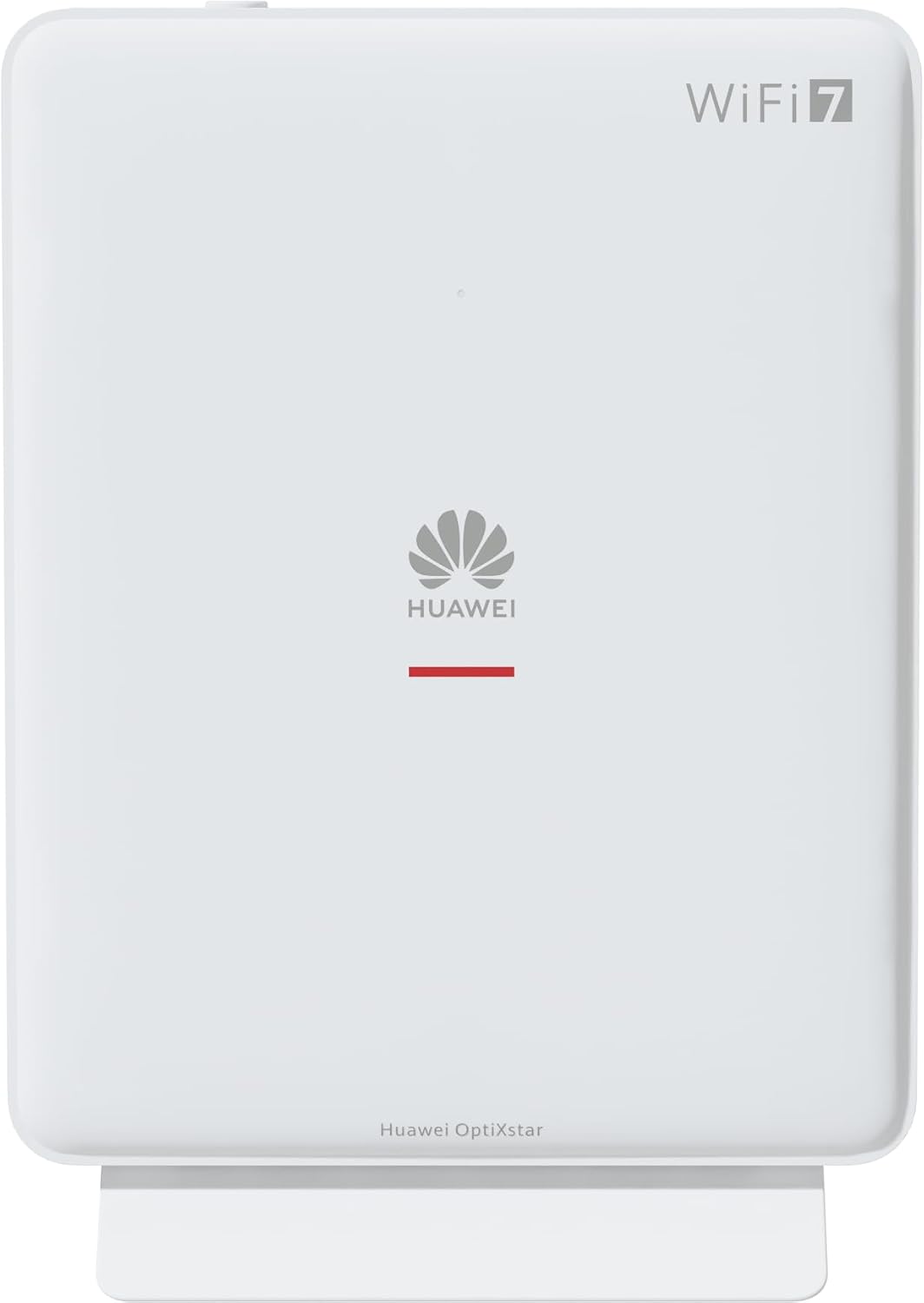
Слика 1: Предна страна view of the Huawei OptiXstar K251a-21 Sub FTTR device, showing the Huawei logo and "WiFi 7" branding.

Figure 2: Angled front-side view of the Huawei OptiXstar K251a-21 Sub FTTR, highlighting its sleek design and ventilation.

Слика 3: Заден дел view of the Huawei OptiXstar K251a-21 Sub FTTR, displaying the ports (Reset, 2-GE, 1-2.5GE, Power, FTTR) and mounting options.

Слика 4: Страничен професионалецfile of the Huawei OptiXstar K251a-21 Sub FTTR, showing its slim form factor and ventilation grilles.

Слика 5: Аголен заден дел view of the Huawei OptiXstar K251a-21 Sub FTTR, providing a clear look at the port labels and layout.

Слика 6: Врв view of the Huawei OptiXstar K251a-21 Sub FTTR, featuring the WPS/LED button.
Порти и копчиња:
- FTTR Port: Connects to the main FTTR unit via a fiber optic cable.
- 1-2.5GE Port: Gigabit Ethernet port for high-speed wired connections.
- 2-GE Port: Гигабитен етернет порт за жични врски.
- Приклучок за напојување: Се поврзува со адаптерот за напојување.
- Копче за ресетирање: Се користи за враќање на фабричките поставки (притиснете и држете 5-10 секунди).
- WPS/LED Button: Initiates Wi-Fi Protected Setup (WPS) for easy device connection and controls LED indicators.
5. Поставување
Follow these steps to set up your Huawei OptiXstar K251a-21 Sub FTTR device:
- Поставување: Choose a central location in your home for optimal Wi-Fi coverage. The device is suitable for various installation scenarios, including vertical placement on a desk, wall-mounting, plugging into a power strip, or mounting in an 86mm junction box with a bracket.
- Поврзете го оптичкиот кабел: Connect one end of the fiber optic cable to the FTTR port on the Sub FTTR unit and the other end to the corresponding FTTR port on your Huawei FTTR OptiXstar F50 Plus main unit or wall outlet. Ensure the connection is secure.
- Поврзете напојување: Plug the power adapter into the Power port on the Sub FTTR unit, then plug the other end into a power outlet.
- Вклучување: The device will automatically power on. Wait for the indicator lights to stabilize, typically indicating a successful connection to the main FTTR unit and active Wi-Fi.
- Жични врски (опционално): For wired devices, connect an Ethernet cable from the 1-2.5GE or 2-GE ports on the Sub FTTR to your computer, gaming console, or other network devices.
6. Работење
Once set up, your OptiXstar K251a-21 provides seamless Wi-Fi 7 connectivity.
- Wi-Fi конекција: Пребарај за the Wi-Fi network name (SSID) broadcast by your FTTR system on your devices (smartphones, laptops, etc.). Enter the Wi-Fi password. The system's unique SRCN (Seamless Roaming Coordinate Network) technology ensures seamless roaming throughout your home.
- C-WAN Architecture: The C-WAN architecture centrally controls and coordinates network-wide Wi-Fi resources via the Main FTTR, providing an ultra-Gigabit high-speed experience.
- IoT Casing: The device features an IoT casing designed to protect home network security and privacy.
- WPS функција: Press the WPS/LED button briefly to use Wi-Fi Protected Setup (WPS) for quick connection of compatible devices without entering the password.
- LED индикатори: The LED indicators provide status information. Refer to the main FTTR unit's manual or the device's specific documentation for detailed LED status meanings.
7. Одржување
Regular maintenance helps ensure optimal performance and longevity of your device.
- Чистење: Gently wipe the device with a soft, dry cloth. Do not use liquid cleaners or abrasive materials.
- Ажурирања на фирмверот: Huawei periodically releases firmware updates to improve performance and security. These updates are typically managed through the main FTTR unit or a dedicated mobile application. Ensure your system is always running the latest firmware.
- Вентилација: Осигурете се дека отворите за вентилација не се блокирани за да се спречи прегревање.
- Управување со кабли: Keep fiber optic and power cables neatly organized and free from kinks or excessive bending.
8 Смена на проблеми
Ако наидете на проблеми, обидете се со следните чекори за решавање проблеми:
- Без моќност: Check if the power cable is securely connected to both the device and the power outlet. Try a different outlet.
- Нема интернет конекција:
- Verify that the fiber optic cable is correctly connected to the FTTR port.
- Check the status indicators on both the Sub FTTR and the main FTTR unit.
- Restart both the Sub FTTR and the main FTTR unit by unplugging them from power for 30 seconds and then plugging them back in.
- Ensure your main FTTR unit has an active internet connection.
- Бавна брзина на Wi-Fi:
- Ensure the device is placed optimally, away from obstructions and interference sources.
- Check if too many devices are connected to the network.
- Update the firmware of your FTTR system.
- Consider using a wired connection for bandwidth-intensive tasks.
- Не може да се поврзе на Wi-Fi:
- Проверете дали ја внесувате точната лозинка за Wi-Fi.
- Try using the WPS button to connect.
- Restart your device and the Sub FTTR unit.
- Ресетирање на фабриката: If issues persist, you may need to perform a factory reset. With the device powered on, use a pointed object (like a paperclip) to press and hold the Reset button for 5-10 seconds until the indicators change. Note that this will erase all custom settings.
9. Спецификации
| Карактеристика | Спецификација |
|---|---|
| Бренд | HUAWEI |
| Број на модел | K8M251a-21G02 |
| Димензии (пакет) | 24.5 x 23.7 x 7.4 cm |
| Тежина (пакет) | 300 грама |
| Специјална карактеристика | Интернет безбедност |
| Класа на фреквентен опсег | Двојна лента |
| Стандард за безжична комуникација | 802.11ax (Wi-Fi 7 Generation) |
| Компатибилни уреди | Личен компјутер |
| Препорачана употреба | Дома |
| Вклучени компоненти | Кабел за напојување |
| Технологија за поврзување | Ethernet, FTTR, Wi-Fi, Fiberglass |
| Боја | Бело |
| Број на пристаништа | 4 (FTTR, 1-2.5GE, 2-GE, Power) |
| Стапка на пренос на податоци | 1 гигабити во секунда |
| Компатибилност со паметен дом | Compatible with smart home systems |
| Интернет конекција | Да |
| Протокол за поврзување | Wi-Fi |
10. Гаранција и поддршка
За информации за гаранцијата и техничка поддршка, ве молиме погледнете го официјалниот Huawei website or contact your local Huawei customer service. Keep your purchase receipt for warranty claims.
Онлајн ресурси: Посетете ја официјалната страница за поддршка на Huawei webстраница за најчесто поставувани прашања, ажурирани упатства и преземања на софтвер.
Услуга за клиенти: Contact details for customer support can typically be found on the Huawei website or in the documentation provided with your main FTTR unit.


