1. Вовед
This manual provides detailed instructions for the installation, configuration, operation, and maintenance of your D-Link DNS-320L Cloud Storage 2-Bay Network Attached Storage (NAS) device. Please read this manual thoroughly before using the device to ensure proper setup and optimal performance. The DNS-320L is designed to provide a centralized storage solution for your home or small office network, offering data redundancy, remote access, and media streaming capabilities.
2. Информации за безбедност
- Уверете се дека уредот е поставен на стабилна, рамна површина за да спречите случајни паѓања.
- Не го изложувајте уредот на вода, влага или екстремни температури.
- Use only the power adapter supplied with the device. Using an incorrect adapter may damage the device and void the warranty.
- Не го отворајте уредот casing. Целото сервисирање обратете се на квалификуван персонал.
- Чувајте ги отворите за вентилација чисти за да спречите прегревање.
- Disconnect the power cable before cleaning or moving the device.
3. Содржина на пакетот
Потврдете дека вашиот пакет ги содржи следниве ставки:
- D-Link DNS-320L Cloud Storage 2-Bay NAS Enclosure
- Адаптер за напојување
- Етернет кабел
- Водич за брза инсталација
- Resource CD (may include software and full manual)
Доколку недостасуваат или се оштетени некои делови, ве молиме контактирајте го вашиот продавач или службата за поддршка на D-Link.
4. Физичко преоптоварувањеview
Familiarize yourself with the ports, buttons, and indicators on your DNS-320L device.
Слика 4.1: Предна страна View of D-Link DNS-320L. This image displays the front panel of the DNS-320L, typically showing LED indicators for power, network activity, and hard drive status. It may also feature a power button and a USB port for quick access.
4.1 Преден панел
- Напојување LED: Покажува статус на моќност.
- HDD 1/2 LEDs: Indicate hard drive activity and status for each bay.
- USB порта: For connecting external USB storage devices or printers.
- Копче за вклучување: За вклучување/исклучување на уредот.
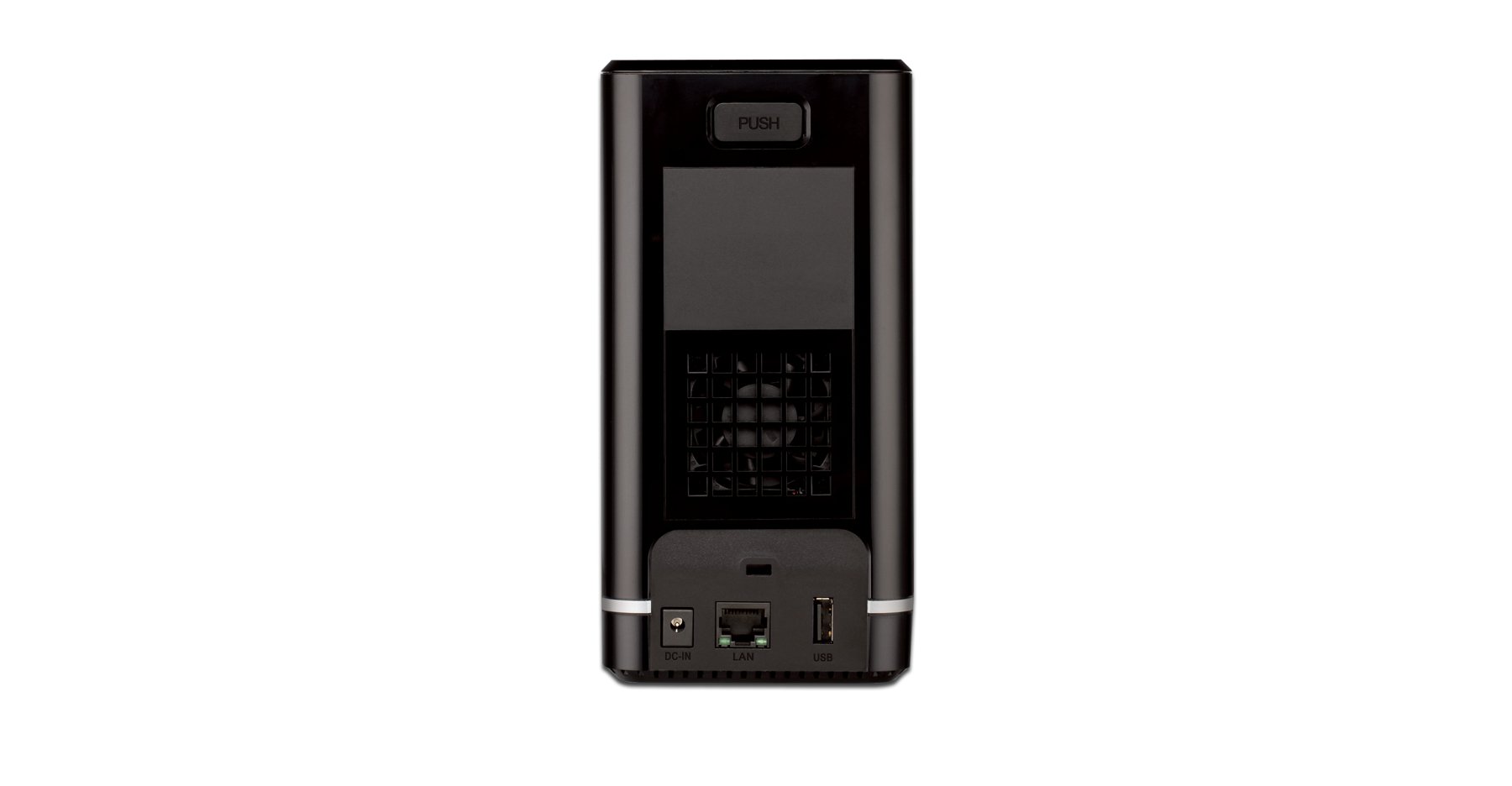
4.2 Заден панел
- Гигабитна етернет порта: Connects the NAS to your network router or switch.
- Конектор за напојување: За поврзување на адаптерот за напојување.
- Копче за ресетирање: Used to restore factory default settings (requires a paperclip or similar pointed object).
- Слот за заклучување Кенсингтон: За физичка безбедност.
5. Инсталација на хардвер
This section guides you through installing hard drives and connecting the DNS-320L to your network.
5.1 Инсталирање хард дискови
The DNS-320L supports two 3.5-inch SATA hard drives. Ensure your drives are compatible and unformatted for initial setup.
- Ensure the DNS-320L is powered off and disconnected from the power outlet.
- Gently slide open the front cover of the NAS enclosure.
- Slide each hard drive into an available bay until it clicks into place, ensuring the SATA connectors align properly. No screws are typically required for tool-less installation.
- Добро затворете го предниот капак.
Figure 5.1: Hard Drive Installation. This image illustrates the process of inserting a 3.5-inch SATA hard drive into one of the bays of the DNS-320L, highlighting the tool-less design.
5.2 Connecting the NAS to Your Network
- Connect one end of the Ethernet cable to the Gigabit Ethernet port on the rear of the DNS-320L.
- Поврзете го другиот крај на етернет кабелот со достапна LAN порта на вашиот рутер или мрежен прекинувач.
- Connect the power adapter to the power connector on the rear of the DNS-320L, then plug the adapter into a power outlet.
- Press the Power button on the front panel to turn on the device. The Power LED will illuminate, and the HDD LEDs will flash during startup.
6. Почетно поставување
After hardware installation, you will need to configure the DNS-320L using its web-базиран интерфејс за управување.
6.1 Пристап до Web Интерфејс
- Ensure your computer is connected to the same network as the DNS-320L.
- Отвори a web прелистувач (на пример, Chrome, Firefox, Edge).
- The DNS-320L typically obtains an IP address automatically via DHCP. You can use the D-Link ShareCenter Utility (if provided on the Resource CD or D-Link website) to discover its IP address. Alternatively, try accessing
http://dlinksharecenterorhttp://dlinksharecenter.local. - Внесете го стандардното корисничко име (обично
admin) and leave the password blank (oradmin) to log in for the first time. You will be prompted to change the password.
6.2 Running the Setup Wizard
Upon first login, a setup wizard will guide you through essential configurations:
- Disk Volume Creation: You will be prompted to create a disk volume. Options typically include:
- Стандард: Each drive is treated as a separate volume.
- RAID 0 (Разделување): Combines drives for maximum capacity and performance, but offers no data redundancy. If one drive fails, all data is lost.
- RAID 1 (отсликување): Mirrors data across both drives, providing data redundancy. If one drive fails, data is preserved on the other. Capacity is limited to the size of one drive.
- JBOD (Само еден куп дискови): Combines drives into a single large volume sequentially. No performance or redundancy benefits.
Choose RAID 1 for data protection. RAID 0 offers speed but no protection.
- User Account Creation: Create at least one user account with administrative privileges.
- Мрежни поставки: Confirm or adjust network settings (DHCP or static IP).
- Временска зона: Поставете го точниот датум и време.
7. Operating the DNS-320L
This section covers common operational tasks for your NAS.
7.1 Accessing Shared Folders
After setup, shared folders will be accessible from your network:
- Windows: Отвори File Explorer, type
\DNS-320L(or its IP address) in the address bar, and press Enter. - MacOS: In Finder, go to Одете> Поврзете се со серверот, тип
smb://DNS-320L(or its IP address), and click Connect. - Linux: Користете го вашиот file manager's network browsing feature or mount the share using SMB/CIFS.
7.2 User and Group Management
Manage who can access your NAS and what permissions they have:
- Најавете се на web interface as an administrator.
- Одете до Management > User Management or similar section.
- Create new users, assign passwords, and add them to groups.
- Configure folder permissions for users and groups (Read/Write, Read Only, No Access).
7.3 Cloud Access and Remote Management
The DNS-320L supports D-Link's Cloud features for remote access.
- Register your device with the D-Link Cloud service (if applicable, refer to D-Link's official documentation for specific steps).
- Use the D-Link mobile app (e.g., mydlink ShareCenter) to access files remotely from your smartphone or tablet.
- Configure port forwarding on your router if direct remote access to the web interface is desired (advanced users only, consult your router manual).
7.4 USB Device Functionality
The USB 2.0 port on the front panel can be used for:
- Надворешно складирање: Connect USB hard drives or flash drives to expand storage or for backup purposes. These devices will appear as shared folders.
- USB печатач: Connect a compatible USB printer to share it across your network.
8. Одржување
Regular maintenance ensures the longevity and reliability of your DNS-320L.
8.1 Ажурирања на фирмверот
Periodically check for and install firmware updates from the D-Link support website. Firmware updates can provide new features, performance improvements, and security patches.
- Преземете го најновиот фирмвер file for your DNS-320L model from the official D-Link support site.
- Log in to the NAS web interface as an administrator.
- Одете до Management > Firmware Upgrade or a similar section.
- Прелистајте до преземениот фирмвер file and initiate the upgrade process. Do not power off the device during the update.
8.2 Бекап на податоци
While RAID 1 provides redundancy against a single drive failure, it is not a substitute for a comprehensive backup strategy. Regularly back up critical data from your NAS to an external drive or another storage location.
8.3 Чистење
Keep the device clean to ensure proper airflow and prevent dust buildup.
- Исклучете го и исклучете го уредот пред да го чистите.
- Користете мека, сува крпа за да ја избришете надворешноста.
- Use compressed air to clear dust from ventilation openings.
9 Смена на проблеми
This section addresses common issues you might encounter with your DNS-320L.
| Проблем | Можно решение |
|---|---|
| Уредот не се вклучува. | Ensure the power adapter is securely connected to both the device and a working power outlet. Test the outlet with another device. |
| Cannot access the NAS on the network. | Verify the Ethernet cable is properly connected. Check network settings on your computer and router. Ensure the NAS has an IP address (use the D-Link utility). Try restarting the NAS and your router. |
| Hard drive LED is red or flashing abnormally. | This may indicate a drive error or failure. Check the NAS web interface for drive status. If a drive has failed in a RAID 1 configuration, replace the faulty drive and rebuild the array. |
| Ја заборавив администраторската лозинка. | Use the reset button on the rear panel to restore factory default settings. Warning: This will erase all configurations, but typically not data on the drives. You will need to reconfigure the NAS. |
| Бавно file брзини на пренос. | Ensure all network components (NAS, router, computer) support Gigabit Ethernet. Check for network congestion or faulty cables. |
10. Спецификации
Key technical specifications for the D-Link DNS-320L:
| Карактеристика | Детал |
|---|---|
| Број на модел | DNS-320L |
| Диск Бејс | 2 x 3.5-inch SATA I/II/III HDD |
| Поддршка за RAID | Standard, JBOD, RAID 0, RAID 1 |
| Мрежен интерфејс | 1 x гигабитен етернет (10/100/1000 Mbps) |
| USB порти | 1 x USB 2.0 |
| Хардверска платформа | Мек, компјутер |
| Димензии (ДxШxВ) | 3.54 x 5.68 x 7.61 инчи |
| Тежина на ставката | 1.39 pounds (without drives) |
| Боја | Црното |
| Материјал | Метал |
| Компатибилни уреди | CPU, Desktop, Laptop, Server |
11. Гаранција и поддршка
For warranty information, please refer to the warranty card included with your product or visit the official D-Link website. D-Link provides technical support and resources to assist you with your DNS-320L.
- Поддршка преку Интернет: Посетете www.dlink.com/support for FAQs, troubleshooting guides, firmware downloads, and product documentation.
- Техничка поддршка: Contact D-Link technical support for assistance with installation, configuration, or troubleshooting issues that cannot be resolved using this manual or online resources. Contact details are available on the D-Link support webсајт за вашиот регион.


