1. Вовед
This manual provides essential instructions for the proper setup, operation, and maintenance of your Argox AS-8250U Barcode Scanner. The AS-8250U is a long-range scanner designed for various applications, including retail, inventory management, invoicing, and factory receiving. It offers fast and accurate reading of PDF codes, Code 16K, and all standard linear symbologies.
2. Информации за безбедност
- Do not expose the scanner to extreme temperatures, humidity, or direct sunlight.
- Избегнувајте испуштање на скенерот или негово изложување на силни удари.
- Не обидувајте се да го расклопите или модифицирате скенерот. Ова ќе ја поништи гаранцијата.
- Keep the scanning window clean to ensure optimal performance.
- Use only the provided or recommended power source and cables.
3. Содржина на пакетот
Ве молиме означете го полето за следните ставки:
- Argox AS-8250U Barcode Scanner
- USB Interface Cable (or other specified interface cable)
- Упатство за употреба (овој документ)
4. Производот завршиview
The Argox AS-8250U is a handheld barcode scanner designed for ergonomic use and efficient data capture.
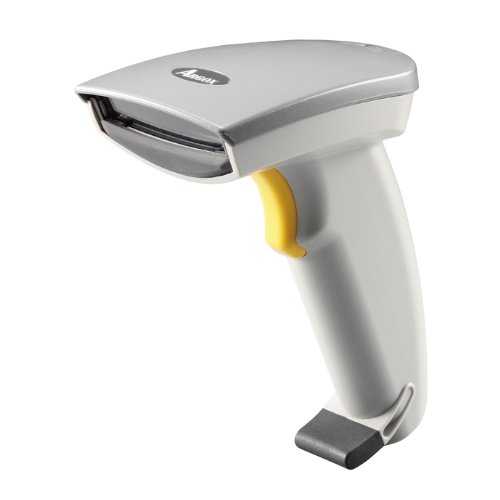
Слика 1: Предна страна view of the Argox AS-8250U Barcode Scanner. This image shows the scanner's ergonomic design, scanning window, and trigger button.
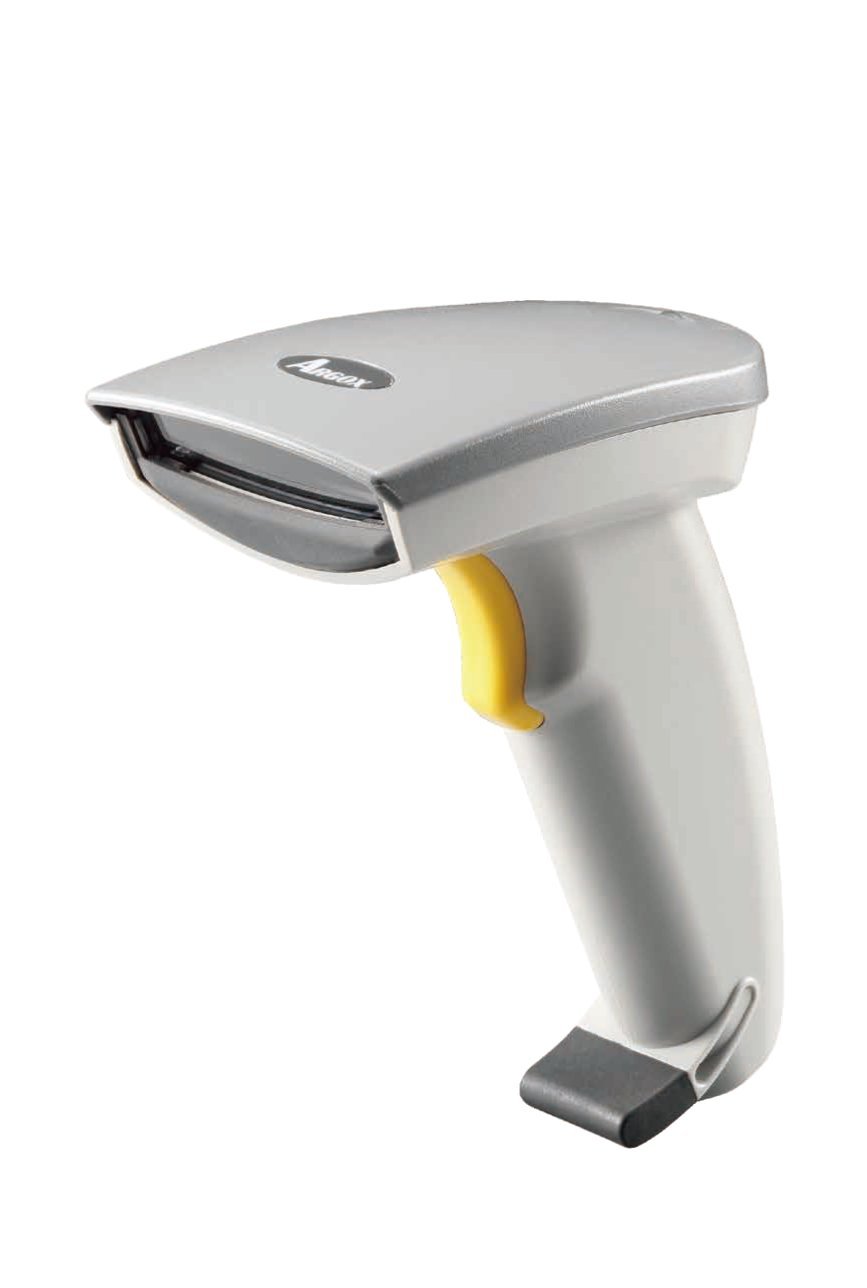
Слика 2: Аголна view of the Argox AS-8250U Barcode Scanner, highlighting its compact form factor and the Argox logo.
Клучни компоненти:
- Прозорец за скенирање: Emits and receives the laser beam for barcode reading.
- Копче за активирање: Го активира процесот на скенирање.
- Индикаторско светло: Provides feedback on scanning status (e.g., successful read).
- Interface Port: Connects the scanner to the host device via USB, RS-232, or Keyboard Wedge (KBW).
5. Поставување
5.1 Поврзување на скенерот
- Identify Interface: Determine the interface type required by your host system (USB, RS-232, or Keyboard Wedge). The AS-8250U supports all popular interfaces.
- Поврзете кабел: Plug one end of the interface cable into the scanner's interface port.
- Поврзете се со домаќинот: Plug the other end of the interface cable into the corresponding port on your computer or POS system.
- USB: Connect to an available USB port. The scanner is typically plug-and-play, and Windows will automatically install necessary drivers.
- РС-232: Connect to a serial port. You may need to configure serial port settings on your host system.
- Keyboard Wedge (KBW): Connect between your keyboard and the computer's keyboard port.
- Вклучување: Once connected, the scanner should power on automatically. The indicator light may illuminate briefly.
5.2 Инсталација на драјвер (за USB)
For USB connections, the Argox AS-8250U is designed for plug-and-play functionality with Windows operating systems. Typically, no manual driver installation is required. Upon connecting the scanner to a USB port, your operating system should automatically detect and install the necessary drivers. If prompted, follow the on-screen instructions. A Windows utility is included for advanced configuration if needed.
6. Ракување со скенерот
6.1 Основна процедура за скенирање
- Prepare for Scan: Ensure the scanner is connected and powered on. Open an application on your host system where you want the barcode data to appear (e.g., a text editor, spreadsheet, or POS software).
- Насочете го скенерот: Point the scanning window of the AS-8250U at the barcode you wish to read. The optimal scanning distance ranges from contact up to 250mm, depending on the barcode density.
- Притиснете го копчето за активирање: Press and hold the trigger button. A red laser line will emit from the scanning window.
- Scan the Barcode: Position the laser line across the entire barcode. Once a successful read occurs, the scanner will typically emit an audible beep and/or the indicator light will flash. The barcode data will then be transmitted to your host system.
- Активатор за ослободување: Ослободете го копчето за активирање по успешно скенирање.
6.2 Поддржани симбологии на баркодови
The AS-8250U is capable of reading a wide range of barcode types, including:
- PDF codes
- Код 16К
- All standard linear (1D) symbologies (e.g., UPC/EAN/JAN, Code 39, Code 128, Interleaved 2 of 5, Codabar, etc.)
7. Одржување
7.1 Чистење на скенерот
- Прозорец за скенирање: Користете мека крпа без влакненца гampened with a mild, non-abrasive cleaner (e.g., glass cleaner) to gently wipe the scanning window. Avoid harsh chemicals or abrasive materials that could scratch the surface.
- Надворешност Casing: Избришете ја надворешноста на скенерот со мека, дamp cloth. Do not allow liquids to enter the scanner's internal components.
- Кабли: Inspect cables regularly for any signs of damage.
7.2 Складирање
When not in use, store the scanner in a clean, dry environment, away from direct sunlight and extreme temperatures. Protect it from dust and physical damage.
8 Смена на проблеми
| Проблем | Можна причина | Решение |
|---|---|---|
| Скенерот не се вклучува. | Cable not properly connected or damaged. | Check cable connections at both the scanner and the host device. Try a different USB port or cable if available. |
| Скенерот не чита баркодови. |
|
|
| Barcode data is incorrect or incomplete. |
|
|
| Нема пренесени податоци до домаќинот. |
|
|
9. Спецификации
| Карактеристика | Детал |
|---|---|
| Бренд | Аргокс |
| Модел | AS-8250U |
| Производител | Argox Information Co., Ltd, Taiwan |
| Технологија за поврзување | USB Cable (also supports RS-232, KBW) |
| Стапка на скенирање | 200 скенирања во секунда |
| Работен опсег | Contact to 250mm on medium density barcodes |
| Поддржани симболологии | PDF codes, Code 16K, all standard linear (1D) symbologies |
| Компатибилност на оперативниот систем | Windows |
| Компатибилни уреди | Десктоп, лаптоп |
| Извор на енергија | Електричен со кабел |
| Тежина на ставката | 420 гр |
| Димензии на пакетот | 22.8 x 11.8 x 11 cm |
10. Гаранција и поддршка
For warranty information and technical support, please refer to the warranty card included with your product or visit the official Argox webлокација. Чувајте ја сметката како доказ за купување за гаранциски побарувања.
For further assistance, please contact Argox customer support through their official channels.


