1. Вовед
The Hikvision DS-7316HQHI-SH is a 16-channel Tribrid Digital Video Recorder (DVR) designed for advanced surveillance systems. This DVR supports Turbo HD, analog, and 1080P IP cameras, offering versatile compatibility for various security setups. It features H.264 video compression for efficient storage and supports auto-detection of camera types. This manual provides essential information for the proper installation, operation, and maintenance of your DVR system.
2. Инструкции за безбедност
Please read these safety instructions carefully before operating the device to prevent injury or damage.
- Обезбедете ја јачината на напојувањетоtage is stable and meets the device's requirements.
- Do not place the device in direct sunlight, near heat sources, or in environments with high humidity or dust.
- Avoid placing heavy objects on top of the DVR.
- Use only Hikvision-approved accessories and power adapters.
- Исклучете го напојувањето пред да извршите какви било процедури за одржување или инсталација.
- Properly ground the device to prevent electrical shock.
3. Содржина на пакетот
Verify that all items are present in the package. If any items are missing or damaged, contact your supplier.
- Hikvision DS-7316HQHI-SH DVR Unit
- Адаптер за напојување
- USB глушец
- SATA кабли (за поврзување со HDD)
- Screws (for HDD installation)
- Водич за брз почеток
4. Производот завршиview
4.1 Преден панел

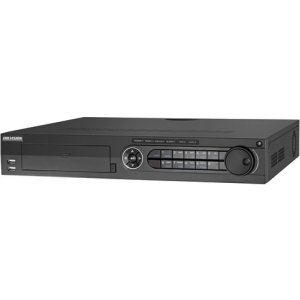
The front panel of the DVR provides access to essential controls and indicators. It typically includes:
- USB порти: For connecting a mouse, USB flash drive, or external storage.
- Индикатори за статусот: LEDs for power, HDD activity, and network status.
- Контролни копчиња: Navigation and selection buttons for menu operation.
- IR приемник: For remote control (if applicable).
4.2 Приклучоци на задниот панел
The rear panel houses all the necessary ports for connecting cameras, monitors, network, and power. Key connections include:
- Видео влез: BNC connectors for 16 Turbo HD/Analog cameras.
- Видео излез: HDMI and VGA ports for monitor connection.
- Аудио влез/излез: RCA connectors for audio devices.
- LAN порта: RJ45 Ethernet порт за мрежна конекција.
- USB порти: Дополнителни USB порти за периферни уреди.
- Влез/излез на аларм: Terminal blocks for alarm input and output devices.
- Влез на енергија: DC 12V power jack.
5. Поставување
5.1 Инсталација на хардвер
- Инсталација на хард диск (HDD):
- Одвртете го и извадете го горниот капак на DVR-от.
- Поврзете го SATA кабелот за податоци и кабелот за напојување со HDD-то.
- Align the HDD with the screw holes at the bottom of the DVR chassis and secure it with the provided screws.
- Вратете го горниот капак и прицврстете го со завртки.
- Врски со камера: Connect your Turbo HD, analog, or IP cameras to the corresponding video input ports on the rear panel using BNC connectors. For IP cameras, ensure they are connected to the same network as the DVR.
- Поврзување на мониторот: Connect a monitor to the HDMI or VGA output port on the rear panel.
- Поврзување со глушец: Connect the USB mouse to a USB port on the front or rear panel.
- Мрежна конекција: Connect an Ethernet cable from your router/switch to the LAN port on the DVR.
- Поврзување за напојување: Connect the power adapter to the DVR's power input and then plug it into a power outlet.
5.2 Првично вклучување и конфигурација
After connecting all hardware, power on the DVR. The system will boot up, and you will be prompted to set up basic configurations.
- Create Admin Password: Follow the on-screen prompts to create a strong administrator password.
- Activate HDD: The newly installed HDD will need to be initialized or formatted by the DVR. Navigate to Menu > HDD > HDD Management за форматирање на уредот.
- Мрежни поставки: Configure network parameters (IP address, subnet mask, gateway, DNS) to enable remote access and IP camera integration. You can use DHCP or static IP.
- Датум и време: Поставете го точниот датум, време и временска зона.
- Откривање на камера: The DVR will automatically detect connected Turbo HD and analog cameras. For IP cameras, you may need to add them manually via Menu > Camera > IP Camera.
6. Упатства за работа
6.1 Навигација на корисничкиот интерфејс
Use the connected USB mouse to navigate the DVR's graphical user interface (GUI). Right-click to access the main menu, and left-click to select options.
- Во живо View: Displays real-time video feeds from all connected cameras.
- Главно мени: Provides access to all system settings, recording, playback, and advanced features.
- Репродукција: Дозволува повторноviewсе сними footage.
- Резервна копија: For exporting recorded video to a USB device.
6.2 Конфигурација за снимање
За да ги конфигурирате поставките за снимање:
- Одете на Main Menu > Record > Parameters.
- Select the desired camera and configure settings such as resolution, frame rate, and bit rate.
- Одете до Main Menu > Record > Schedule to set up continuous, motion-detection, or alarm-triggered recording schedules for each camera.
6.3 Репродукција
To play back recorded footage:
- Од во живо view, right-click and select Репродукција, или одете на Main Menu > Playback.
- Select the camera(s) and the date/time range you wish to review.
- Use the timeline and control buttons (play, pause, fast forward, rewind) to navigate through the footage.
6.4 Далечински пристап
To access your DVR remotely:
- Ensure the DVR is connected to the internet and network settings are correctly configured.
- Download and install the Hik-Connect app on your mobile device or the iVMS-4200 client software on your computer.
- Register an account and add your DVR using its serial number or QR code.
- Follow the app/software instructions to view live feeds, play back recordings, and manage settings remotely.
7. Одржување
7.1 Управување со хард диск
Regularly check the status of your hard drive to ensure optimal recording performance. Go to Main Menu > HDD > HDD Management до view disk status, remaining capacity, and perform formatting if necessary. It is recommended to format the HDD periodically (e.g., every 6-12 months) to maintain performance, after backing up any critical data.
7.2 Ажурирања на фирмверот
Keep your DVR's firmware updated to benefit from new features, security enhancements, and bug fixes. Download the latest firmware from the official Hikvision website. Update the firmware via USB or network through Main Menu > Maintenance > Upgrade.
7.3 Чистење
Periodically clean the exterior of the DVR with a soft, dry cloth. Ensure ventilation openings are free from dust to prevent overheating. Do not use liquid cleaners or aerosols directly on the device.
8 Смена на проблеми
| Проблем | Можна причина | Решение |
|---|---|---|
| Нема видео излез на мониторот | Loose HDMI/VGA cable; Incorrect monitor input; DVR not powered on. | Check cable connections; Select correct input on monitor; Verify DVR power. |
| Нема слика од камерата | Camera not powered; Loose BNC cable; Incorrect camera type selected; IP camera not configured. | Check camera power and connections; Verify camera type in DVR settings; Add/configure IP camera. |
| Нема снимање | HDD not initialized/formatted; Recording schedule not set; HDD full. | Иницијализирај/форматирај HDD; Конфигурирај распоред за снимање; Проверка на капацитетот на HDD. |
| Не може да се пристапи до DVR од далечина. | Network cable disconnected; Incorrect network settings; Router firewall blocking ports. | Check network cable; Verify DVR network settings (IP, DNS); Configure port forwarding on router or enable UPnP. |
9. Спецификации
| Карактеристика | Детал |
|---|---|
| Број на модел | DS-7316HQHI-SH-2TB |
| Видео влезови | 16 Channels (Turbo HD/Analog) + 2 IP Cameras (1080P) |
| Видео компресија | H.264 |
| Видео излез | hdmi, vga |
| Аудио влез/излез | Да |
| Влез/излез на аларм | Да |
| Мрежен интерфејс | 1 RJ45 10M/100M/1000M Ethernet интерфејс |
| USB интерфејс | 2 x USB 2.0 (напред), 1 x USB 3.0 (заден) |
| Уред за хард диск | 2TB pre-installed (supports up to 2 SATA HDDs) |
| Напојување | 12V DC |
| Димензии на производот | 390 x 445 x 70 inches (Note: This dimension appears unusually large and may be a unit conversion error in the source data. Please refer to official product documentation for accurate dimensions.) |
| Тежина на ставката | 1 фунти |
10. Гаранција и поддршка
Hikvision products typically come with a limited warranty. For detailed warranty information, please refer to the warranty card included with your product or visit the official Hikvision website. For technical support, product registration, or service inquiries, please contact Hikvision customer support or your authorized dealer.
Службен Webсајт: www.hikvision.com


