1. Вовед
This manual provides detailed instructions for the setup, operation, and maintenance of your Intermec EasyCoder PX4i Thermal Transfer Printer. The PX4i is a robust and flexible industrial printer designed for high-volume label printing, offering monochrome output at a resolution of 203 dpi and speeds up to 12 inches per second. Please read this manual thoroughly before using the printer to ensure safe and efficient operation.
2. Карактеристики на производот
- Печатење со голема брзина: Capable of printing at speeds up to 12 inches per second.
- Висока резолуција: Delivers clear monochrome prints at 203 dpi.
- Флексибилно ракување со медиуми: Supports various media types including black mark, continuous label, fanfold, gap, general identification label, notch, roll fed, tag, and ticket.
- Етернет поврзување: Integrated Ethernet for network integration.
- Програмирачки: Designed for optimized printing operations and streamlined deployment.
- Издржлив дизајн: Industrial-grade construction for demanding environments.
3. Содржина на пакетот
Verify that all items listed below are included in your printer package. If any items are missing or damaged, contact your supplier immediately.
- Intermec EasyCoder PX4i Thermal Transfer Printer
- Кабел за напојување
- Labels (Included Components)
- User Documentation (This manual)
4. Информации за безбедност
Always observe the following safety precautions to prevent injury and damage to the printer:
- Осигурајте се дека печатачот е поставен на стабилна, рамна површина.
- Connect the printer to a grounded power outlet.
- Не ракувајте со печатачот во влажни или претерано влажни услови.
- Држете ги рацете и лабавата облека подалеку од подвижните делови за време на работата.
- Исклучете го напојувањето пред да вршите какво било одржување или чистење.
- Користете само одобрени резервни делови и додатоци.
5. Поставување
5.1 Отпакување
- Внимателно отстранете го печатачот од неговото пакување.
- Отстранете ги сите материјали за пакување, ленти и заштитни фолии.
- Зачувајте го оригиналното пакување за иден транспорт или складирање.
5.2 Поврзување напојување
- Осигурајте се дека прекинувачот за напојување на печатачот е во положба OFF (ИСКЛУЧЕНО).
- Connect the power cord to the printer's power inlet.
- Приклучете го другиот крај на кабелот за напојување во заземјен електричен штекер.
5.3 Loading Media (Labels)
The PX4i printer supports various label types. Follow these general steps to load your labels:

Слика: напред view of the Intermec EasyCoder PX4i printer, showing a label being fed out of the front slot. The control panel with an LCD screen and numeric keypad is visible on the top front.
- Отворете го капакот на медиумот на печатачот.
- Place the roll of labels onto the media supply spindle, ensuring it unwinds correctly.
- Feed the leading edge of the labels through the media guides and under the printhead assembly.
- Adjust the media guides to fit the width of your labels snugly but without binding.
- Close the media cover. The printer may automatically calibrate to the new media.
5.4 Поврзување со компјутер/мрежа
The PX4i offers Ethernet connectivity for network integration.
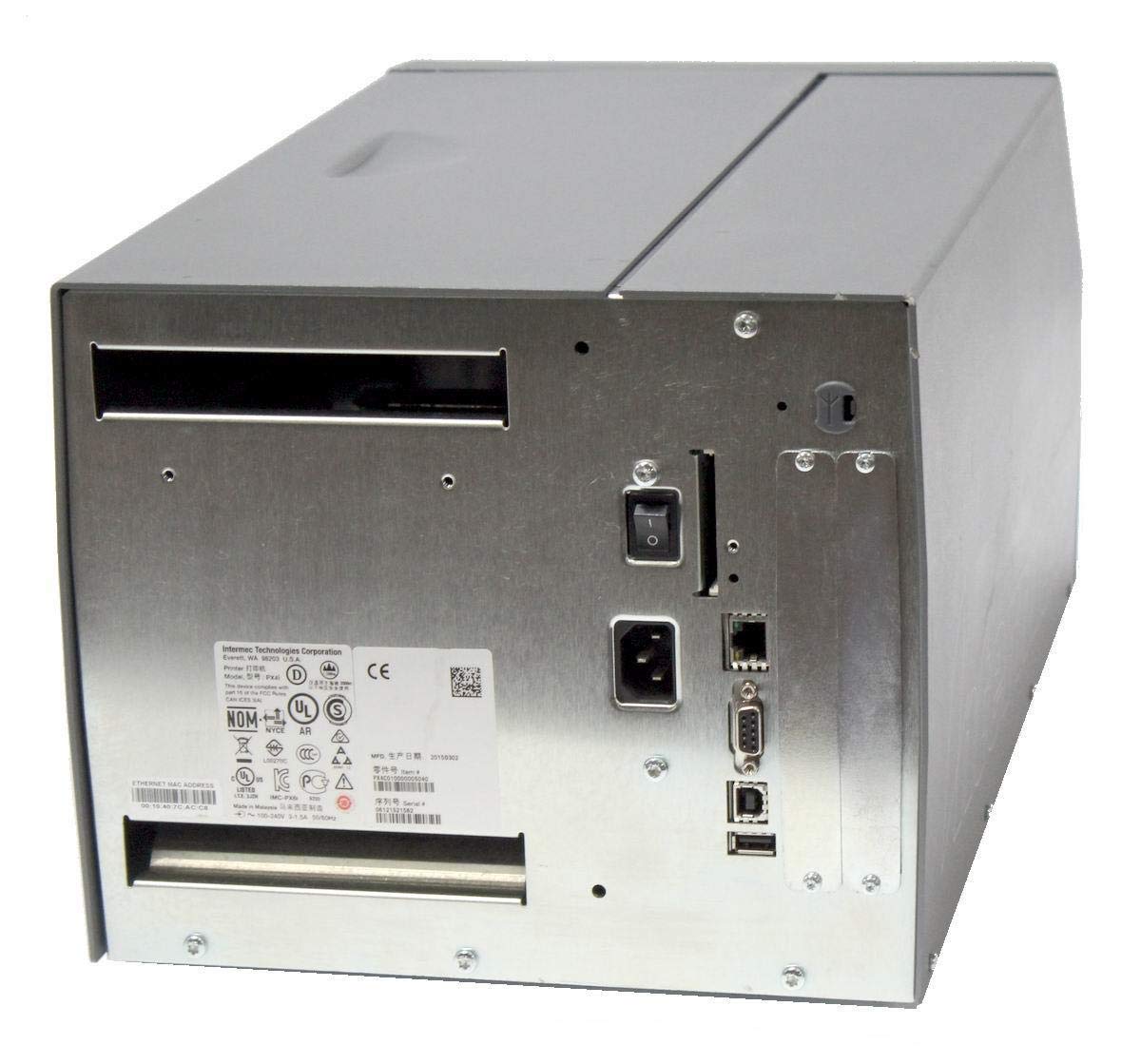
Слика: Заден дел view of the Intermec EasyCoder PX4i printer, displaying the power inlet, power switch, Ethernet port, serial ports, and USB ports. The metallic casing is clearly visible.
- Locate the Ethernet port on the rear of the printer.
- Connect a standard Ethernet cable from the printer to your network router or switch.
- For direct connection to a computer, use an appropriate USB or serial cable if supported by your system and printer configuration.
- Refer to the printer's network configuration guide for setting up IP addresses and other network parameters.
6. Операција
6.1 Контролната табла е завршенаview
The front control panel provides access to printer functions and status information.
Image: Close-up of the Intermec EasyCoder PX4i control panel, featuring an LCD display, navigation buttons (up, down, left, right, enter), and a numeric keypad with function keys like Pause, Feed, and Clear.
- LCD дисплеј: Shows printer status, menu options, and error messages.
- Копчиња за навигација: Used to scroll through menus and select options.
- Нумеричка тастатура: For entering data or selecting numbered options.
- Копче за пауза: Temporarily stops printing.
- Копче за довод: Advances one label.
- Копче за поставување: Accesses printer configuration menus.
6.2 Основно печатење
- Проверете дали печатачот е вклучен и поврзан со вашиот компјутер или мрежа.
- Open the document or application from which you wish to print labels.
- Select the Intermec PX4i printer from your printer list.
- Configure print settings such as label size, orientation, and quantity as needed.
- Initiate the print job. The printer will begin feeding and printing labels.
6.3 Прилагодување на поставките за печатење
Advanced print settings can be adjusted through the printer's control panel or via the printer driver on your computer. These settings include print darkness, print speed, label gap sensing, and more. Consult your printer driver documentation for software-based adjustments.
7. Одржување
Редовното одржување обезбедува оптимални перформанси и го продолжува животниот век на вашиот печатач.
7.1 Cleaning the Printhead
The printhead should be cleaned regularly, especially if print quality degrades.
- Исклучете го печатачот и исклучете го кабелот за напојување.
- Отворете го склопот на главата за печатење.
- Using a lint-free cloth or a printhead cleaning pen moistened with isopropyl alcohol, gently wipe the printhead surface from center to edge.
- Allow the printhead to dry completely before closing the assembly and reconnecting power.
7.2 Replacing Media and Ribbon
When the label roll or thermal transfer ribbon (if used) runs out, replace it promptly.
- Исклучете го печатачот и отворете го капакот на медиумот.
- Remove the empty label roll and/or used ribbon core.
- Install a new roll of labels and/or a new ribbon, following the loading instructions in Section 5.3.
- Ensure media and ribbon are properly tensioned and aligned.
- Затворете ја медиумската корица.
8 Смена на проблеми
This section addresses common issues you might encounter with your PX4i printer.
- Печатачот не се вклучува: Check power cord connection, power outlet, and printer's power switch.
- Нема излез за печатење: Verify printer is online, connected to the computer/network, and has media loaded. Check for error messages on the LCD.
- Лош квалитет на печатење: Clean the printhead (Section 7.1). Adjust print darkness settings. Ensure correct media and ribbon are used.
- Етикетите не се внесуваат правилно: Check media loading (Section 5.3) and ensure media guides are properly adjusted. Calibrate media sensors if necessary.
- Пораки за грешка: Refer to the printer's LCD display for specific error codes and consult the full Intermec PX4i technical manual for detailed explanations and solutions.
9. Спецификации
| Карактеристика | Опис |
|---|---|
| Име на моделот | PX4i |
| Број на модел на ставка | PX4C010000000020 |
| Технологија на печатење | термички трансфер |
| Боја за печатење | Монохроматски |
| Максимална брзина на печатење | 12 in/s (Monochrome) |
| Максимална резолуција за печатење | 203 dpi |
| Технологија за поврзување | Етернет |
| Максимална големина на медиум | 12 инчи |
| Вклучени компоненти | Етикети |
| Тип на контролер | Притиснете го копчето |
| Производител | INTERMEC INDUSTRIAL PRINTERS |
| Димензии на пакетот | 23.25 x 15.5 x 15.25 инчи; 36.2 фунти |
10. Гаранција и поддршка
The Intermec EasyCoder PX4i Thermal Transfer Printer comes with a standard manufacturer's warranty. For specific warranty terms and conditions, please refer to the warranty card included with your product or visit the official Intermec (Honeywell) support website. For technical assistance, troubleshooting beyond this manual, or to inquire about service, please contact Intermec customer support or your authorized dealer.
Онлајн ресурси: For the latest drivers, firmware updates, and additional documentation, please visit the official Intermec support portal.


