Вовед
This manual provides essential information for setting up, operating, maintaining, and troubleshooting your Microsoft Surface Pro 3. The Surface Pro 3 is a versatile device designed to function as both a tablet and a laptop, powered by the Windows 10 operating system.
It features a 12-inch high-resolution screen, ample internal storage, dual HD cameras, and robust connectivity options, including a full-size USB 3.0 port. Its integrated kickstand allows for comfortable viewing in various positions, and the magnesium frame ensures a lightweight and durable design.
Информации за безбедност
- Не го изложувајте уредот на екстремни температури, директна сончева светлина или висока влажност.
- Избегнувајте испуштање или изложување на уредот на силен удар.
- Користете само адаптери за напојување и додатоци одобрени од Microsoft.
- Држете го уредот подалеку од течности. Во случај на контакт со течност, веднаш исклучете го од струја и побарајте стручна помош.
- Не обидувајте се сами да го расклопите или поправите уредот. Ова може да ја поништи гаранцијата и да предизвика штета.
- Ensure proper ventilation when using the device to prevent overheating.
Поставување
1. Откачување и првична проверка
Carefully remove the Surface Pro 3 and all accessories from the packaging. Inspect the device for any visible damage. Retain the packaging for future transport or service needs.
2. Вклучување и почетно поставување
- Connect the power supply to the Surface Pro 3 and a power outlet.
- Press the power button located on the top edge of the device.
- Follow the on-screen prompts to complete the Windows 10 initial setup, including language selection, network connection, and user account creation.
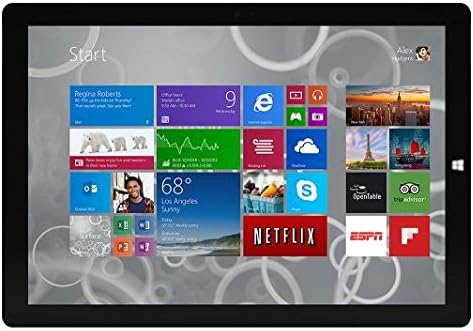
Figure 1: Windows 10 Start Screen during initial setup.
This image shows the Microsoft Surface Pro 3 screen displaying the Windows 10 Start menu, characterized by a grid of live tiles representing various applications and services. This is typically seen during the initial setup or when navigating the operating system.
3. Attaching Accessories (Sold Separately)
The Surface Pro 3 is compatible with various accessories, such as the Surface Type Cover keyboard and the Surface Pen, which are sold separately.
- Surface Type Cover: Align the magnetic connector of the Type Cover with the bottom edge of the Surface Pro 3 until it clicks into place.
- Површинско пенкало: The Surface Pen can be magnetically attached to the side of the Surface Pro 3 for storage. For initial pairing, follow the instructions provided with the pen.
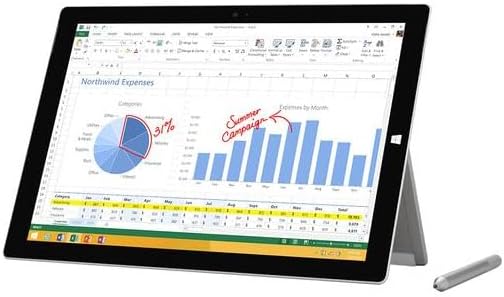
Figure 2: Surface Pro 3 with optional Surface Pen.
This image illustrates the Microsoft Surface Pro 3 in use, displaying an Excel spreadsheet on its screen. A Surface Pen is positioned next to the device, highlighting its compatibility for precise input and navigation.
4. Expanding Storage with a MicroSD Card
You can expand the internal storage of your Surface Pro 3 using a microSD card (sold separately).
- Locate the microSD card slot on the side of the Surface Pro 3, typically behind the kickstand.
- Insert the microSD card into the slot until it clicks into place.
- The device will automatically detect the card. You may need to format it if it's a new card or if prompted by the system.

Figure 3: MicroSD card slot.
This close-up image shows the microSD card slot on the side of the Microsoft Surface Pro 3, with a microSD card partially inserted, demonstrating how to expand the device's storage.
Упатства за работа
1. Navigating Windows 10
- Мени за почеток: Кликнете на иконата на Windows во долниот лев агол за да пристапите до апликациите, поставките и опциите за напојување.
- Екран на допир: Use gestures for navigation, zooming, and scrolling.
- Edge Browser: Utilize the pre-installed Edge browser for web browsing, which includes features for marking up web страници.

Figure 4: Using the Surface Pro 3 for productivity.
This image depicts the Microsoft Surface Pro 3 in an active use scenario, showcasing a note-taking application open on its screen. The display features handwritten notes, diagrams, and sketches, illustrating the device's capability for creative and productive tasks.
2. Using the Integrated Kickstand
The multi-position kickstand allows you to adjust the viewing angle for optimal comfort, whether you are typing, watching videos, or drawing.
- Gently pull the kickstand out from the back of the device.
- Adjust it to your desired angle. The kickstand offers a wide range of positions for versatility.
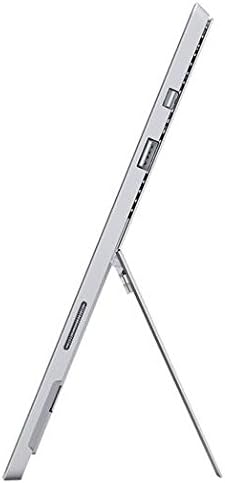
Figure 5: Adjustable kickstand.
Оваа слика дава страна view of the Microsoft Surface Pro 3, clearly showing its integrated kickstand extended to support the device at an angle, demonstrating its versatile viewспособности за работа.
3. Функционалност на камерата
The Surface Pro 3 is equipped with 5.0MP front and rear cameras.
- Open the Camera application from the Start Menu.
- Switch between front and rear cameras as needed for photos or video calls.

Figure 6: Front camera.
This close-up image focuses on the front-facing camera and associated sensors located at the top edge of the Microsoft Surface Pro 3 screen.
4. Поврзување
The full-size USB 3.0 port allows for connecting various peripherals and transferring data.
- Insert USB devices (e.g., flash drives, external hard drives, printers) into the USB 3.0 port.
- The device also supports Wi-Fi (802.11a/b/g/n/ac) for wireless internet connectivity.
Одржување
1. Cleaning Your Surface Pro 3
- Користете мека крпа без влакненца гampсо вода или средство за чистење екрани специјално дизајнирано за електроника.
- Избегнувајте употреба на груби хемикалии, абразивни средства за чистење или аеросолни спрејови.
- Нежно избришете го екранот и надворешните површини.
2. Софтверски ажурирања
Regularly check for and install Windows updates to ensure your device has the latest security patches and performance improvements.
- Одете на Поставки > Ажурирање и безбедност > Windows Update.
- Кликнете на „Провери за ажурирања“ и инсталирајте ги сите достапни ажурирања.
3. Управување со складирање
To maintain optimal performance, manage your device's storage space.
- Редовно бришете ги непотребните fileи апликации.
- Utilize cloud storage services or external drives for large files.
- Consider using the Disk Cleanup tool in Windows to remove temporary files.
Решавање проблеми
Овој дел се однесува на вообичаени проблеми со кои може да се соочите со вашиот Surface Pro 3.
Уредот не се вклучува
- Ensure the power supply is securely connected to both the device and a working power outlet.
- Обидете се со друг штекер.
- Притиснете го и држете го копчето за вклучување 10-15 секунди за да извршите присилно исклучување, а потоа притиснете го повторно за да го рестартирате.
Проблеми со Wi-Fi поврзување
- Проверете дали Wi-Fi е овозможен во поставките на Windows.
- Рестартирајте го вашиот Wi-Fi рутер.
- Заборавете ја мрежата и повторно поврзете се, повторно внесувајќи ја лозинката.
- Стартувајте го алатката за решавање проблеми со мрежата на Windows.
Бавни перформанси
- Затворете ги непотребните апликации што работат во позадина.
- Проверете и инсталирајте ги сите очекувани ажурирања на Windows.
- Осигурајте се дека имате доволно слободен простор за складирање.
- Извршете скенирање за вируси.
For more detailed troubleshooting or issues not covered here, please refer to the official Microsoft Support webсајт или контактирајте со службата за корисници.
Спецификации
| Карактеристика | Детал |
|---|---|
| Модел | Microsoft Surface 1631 Pro 3 |
| Оперативен систем | Windows 10 |
| Големина на екранот | 12 инчи |
| Резолуција на екранот | 2160 x 1440 |
| Процесор | Интел Кор i3 1.5 GHz |
| RAM меморија | 4 GB |
| Внатрешно складирање | 128 GB флеш меморија |
| Графички копроцесор | Интел HD графика |
| Камери | 5.0MP предна и задна камера |
| Безжичен тип | 802.11б, 802.11а, 802.11г |
| Пристаништа | Full-size USB 3.0 |
| Тежина на ставката | 1.8 фунти |
| Димензии на производот | 11.5 x 0.36 x 7.93 инчи |
| Боја | Сребрена |
Гаранција и поддршка
Your Microsoft Surface Pro 3 comes with a standard manufacturer's warranty. For detailed warranty terms and conditions, please refer to the documentation included with your purchase or visit the official Microsoft support webсајт.
For technical assistance, troubleshooting guides, driver downloads, and service requests, please visit the Microsoft Surface Support страница.


