1. Вовед
This manual provides essential information for the safe and efficient use of your InFocus IF195a Touch Pad. Please read this manual thoroughly before operating the device and retain it for future reference.
2. Информации за безбедност
- Не го изложувајте уредот на екстремни температури, директна сончева светлина или висока влажност.
- Избегнувајте паѓање или изложување на уредот на силни удари.
- Use only the charger provided or approved by InFocus.
- Не обидувајте се сами да го расклопите или поправите уредот. За сите сервиси обратете се на квалификуван персонал.
- Чувајте го уредот подалеку од вода и други течности.
- Отстранете го уредот и неговата батерија одговорно во согласност со локалните прописи.
3. Производот завршиview
The InFocus IF195a is a 20-inch Android-powered touch pad designed for interactive use. Familiarize yourself with its components.
3.1 фронт View

Слика 1: Предна страна view of the InFocus IF195a Touch Pad. This image shows the large 20-inch display with the Android operating system interface, including various app icons and the Google search bar. The device features a sleek bezel around the screen.
- Прикажи: 20-inch multi-touch screen.
- Предна камера: Located at the top center bezel.
- Микрофон: Интегриран за гласовен внес.
3.2 Страна View и порти
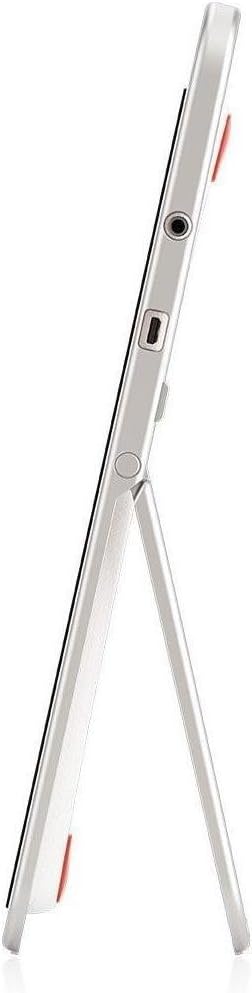
Слика 2: Страна view of the InFocus IF195a Touch Pad. This image highlights the device's slim profile and the integrated kickstand, which allows for upright positioning. Visible ports include a headphone jack and a USB port.
- Копче за вклучување: Се користи за вклучување/исклучување на уредот или за ставање во режим на спиење.
- Копчиња за јачина на звук: Adjust the device's audio output.
- Приклучок за слушалки (3.5 мм): За поврзување на надворешни аудио уреди.
- Микро-USB порта: За полнење и пренос на податоци.
- Интегриран потпирач за грб: Allows the device to stand upright.
4. Поставување
4.1 Распакување и почетна наплата
- Carefully remove the InFocus IF195a Touch Pad and all accessories from the packaging.
- Connect the provided power adapter to the Micro-USB port on the device and plug it into a power outlet. Allow the device to charge fully before first use. The charging indicator will typically show a full battery when complete.
4.2 Вклучување/исклучување
- За вклучување: Press and hold the Power button until the InFocus logo appears on the screen.
- За исклучување: Притиснете го и задржете го копчето за вклучување додека не се појави мени за исклучување. Изберете „Исклучи“ и потврдете.
- За спиење/будење: Briefly press the Power button to put the device into sleep mode or wake it up.
4.3 Волшебник за почетно поставување
При првото вклучување, уредот ќе ве води низ процесот на почетно поставување:
- Избор на јазик: Изберете го саканиот јазик.
- Wi-Fi конекција: Select your Wi-Fi network from the list and enter the password. A stable internet connection is required for many features.
- Сметка на Google: Sign in with an existing Google account or create a new one. This is necessary to download apps from the Google Play Store and access Google services.
- Датум и време: Set the correct date and time or allow the device to set it automatically via the network.
- Поставки за приватност: Review и прилагодете ги поставките за приватност по желба.
5. Ракување со уредот
5.1 Гестови на допир
- Допрете: Допрете го екранот еднаш за да изберете ставка или да отворите апликација.
- Допрете и задржете: Press and hold an item to access contextual menus or drag items.
- Повлечете: Повлечете го прстот преку екранот за да скролувате низ листите или да се префрлате помеѓу почетните екрани.
- Штипнете за зумирање: Користете два прста за зумирање или одзумирање на слики, мапи или web страници.
5.2 Почетен екран и навигација
- Копче за почеток: Ве враќа на главниот почетен екран.
- Копче за назад: Враќа на претходниот екран или ја затвора тековната апликација.
- Копче за неодамнешни апликации: Displays a list of recently used applications for quick switching.
- Панел за известување: Повлечете надолу од горниот дел на екранот за да пристапите до известувања и брзи поставки.
5.3 Installing and Managing Applications
- Google Play Store: Open the "Play Store" app to browse and download applications. A Google account is required.
- Инсталирање на апликации: Select an app and tap "Install." Follow on-screen prompts for permissions.
- Деинсталирање апликации: Одете на Поставки > Апликации, select the desired app, and tap "Uninstall." Alternatively, touch and hold an app icon on the home screen and drag it to the "Uninstall" option (if available).
5.4 Поврзување со надворешни уреди
- Слушалки: Приклучете ги слушалките од 3.5 мм во приклучокот за слушалки.
- USB-уреди: Connect compatible USB devices (e.g., flash drives, keyboards) to the Micro-USB port using an appropriate adapter if necessary. The device supports USB On-The-Go (OTG).
6. Одржување
6.1 Чистење на уредот
- Користете мека крпа без влакненца за чистење на екранот и телото на уредот.
- За тврдокорни траги, малку дampИзмијте ја крпата со вода или со средство за чистење екрани специјално дизајнирано за електроника.
- Избегнувајте употреба на груби хемикалии, абразивни средства за чистење или аеросолни спрејови.
6.2 Грижа за батерии
- За да го продолжите животниот век на батеријата, избегнувајте често целосно празнење на батеријата.
- Do not leave the device connected to the charger for extended periods after it is fully charged.
- Store the device in a cool, dry place if not used for a long time, with the battery charged to about 50%.
6.3 Ажурирања на софтверот
Периодично проверувајте за ажурирања на софтверот за да обезбедите оптимални перформанси и безбедност. Одете на Поставки > За таблетот > Системски ажурирања to check for and install available updates. Ensure your device is connected to Wi-Fi and has sufficient battery charge before starting an update.
7 Смена на проблеми
| Проблем | Можно решение |
|---|---|
| Device will not power on. | Ensure the device is charged. Connect the charger and wait a few minutes before attempting to power on again. If unresponsive, perform a hard reset by holding the power button for 10-15 seconds. |
| Проблеми со Wi-Fi конекција. | Проверете дали Wi-Fi е овозможен во поставките. Рестартирајте го вашиот Wi-Fi рутер. Заборавете ја мрежата и повторно поврзете се. Проверете дали сте во опсегот на Wi-Fi сигналот. |
| Applications are crashing or freezing. | Close and restart the application. Clear the app's cache (Поставки > Апликации > [Име на апликација] > Складирање > Избриши кеш). If the problem persists, uninstall and reinstall the app. |
| Екранот не реагира. | Restart the device. Ensure the screen is clean and free of debris. If the issue continues, contact support. |
| Бавни перформанси. | Close unnecessary background applications. Clear cache for frequently used apps. Check available storage (Поставки > Складирање) and free up space if needed. Consider a factory reset as a last resort. |
7.1 Фабричко ресетирање
Ресетирањето на фабричките поставки ќе ги избрише сите податоци од вашиот уред и ќе го врати на оригиналните фабрички поставки. Направете резервна копија од сите важни податоци пред да продолжите.
- Одете на Поставки > Резервна копија и ресетирање > Ресетирање на фабрички податоци.
- Read the warning message carefully.
- Tap "Reset tablet" and then "Erase everything" to confirm.
- Уредот ќе се рестартира и ќе започне процесот на ресетирање.
8. Технички спецификации
| Карактеристика | Спецификација |
|---|---|
| Модел | IF195a |
| Бренд | ИнФокус |
| Големина на приказ | 20 инчи |
| Максимална резолуција | 1600 x 900 |
| Процесор | ARM Cortex-A15 Quad-Core 1.8 GHz |
| Капацитет на RAM меморија | 2 GB |
| Капацитет на складирање | 16 GB |
| Оперативен систем | Андроид 4.4 КитКат |
| Резолуција на задната камера | 5 MP |
| Димензии (Д x Ш x В) | 61.6 x 47 x 8.6 cm |
| Тежина | 3.7 кг |
| Боја | Греј |
9. Гаранција и поддршка
For warranty information, please refer to the warranty card included with your product or visit the official InFocus website. For technical support, product registration, or service inquiries, please contact InFocus customer service through their official channels.
Please note that warranty terms may vary by region and retailer. Keep your proof of purchase for warranty claims.


