1. Вовед
The DIGITNOW! M125 Film and Slide Scanner is designed to convert your old 35mm/135 film negatives and mounted slides into digital JPEG images. This standalone device features a 2.4-inch LCD screen, allowing you to preview and adjust images without the need for a computer. Digital files can be saved directly to an SD card for easy transfer and archiving.

Image: The DIGITNOW! M125 Film and Slide Scanner converting film, with a vintage camera and film rolls in the background.
2. Информации за безбедност
- Не го изложувајте уредот на влага или екстремни температури.
- Avoid disassembling the unit; refer servicing to qualified personnel.
- Користете го само испорачаниот адаптер за напојување за да спречите оштетување.
- Да се чува подалеку од дофат на деца.
- Чистете го уредот со мека, сува крпа. Не користете течни средства за чистење.
3. Содржина на пакетот
Проверете дали сите артикли се присутни во пакувањето:
- DIGITNOW! M125 Film and Slide Scanner
- Држач за филм од 35 мм
- Држач за слајдови
- USB кабел
- Адаптер за напојување
- Четка за чистење
- Упатство за употреба

Image: The complete package contents of the DIGITNOW! M125 Film and Slide Scanner.
4. Производот завршиview
The M125 scanner features a compact design with intuitive controls and a built-in LCD screen for easy operation.

Слика: напред view of the DIGITNOW! M125 Film and Slide Scanner, highlighting the LCD screen and control panel.
4.1. Преден панел
- LCD екран: 2.4-inch TFT LCD for previewing images and navigating menus.
- Контролни копчиња: Power, Menu, Capture, Up/Down/Left/Right navigation.
- Индикаторски светла: SD (SD card status), Power (power status), PC (PC connection status).

Слика: Детална view of the scanner's screen and buttons, showing the 'FILM SCANNER' label.
4.2. Заден панел
- Слот за SD-картичка: For inserting an SD/MMC card (up to 8GB SDHC, not included) to save scanned images.
- USB излез: Connects to a computer for data transfer or power.
- ТВ влез: Connects to a TV for viewing images on a larger screen (NTSC/PAL compatible).

Image: The back of the scanner, clearly labeling the SD card slot, USB output, and TV input ports.
5. Поставување
- Поврзете напојување: Plug the power adapter into the scanner's USB port and then into a power outlet.
- Вметнете SD-картичка: Insert an SD or SDHC memory card (up to 8GB, not included) into the SD card slot on the rear of the scanner. The SD indicator light will illuminate.
- Вклучување: Press the Power button on the front panel to turn on the scanner.
- Connect to TV (Optional): If desired, connect the scanner to a TV using the provided video cable to view images on a larger screen.

Image: An SD card being inserted into the scanner, with a message on the screen indicating to insert a memory card.
6. Упатства за работа
6.1. Loading Film and Slides
- For 35mm Film Strips: Open the 35mm film holder, insert the film strip into the designated grooves, and close the holder. Slide the loaded holder into the scanner's film slot.
- For Mounted Slides: Open the slide holder, place a mounted slide into the opening, and close the holder. Slide the loaded holder into the scanner's film slot.

Image: A mounted slide being pushed into the slide holder, which is then inserted into the scanner.
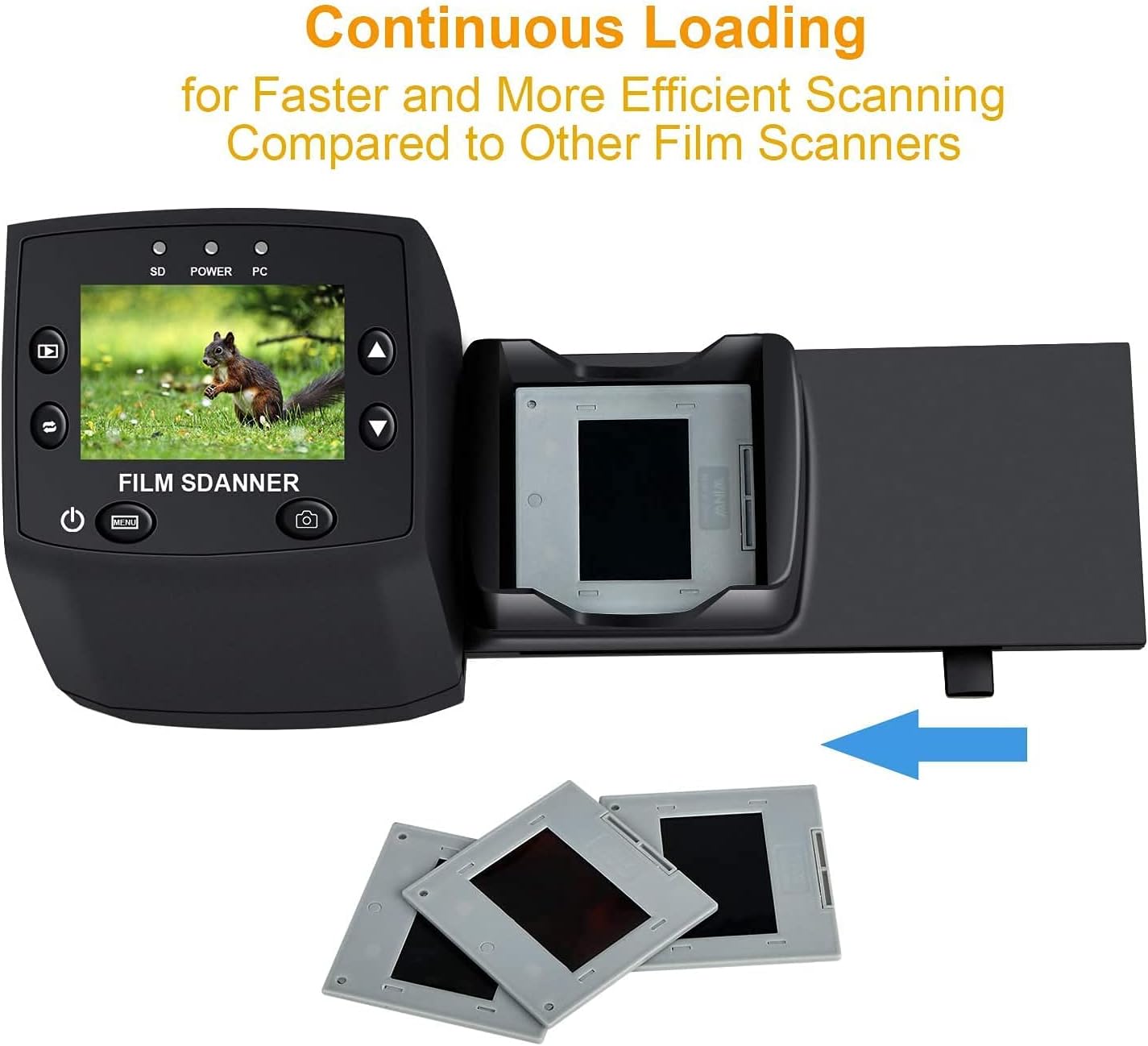
Image: The continuous loading tray for slides, designed for faster scanning.
6.2. Процес на скенирање
- Предview: Once the film or slide is loaded, the image will appear on the LCD screen.
- Прилагодете ги поставките (опционално):
- Притиснете го Мени button to access settings.
- Користете го Горе/Надолу buttons to navigate through options like ЕВ експозиција, Резолуција, и Јазик.
- Притиснете OK за да изберете опција.
- Користете Горе/Надолу to adjust values (e.g., exposure compensation from -2 to +2, resolution between 5M and 10M).
- Притиснете OK to confirm changes or ИЗЛЕЗ да се врати на предview екран.
- Снимајте слика: When satisfied with the preview, притиснете го Снимајте button (camera icon) to scan and save the image to the SD card.
Video: A demonstration of the DIGITNOW! M125 Film and Slide Scanner's setup and operation, including connecting cables, inserting an SD card, loading film, adjusting settings like exposure and resolution, and capturing images.
6.3. Поврзување со компјутер
To transfer images to your computer:
- Connect the scanner to your PC using the USB cable.
- On the scanner's menu, select USB MSDC (Mass Storage Device Class) and press OK.
- Your computer will recognize the scanner as a removable disk. You can then access the saved JPEG images on the SD card.

Image: The scanner connected to a laptop, demonstrating the USB connection for data transfer.
6.4. Промена на јазикот
To change the menu language:
- Притиснете го Мени копче.
- Одете до Јазик option using the Горе/Надолу копчиња и притиснете OK.
- Select your desired language (e.g., English, Français, Deutsch, Italiano) and press OK да се потврди.
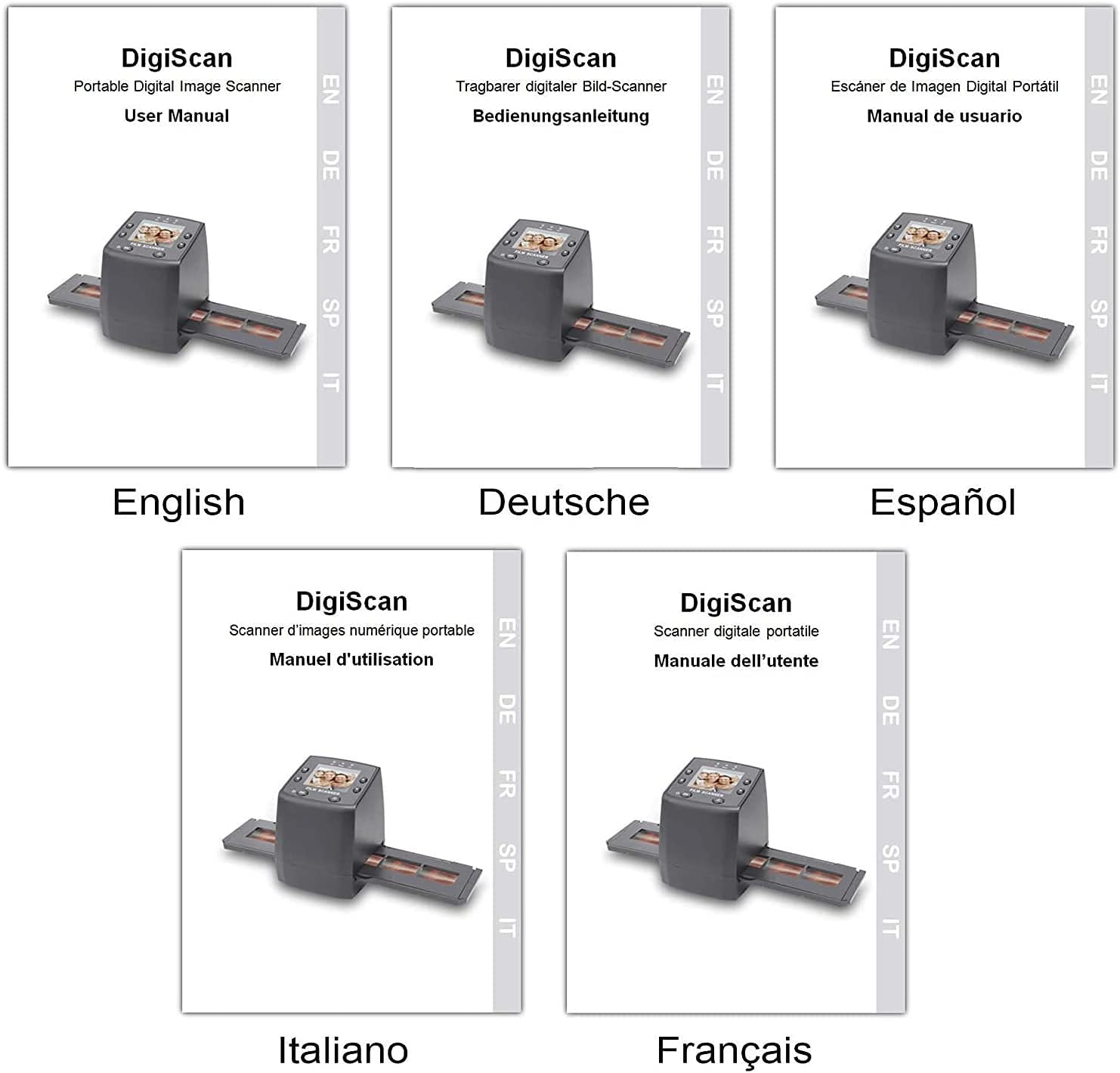
Image: Covers of user manuals in various languages, indicating multi-language support.
7. Одржување
- Cleaning the Film/Slide Holders: Regularly inspect and clean the film and slide holders to ensure no dust or debris interferes with scanning.
- Cleaning the Scanner Lens: Use the provided cleaning brush to gently remove dust from the scanner's lens and light source. Avoid touching the lens directly with your fingers.
- Складирање: Store the scanner in a dry, dust-free environment when not in use.
8 Смена на проблеми
- Без моќност: Ensure the power adapter is securely connected to both the scanner and a working power outlet.
- Image Quality Issues (Blurry/Dusty): Clean the film/slides and the scanner lens using the provided brush. Adjust the focus if available (not explicitly mentioned for this model, but a general tip).
- SD-картичката не е препознаена: Ensure the SD card is inserted correctly and is not damaged. Try formatting the card (this will erase all data) or using a different SD card.
- Не може да се префрли Files на компјутер: Ensure the USB cable is properly connected and the scanner is in "USB MSDC" mode. Check your computer's device manager to see if the scanner is recognized.
- Image Color Issues: Adjust the EV Exposure settings in the scanner's menu.
9. Спецификации
| Карактеристика | Спецификација |
|---|---|
| Број на модел | М125 |
| Бренд | DIGITNOW |
| Поддржани типови филмови | 35mm Film Negatives, 135 Mounted Slides |
| LCD екран | 2.4-inch TFT LCD (480 * 234) |
| Резолуција | 5/10 Megapixel (interpolated to 10M) |
| DPI | 3600 DPI |
| Излезен формат | JPEG |
| Складирање | SD/MMC Card (up to 8GB SDHC, not included) |
| Интерфејс | USB 2.0, Video Out (NTSC/PAL) |
| Димензии | 8.6 x 8.6 x 11.2 cm |
| Тежина | 270 гр |
| Моќ | 5 вати |
| Поддршка за оперативен систем | Windows XP, Vista, 7, 8; Mac OS |

Image: Diagram illustrating the dimensions of the DIGITNOW! M125 Film and Slide Scanner.
10. Гаранција и поддршка
This product comes with a standard manufacturer's warranty. For specific warranty details, please refer to the warranty card included in your package or contact DIGITNOW! customer support. For technical assistance or further inquiries, please visit the official DIGITNOW! website or contact their support team through the contact information provided with your purchase.