1. Вовед
This manual provides detailed instructions for setting up, operating, and maintaining your Waveshare 7-inch IPS Display. Designed for seamless integration with various Raspberry Pi models, this display offers a 1024x600 resolution via a DPI interface, ensuring a clear visual experience for your projects.
2. Содржина на пакетот
Проверете дали сите артикли наведени подолу се вклучени во вашиот пакет. Доколку недостасуваат или се оштетени некои компоненти, ве молиме контактирајте ја службата за корисници.
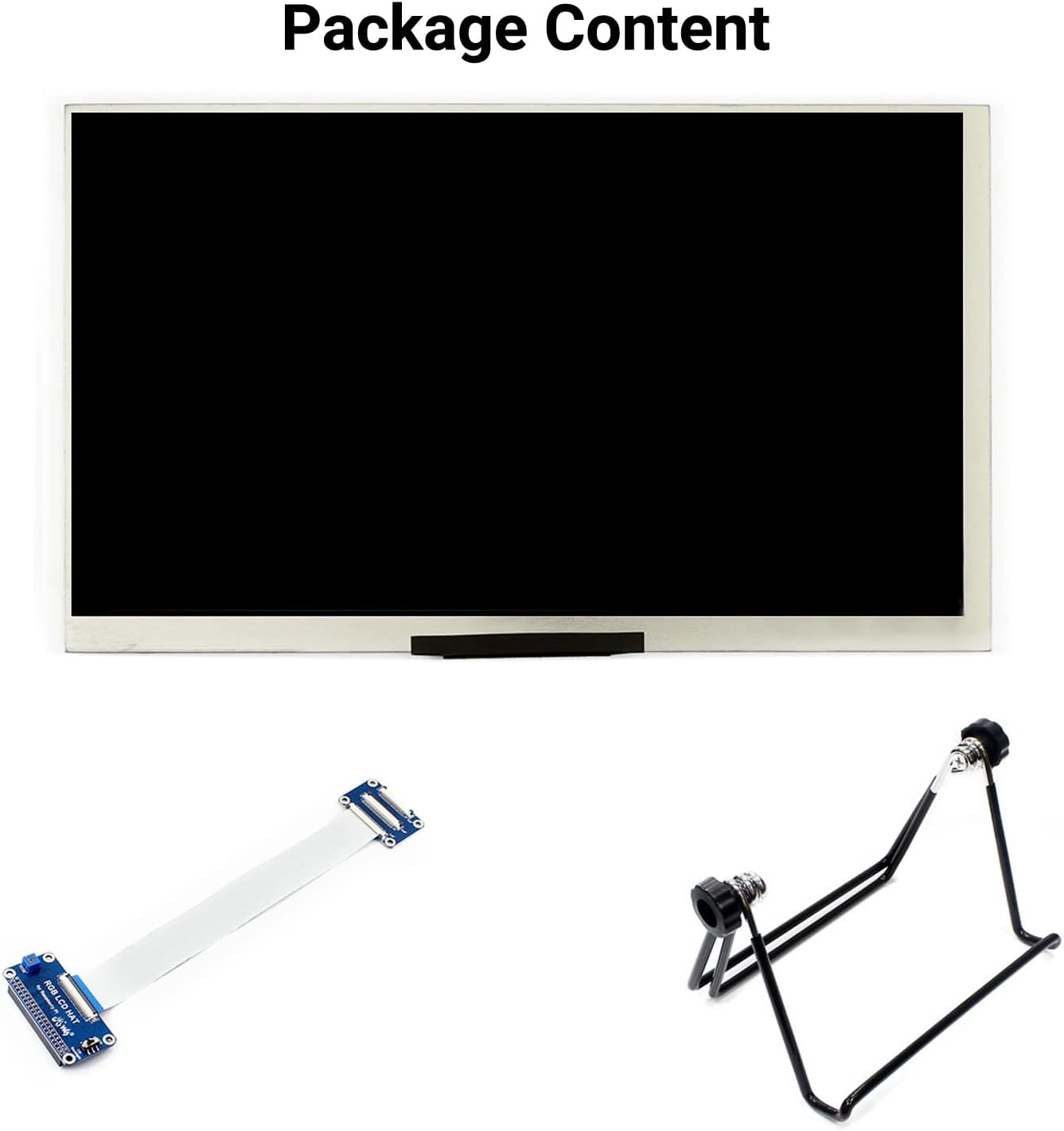
Слика 2.1: Содржина на пакетот
- Waveshare 7-inch IPS Display (1024x600)
- FFC (Flexible Flat Cable)
- Adjustable Metal Stand
3. Карактеристики и спецификации на производот
The Waveshare 7-inch DPI Display is engineered for optimal performance and compatibility with Raspberry Pi boards.

Figure 3.1: Display Features and Supported Devices
3.1 Клучни карактеристики
- Големина на екранот: 7 инчи
- Резолуција: 1024x600 пиксели
- Тип на панел: IPS (In-Plane Switching) for wide viewинг агли
- Интерфејс: DPI (Display Parallel Interface)
- Viewагол: 170°
- Задно осветлување: Controllable for lower power consumption
- Компатибилност: Designed for Raspberry Pi 40-pin GPIO interface
3.2 Supported Raspberry Pi Models
The display is compatible with the following Raspberry Pi series boards:
- Raspberry Pi 4B
- Raspberry Pi 3B+ / 3B
- Raspberry Pi 2B / B+ / A+
- Raspberry Pi Zero / Zero W / WH / Zero 2W
Supports future versions that maintain backward compatibility with the 40-pin GPIO interface.
3.3 Поддржани оперативни системи
The display supports operating systems such as Raspberry Pi OS (formerly Raspbian) and Ubuntu.
4. Водич за поставување
Follow these steps carefully to connect and configure your Waveshare 7-inch DPI Display with your Raspberry Pi.
4.1 Физичка врска
- Prepare the FFC Cable: Gently insert one end of the 50-pin FFC cable into the JP2 connector (drawer socket) on the display's small adapter board. Ensure the cable is fully seated and then close the drawer socket to secure it.
- Connect to RGB LCD HAT: Insert the other end of the 50-pin FFC cable into the connector on the RGB LCD HAT. This is typically a turn-cover socket; lift the cover, insert the cable, and then press the cover down to lock it.
- Attach RGB LCD HAT to Raspberry Pi: Carefully align the 40-pin GPIO header of the RGB LCD HAT with the GPIO pins on your Raspberry Pi board. Press down gently but firmly to ensure a secure connection.
- Mount the Display (Optional): If using the adjustable metal stand, attach the display to the stand as shown in the product images. This provides a stable viewинголен агол.
- Вклучување: Connect a 5V/3A power supply to your Raspberry Pi. The display will draw power directly from the Pi's GPIO pins.

Figure 4.1: FFC Cable Insertion

Figure 4.2: Connection Examples with Raspberry Pi

Figure 4.3: Assembled Display with Stand and Raspberry Pi
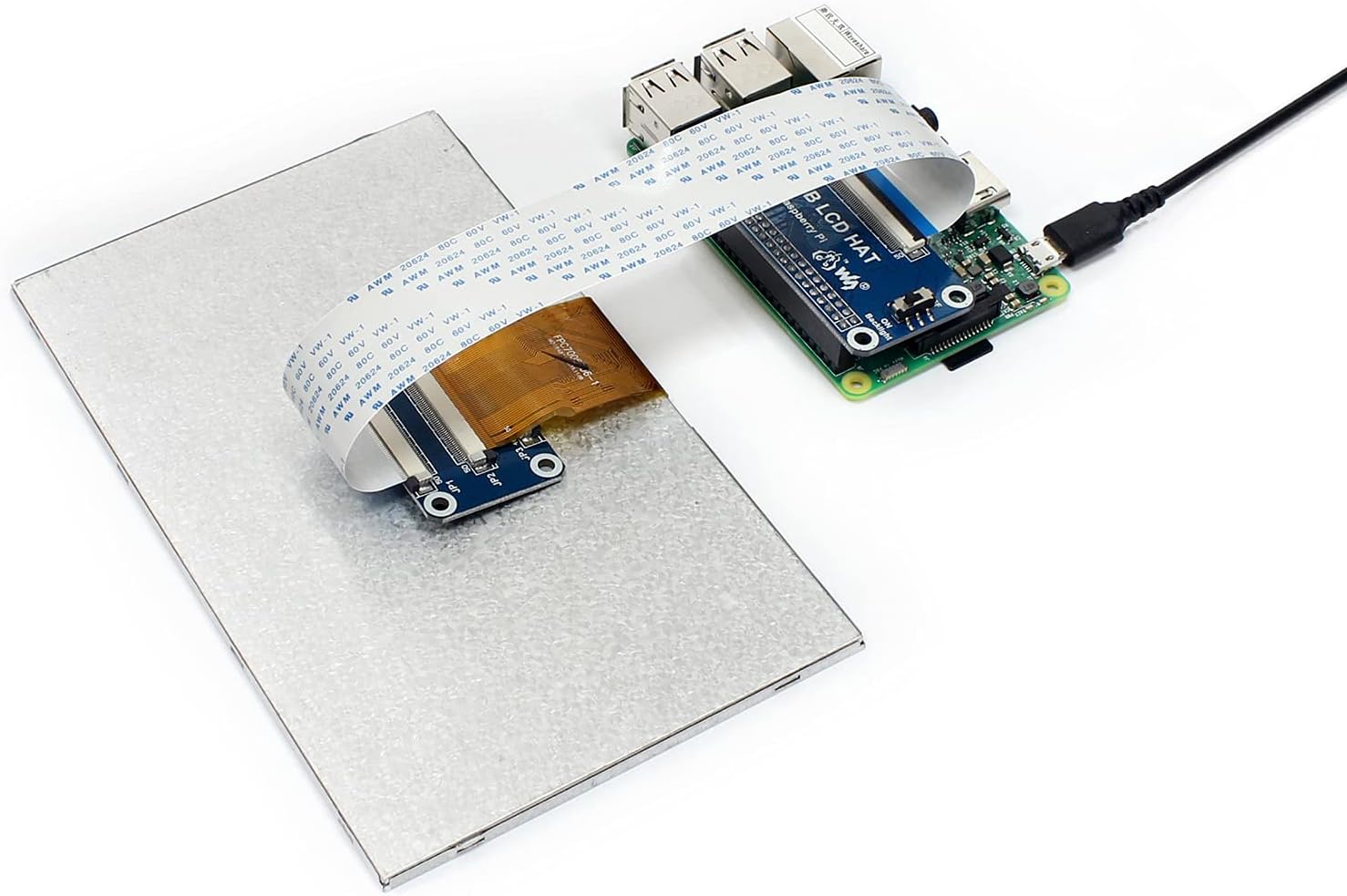
Figure 4.4: Display Connected to Raspberry Pi
4.2 Конфигурација на софтвер
For the display to function correctly, you may need to modify the config.txt file on your Raspberry Pi's boot partition. This typically involves setting the correct resolution and DPI interface parameters. Refer to the official Waveshare online user manual for specific configuration lines for your Raspberry Pi model and OS version.
Забелешка: Incorrect configuration in config.txt is a common cause for display issues such as a black screen or no image. Always back up your config.txt before making changes.
5. Упатства за работа
5.1 Контрола на позадинско осветлување
The display features backlight control to manage power consumption. Specific methods for controlling the backlight (e.g., via software commands or physical jumpers) may vary. Consult the Waveshare online documentation for detailed instructions relevant to your setup.
6. Одржување
За да обезбедите долготрајност и оптимални перформанси на вашиот екран, следете ги овие упатства за одржување:
- Чистење: Use a soft, lint-free cloth to gently wipe the screen surface. For stubborn smudges, slightly dampИзбришете ја крпата со вода или средство за чистење безбедно за екрани. Избегнувајте груби хемикалии или абразивни материјали.
- Ракување: Handle the display by its edges. Avoid applying pressure directly to the screen surface or the FFC cable.
- Животна средина: Operate and store the display in a dry environment, away from extreme temperatures, direct sunlight, and excessive dust.
7 Смена на проблеми
If you encounter issues with your Waveshare 7-inch DPI Display, refer to the following common problems and solutions:
- Нема екран / Црн екран:
- Ensure all FFC cables and the RGB LCD HAT are securely connected to both the display and the Raspberry Pi.
- Verify that the Raspberry Pi is receiving adequate power (a stable 5V/3A supply is recommended).
- Проверете го вашиот
config.txtfile for correct DPI settings and resolution. Incorrect settings are a frequent cause of this issue. - If the backlight is on but no image appears, double-check the FFC cable insertion and the
config.txtпоставувања.
- Треперење на екранот:
- Ensure your power supply is stable and sufficient for both the Raspberry Pi and the display.
- Check for any loose connections in the FFC cable or the HAT.
- Display Not Recognized:
- Confirm that your Raspberry Pi OS is up to date and that the necessary drivers or configuration files are correctly applied as per Waveshare's online documentation.
Важно: Many issues stem from incorrect software configuration. Always consult the official Waveshare online user manual for the most up-to-date and specific configuration instructions for your Raspberry Pi model and operating system.
8. Димензии на производот
The physical dimensions of the Waveshare 7-inch DPI Display are provided below for integration into your projects.
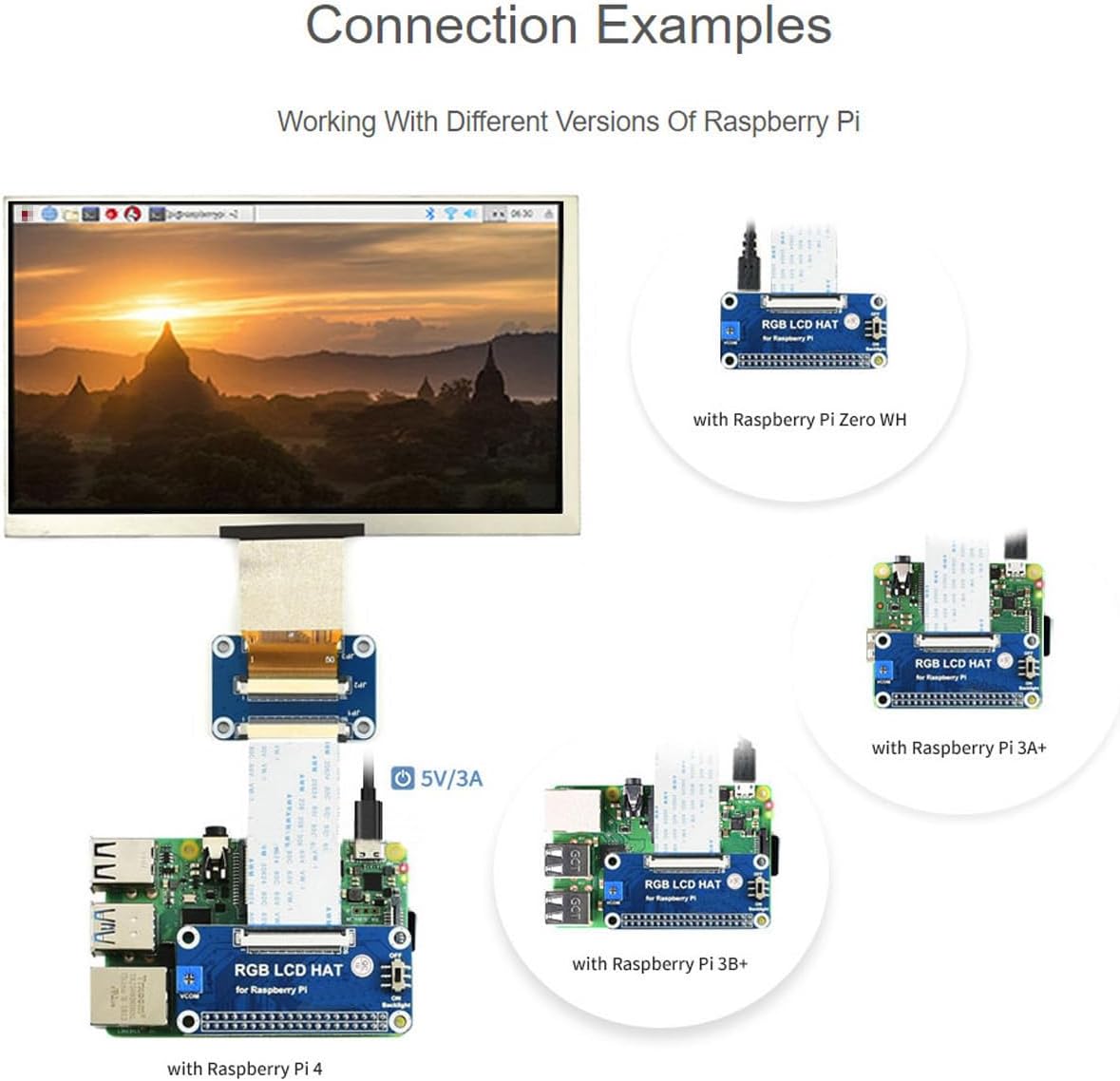
Figure 8.1: Appearance and Dimensions (Unit: mm)
- Целокупна должина: 163.64 мм
- Целокупна ширина: 96.84 мм
- Display Area Length: 154.21 мм
- Display Area Width: 85.92 мм
9. Сертификати
The Waveshare 7-inch DPI Display holds relevant industry certifications, ensuring quality and compliance.

Figure 9.1: HDMI Certification
This product is an official authorized HDMI Adopter. For verification, please visit the official HDMI webсајт: https://hdmi.org/qr/alic/FVP01SGM0CI
10. Гаранција и поддршка
For warranty information, technical support, or further assistance, please refer to the official Waveshare website or contact their customer service directly. Online user manuals and resources are typically available to provide comprehensive guidance.


