1. Вовед
This manual provides essential information for the safe and efficient use of your Brother DCP-L8410CDW Color Laser Multifunction Printer. This 3-in-1 device is designed for professional environments, offering printing, copying, and scanning functionalities. It features an intuitive touchscreen, Wi-Fi, and Ethernet connectivity, making it suitable for various work settings.
Главните карактеристики вклучуваат:
- Print, copy, and scan capabilities
- High-quality color laser printing (up to 2400 dpi)
- Автоматско двострано печатење
- Flexible paper handling with a maximum capacity of 300 sheets
- Integrated Wi-Fi and Gigabit Ethernet for versatile connectivity

Слика 1.1: напред view of the Brother DCP-L8410CDW printer.
2. Поставување
Follow these steps to set up your Brother DCP-L8410CDW printer:
- Отпакување: Carefully remove the printer from its packaging. Ensure all protective tapes and packing materials are removed from the exterior and interior of the device.
- Инсталирајте касети со тонер: Open the front cover and install the toner cartridges into their respective slots. Refer to the labels for correct color placement.
- Ставете хартија: Open the paper tray and adjust the paper guides to fit your paper size (e.g., A4). Load paper into the tray and close it securely.
- Поврзете напојување: Поврзете го кабелот за напојување со печатачот, а потоа со заземјен електричен штекер.
- Поврзување со мрежа/компјутер:
- Безжичен (Wi-Fi): On the printer's touchscreen, navigate to Network settings and follow the prompts to connect to your Wi-Fi network.
- Жичен (Етернет): Поврзете етернет кабел од LAN-портата на печатачот со вашиот мрежен рутер или прекинувач.
- USB: Connect a USB 2.0 cable from the printer to your computer.
- Инсталирајте драјвери: Вметнете го инсталациското ЦД (доколку е приложено) во вашиот компјутер или преземете ги најновите драјвери и софтвер од официјалната поддршка на Brother. webстраница. Следете ги упатствата на екранот за да ја завршите инсталацијата.

Слика 2.1: Страна view of the Brother DCP-L8410CDW, showing the paper tray.
3. Упатства за работа
The Brother DCP-L8410CDW features an intuitive touchscreen for easy operation.
3.1. Печатење
- Проверете дали печатачот е вклучен и поврзан со вашата мрежа или компјутер.
- Отворете го документот или сликата што сакате да ја испечатите на вашиот компјутер или мобилен уред.
- Select the 'Print' option from your application.
- Choose the Brother DCP-L8410CDW from the list of available printers.
- Adjust print settings (e.g., number of copies, color/mono, duplex) as needed.
- Кликнете на „Печати“.
3.2. Копирање
- Place your document face down on the scanner glass or face up in the Automatic Document Feeder (ADF).
- On the printer's touchscreen, select the 'Copy' function.
- Adjust settings such as number of copies, color/mono, and enlargement/reduction.
- Притиснете „Старт“ за да започнете со копирање.
3.3. Скенирање
- Place your document face down on the scanner glass or face up in the ADF.
- On the printer's touchscreen, select the 'Scan' function.
- Choose your desired scan destination (e.g., Scan to PC, Scan to USB, Scan to Email).
- Прилагодете ги поставките за скенирање (на пр., резолуција, file type) if necessary.
- Притиснете „Старт“ за да започнете со скенирање.

Image 3.1: The intuitive touchscreen control panel of the DCP-L8410CDW.

Image 3.2: Using the Automatic Document Feeder for scanning or copying, and the USB port for direct printing/scanning.
4. Одржување
Редовното одржување обезбедува оптимални перформанси и го продолжува животниот век на вашиот печатач.
4.1. Замена на касети со тонер
- When a 'Low Toner' or 'Replace Toner' message appears on the display, order new genuine Brother toner cartridges.
- Отворете го предниот капак на печатачот.
- Remove the old toner cartridge and drum unit assembly.
- Одделете ја касетата со тонер од единицата на барабанот.
- Unpack the new toner cartridge and install it into the drum unit until it clicks into place.
- Вратете го новиот склоп од тонер и барабан назад во печатачот.
- Затворете го предниот капак.
4.2. Чистење на печатачот
- Надворешност: Избришете ја надворешноста на печатачот со мека крпа што не остава влакненца. Не користете абразивни средства за чистење.
- Стакло за скенер: Чистете го стаклото на скенерот со мека, сува крпа. За тврдокорни дамки, нанесете мала количина средство за чистење стакло на крпата (не директно на стаклото).
- Корона жица: Periodically clean the corona wire inside the drum unit to prevent print quality issues. Refer to the printer's internal instructions or the full user guide for detailed steps.
5 Смена на проблеми
Овој дел се однесува на вообичаени проблеми со кои може да се соочите со вашиот печатач.
5.1. Заглавување на хартија
If a 'Paper Jam' message appears:
- Исклучете го печатачот и исклучете го кабелот за напојување.
- Open the rear cover or other access points as indicated on the display or in the full user guide.
- Внимателно извлечете ја заглавената хартија во правец на патеката на хартијата. Избегнувајте кинење на хартијата.
- Check all paper trays and internal areas for small pieces of torn paper.
- Затворете ги сите капаци, приклучете го кабелот за напојување и вклучете го печатачот.
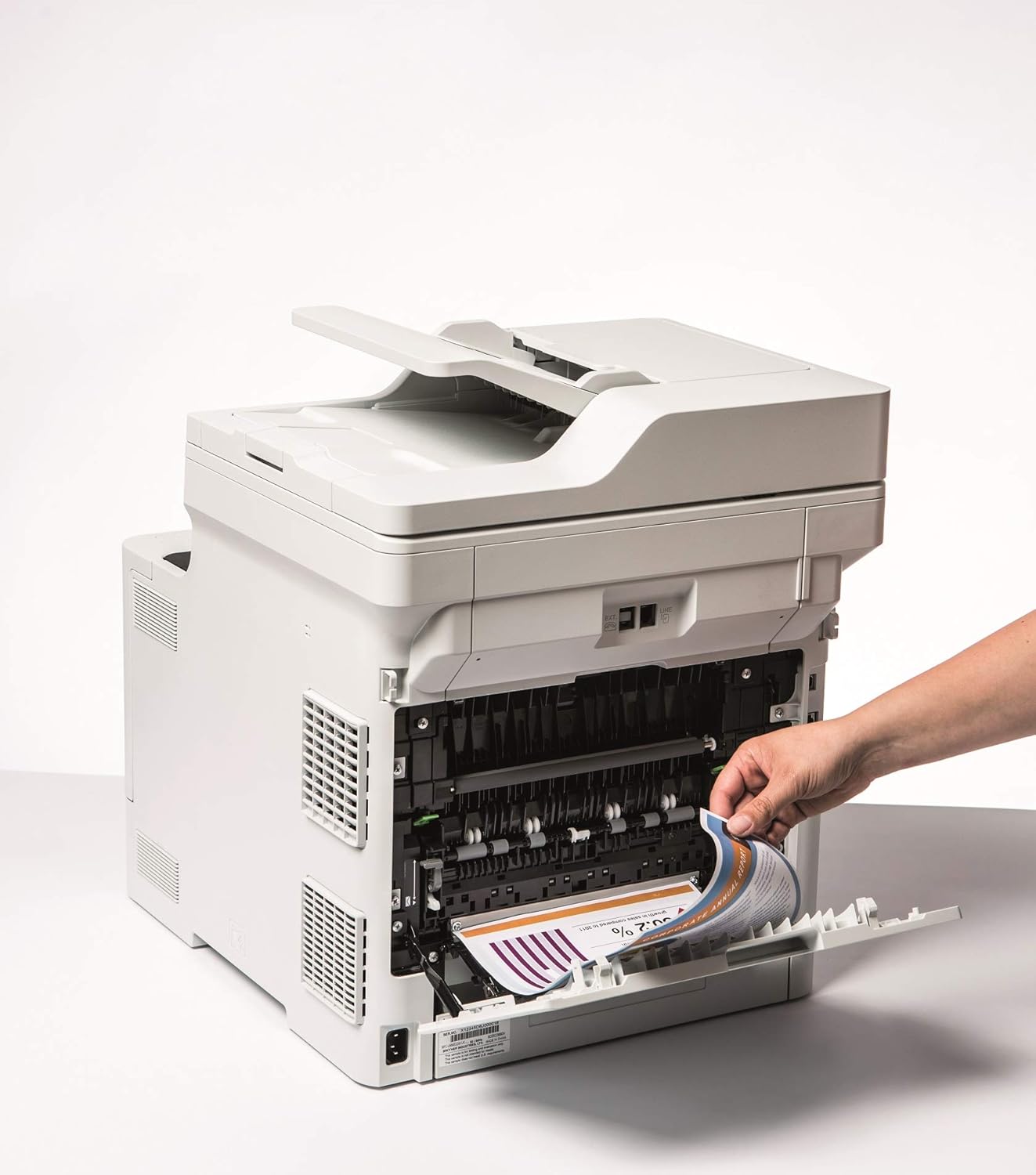
Image 5.1: Clearing a paper jam from the rear of the printer.
5.2. Проблеми со квалитетот на печатењето
- Избледени отпечатоци: Toner cartridge may be low. Replace if necessary.
- Линии или точки: Clean the corona wire or check for foreign objects on the drum unit.
- Неточни бои: Ensure genuine Brother toner cartridges are used and perform a color calibration from the printer's menu.
5.3. Проблеми со поврзувањето
- Wi-Fi Disconnected: Check network settings on the printer and ensure your router is functioning correctly. Restart both devices if needed.
- Cannot Print from PC: Verify that the printer drivers are correctly installed and updated. Check cable connections for wired setups.
6. Спецификации
| Карактеристика | Спецификација |
|---|---|
| Име на моделот | DCP-L8410CDW |
| Димензии на производот (DxWxH) | 43.5P x 53.9W x 52.6H cm |
| Максимална големина на медиум | A4 |
| Максимален капацитет на листови | 300 листови |
| Максимална брзина на копирање (црно-бело) | 31 страници во минута |
| Максимална резолуција за печатење во боја | 61 dpcm |
| Максимална резолуција за црно-бело печатење | 2400 dpi |
| Дуплекс печатење | Да |
| Технологија за поврзување | Ethernet, USB 2.0, Wireless LAN (Wi-Fi) |
| Технологија на печатење | Ласерски |
| Излез на печатач | Боја |
| Максимална брзина на печатење (во боја) | 31 страници во минута |
| Тежина на ставката | 27.6 килограми |
| Потрошувачка на енергија | 500 вати |
| Тип на скенер | Рамен кревет |
7. Информации за гаранцијата
This Brother DCP-L8410CDW printer comes with a Ограничена гаранција. For detailed information regarding the terms, conditions, and duration of your warranty, please refer to the warranty card included with your product or visit the official Brother webстраница. Зачувајте го доказот за купување за гаранциски побарувања.
8. Поддршка за корисници
For further assistance, including driver downloads, FAQs, and contact information for technical support, please visit the official Brother support webсајт:
You can also find additional resources and troubleshooting guides specific to your model on the support page.