Производот завршиview
The Sky Viper v2450FPV Streaming Drone offers an immersive flying experience with its First-Person View (FPV) capabilities. The included FPV headset allows users to view live streaming video directly from the drone's camera, providing a unique perspective as if onboard. Designed for both advanced and beginner pilots, the v2450FPV features Flight Assist for simplified control, ensuring stable flight and easy capture of aerial footage. Its lightweight and durable construction contributes to its safety and longevity.
Клучни карактеристики:
- FPV Headset: Experience the drone's point of view with live video streaming.
- Optional Pro-Style Thumbsticks: Customize your controller for enhanced precision.
- Pivoting Camera: Adjust the camera to point forward for flight path recording or downward for scenery capture.
- Auto Launch and Land: One-button functionality for stationary hover and gentle landings.
- Слот за микро SD картичка: Enables direct video recording for optimal quality (card sold separately).

Image: The Sky Viper v2450FPV Streaming Drone package, including the drone, remote controller, and FPV goggles.
Што има во кутијата
Проверете дали сите компоненти се присутни во вашето пакување:
- Sky Viper Streaming Drone
- Контролор
- Држач за држач за телефон
- 3.7V 650mAh LiPo батерија
- USB кабел за полнач
- Replacement Blades (4)
- Blade Guards (4)
- Pro-Style Thumb Sticks (2)
- Game-Style Thumb Sticks (2)
- Шрафцигер и дополнителни завртки
- Operators Manual (this document)
- FPV слушалки

Image: All included components laid out, featuring the drone, controller, and FPV goggles.
Поставување
1. Инсталација и полнење на батеријата
- Беспилотни летала: Insert the 3.7V 650mAh LiPo battery into the drone's battery compartment. Ensure it is securely connected.
- Полнење: Use the provided USB charger cable to charge the drone's battery. Connect the cable to a USB power source. The charging indicator will show when charging is complete.
- Батерии на контролорот: Install 3 AAA batteries (not included) into the remote controller.
2. Blade Guard Installation
Attach the four blade guards to the drone's arms. These guards help protect the propellers during flight and minor impacts. Use the provided screwdriver and extra screws if necessary to secure them.
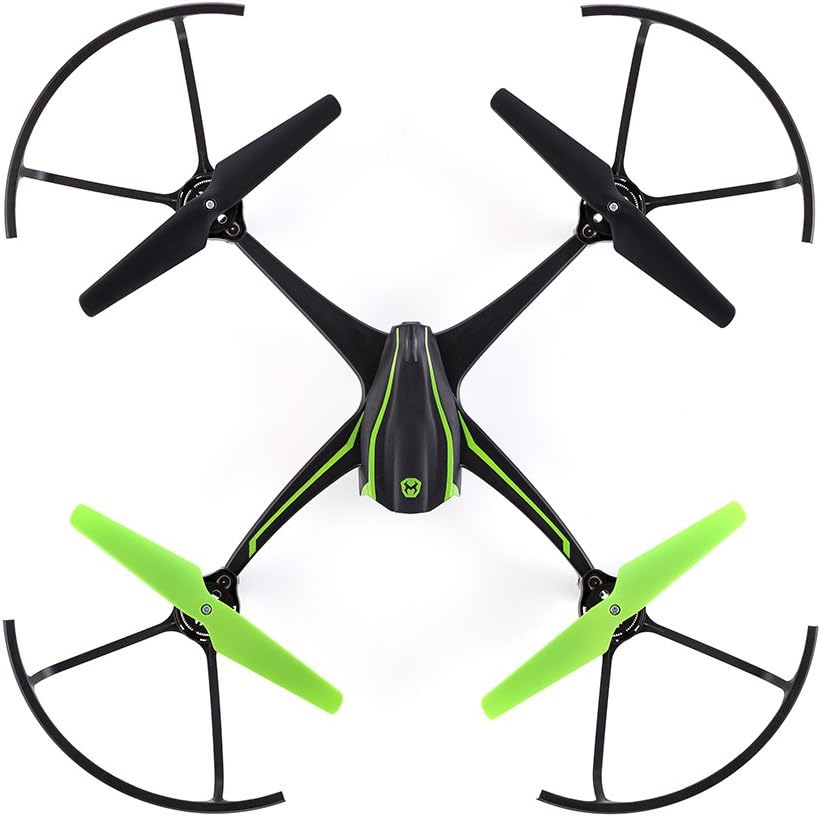
Слика: Горе view of the drone, illustrating the installed blade guards.
3. Преземање на апликација и Wi-Fi поврзување
To enable live streaming and FPV functionality, download the "Sky Viper Video Viewer" app on your smart device (smartphone or tablet).
- Пребарај за "Sky Viper Video Viewer" in your device's app store and install it.
- Power on your drone.
- On your smart device, go to Wi-Fi settings and connect to the drone's Wi-Fi network (e.g., "SKYVIPER17_XXXXXX").
- Upon first connection, you will be prompted to create a unique password for the drone's Wi-Fi network.
- After setting the password, reconnect to the drone's Wi-Fi network using your new password.
- Open the "Sky Viper Video Viewer“ апликација.
Video: This video demonstrates the process of connecting your smart device to the Sky Viper v2450FPV drone via Wi-Fi, setting up the FPV app, and performing a Wi-Fi password reset.
4. FPV Headset Preparation
- Once the app is open and connected, tap the FPV icon on the right side of the screen to switch to FPV mode. The screen will split into two views.
- Place your smart device into the tray of the FPV headset.
- Insert the tray with your smart device into the FPV headset.
- Adjust the optics on the headset to suit your vision for a clear FPV experience.

Image: The FPV headset, designed to hold a smartphone for an immersive first-person view.
Упатства за работа
1. Контролер надview
The remote controller allows precise manipulation of the drone's flight. It includes standard controls for throttle, direction, and special function buttons.

Image: The drone's remote controller with a smartphone mounted, displaying various control buttons and joysticks.
2. Режими на летање
- Auto Flight Mode: Provides simplified controls for easier flying, ideal for beginners.
- Manual Flight Mode: Offers more direct control over the drone's movements, suitable for experienced pilots.
- Switch between modes using the designated button on the controller.
3. Auto Launch and Land
Utilize the "Launch" and "Land" buttons on the controller for automated take-off and landing sequences. Pressing "Launch" will initiate a stable ascent to a hover, while "Land" will perform a gentle descent.
4. Стриминг и снимање
The v2450FPV drone can stream live video to your connected smart device and record footage. For the best video quality, it is recommended to record directly to a micro SD card (not included) inserted into the slot at the rear of the drone.
- Ensure a micro SD card is inserted for high-quality recording.
- Use the app interface to initiate and stop video recording.
- The pivoting camera allows you to adjust the viewing angle for diverse shots.
Одржување
1. Нега на батерии
- Always use the provided USB charger cable for the drone's LiPo battery.
- Не ја преполнувајте и не ја испуштајте батеријата целосно.
- Чувајте ги батериите на ладно и суво место кога не ги користите.
2. Замена на сечилото
In case of damaged propellers, replace them with the provided spare blades. Use the screwdriver to carefully remove the old blades and install new ones, ensuring they are oriented correctly.
3. Општо чистење
Wipe the drone and controller with a soft, dry cloth. Avoid using harsh chemicals or liquids that could damage electronic components.
Решавање проблеми
1. Wi-Fi Password Reset
If you forget your drone's Wi-Fi password, you can reset it using the controller:
- Power on both your remote controller and the drone.
- Истовремено држете го left and right trim buttons и на копче за вклучување на контролорот 5 секунди.
- You will hear a chime indicating that the Wi-Fi password has been reset. You can then set a new password when reconnecting via the app.
2. Drone Not Responding
- Ensure both the drone and controller are powered on and fully charged.
- Re-pair the controller with the drone if necessary (refer to the full manual for pairing instructions if this basic manual doesn't cover it).
- Check for any obstructions to the propellers or damage to the drone.
3. Poor Video Quality or Disconnection
- Ensure your smart device is within optimal Wi-Fi range of the drone.
- Minimize interference from other Wi-Fi networks or electronic devices.
- For best video quality, record directly to a micro SD card inserted into the drone.
Спецификации
| Карактеристика | Детал |
|---|---|
| Бренд | Sky Viper |
| Име на моделот | v2450FPV |
| Специјална карактеристика | FPV слушалки |
| Возрастен опсег (препорачано) | 12 години па нагоре |
| Боја | Црното |
| Резолуција за снимање видео | 1080 стр |
| Технологија за поврзување | Wi-Fi |
| Ниво на вештина | Почетник |
| Тежина на ставката | 16 унци (1 фунта) |
| Капацитет на батеријата | 650 милиониamp Hours (LiPo) |
| Формат за снимање видео | MP4 |
| Технологија за далечинско управување | Bluetooth |
| Тип на контрола | Далечински управувач |
| Димензии на производот | 20 x 4.5 x 13.5 инчи |
| Број на модел на ставка | 01734 |
| UPC | 816322017349 |
Гаранција и поддршка
For detailed warranty information and customer support, please refer to the official Sky Viper webлокација или контактирајте го нивниот оддел за корисничка поддршка. Чувајте ја сметката за купување како доказ за купување за какви било гаранциски побарувања.
- Поддршка преку Интернет: Посетете го Sky Viper Store on Amazon за информации за производот и ресурси.
- Контакт: Погледнете го пакувањето на производот или официјалниот website for direct customer service contact details.


