1. Вовед
This manual provides detailed instructions for the setup, operation, and maintenance of your Xerox VersaLink C505/X Color Laser Multifunction Printer. The C505/X is designed for efficient performance in fast-paced work environments, offering print, copy, scan, and fax functionalities.
Key features include a customizable 7-inch color touchscreen for intuitive control, mobile and cloud connectivity, and robust security measures.
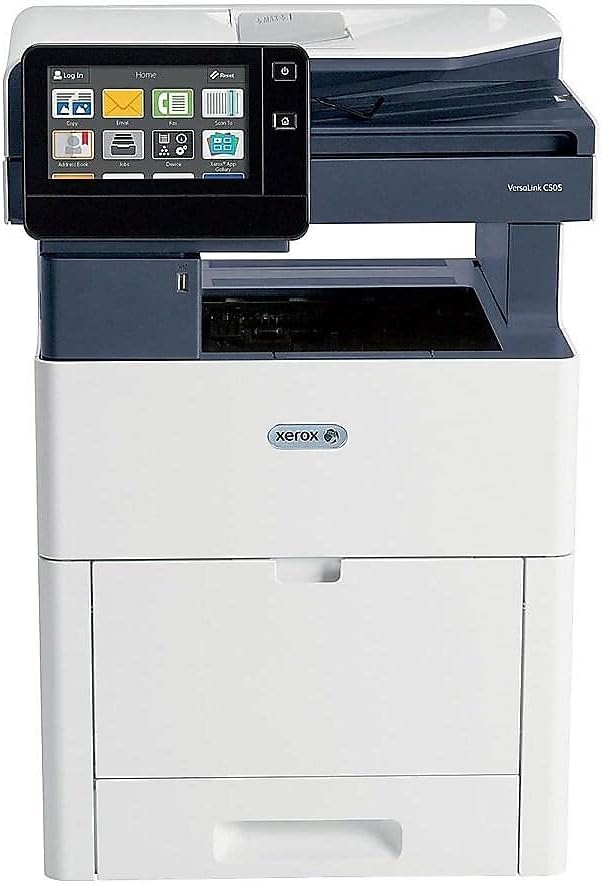
Слика 1: Предна страна view of the Xerox VersaLink C505/X Multifunction Printer.
2. Поставување
2.1 Распакување и почетна инспекција
Carefully remove the printer from its packaging. Verify that all components listed below are present and undamaged:
- Xerox VersaLink C505 Color MFP
- Starter capacity toner cartridges (one each of cyan, magenta, yellow: 2,400 capacity; black: 5,000 capacity)
- ЦД со софтвер и документација
- Водич за инсталација
- Quick User Guides
- Кабел за напојување
2.2 Поврзување за напојување
- Поставете го печатачот на стабилна, рамна површина.
- Поврзете го испорачаниот кабел за напојување со влезот за напојување на печатачот, а потоа со заземјен електричен штекер.
- Do not power on the device until all other connections are made.
2.3 Инсталација на кертриџ за тонер
Install the starter toner cartridges into their respective slots. Refer to the Quick User Guides for specific instructions on opening the toner access panel and inserting cartridges.

Figure 2: Toner cartridge access panel open, showing toner installation.
2.4 Мрежна и USB конекција
The printer supports both Ethernet and USB connectivity.
- Етернет: Поврзете етернет кабел од етернет-портата на печатачот со вашиот мрежен рутер или прекинувач.
- USB: Поврзете USB кабел од USB-портата на печатачот со вашиот компјутер.
2.5 Инсталација на софтвер
Insert the provided software and documentation CD into your computer's CD/DVD drive. Follow the on-screen instructions to install the necessary drivers and utilities. Alternatively, visit the official Xerox support webстраница за најновите драјвери.
3. Ракување со печатачот
3.1 Интерфејс со екран на допир
The 7-inch color touchscreen provides access to all printer functions. Navigate through menus by tapping and swiping, similar to a smartphone. The home screen displays icons for various functions such as Print, Copy, Scan, and Fax.

Figure 3: Close-up of the 7-inch color touchscreen control panel.
3.2 Печатење
За печатење документи:
- Осигурајте се дека печатачот е поврзан со вашиот компјутер или мрежа.
- Open the document on your computer and select the print option.
- Choose the Xerox VersaLink C505/X from the list of available printers.
- Adjust print settings (e.g., color/monochrome, duplex printing, paper size) as needed. The printer supports up to 43 ppm color and 45 ppm monochrome, with automatic duplexing.
- Confirm the print job.
3.3 Копирање
За да направите копии:
- Place the original document on the scanner glass or in the automatic document feeder (ADF).
- On the touchscreen, tap the "Copy" icon.
- Select desired settings such as number of copies, color/black and white, and two-sided copying. The maximum copy speed is 45 ppm (black & white) with resolutions up to 1200 x 2400 dpi.
- Притиснете го копчето „Старт“.
3.4 Скенирање
To scan documents:
- Ставете го документот на стаклото на скенерот или во ADF.
- On the touchscreen, tap the "Scan" icon.
- Choose the scan destination (e.g., email, network folder, USB drive) and adjust scan settings.
- Притиснете го копчето „Старт“.
3.5 Факсирање
За да испратите факс:
- Ставете го документот на стаклото на скенерот или во ADF.
- On the touchscreen, tap the "Fax" icon.
- Внесете го факс бројот на примателот.
- Прилагодете ги сите потребни поставки за факс.
- Притиснете го копчето „Старт“.
3.6 Mobile and Cloud Connectivity
The VersaLink C505/X offers out-of-the-box connectivity to cloud services like Google Drive, Microsoft OneDrive, and DropBox. Additional options are available through the Xerox App Gallery, allowing for flexible workflow integration.
4. Одржување
4.1 Замена на кертриџ за тонер
When a toner cartridge is low or empty, the printer's display will indicate which cartridge needs replacement. Always use genuine Xerox toner cartridges for optimal performance and print quality.
- Open the front access panel of the printer.
- Carefully remove the empty toner cartridge by pulling it straight out.
- Распакувајте ја новата касета со тонер и нежно протресете ја за да го распределите тонерот.
- Вметнете ја новата кертриџ во соодветниот отвор додека не кликне на своето место.
- Close the front access panel.
4.2 Чистење
Редовното чистење помага во одржувањето на квалитетот на печатењето и го продолжува животниот век на вашиот печатач.
- Надворешност: Избришете ги надворешните површини со мека, гamp, крпа без влакненца.
- Стакло за скенер: Use a soft cloth moistened with glass cleaner to clean the scanner glass. Ensure no residue remains.
- Внатрешни компоненти: Refer to the detailed user manual on the software and documentation CD for instructions on cleaning internal components, such as the print heads or rollers, if necessary.
5 Смена на проблеми
This section addresses common issues you might encounter with your Xerox VersaLink C505/X. For more complex problems, consult the full user manual or contact support.
5.1 Заглавување на хартија
If a paper jam occurs, the touchscreen will display an error message indicating the location of the jam. Follow the on-screen instructions to clear the jammed paper. Always pull paper in the direction of the paper path to avoid tearing.
5.2 Проблеми со квалитетот на печатењето
If printouts show streaks, faded areas, or incorrect colors:
- Проверете ги нивоата на тонер и заменете ги сите касети со ниско ниво.
- Осигурајте се дека користите соодветна хартија за вашата задача за печатење.
- Извршете дијагностика на квалитетот на печатењето од контролната табла на печатачот.
- Clean the print heads or other internal components as instructed in the detailed manual.
5.3 Проблеми со поврзување
If the printer is not communicating with your computer or network:
- Verify that all cables (power, USB, Ethernet) are securely connected.
- Рестартирајте го печатачот и вашиот компјутер/рутер.
- Check network settings on the printer's touchscreen.
- Ensure the correct printer drivers are installed on your computer.
6. Спецификации
| Карактеристика | Детал |
|---|---|
| Име на моделот | Xerox C505/X VersaLink |
| Функции | Печатење, копирање, скенирање, факсирање |
| Технологија на печатење | Ласер во боја |
| Максимална брзина на печатење (монохроматски) | 45 ppm |
| Максимална брзина на печатење (во боја) | 43 ppm |
| Максимална резолуција за печатење (црно-бело) | 2400 dpi |
| Максимална резолуција за печатење (во боја) | 1200 x 2400 dpi |
| Дуплекс печатење | Автоматски |
| Тип на скенер | Документ |
| Максимална брзина на копирање (црно-бело) | 45 ppm |
| Максимална резолуција за копирање (во боја) | До 1200 x 2400 dpi |
| Контролен метод | App, Touch (7-inch display) |
| Поврзување | USB, етернет |
| Максимален капацитет на влезен лист | 3250 листови |
| Стандардни фиоки | 2 (550 Sheet Tray, 150 Sheet Multi Purpose Tray) |
| Поддржани големини на медиуми | Letter (8.5 x 11 inches), Legal (8.5 x 14 inches) |
| Тип на мастило | Toner (Black, Cyan, Magenta, Yellow) |
| Капацитет за складирање на меморија | 4096 MB |
| Димензии на производот | 26" Д x 23" Ш x 31" В |
| Тежина на ставката | 77.2 фунти |
| Ватtage | 600 вати |
7. Гаранција и поддршка
7.1 Гаранција за производот
The Xerox VersaLink C505/X Color Laser MFP comes with a standard one-year full warranty from the date of purchase. This warranty covers defects in materials and workmanship under normal use. For detailed terms and conditions, please refer to the warranty documentation included with your product or visit the official Xerox webсајт.
7.2 Поддршка за корисници
For technical assistance, troubleshooting, or service requests, please contact Xerox customer support. Support contact information can be found on the Xerox webстраницата или во документацијата што е испорачана со вашиот печатач.
Онлајн ресурси: Visit the official Xerox support website for FAQs, driver downloads, and additional user guides.