1. Вовед
This manual provides detailed instructions for the setup, operation, and maintenance of your Waveshare 13.3-inch Capacitive Touch Screen LCD (V1). This display features a 1920x1080 resolution, HDMI input, IPS panel for wide viewing angles, and a durable toughened glass cover. Please read this manual thoroughly before using the product to ensure proper functionality and longevity.
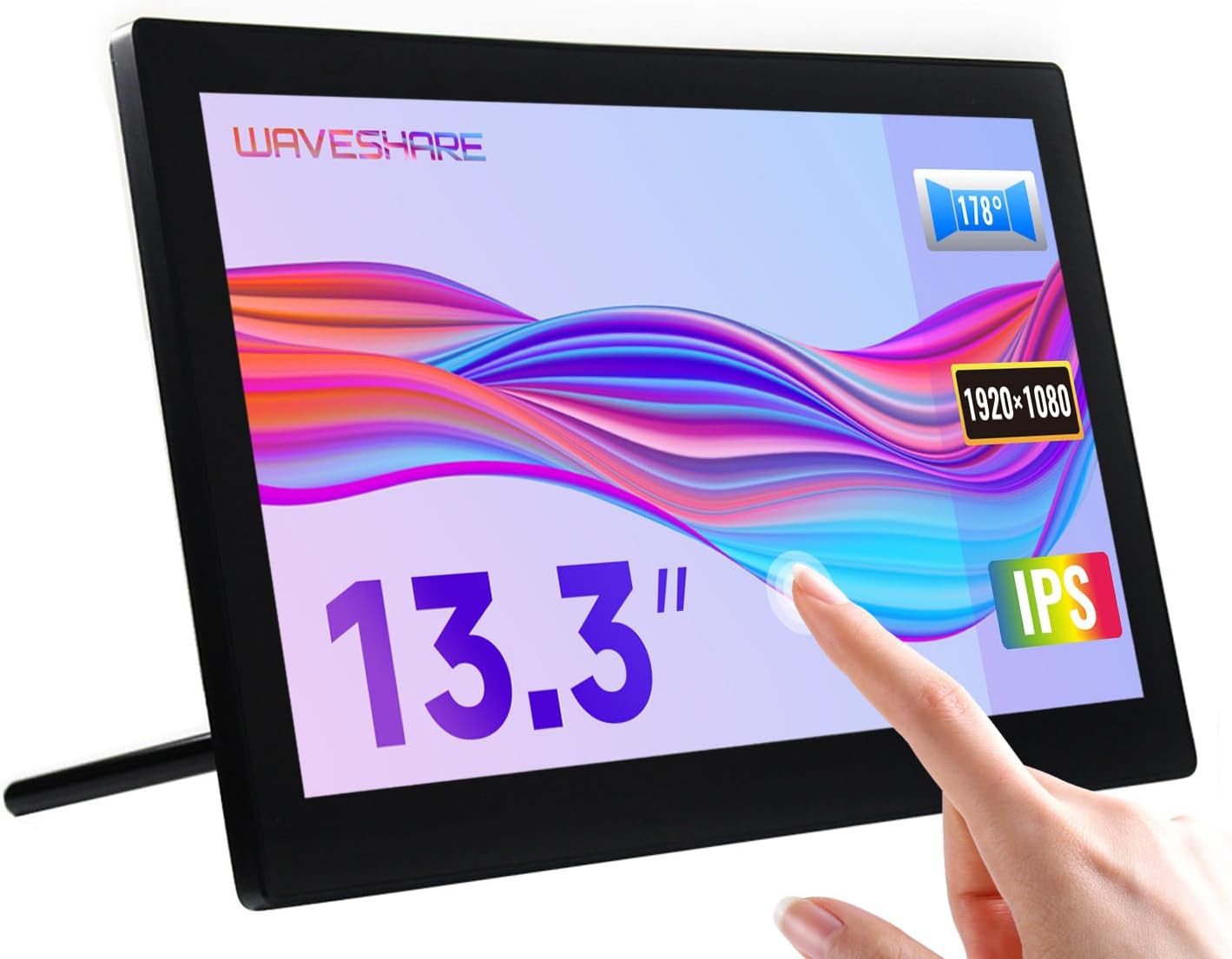
Image 1.1: The Waveshare 13.3-inch Capacitive Touch Screen LCD, showcasing its touch functionality and sleek design.
2. Информации за безбедност
- Обезбедете ја јачината на напојувањетоtage matches the product's requirements to prevent damage.
- Avoid exposing the display to extreme temperatures, humidity, or direct sunlight.
- Не го расклопувајте уредот. За сите сервиси обратете се на квалификуван персонал.
- Keep the screen away from strong magnetic fields.
- Handle with care to avoid dropping or impacting the screen, especially the toughened glass panel.
3. Содржина на пакетот
Проверете дали сите артикли се присутни во пакувањето:
- Waveshare 13.3-inch HDMI LCD (H) Display
- Адаптер за напојување
- HDMI кабел
- USB-A to Micro-USB Cable (for touch functionality)
- Упатство за употреба (овој документ)
4. Производот завршиview
4.1. Карактеристики
- 13.3-inch IPS panel with 1920x1080 resolution.
- Capacitive 10-point touch control (operating system dependent).
- Toughened glass panel with up to 6H hardness.
- HDMI and VGA display interfaces.
- Built-in Hi-Fi speakers and 3.5mm audio jack.
- Supports various devices including Raspberry Pi, Jetson Nano, PCs, and game consoles.
- Integrated case with a 75° back stand and VESA mounting holes (75x75mm).

Image 4.1: Detailed features and system compatibility of the display.
4.2. Физички компоненти
The display includes various ports and control buttons:
- VGA Display Port: For video input via VGA.
- HDMI порта: For video input via HDMI.
- Аудио приклучок од 3.5 мм: За аудио излез.
- Touch Port (USB): For connecting the touch functionality to your device.
- Влез за напојување од 12V: За поврзување на адаптерот за напојување.
- Back Buttons: Power, direction controls, and Menu/Enter/Return buttons for OSD navigation.

Слика 4.2: Задна страна view of the display with ports and a Raspberry Pi connection exampле.
5. Упатства за поставување
5.1. Првично поврзување
- Поврзете видео: Use the provided HDMI cable to connect the display's HDMI port to your source device (e.g., Raspberry Pi, PC). If using VGA, connect a VGA cable.
- Connect Touch (USB): Connect the USB-A to Micro-USB cable from your source device's USB port to the display's Touch Port. This enables touch functionality.
- Поврзете напојување: Plug the power adapter into the display's 12V Power Input, then connect it to a power outlet.
- Вклучување: Press the power button on the back of the display. The screen should illuminate and display content from your source device.

Image 5.1: Display showing a Windows desktop after successful connection.
5.2. Врска Прampлес
The display supports various connection configurations:
- Working with Raspberry Pi 4: Connect HDMI for video and USB for touch. Power the display with its 12V adapter.
- Working with Raspberry Pi Zero W: Requires additional mini HDMI adapter and USB cable. Connect mini HDMI for video and USB for touch. Power the display with its 12V adapter.
- Working with AI Computer Jetson Nano: Connect HDMI for video and USB for touch. Power the display with its 12V adapter.
- Working with Mini PC: Connect HDMI for video and USB for touch. Power the display with its 12V adapter.

Image 5.2: Visual guide for connecting the display to different devices.
6. Упатства за работа
6.1. Мени за приказ на екран (OSD).
The OSD menu allows you to adjust display settings such as brightness, contrast, and input source. Use the back buttons (direction controls and Menu/Enter/Return) to navigate and select options.
- Притиснете го МЕНИ копче за да го отворите менито на екранот.
- Користете го Насока копчиња за навигација низ опциите на менито.
- Притиснете МЕНИ again (or the designated Enter button) to select an option or confirm a setting.
- Користете го Врати се button to go back or exit the menu.
6.2. Displaying Content
Once connected and powered on, the display will automatically detect the active video input. Ensure your source device is outputting video to the selected HDMI or VGA port.

Image 6.1: The display showing multimedia content from a web прелистувач.
6.3. Допрете Контрола
The display features capacitive 10-point touch control. Ensure the USB touch cable is connected to your source device for touch functionality. Driver-free operation is supported on most compatible operating systems.

Image 6.2: Illustration of touch control and audio features.
6.4. Аудио излез
The display includes built-in Hi-Fi speakers for audio output. Alternatively, you can connect external speakers or headphones to the 3.5mm audio jack for private listening or higher quality audio.
7. Поддршка за уреди и системи
The Waveshare 13.3-inch display offers broad compatibility:
- Малина Пи: Supports all versions of Raspberry Pi.
- Supports Raspberry Pi OS, 10-point touch, driver free.
- Supports Ubuntu / Kali / WIN10 IoT, single point touch, driver free.
- Supports Retropie, driver free.
- Џетсон Нано: Supports Ubuntu, single point touch, driver free.
- компјутер: Supports Windows 11 / 10 / 8.1 / 8 / 7, 10-point touch, driver free.
- Конзоли за игри: Supports Xbox360, PS4, Switch (display and sound only).

Слика 7.1: Готовоview of supported devices and operating systems.
8. Одржување
- Чистење на екранот: Користете мека крпа без влакненца малку гampсо вода или раствор за чистење на екрани. Избегнувајте груби хемикалии или абразивни материјали.
- Општа нега: Keep the display free from dust. When not in use for extended periods, consider covering it to prevent dust accumulation.
- Складирање: Store the display in a cool, dry place, away from direct sunlight and extreme temperatures.
9 Смена на проблеми
| Проблем | Можна причина | Решение |
|---|---|---|
| Нема екран/Црн екран |
|
|
| Touch not working |
|
|
| Нема аудио |
|
|
10. Спецификации
| Карактеристика | Детал |
|---|---|
| Големина на екранот | 13.3 инчи |
| Резолуција | 1920x1080 (FHD 1080p) |
| Панел за прикажување | IPS |
| Viewинголен агол | 178° |
| Допрете Тип | Capacitive, 10-point touch |
| Тврдост на допирната плоча | Up to 6H Toughened Glass |
| Интерфејс за приказ | hdmi, vga |
| Аудио излез | Built-in Hi-Fi Speakers, 3.5mm Audio Jack |
| Влез на енергија | 12V DC |
| Димензии на производот (ДxШxВ) | 7.09 x 3.94 x 3.54 инчи (приближно 180 x 100 x 90 мм) |
| Тежина на ставката | 2.2 фунти (приближно 1 кг) |
| Материјал за куќиште | Поликарбонат / ABS |

Image 10.1: Physical dimensions of the display.
11. Гаранција и поддршка
Waveshare products are designed for reliability and performance. For warranty information, technical support, or further assistance, please visit the official Waveshare webстраницата или директно контактирајте ја нивната служба за корисници. Чувајте ја сметката за купување како доказ за купување за гаранциски побарувања.
Official Waveshare Webсајт: www.waveshare.com


