Вовед
This manual provides essential instructions for setting up, operating, maintaining, and troubleshooting your Microsoft Surface Pro 2017. The Surface Pro 2017 is a versatile 2-in-1 device designed to function as both a powerful laptop and a portable tablet, offering a seamless computing experience.
Ве молиме внимателно прочитајте го ова упатство за да обезбедите правилна употреба и да го максимизирате животниот век на вашиот уред. Зачувајте го ова упатство за во иднина.
Што има во кутијата
Upon unboxing your Microsoft Surface Pro 2017, verify that all components are present:
- Microsoft Surface Pro 2017 device
- Адаптер за напојување со наизменична струја
Note: Additional accessories such as the Surface Pen, Type Cover, or Surface Dial are sold separately and may not be included with your device.
Поставување
1. Првично вклучување и полнење
- Поврзете го адаптерот за напојување: Plug the AC power adapter into a wall outlet and then connect the magnetic charging connector to the charging port on your Surface Pro. The LED indicator on the connector will illuminate when charging.
- Вклучување: Press and hold the power button located on the top edge of the device for a few seconds until the Microsoft logo appears on the screen.
2. Поставување на Windows
Follow the on-screen prompts to complete the initial Windows setup. This process typically includes:
- Избирање на вашиот регион и јазик.
- Поврзување со Wi-Fi мрежа.
- Прифаќање на договорот за лиценца.
- Creating or signing in with a Microsoft account.
- Setting up security features like Windows Hello (facial recognition) or a PIN.
3. Поврзување на Wi-Fi
- During Windows setup, you will be prompted to connect to a network. Select your desired Wi-Fi network from the list and enter the password if required.
- If you need to connect later, go to Започнете > Поставки > Мрежа и Интернет > Wi-Fi. Turn Wi-Fi on, select your network, and click Поврзете се.
Упатства за работа
Basic Device Orientation and Controls
The Surface Pro 2017 features a 12.3-inch PixelSense display with multi-touch support. Key physical controls include:
- Копче за вклучување: Located on the top edge, used to turn the device on/off, sleep, or wake.
- Копчиња за јачина на звук: Located on the side, used to adjust audio volume.
- Удар за удар: Integrated on the back, allows for multiple viewинг агли.
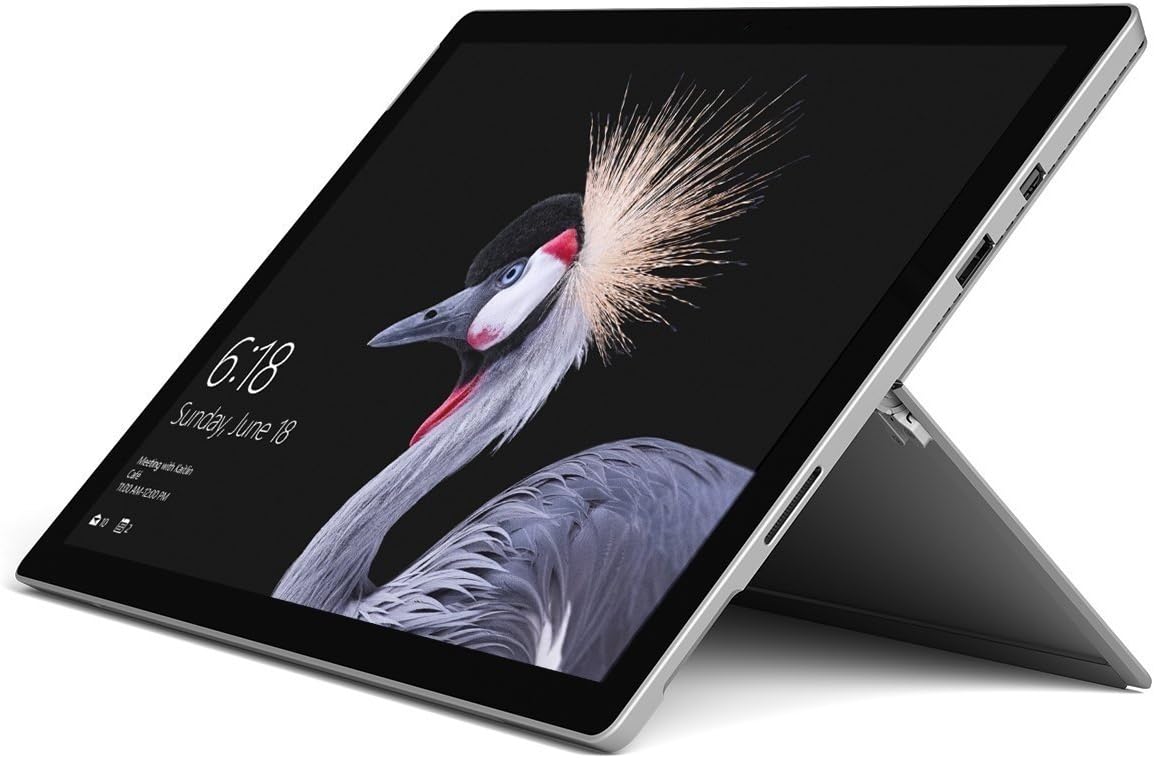
Image: Microsoft Surface Pro 2017 in laptop mode with its kickstand extended, showcasing the device's display.
Користење на Kickstand
The integrated kickstand allows you to position your Surface Pro at various angles for comfortable viewing, typing, or drawing. Gently pull the kickstand out from the back of the device until it reaches your desired angle.
Управување со енергија
- Режим на спиење: Briefly press the power button to put the Surface Pro into sleep mode. Press it again to wake the device.
- Исклучи: Одете на Започнете > Моќ > Исклучи.
- Рестартирајте: Одете на Започнете > Моќ > Рестартирајте.
Поврзување периферни уреди
The Surface Pro 2017 includes various ports for connecting external devices:
- USB 3.0 порт: For connecting USB drives, keyboards, mice, and other compatible accessories.
- Мини DisplayPort: За поврзување со надворешни монитори или проектори.
- Читач на microSD картички: За проширување на складирањето или префрлање files од мемориски картички.
- Површинска врска пристаниште: За напојување и поврзување со додатоци за Surface Dock.
- 3.5 мм приклучок за слушалки: За аудио излез.
Bluetooth: To connect Bluetooth devices (e.g., headphones, mice), go to Започнете > Поставки > Уреди > Bluetooth и други уреди. Ensure Bluetooth is turned on, then select "Add Bluetooth or other device" and follow the pairing instructions.

Слика: Страничен професионалецfile of the Microsoft Surface Pro 2017, highlighting the various ports available for connectivity.
Одржување
Cleaning Your Surface Pro
- Екран: Користете мека крпа без влакненца малку гampened with water or an approved screen cleaner. Avoid harsh chemicals or abrasive materials.
- Тело: Wipe the exterior with a soft, dry cloth. Do not allow liquids to enter openings.
- Пристаништа: Keep ports free of dust and debris. Use compressed air carefully if needed, holding the can upright.
Нега на батерии
- Избегнувајте екстремни температури, бидејќи тие можат да го намалат животниот век на батеријата.
- За оптимално здравје на батеријата, избегнувајте постојано целосно празнење на батеријата или нејзино одржување на 100% полнење подолг временски период.
- Use only the official Microsoft AC power adapter or a compatible charger.
Софтверски ажурирања
Regularly update your Windows operating system and device drivers to ensure optimal performance, security, and compatibility. Go to Започнете > Поставки > Ажурирање и безбедност > Windows Update за проверка и инсталирање на ажурирања.
Решавање проблеми
Овој дел се однесува на вообичаени проблеми со кои може да се соочите со вашиот Surface Pro 2017.
Device Will Not Turn On
- Проверете дали уредот е наполнет. Поврзете го адаптерот за напојување и почекајте неколку минути пред да се обидете да го вклучите.
- Perform a two-button shutdown: Press and hold the volume-up button and the power button simultaneously for at least 15 seconds, then release both. Wait 10 seconds, then press the power button again to turn on the Surface.
Screen Not Responding to Touch
- Рестартирајте го уредот.
- Осигурајте се дека екранот е чист и без остатоци.
- Check for available Windows updates, as driver updates can resolve touch issues.
Проблеми со Wi-Fi поврзување
- Ensure Wi-Fi is enabled in Поставки > Мрежа и Интернет > Wi-Fi.
- Restart your Surface Pro and your Wi-Fi router.
- Заборавете на мрежата и повторно поврзете се: Одете на Поставки > Мрежа и Интернет > Wi-Fi, click on your network, then Заборавете. Reconnect and enter the password.
Спецификации
| Карактеристика | Спецификација |
|---|---|
| Име на моделот | Surface Pro 2017 |
| Број на модел на ставка | 7Y30 |
| Големина на екранот | 12.3 инчи |
| Резолуција на екранот | 2736 x 1824 пиксели |
| Процесор | Intel Core m3-7Y30 (1 GHz Intel_Mobile_CPU) |
| RAM меморија | 4 GB DDR4 SDRAM |
| Складирање | 128 GB SSD |
| Графичка картичка | Integrated (Intel) |
| Оперативен систем | Windows |
| Безжичен тип | 802.11abg |
| Тежина на ставката | 1.89 фунти |
| Димензии на производот | 11.5 x 7.9 x 0.3 инчи |
| Боја | Сребрена |
Гаранција и поддршка
For detailed warranty information, please refer to the warranty card included with your purchase or visit the official Microsoft support webлокација. Условите за гаранција може да варираат во зависност од регионот и продавачот.
For technical support, driver downloads, and additional resources, please visit the official Microsoft Support webсајт: support.microsoft.com/surface