1. Вовед
This manual provides essential instructions for setting up, operating, and maintaining your PRITOM K7 7-inch Kids Tablet. Please read this guide thoroughly to ensure proper use and to maximize your child's learning and entertainment experience.
2. Што има во кутијата
- 1 x PRITOM 7-inch Tablet PC
- 1 x полнач
- 1 x Упатство за употреба
- 1 x USB кабел
- 1 x OTG кабел
- 1 x филм за екран
- 1 x Silicone Kid-Proof Case
3. Уредот завршиview
The PRITOM K7 tablet is designed with a durable, kid-friendly silicone case that includes a built-in stand and handles for easy carrying and viewing. It features a 7-inch IPS HD display and dual cameras.
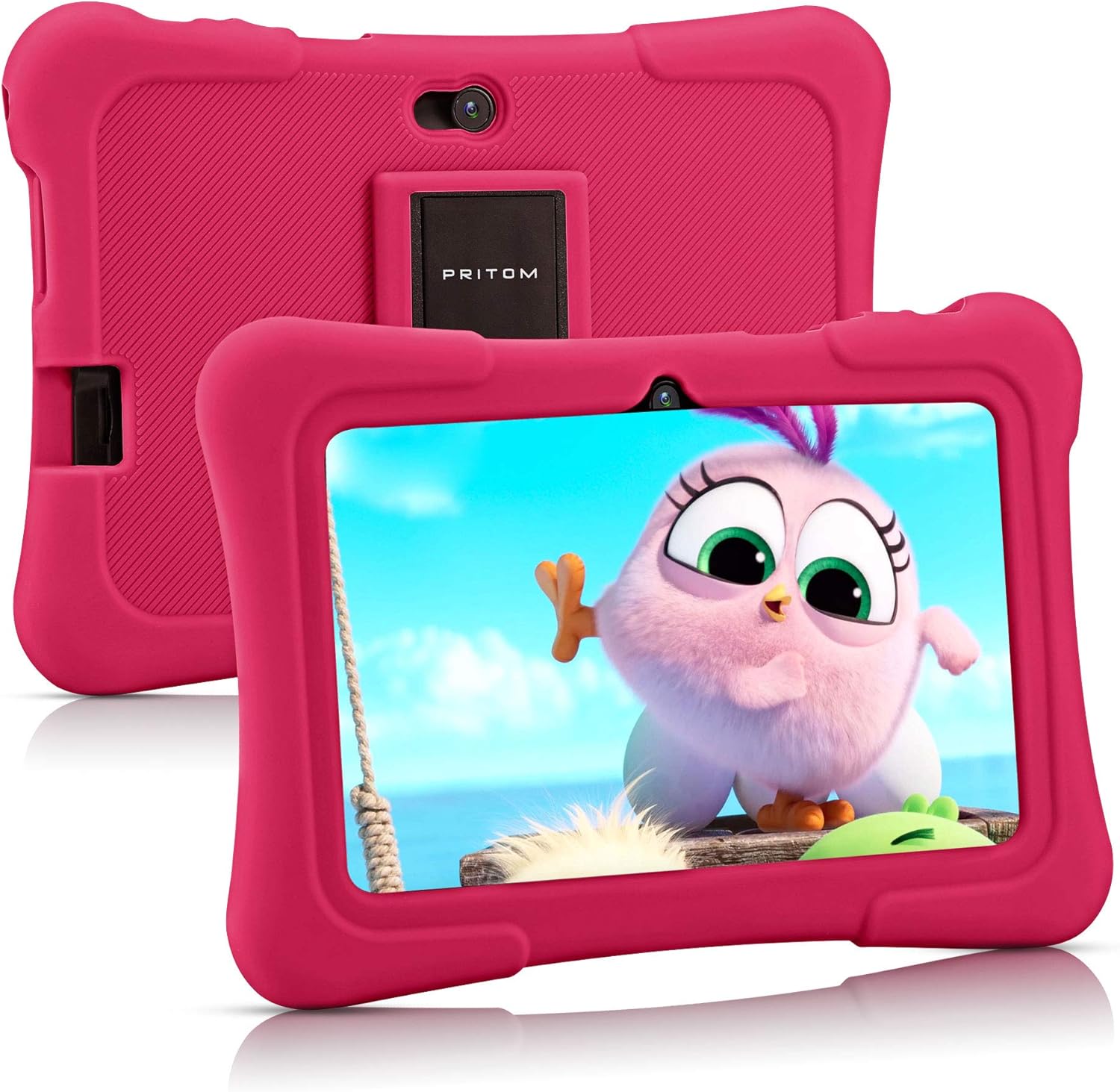
Image: PRITOM K7 7-inch Kids Tablet in its protective pink silicone case.

Image: Diagram illustrating the location of the power button, DC jack, Micro USB port, mic, 3.5mm earphone jack, volume buttons, Micro SD card slot, front camera, rear camera, and speaker.
4. Поставување
4.1 Почетно вклучување
- Притиснете и задржете го Копче за напојување (located on the top edge) for a few seconds until the screen lights up.
- Следете ги упатствата на екранот за да го изберете вашиот јазик и регион.
4.2 Поврзување на Wi-Fi
- From the home screen, tap the Поставки икона.
- Изберете Мрежа и Интернет, тогаш Wi-Fi.
- Вклучи/исклучи Wi-Fi On.
- Изберете ја саканата Wi-Fi мрежа од листата.
- Внесете ја лозинката ако се побара и допрете Поврзете се.
4.3 Setting Up Parental Controls (iWawa Kids Software)
The PRITOM K7 comes with pre-installed iWawa Kid's software, offering a safe and controlled environment for children.
- Лоцирајте и допрете го iWawa app icon on the home screen.
- Follow the on-screen instructions to create a child profile. This typically involves setting up a password for parental access, defining screen time limits, and selecting age-appropriate content.
- Within the iWawa app, you can manage applications, set content filters, and monitor usage.

Image: The iWawa Kids Software interface, showing pre-installed educational and game applications.
5. Ракување со таблетот
5.1 Навигација
- Екран на допир: Навигирајте со допирање, лизгање со прст и штипнување на екранот.
- Копче за почеток: Се враќа на главниот почетен екран.
- Копче за назад: Се враќа на претходниот екран.
- Копче за неодамнешни апликации: Ги прикажува неодамна користените апликации.
5.2 Преземање апликации
Beyond the pre-installed iWawa apps, you can download additional applications from the Google Play Store.
- Exit the iWawa app (if active) by entering the parental password.
- Лоцирајте и допрете го Google Play Store icon on the main Android home screen.
- Пребарај за desired apps and follow the on-screen instructions to download and install them.
Функционалност на камерата 5.3
The tablet features a front-facing and rear-facing camera for photos and videos.
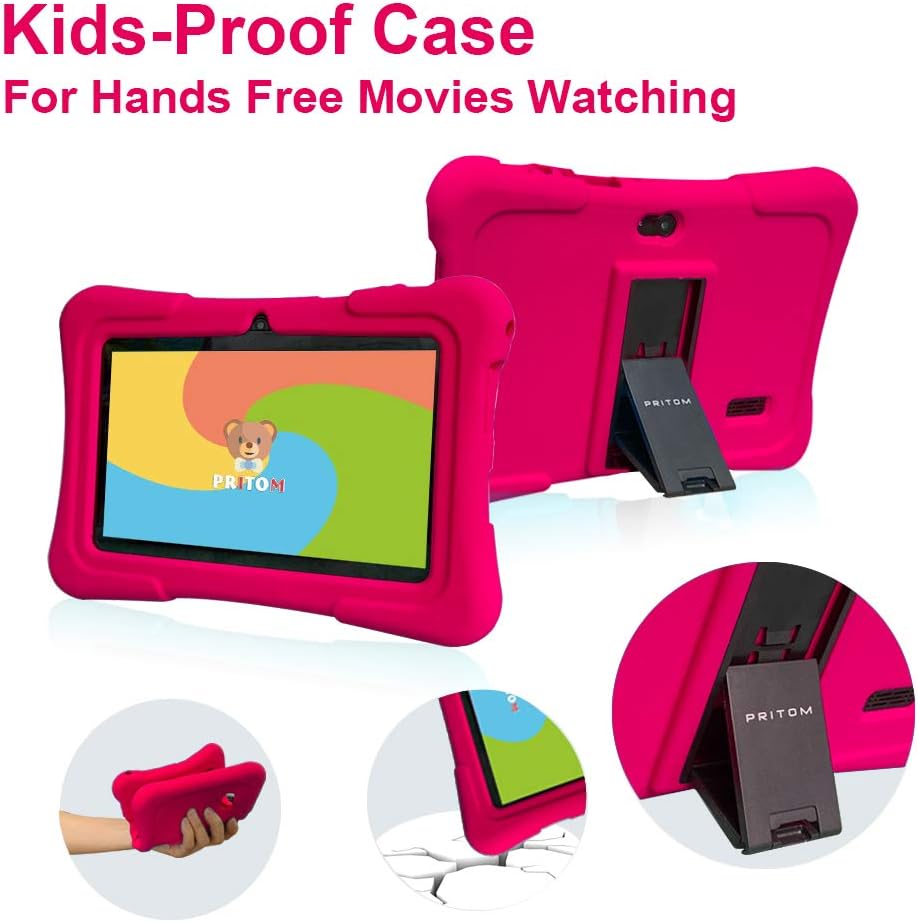
Image: The PRITOM K7 tablet displaying a family photo, highlighting its 7-inch IPS screen and camera capabilities.
- Допрете го Камера икона на апликација.
- Select between the front and rear camera using the toggle icon.
- Допрете го копчето за бленда за да фотографирате или да започнете/запрете снимање видео.
5.4 Репродукција на медиуми
The tablet supports various media formats for videos, music, and photos.
- Видео: Use the pre-installed video player or download a third-party app from the Google Play Store.
- Музика: Use the Music app to play audio files.
- Фотографии: View images in the Gallery app.
Видео: Оверview of the PRITOM 7-inch Kids Tablet, demonstrating its features and functionality, including the user interface and protective case.
Video: A short demonstration of the kids tablet, showcasing its design and some interactive elements.
Video: A brief look at the PRITOM Kids Tablet, highlighting its 7-inch screen and 32GB storage capacity.
6. Одржување
6.1 Полнење на батеријата
Connect the provided charger to the tablet's DC jack or Micro USB port and plug it into a power outlet. The battery indicator on the screen will show charging status.
6.2 Управување со складирање
The tablet has 32 GB of internal storage, expandable up to 512 GB using a Micro SD card.
- Locate the Micro SD card slot (refer to Device Overview Дијаграм).
- Gently insert a compatible Micro SD card until it clicks into place.
- За управување со складирањето, одете на Поставки > Складирање.
6.3 Чистење
Use a soft, dry, lint-free cloth to clean the screen and exterior of the tablet. Avoid using harsh chemicals or abrasive materials.

Image: The PRITOM K7 tablet secured in its pink kid-proof silicone case, featuring a functional kickstand for hands-free viewинг.
7 Смена на проблеми
- Таблетот не се вклучува: Проверете дали батеријата е наполнета. Поврзете го полначот и обидете се повторно.
- Екранот не реагира: Извршете меко ресетирање со држење на копчето за вклучување 10-15 секунди.
- Проблеми со Wi-Fi конекцијата: Check if Wi-Fi is enabled in settings. Restart your router and the tablet.
- Паѓање на апликации: Clear the app's cache (Settings > Apps > [App Name] > Storage > Clear Cache) or reinstall the app.
- Parental control issues: Verify the parental password and check settings within the iWawa app.
8. Спецификации
| Карактеристика | Детал |
|---|---|
| Големина на екранот | 7 инчи |
| Резолуција на екранот | 1024x600 Pixels (IPS HD) |
| Оперативен систем | Андроид 13 |
| Процесор | Quad-Core (1.5 GHz Unisoc) |
| RAM меморија | 2 GB SDRAM DDR3 |
| Внатрешно складирање | 32 GB (може да се прошири до 512 GB преку Micro SD) |
| Камери | Преден 2MP, Заден 0.3MP |
| Поврзување | WiFi (802.11bgn), Bluetooth |
| Траење на батеријата | Average 3 years (device lifespan) |
| Тежина на ставката | 1.15 фунти |
| Димензии на производот | 8.3 x 5.9 x 0.7 инчи |
9. Гаранција и поддршка
For warranty information and customer support, please refer to the documentation included with your purchase or visit the official PRITOM webстраница. Зачувајте го доказот за купување за какви било гаранциски побарувања.


