1. Вовед
This manual provides detailed instructions for the setup, operation, maintenance, and troubleshooting of your MUNBYN Shipping Label Printer RealWriter 941. Please read this manual thoroughly before using the printer to ensure optimal performance and longevity.

Image: The MUNBYN Shipping Label Printer RealWriter 941, a compact white and black thermal printer, shown actively printing a shipping label.
2. Поставување
2.1. Што има во кутијата
Проверете дали сите компоненти се присутни во пакувањето:
- Термички печатач
- Адаптер за напојување
- Кабел за напојување
- USB кабел
- Labels (for initial testing)

Слика: Надземна плоча view of the MUNBYN printer box contents, including the printer, power adapter, power cable, USB cable, and a roll of labels.
2.2. Физичка врска
- Connect the power adapter to the printer and then plug it into a power outlet.
- Connect the USB cable from the printer to your computer (Windows or macOS).
2.3. Инсталација на драјвери
The MUNBYN RealWriter 941 is a USB-only thermal printer compatible with Windows and macOS operating systems. Drivers are required for proper functionality.
- For Windows and macOS, download the latest drivers from the official MUNBYN website or use the provided installation CD/USB if included.
- Следете ги упатствата на екранот за да ја завршите инсталацијата на драјверот.
- For Chromebook users, install the Munbyn Printer Extension from the Chrome Web Продавница.

Image: A screenshot showing the Munbyn Printer Extension page in the Chrome Web Store, indicating compatibility with Chromebooks.
2.4. Вчитување етикети
The printer supports thermal labels from 1.57" to 4.3" wide. It features automatic label identification.
- Проверете дали печатачот е вклучен.
- Отворете го горниот капак на печатачот.
- Insert the stack of thermal labels into the rear feed slot, ensuring the print side is facing up.
- Adjust the label guides to fit snugly against the edges of the labels.
- Close the top cover. The printer will automatically detect and calibrate to the label size.

Image: The MUNBYN printer shown printing various label types and sizes, including shipping labels, circular labels, and small rectangular labels, demonstrating its versatility.
3. Упатства за работа
3.1. Печатење на етикети
Once the printer is set up and labels are loaded, you can print from any application that supports printing.
- Open the document or label you wish to print (e.g., a shipping label PDF).
- Select 'Print' from your application's menu.
- Choose the MUNBYN RealWriter 941 as your printer.
- Ensure the paper size settings in your print dialogue match the labels loaded in the printer (e.g., 4x6 inches).
- Кликнете на „Печати“.

Image: The MUNBYN printer connected to a laptop, demonstrating a label being printed from the computer screen to the printer.
3.2. Компатибилност
The MUNBYN thermal label printer is designed for broad compatibility with various shipping and selling platforms, including:
- Етси
- Shopify
- eBay
- Амазон
- Пошмарк
- Ship Station
- Shipping Easy
- Shippo
- Ordoro
- Endicia Dazzle
- Shipwire
- Shipworks
- Stockx
- Xps Ship

Image: The MUNBYN printer surrounded by logos of various e-commerce and shipping platforms, illustrating its wide compatibility.
3.3. Using the MUNBYN Print App
For convenient printing from mobile devices (iPhone/Mac OS/Android), download the 'MUNBYN Print' app.
- Scan the QR code below with your smartphone or tablet.
- Преземете ја и инсталирајте ја апликацијата.
- Follow the in-app instructions to connect to your printer and print.

Image: A smartphone screen displaying a QR code for downloading the 'MUNBYN Print' app, compatible with Android 7 / iOS 11 and newer versions.
4. Одржување
4.1. Чистење на главата за печатење
Regular cleaning of the print head ensures clear and consistent print quality. Use a cotton swab lightly dampобложена со изопропил алкохол.
- Исклучете го печатачот и исклучете го кабелот за напојување.
- Open the top cover to access the print head.
- Gently wipe the print head surface with the alcohol-dampened cotton swab.
- Оставете главата за печатење целосно да се исуши пред да го затворите капакот и повторно да го поврзете напојувањето.
4.2. Label Storage
Store thermal labels in a cool, dry place away from direct sunlight and heat sources to prevent premature fading or damage to the thermal coating.
5 Смена на проблеми
If you encounter issues with your MUNBYN printer, refer to the following common problems and solutions. For a comprehensive guide, please consult the official Troubleshooting Guide PDF available for download.
- Печатачот не реагира: Ensure the power cable and USB cable are securely connected. Check if the printer's power indicator light is on. Restart both the printer and your computer.
- Етикетите не се внесуваат правилно: Verify that labels are loaded correctly and the label guides are adjusted to the label width. Ensure there are no obstructions in the paper path.
- Poor print quality (faded, smudged, or incomplete prints): Clean the print head as described in the Maintenance section. Ensure you are using high-quality thermal labels. Check print settings in your software to ensure resolution and darkness are appropriate.
- Printer beeps continuously: This may indicate an error or an empty label roll. Check the label supply and clear any paper jams.
- Проблеми со драјверите: Reinstall the printer drivers from the official MUNBYN webстраница. Осигурајте се дека вашиот оперативен систем е ажуриран.
За понатамошна помош, погледнете на Водич за решавање проблеми (PDF).
6. Спецификации
Detailed technical specifications for the MUNBYN Shipping Label Printer RealWriter 941 (Model ITPP941):
| Карактеристика | Спецификација |
|---|---|
| Име на моделот | P941 |
| Број на модел на ставка | ITPP941 |
| Технологија на печатење | Термички |
| Резолуција | 203 x 203 DPI (203 Dots Per Inch) |
| Максимална брзина на печатење монохроматски | 150 mm/s (72 ppm) |
| Максимална големина на медиум | 4 x 6 инчи |
| Ширина на печатење | 1.57" до 4.3" |
| Технологија за поврзување | USB |
| Компатибилни уреди | PC, Laptops, Windows, Mac, Chromebook |
| Потрошувачка на енергија | 60 вати |
| Тежина на ставката | 3.08 фунти (1.4 килограми) |
| Димензии на производот | 3.8"Д x 7.8"Ш x 4.3"В (1.61 x 2.99 x 1.54 инчи) |
| Капацитет за складирање на меморија | 4 MB |
| UPC | 613310860730 |
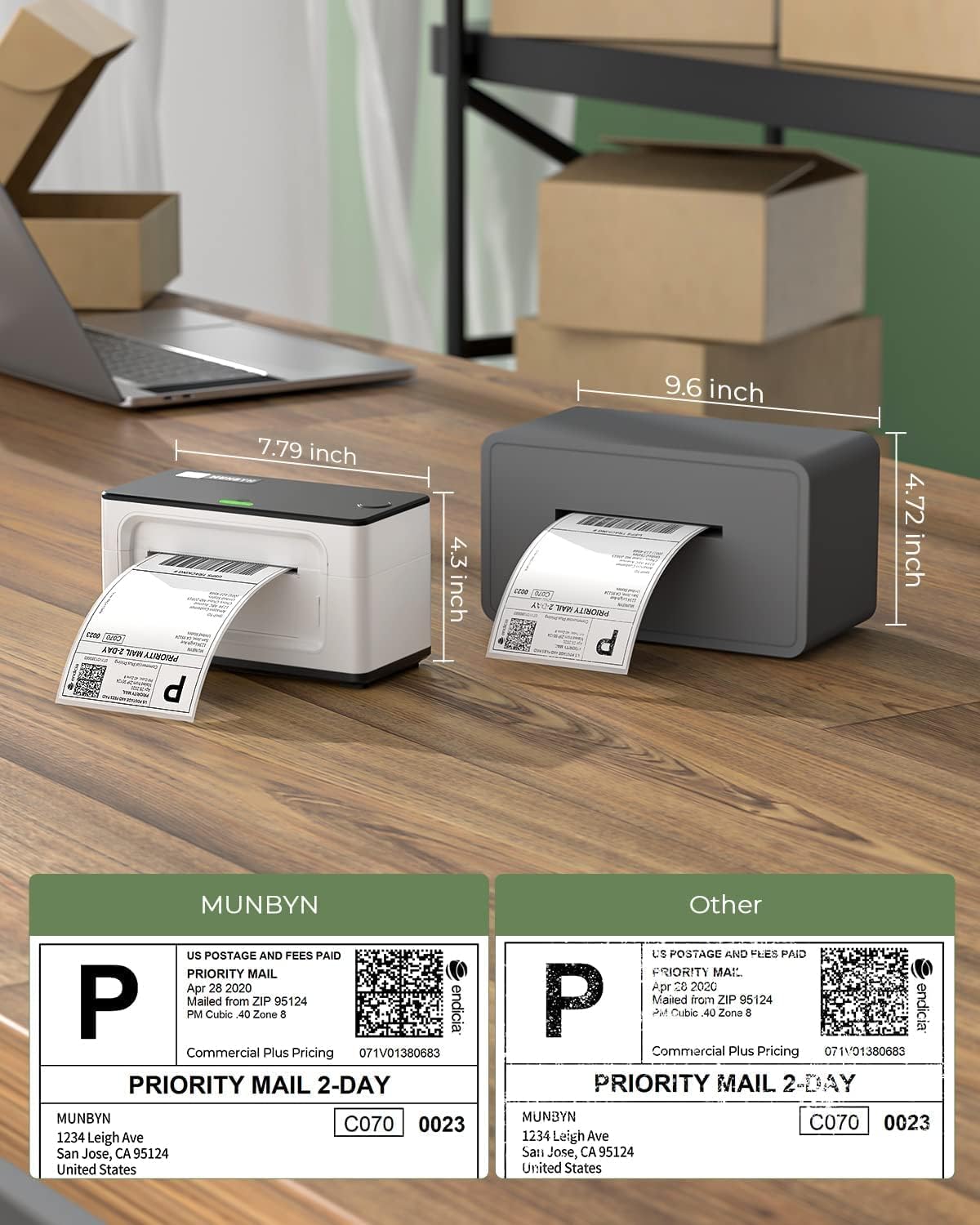
Image: A visual comparison of the MUNBYN printer's dimensions (7.79 inches length, 4.5 inches height) against another printer model.

Image: A comparison table showing different MUNBYN printer models (941U, 941BP, 941AP) with their connectivity, compatible devices, resolution, and max print speed.
7. Гаранција и поддршка
7.1. Информации за гаранцијата
MUNBYN provides perpetual customer support and product protection for any product issues. The manufacturer's warranty period is two years from the date of purchase.
7.2. Поддршка за корисници
For any questions or assistance, please contact MUNBYN customer support:
- Телефон: +1 628 229 3612 (Monday through Friday, EST 9:00-24:00, excluding public holidays)
- Е-пошта: support@munbyn.com
- Разговор во живо: Available on the official MUNBYN webсајт.
- Remote Desktop Operations Support: Available as needed.
Кога контактирате со поддршката, ве молиме наведете го бројот на вашата нарачка.

Image: A graphic illustrating the various customer support options offered by MUNBYN, including phone call, teaching video, live chat, and remote desktop support.


