Вовед
The Logitech K400 Plus Wireless Touch Keyboard is designed for comfortable control of your entertainment from a distance. Featuring a full-size keyboard layout and a large, integrated touchpad, it offers seamless navigation for your PC-connected TV, media center, or other compatible devices. This manual provides essential information for setting up, operating, and maintaining your keyboard.
Поставување
1. Инсталација на батерија
The Logitech K400 Plus requires two AAA batteries (included). To install them:
- Пронајдете го капакот на преградата за батерии на долната страна од тастатурата.
- Отворете го капакот.
- Вметнете две AAA батерии, внимавајќи на правилниот поларитет (+/-).
- Добро затворете го капакот на преградата за батерии.
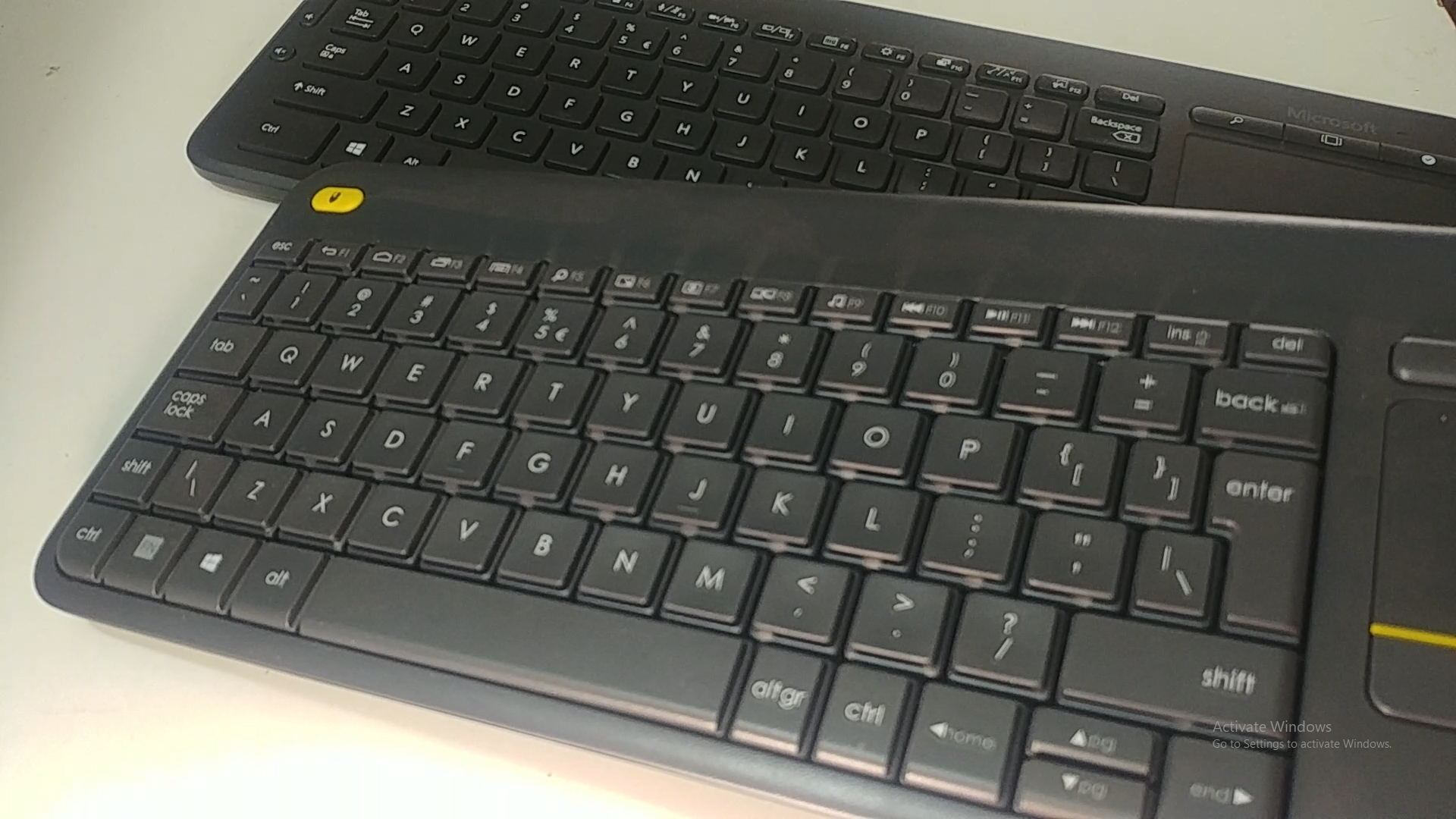
Image: Underside of the Logitech K400 Plus keyboard with the battery compartment open, showing two AAA batteries.
2. Connecting the Keyboard (USB Unifying Receiver)
The K400 Plus connects wirelessly via a small USB Unifying receiver. This receiver is typically stored inside the battery compartment for safekeeping.
- Open the battery compartment cover and remove the USB Unifying receiver.
- Plug the USB Unifying receiver into an available USB port on your PC, smart TV, or other compatible device.
- Turn on the keyboard using the On/Off switch located on the top right edge of the keyboard. A green indicator light will appear.
- Your keyboard should automatically connect. If not, refer to the troubleshooting section or visit the Logitech support website for the Unifying software.

Image: The Logitech K400 Plus Wireless Touch Keyboard, showing its compact design with integrated touchpad.
Упатства за работа
Распоред на тастатура
The K400 Plus features a standard QWERTY layout with additional function keys and an integrated touchpad.
Слика: Детална view of the Logitech K400 Plus keyboard keys, highlighting the QWERTY layout.
Употреба на подлогата за допир
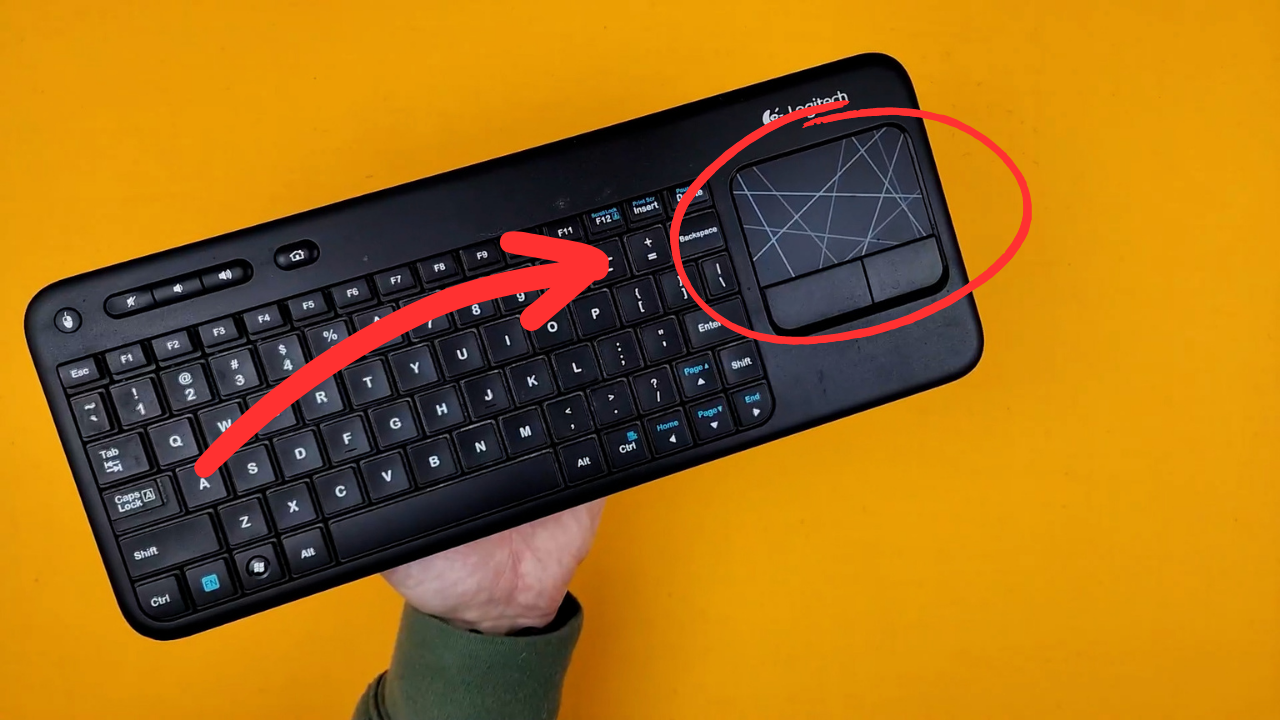
The large 3.5-inch touchpad allows for intuitive navigation. It supports multi-touch gestures for enhanced control.
- Допир со еден прст: Лев клик.
- Допирање со два прста: Десен-клик.
- Лизгање со два прста: Скролувајте вертикално или хоризонтално.
- Штипнете за зумирање: Zoom in or out (if supported by the application).
- Dedicated left and right-click buttons are located below the touchpad for traditional mouse button functionality.
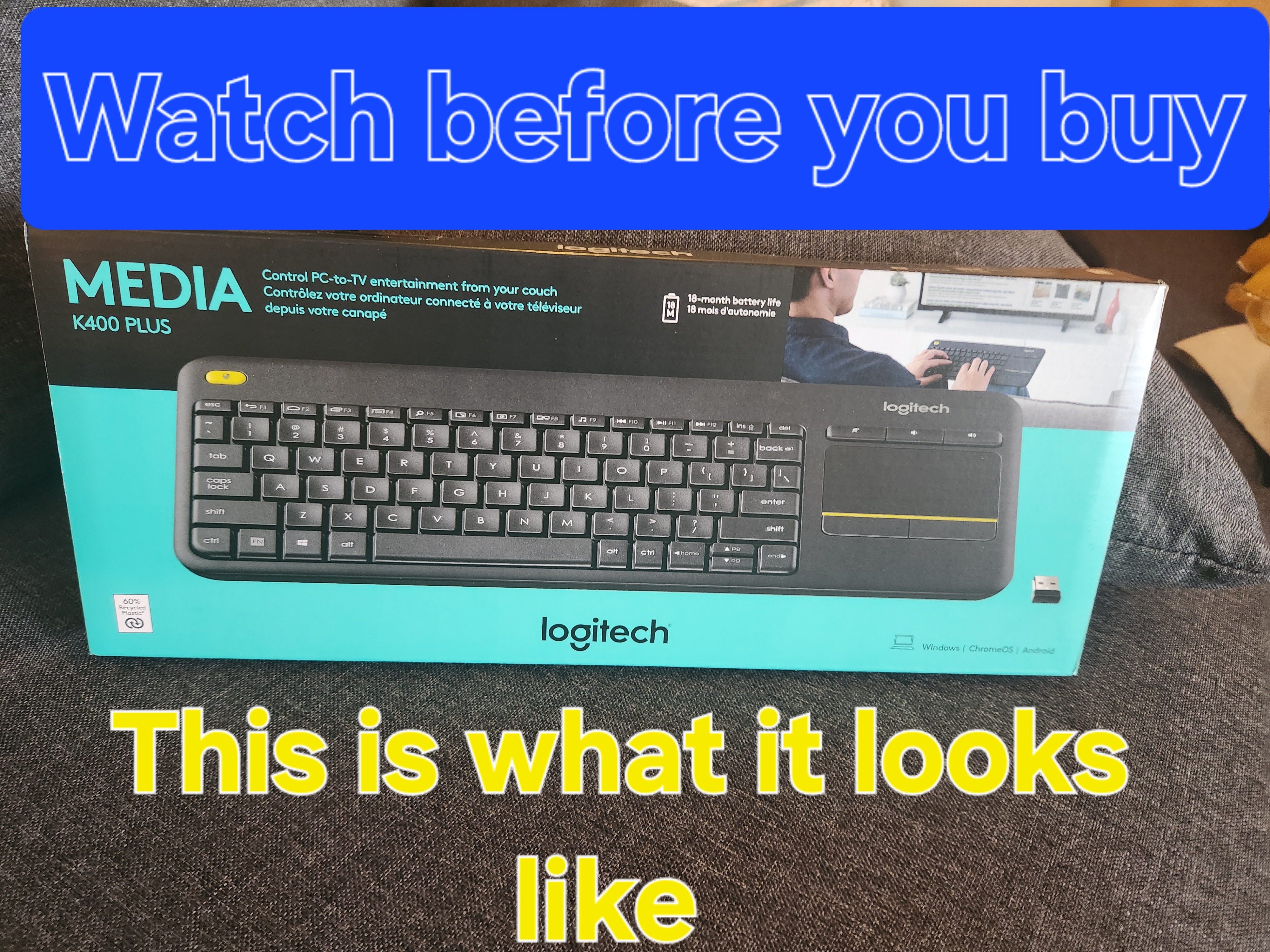
Image: A hand demonstrating the use of the integrated touchpad on the Logitech K400 Plus.
Мултимедијални и функционални копчиња
The top row of keys includes dedicated multimedia controls and function keys (F1-F12) with secondary actions. To activate the secondary actions (indicated by blue icons), press and hold the Fn key (located near the left Ctrl key) while pressing the desired function key.
- Контроли на јачина на звук: Dedicated buttons for mute, volume down, and volume up are located above the touchpad.
- Копче за почеток: Access your device's home screen or browser home page.
- Page Up/Down, End: Навигирајте до документи и web страници.
- Left Mouse Button (top left): An additional left-click button is located on the top left corner of the keyboard for convenient two-hand operation.
Одржување
Чистење
За чистење на тастатурата:
- Исклучете ја тастатурата користејќи го прекинувачот за вклучување/исклучување.
- Користете мека крпа без влакненца малку гampнаполнето со вода или благ раствор за чистење.
- Avoid excessive moisture and do not immerse the keyboard in liquid.
- За тврдокорна нечистотија помеѓу копчињата, користете компримиран воздух.
Замена на батеријата
When the battery indicator light (usually located near the On/Off switch) turns red or the keyboard becomes unresponsive, it's time to replace the batteries. Follow the "Battery Installation" steps in the Setup section to replace the two AAA batteries.
Решавање проблеми
Тастатурата не реагира
- Проверете ја моќноста: Ensure the keyboard is turned on and the battery indicator light is green. Replace batteries if necessary.
- Проверете го приемникот: Make sure the USB Unifying receiver is securely plugged into a working USB port on your device. Try a different USB port.
- Растојание: Ensure the keyboard is within the operating range (up to 10 meters or 33 feet) of the USB receiver.
- Пречки: Поместете ја тастатурата и приемникот подалеку од други безжични уреди или големи метални предмети што можат да предизвикаат пречки.
- Повторно спарување: If issues persist, you may need to re-pair the keyboard with the Unifying receiver using the Logitech Unifying software, available for download from the official Logitech support webсајт.
Touchpad Not Working Correctly
- Чиста површина: Осигурајте се дека површината на допирната плоча е чиста и без остатоци.
- Ажурирање на возачот: Check your device's operating system for updated drivers for the Logitech Unifying receiver or touchpad.
- Поставки: Verify touchpad settings in your device's control panel or system preferences.
Спецификации
| Бренд | Логитек |
| Број на модел | 920-009280 |
| Технологија за поврзување | Безжичен (2.4 GHz преку USB Unifying Receiver) |
| Опсег | До 10 метри (33 стапки) |
| Батерии | 2 x AAA батерии (вклучени) |
| Траење на батеријата | До 18 месеци (може да варира во зависност од употребата) |
| Интегрирана подлога за допир | 3.5-inch multi-touch touchpad |
| Компатибилни уреди | PC (Windows 7, 8, 10 or later), Android TV, Chrome OS |
| Димензии (Д x Ш x В) | Приближно 13.9 x 5.5 x 0.9 инчи (354 x 139.9 x 23.5 mm) |
| Тежина | Approximately 13.76 oz (390 g) with batteries |
Гаранција и поддршка
Logitech provides a limited hardware warranty for this product. For detailed warranty information, technical support, and driver downloads, please visit the official Logitech support webсајт:
You can also find FAQs and community forums for additional assistance.


