Вовед
This manual provides detailed instructions for the installation, operation, and maintenance of your Foscam D2EP IP Camera. The D2EP is a high-definition 2-megapixel outdoor security camera designed for reliable surveillance with features such as infrared night vision, smart motion detection, and wired connectivity. Please read this manual thoroughly before using the product to ensure correct setup and optimal performance.
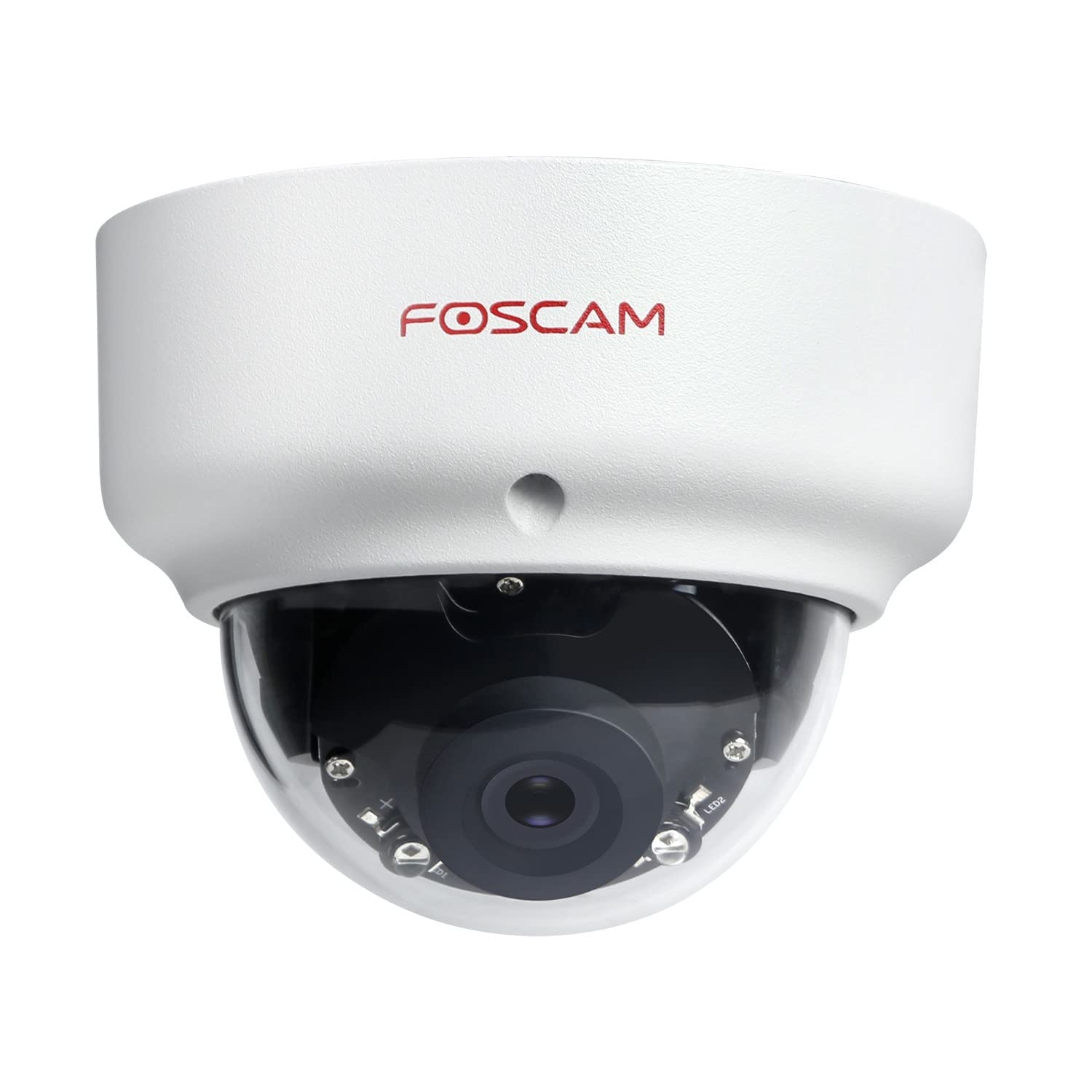
Image: The Foscam D2EP IP Camera, showcasing its compact, dome-shaped design suitable for outdoor environments.
1. Поставување и инсталација
1.1 Содржина на пакетот
Пред да започнете со инсталацијата, проверете дали сите компоненти се присутни во пакетот:
- Foscam D2EP IP Camera
- Монтирачки завртки и ѕидни приклучоци
- Етернет кабел
- Адаптер за напојување
- Водич за брза инсталација

Image: Foscam D2EP IP Camera with its power and Ethernet cables, illustrating the main components included in the box.
1.2 Физичка инсталација
The Foscam D2EP camera is designed for outdoor use with an IP66 waterproof rating. Choose a suitable location that provides the desired viewing angle and is within reach of a power source and network connection.
- Локација за монтирање: Identify a secure mounting surface, such as a wall or ceiling, that offers a clear view од областа што сакате да ја следите.
- Дупчете дупки: Use the provided mounting template (if included) or the camera base to mark and drill pilot holes for the mounting screws. Insert wall plugs if mounting on masonry.
- Безбедна камера: Прицврстете ја основата на камерата безбедно на површината за монтирање користејќи ги испорачаните завртки.
- Прилагодете го аголот: Олабавете ги завртките за прилагодување на телото на фотоапаратот за оптимално позиционирање на објективот. viewагол на навалување. Затегнете ги завртките откако ќе се постигне саканиот агол.

Image: Foscam D2EP IP Camera mounted under an outdoor patio roof, demonstrating a typical installation scenario for outdoor surveillance.
1.3 Мрежно и напојување
- Поврзете го етернет кабелот: Connect one end of the Ethernet cable to the camera's network port and the other end to your router or network switch.
- Поврзете адаптер за напојување: Plug the power adapter into the camera's power input and then into a suitable electrical outlet.
- Индикаторско светло: Wait for the camera's indicator light to show a stable status, indicating it is powered on and connected to the network. Refer to the Quick Installation Guide for specific indicator light behaviors.
1.4 Почетна конфигурација
To access and configure your camera, download the Foscam app on your smartphone or use the Foscam client software on your computer.
- Download App/Software: Пребарај за "Foscam" in your app store (iOS/Android) or visit the official Foscam website for desktop software.
- Додадете камера: Follow the in-app or software instructions to add your D2EP camera. This typically involves scanning a QR code on the camera or manually entering its UID.
- Ставете лозинка: For security, change the default password immediately upon first access.
- Мрежни поставки: Configure any necessary network settings, such as static IP (if required by your network).
2. Упатства за работа
2.1 Во живо View и Снимање
Once configured, you can access the live video feed from your Foscam D2EP camera through the Foscam app or desktop client.
- Во живо View: Изберете ја вашата камера од листата на уреди за да view the real-time 1080p HD video stream.
- Рачно снимање: Most Foscam applications allow you to manually start and stop video recordings directly from the live view интерфејс.
- Снимка: Снимајте фотографии од доводот во живо.
2.2 Детекција на движење
The D2EP features smart motion detection to alert you to activity in the monitored area.
- Овозможи детекција на движење: Navigate to the camera settings in the Foscam app/software and enable motion detection.
- Configure Detection Area: Дефинирајте специфични области во рамките на камерата view where motion should be detected, ignoring irrelevant zones.
- Прилагодете ја чувствителноста: Set the motion detection sensitivity to minimize false alarms while ensuring important events are captured.
- Поставки за предупредување: Configure how you receive alerts (e.g., push notifications, email).
2.3 Дневно и ноќно гледање
The camera automatically switches between day (color) and night (infrared black and white) vision modes based on ambient light conditions. The infrared LEDs provide clear vision up to 20 meters in low-light environments.
2.4 Компатибилност со Amazon Alexa
The Foscam D2EP camera is compatible with Amazon Alexa, allowing for voice control and integration into your smart home system. Refer to the Foscam website or Alexa app for detailed instructions on linking your Foscam account and controlling your camera via Alexa commands.
3. Одржување
3.1 Чистење на камерата
Regularly clean the camera lens and housing to ensure optimal image quality and prevent debris buildup, especially for outdoor installations.
- Користете мека, гamp крпа за бришење на телото на фотоапаратот.
- За леќите, користете специјализирана крпа и раствор за чистење леќи за да избегнете гребнатини.
- Не користете груби хемикалии или абразивни материјали.
3.2 Ажурирања на фирмверот
Foscam regularly releases firmware updates to improve camera performance, add new features, and enhance security. It is recommended to keep your camera's firmware up to date.
- Check for updates through the Foscam app or desktop client.
- Follow the on-screen instructions carefully during the update process. Do not power off the camera during an update.
4 Смена на проблеми
4.1 Camera Not Connecting to Network
- Проверете ги каблите: Ensure the Ethernet cable is securely connected to both the camera and the router/switch.
- Моќност: Verify the camera is powered on and the power adapter is working correctly.
- Статус на рутерот: Confirm your router is functioning and providing network access.
- Конфликт на IP адреса: If using a static IP, ensure it does not conflict with other devices on your network. Try DHCP first.
- Ресетирај камера: If issues persist, perform a factory reset (refer to the Quick Installation Guide for reset button location and procedure).
4.2 Лош квалитет на сликата
- Чиста леќа: Уверете се дека објективот на камерата е чист и без нечистотија или дамки.
- Осветлување: Verify adequate lighting in the monitored area during the day.
- Ноќно гледање: In night mode, ensure there are no obstructions blocking the infrared LEDs.
- Поставки за резолуција: Check that the camera's resolution is set to 1080p (2MP) in the app/software settings.
4.3 Motion Detection Not Working or Too Many False Alarms
- Enable Feature: Confirm motion detection is enabled in the camera settings.
- Област за откривање: Adjust the detection zone to cover only relevant areas.
- Чувствителност: Increase sensitivity if events are missed; decrease if there are too many false alarms (e.g., from moving trees, shadows).
- Распоред: Check if motion detection is scheduled to be active during the desired times.
5. Спецификации
| Име на моделот | D2EP |
| Бренд | Фоскам |
| Резолуција | 2 мегапиксели (1080p) |
| Технологија за поврзување | Жичен |
| Препорачана употреба | Безбедна камера на отворено |
| Отпорност на времето | IP66 Водоотпорен |
| Опсег на ноќни визии | До 20 метри (инфрацрвено) |
| Клучни карактеристики | Motion Sensor, Day/Night Vision, Amazon Alexa Compatible |
6. Информации за гаранцијата
The Foscam D2EP IP Camera comes with a 2 година гаранција from the date of purchase. This warranty covers manufacturing defects and ensures the product functions as described under normal use. Please retain your proof of purchase for warranty claims. For detailed warranty terms and conditions, please visit the official Foscam webсајт.
7. Поддршка за корисници
If you encounter any issues or have questions regarding your Foscam D2EP IP Camera that are not covered in this manual, please refer to the following resources:
- Официјален Foscam Webсајт: Посетете www.foscam.com for FAQs, support articles, and the latest firmware.
- Техничка поддршка: Contact Foscam technical support directly via their webстраницата или информациите за контакт наведени во пакувањето на вашиот производ.


