1. Вовед
This manual provides detailed instructions for the installation, operation, and maintenance of your ZEBRONICS H81 LGA 1150 Socket Motherboard. Designed for Intel Core i7/i5/i3 processors, this ATX motherboard supports DDR3 memory and features an Intel H81 Chipset. Please read this manual thoroughly before proceeding with installation to ensure proper functionality and to prevent damage.

Слика 1: Главна view of the ZEBRONICS H81 LGA 1150 Motherboard, showcasing неговиот распоред и компоненти.
2. Спецификации
The following table outlines the key technical specifications of the ZEBRONICS H81 Motherboard:
| Карактеристика | Опис |
|---|---|
| Поддршка на процесорот | Intel Core i7/i5/i3 processors (LGA 1150 Socket) |
| Чипсет | Интел H81 |
| Поддршка за меморија | 2 x DDR3 dual-channel slots, 1066/1333/1600MHz, Max 32GB |
| LAN | Realtek 8105E 100/1000 Mbps |
| Аудио | Realtek 662, 3x Audio Jacks for 6 channel HD Audio |
| Пристаништа на задниот панел | 1x USB Mouse/Keyboard, 1x VGA, 1x HDMI, 2x USB 3.0, 2x USB 2.0, 1x LAN, 3x Audio Jacks |
| Конектори на одборот | Front panel, Speaker, Front panel audio, USB 2.0, 4x SATA, 4-pin CPU fan, SYS fan, 24-pin ATX power, 4-pin ATX 12V power, Clear CMOS header |
| Слотови за проширување | 1 x PCI Express x16 слот |
| Форма фактор | ATX |
| Димензии | 21.3 x 5.7 x 26.8 cm |
| Тежина | 560 гр |

Image 2: Visual representation of key features including H81 Chipset, DDR3 support, LGA 1150 socket, HDMI, 5.1 Audio, 100/1000 LAN, 4 SATA ports, and PCIe slot.
3. Водич за поставување
Follow these steps for proper installation of your motherboard and its components:
- Подготовка: Ensure your computer case is compatible with the ATX form factor. Gather necessary tools including a screwdriver, thermal paste, and anti-static wrist strap.
- Инсталирај го процесорот: Open the CPU socket lever. Carefully align the CPU with the socket (match the golden triangle on the CPU with the triangle on the socket) and gently place it in. Close the lever to secure the CPU. Apply a thin, even layer of thermal paste to the CPU's heat spreader.
- Инсталирајте го ладилникот на процесорот: Mount the CPU cooler according to its manufacturer's instructions, ensuring good contact with the CPU and proper fan orientation. Connect the CPU fan cable to the 4-pin CPU fan connector on the motherboard.
- Инсталирајте RAM меморија: Open the clips on both ends of the DDR3 memory slots. Align the RAM modules with the slots, ensuring the notch on the module matches the key in the slot. Press down firmly on both ends until the clips snap into place.
- Монтирање на матична плоча: Install the I/O shield into the rear opening of your computer case. Carefully place the motherboard into the case, aligning the screw holes with the standoffs. Secure the motherboard with screws.
- Поврзете напојување: Поврзете го 24-пинскиот ATX главен конектор за напојување и 4-пинскиот ATX 12V процесорски конектор за напојување од вашето напојување со соодветните порти на матичната плоча.
- Поврзете уреди за складирање: Use SATA cables to connect your hard drives or SSDs to the SATA ports on the motherboard. Connect the power cables from your power supply to these devices.
- Поврзете ги каблите на предниот панел: Connect the power switch, reset switch, HDD LED, power LED, and front panel audio/USB cables from your case to the respective headers on the motherboard. Refer to the motherboard diagram for correct pin assignments.
- Инсталирајте картички за проширување (опционално): If installing a graphics card or other PCI Express cards, insert them into the appropriate slots and secure them with a screw.
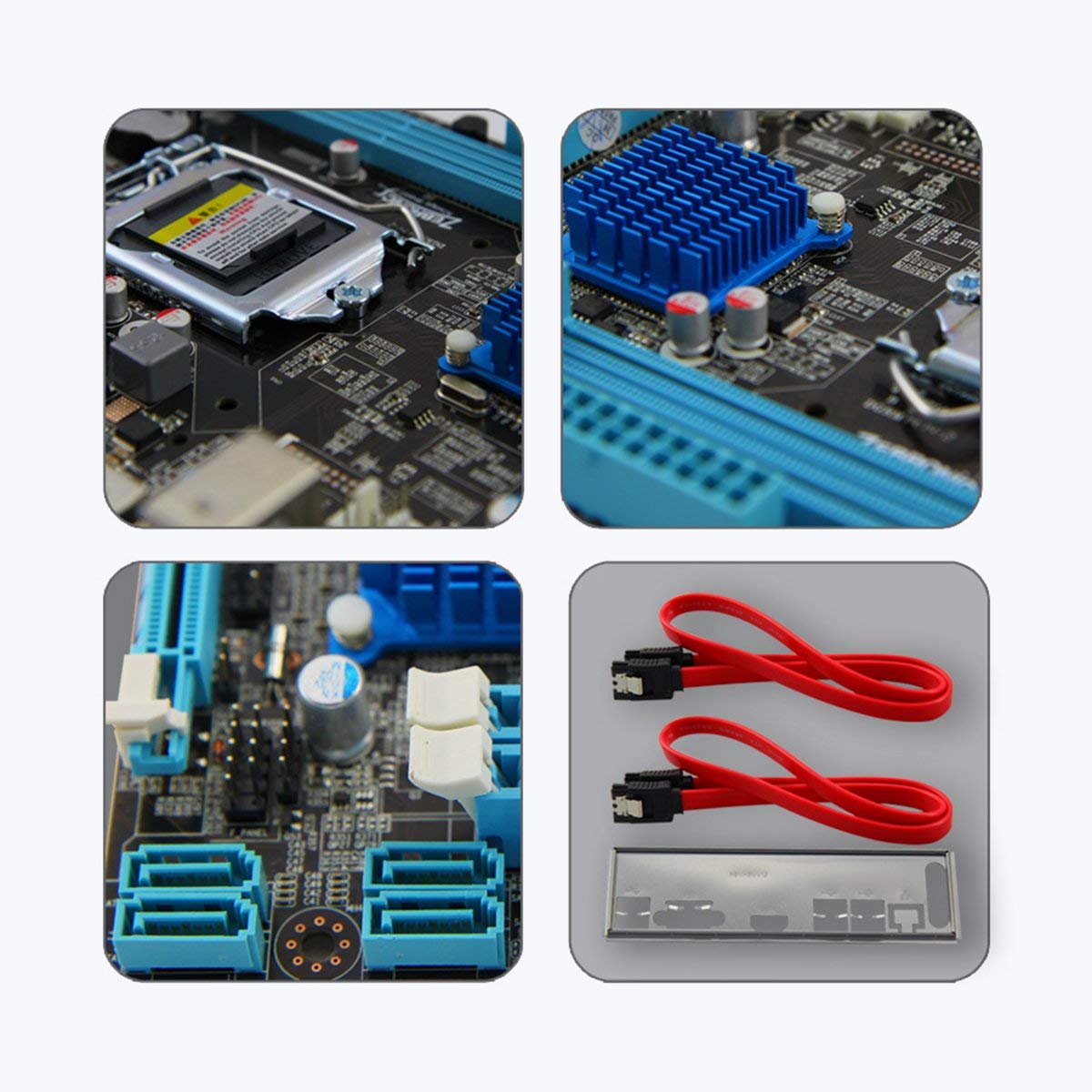
Слика 3: Крупен план views of motherboard components such as the CPU socket, chipset heatsink, SATA ports, and included accessories like SATA cables and the I/O shield.
4. Упатства за работа
Once all components are installed and connected, you can power on your system:
- Почетно вклучување: After ensuring all connections are secure, connect your monitor, keyboard, and mouse. Plug in the power cord and press the power button on your computer case.
- Поставување на BIOS/UEFI: During startup, repeatedly press the designated key (usually ДЕЛ or F2) to enter the BIOS/UEFI setup utility. Here you can configure boot order, system time, and other advanced settings. Save changes and exit to continue booting.
- Инсталација на оперативен систем: Insert your operating system installation media (USB drive or DVD) and follow the on-screen prompts to install the OS.
- Инсталација на драјвери: After OS installation, install the necessary drivers for your motherboard (chipset, LAN, audio, graphics) from the included driver CD or the ZEBRONICS webсајт.
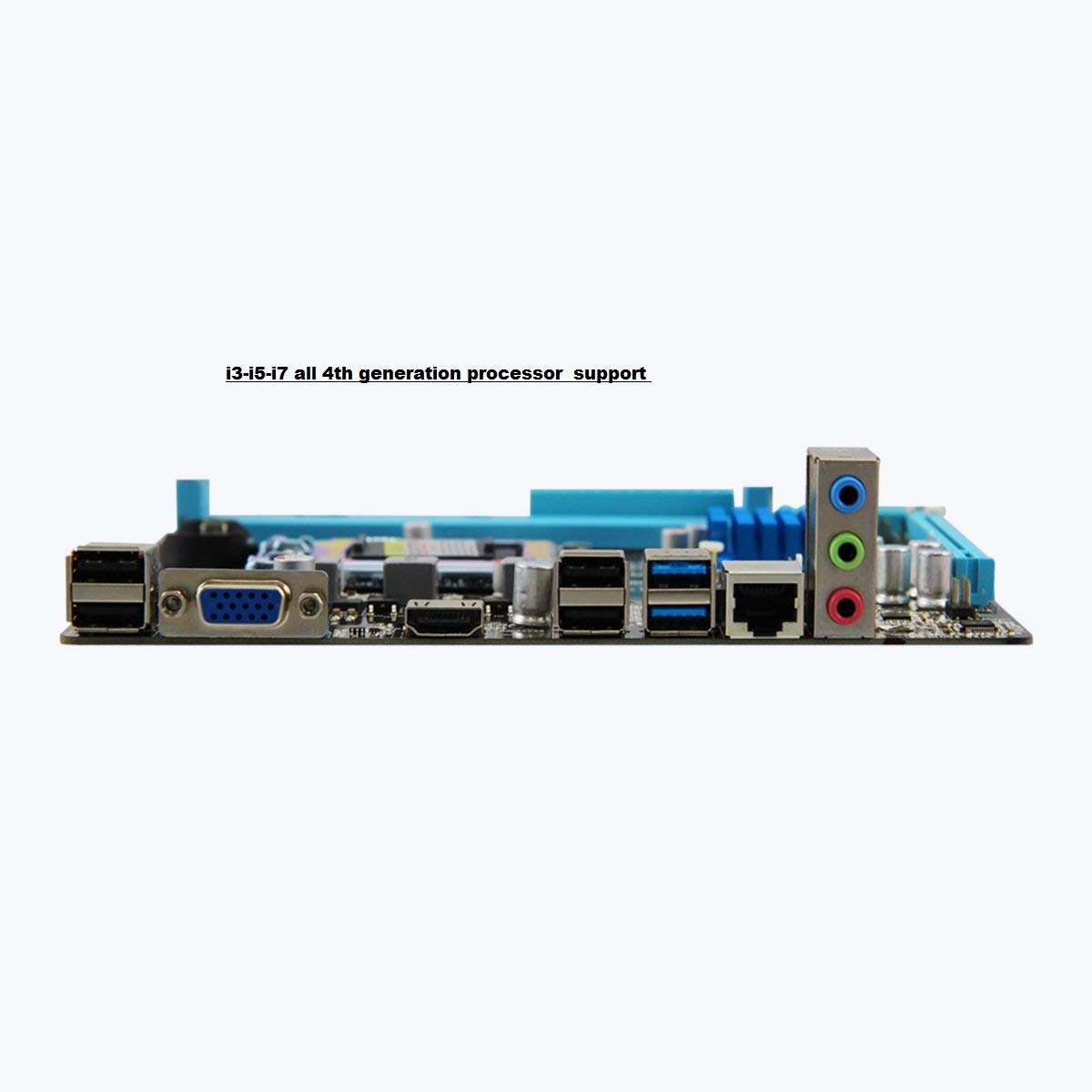
Image 4: Rear I/O panel of the ZEBRONICS H81 Motherboard, showing ports for USB, VGA, HDMI, LAN, and audio.
5. Одржување
Редовното одржување помага да се обезбеди долготрајност и оптимални перформанси на вашата матична плоча:
- Отстранување прашина: Периодично чистете ја прашината од внатрешноста на куќиштето на компјутерот, особено од ладилниците и вентилаторите, користејќи компримиран воздух. Пред чистење, проверете дали системот е исклучен од струја и исклучен од струја.
- Ажурирања на возачот: Keep your motherboard drivers (chipset, LAN, audio) updated to the latest versions available from the ZEBRONICS official webстраница за да се обезбеди компатибилност и перформанси.
- Ажурирања на BIOS/UEFI: Only update the BIOS/UEFI if necessary, following the instructions provided by ZEBRONICS carefully. Incorrect BIOS updates can render your motherboard inoperable.
- Управување со кабли: Осигурајте се дека внатрешните кабли се уредно поставени за да се подобри протокот на воздух и да се спречат пречки.
6 Смена на проблеми
Доколку наидете на проблеми со вашата матична плоча, погледнете ги следните вообичаени чекори за решавање проблеми:
- Нема напојување/Нема стартување:
- Check all power connections (24-pin ATX, 4-pin ATX 12V, CPU fan).
- Осигурајте се дека напојувањето е вклучено и работи.
- Verify front panel power switch connection.
- Try clearing the CMOS (refer to the Clear CMOS header on the motherboard).
- Нема приказ:
- Ensure the monitor is connected to the correct video output (VGA or HDMI on the motherboard, or dedicated graphics card).
- Reseat the RAM modules. Try booting with only one RAM module.
- Ако користите наменска графичка картичка, проверете дали е правилно поставена и напојувана.
- Нестабилност на системот/Паднувања:
- Проверете дали има прегревање. Проверете дали ладилникот на процесорот е правилно инсталиран и дали вентилаторите работат.
- Стартувајте алатки за дијагностика на меморијата за да го проверите интегритетот на RAM меморијата.
- Update motherboard drivers and BIOS/UEFI.
- Peripheral Issues (USB, LAN, Audio):
- Ensure drivers for these components are installed and up to date.
- Check physical connections of cables and devices.
- Test with different peripherals to isolate the issue.
7. Гаранција и поддршка
Your ZEBRONICS H81 Motherboard comes with a 2 година гаранција provided by CORE COMPUTERS. Please retain your proof of purchase for warranty claims.
For technical support, driver downloads, or further assistance, please visit the official ZEBRONICS support webсајт или контактирајте со нивната служба за корисници.


