Вовед
Thank you for choosing the memzuoix Ergonomic Wireless Mouse. This manual provides detailed instructions for setting up, operating, and maintaining your new mouse. Designed for comfort and efficiency, this vertical mouse aims to reduce wrist strain during prolonged use. Please read this manual thoroughly before using the product to ensure optimal performance and longevity.
Производот завршиview
The memzuoix Ergonomic Wireless Mouse features a unique vertical design to promote a natural handshake grip, reducing pressure on your wrist. It operates on a 2.4G wireless connection and offers adjustable DPI settings for precise control.

Image: The memzuoix Ergonomic Wireless Mouse in purple, showcasing its vertical design and the included USB receiver.
Компоненти
- Ergonomic Wireless Mouse (Purple)
- USB 2.0 Receiver
- Упатство за употреба (овој документ)
Распоред на глувчето

Image: A detailed diagram illustrating the six buttons and textured thumb area on the ergonomic mouse.
- Лево копче: Стандардна функција за кликнување со левото копче.
- Десно копче: Стандардна функција за кликнување со десното копче.
- Тркало за лизгање: За вертикално скролување и кликнување со среден клик.
- Копче за префрлување на DPI: Ја прилагодува чувствителноста на курсорот (800/1200/1600 DPI).
- Копче за претходна страница: Се враќа назад web прелистувачи или file explorers. (Note: Not compatible with Mac OS)
- Копче за следната страница: Навигира напред во web прелистувачи или file explorers. (Note: Not compatible with Mac OS)
- Textured Thumb Area: Provides a comfortable grip for the thumb.
Водич за поставување
1. Инсталирајте ги батериите
- Пронајдете ја преградата за батерии на долната страна на глувчето.
- Отворете го капакот на преградата за батерии.
- Insert two (2) AAA dry batteries, ensuring correct polarity (+/-). (Batteries are not included and must be prepared by the user.)
- Добро затворете го капакот на преградата за батерии.

Image: The mouse, USB receiver, and two AAA batteries, illustrating the battery installation process.
2. Поврзете го USB приемникот
- The USB receiver is typically stored inside the battery compartment for safekeeping. Remove it.
- Plug the USB receiver into an available USB port on your computer (Laptop, Mac, PC, Desktop).
- The computer should automatically detect and install the necessary drivers. This is a plug-and-play device.

Image: The USB receiver connected to a laptop, demonstrating the plug-and-play setup for the wireless mouse.

Image: Visual representation of the mouse's compatibility with various operating systems (Windows, macOS, Chrome OS, Linux) via its USB receiver.
Упатства за работа
Ергономски зафат
Position your hand on the mouse so that your wrist is in a natural "handshake" position. This vertical orientation is designed to reduce pronation of the forearm and minimize wrist pressure, promoting comfort during extended use.

Image: A visual comparison demonstrating the ergonomic benefits of the vertical mouse in reducing wrist pressure compared to a traditional mouse.
Прилагодување на DPI чувствителноста
The mouse features an adjustable DPI (Dots Per Inch) setting, allowing you to change the cursor speed and sensitivity. Press the Копче за префрлување DPI (located near the scroll wheel) to cycle through the available DPI settings: 800, 1200, and 1600 DPI. Choose the setting that best suits your task and preference for precise tracking.
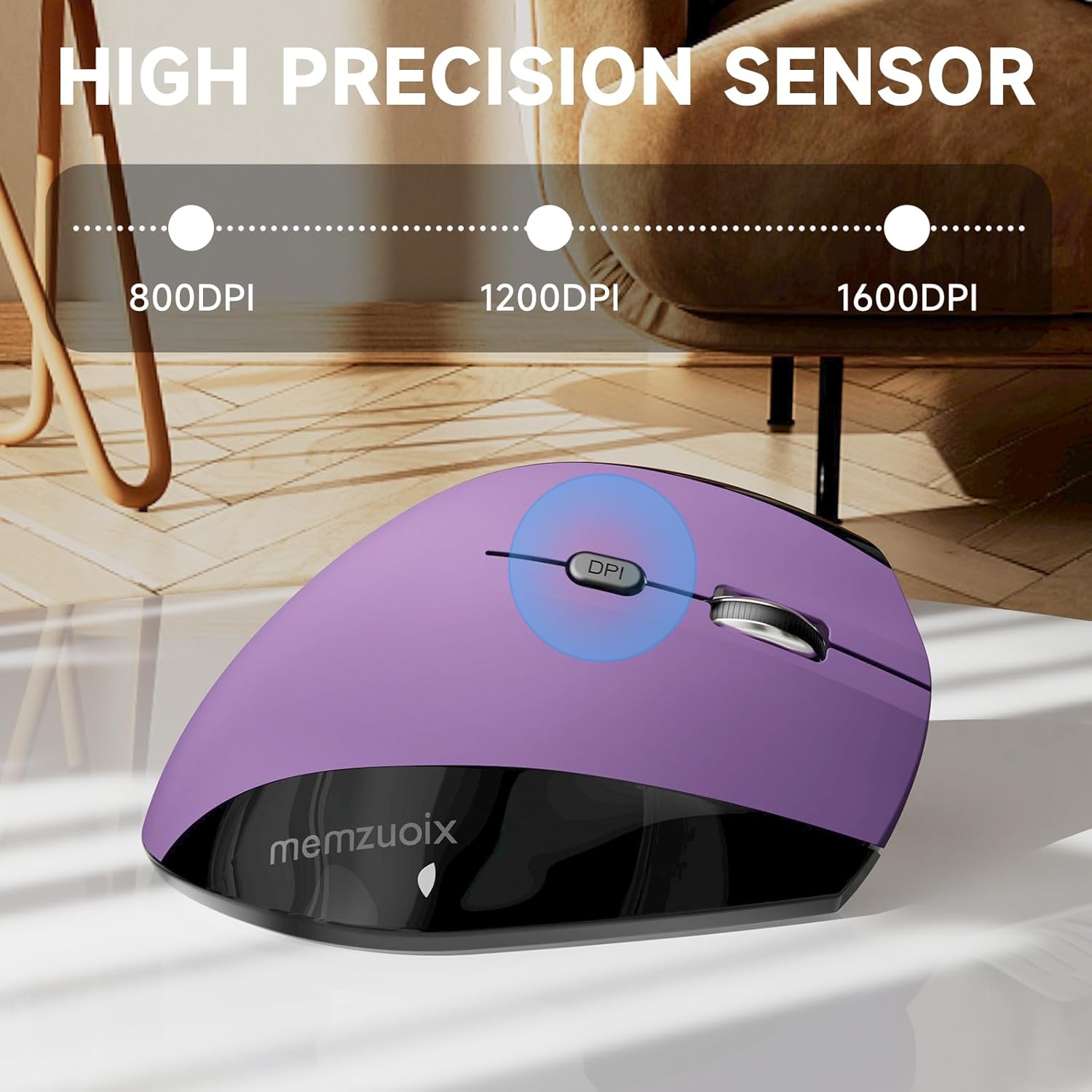
Image: The mouse with a visual indicator for the DPI button, showing the three adjustable sensitivity levels.

Image: A visual demonstrating the adjustable DPI settings (800/1200/1600) for high sensitivity and precise tracking.
Режим на заштеда на енергија
To conserve battery life, the mouse will automatically enter sleep mode after 7 minutes of inactivity. To reactivate the mouse, simply click any button.
Одржување
Чистење
- Ensure the mouse is powered off or batteries are removed before cleaning.
- Користете мека, сува крпа за да ја избришете површината на глувчето.
- За тврдоглава нечистотија, лесно гampИзмијте ја крпата со вода или со благ, неабразивен чистач. Избегнувајте прекумерна влага.
- Не користете груби хемикалии, растворувачи или абразивни материјали, бидејќи тие можат да го оштетат финишот на глувчето.
- Периодично чистете го оптичкиот сензор на долната страна со памукче за да обезбедите прецизно следење.
Замена на батеријата
When the mouse's performance degrades or it stops responding, it may be time to replace the batteries. Follow the "Install Batteries" steps in the Setup Guide to replace the two AAA batteries. Dispose of used batteries responsibly according to local regulations.
Решавање проблеми
| Проблем | Можна причина | Решение |
|---|---|---|
| Глувчето не реагира |
|
|
| Движењето на курсорот е неправилно или скокачко |
|
|
| Копчињата напред/назад не работат на Mac OS | Incompatibility with Mac OS | The forward/back buttons are not compatible with Mac OS. This is a design limitation. |
| Mouse not detected on Linux | May require specific software settings | For Linux systems, you may need to configure related software settings for the mouse to function normally. Refer to your Linux distribution's documentation for peripheral setup. |
Спецификации
| Карактеристика | Детал |
|---|---|
| Број на модел | ワイヤレスマウス |
| Технологија за поврзување | 2.4G безжична (USB приемник) |
| Детекција на движење | Оптички |
| Поставки за ДПИ | 800 / 1200 / 1600 DPI (прилагодливо) |
| Број на копчиња | 6 (лево, десно, тркалце за скролување, прекинувач DPI, напред, назад) |
| Извор на енергија | 2 x AAA батерии (не се вклучени) |
| Димензии на производот | 4.86 x 2.78 x 2.42 инчи |
| Тежина на ставката | 3.9 унци |
| Компатибилност | Windows 8/9/10/XP, Windows Vista, Linux (Forward/Back buttons not compatible with Mac OS) |
| Посебни карактеристики | Ergonomic Design, Wireless, Adjustable Sensitivity, Power Saving Mode |
Информации за безбедност
- Чувајте го уредот подалеку од вода и други течности.
- Избегнувајте паѓање или изложување на глувчето на силни удари.
- Не обидувајте се сами да го расклопите или поправите уредот. Ова ќе ја поништи гаранцијата.
- Фрлете ги батериите според локалните еколошки прописи.
- Да се чува подалеку од дофат на деца.
Гаранција и поддршка
memzuoix products are designed for reliability and performance. For warranty information or technical support, please refer to the contact details provided with your purchase or visit the official memzuoix webстраница. Ве молиме задржете го доказот за купување за гаранциски барања.
For further assistance, you may contact the seller directly via the platform where the product was purchased.


