Вовед
Welcome to the TECWARE Spectre 75 Mechanical Gaming Keyboard user manual. This guide provides detailed instructions for setting up, operating, maintaining, and troubleshooting your new keyboard. The Spectre 75 is designed for an enhanced gaming and typing experience with its customizable LCD screen, tri-mode wireless connectivity, gasket mount design, and hot-swappable switches.
This video provides an introduction to the TECWARE Spectre 75 Mechanical Gaming Keyboard, highlighting its key features and design.
Содржина на пакетот
- TECWARE Spectre 75 Mechanical Gaming Keyboard
- USB-C кабел
- Безжичен клуч од 2.4 GHz
- Keycap/Switch Puller Алатка
- Spare Switches (4x)
- Spacebar Silencer Pad (not pre-installed)
Поставување
Опции за поврзување
The TECWARE Spectre 75 offers three modes of connectivity:
- 2.4 GHz безжичен: For low-latency gaming.
- Bluetooth 5.0: For connecting to up to 3 devices simultaneously.
- USB-C кабел: For a direct, stable connection and charging.

This image illustrates the three connectivity options available for the keyboard: 2.4GHz wireless via a dongle, Bluetooth 5.0, and a detachable USB-C wired connection.
Почетна врска
- Select your desired connection mode using the switch located on the back of the keyboard (2.4G or BT). For wired mode, simply connect the USB-C cable.
- For 2.4GHz wireless, insert the USB dongle into an available USB port on your computer.
- For Bluetooth, ensure Bluetooth is enabled on your device and search for "Spectre 75" in your device's Bluetooth settings to pair.
- The keyboard is powered by a 4000mAh battery, providing up to 400 hours of continuous use with LEDs off.

This image displays the underside of the keyboard, highlighting the storage compartment for the 2.4GHz wireless dongle and the adjustable feet for ergonomic positioning.
Упатства за работа
Customizable LCD Screen and Multi-Function Knob
The keyboard features a 1.14" TFT-LCD smart display and a multi-function rotary knob for enhanced control and information display.
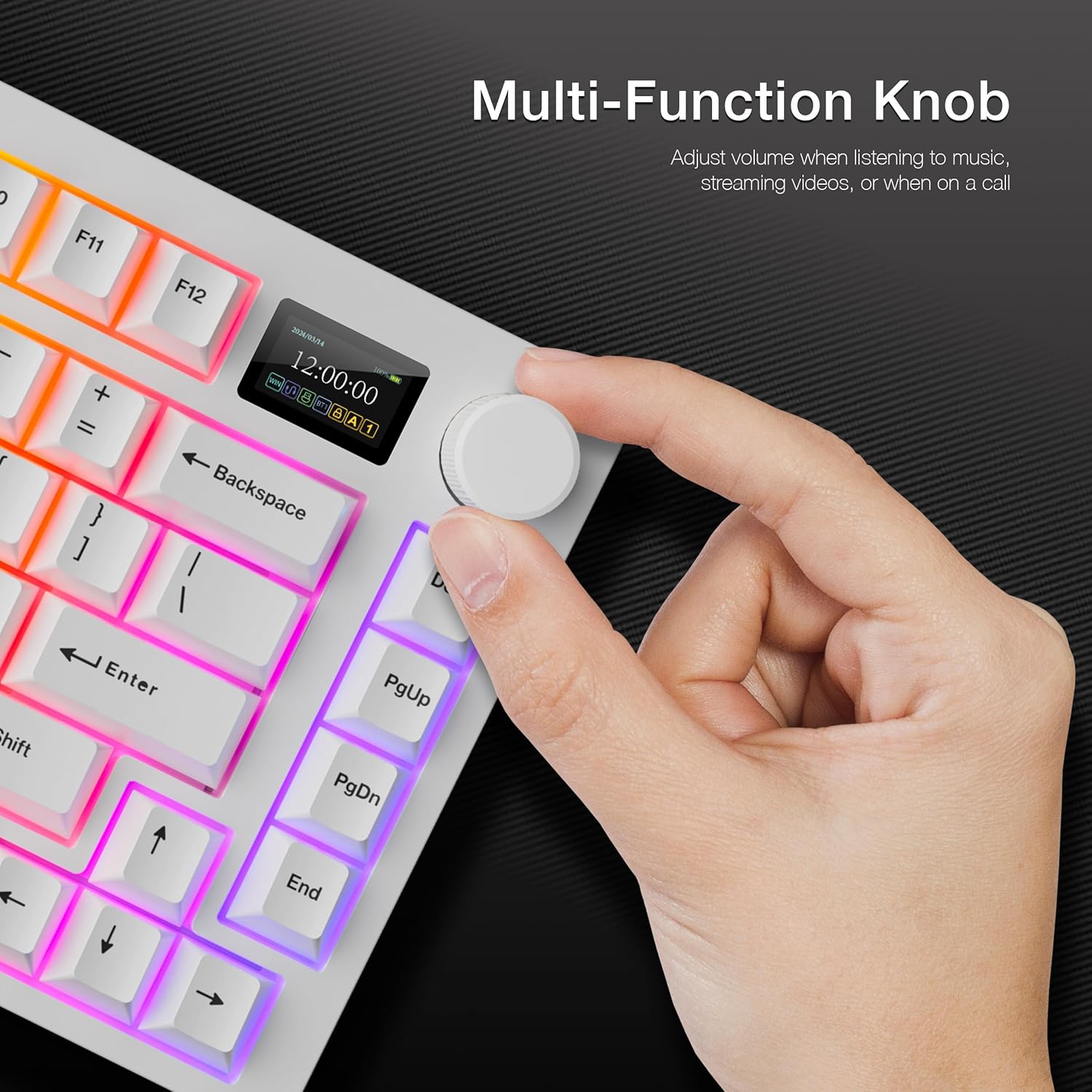
This image shows a hand interacting with the multi-function knob, which controls various settings and display modes on the integrated LCD screen.
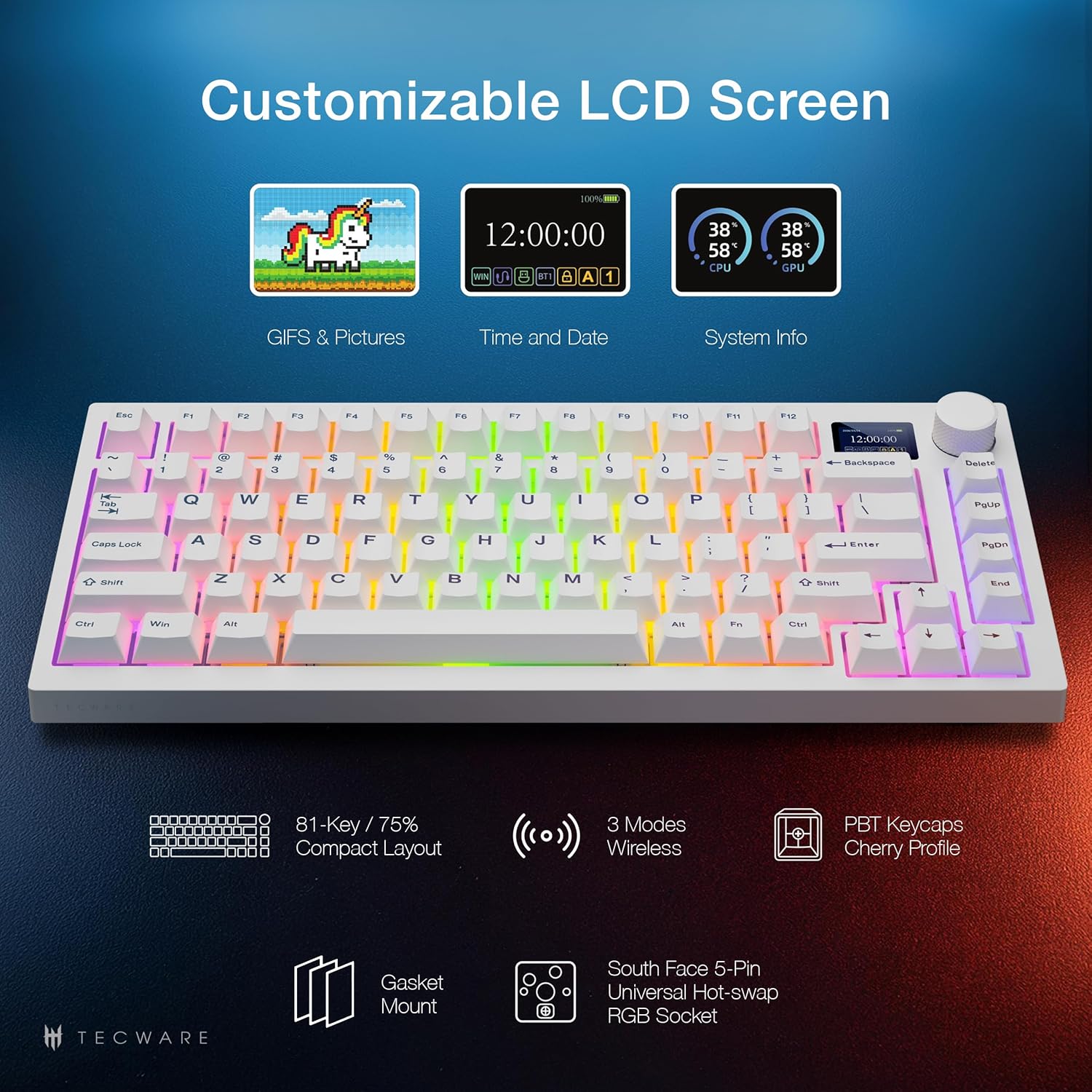
This image highlights the versatility of the customizable LCD screen, capable of displaying custom GIFs, time and date, and real-time system information such as CPU and GPU temperatures.
Функции на копчето:
- Mode Switch (LCD or Volume): Press and hold the knob for 3 seconds to toggle between LCD display mode and Volume control mode.
- LCD режим:
- Rotate Left/Right: Navigate through the LCD menu (e.g., Config, Brightness, Volume, System, GIF Display, Effects, Color, CPU/GPU).
- Press Down: Confirm selection.
- Режим на јачина на звук:
- Turn: Adjust volume.
- Press: Mute and unmute audio.

This image displays the dedicated software interface, allowing users to customize RGB lighting effects and upload custom GIFs to the LCD screen.
This video demonstrates the functionality of the customizable LCD screen and the multi-function knob, showcasing how to navigate menus and adjust settings directly from the keyboard.
RGB осветлување
The keyboard features 16.8 million color RGB illumination with customizable per-key RGB lighting and 18 preset lighting modes. It also includes 3-zone RGB illumination for keys, underglow, and the volume wheel.

This image illustrates the extensive RGB lighting capabilities of the keyboard, featuring 16.8 million colors and various customizable effects across different zones.
Lighting effects can be toggled and customized via the LCD screen menu or through the dedicated software.
Прекинувачи со жешка замена
The Spectre 75 comes with factory pre-lubed Tecware Candy Red linear switches. Its universal 5-pin hot-swappable sockets with South-Facing LEDs ensure compatibility with a wide range of enthusiast switches and Cherry-profile keycaps without interference.

This image shows the hot-swappable PCB design, allowing for easy replacement of switches. It also highlights the south-facing LEDs for better keycap compatibility and the durable PBT keycaps.
This video provides a step-by-step guide on how to replace switches on your TECWARE Spectre 75 keyboard using the included keycap/switch puller tool.
Дизајн на држач за дихтунзи
The keyboard features a gasket-mounted structure with multi-layer sound dampening foam. This design isolates the plate from the case, reducing hollow sounds and vibrations, resulting in a flexible typing feel and a "creamy" and "thocky" sound profile.

This diagram visually explains the internal layers of the keyboard, showcasing the gasket mount and sound-dampening materials that contribute to its unique typing feel and acoustics.
This video provides a sound test of the TECWARE Spectre 75 keyboard, demonstrating the "creamy" and "thocky" acoustics achieved through its gasket mount design and pre-lubed switches.
Spacebar Silencer Pad Installation
The keyboard includes a spacebar silencer pad for users who prefer a quieter spacebar sound. This pad is not pre-installed.
This video demonstrates the process of installing the spacebar silencer pad to reduce the sound of the spacebar key.
Одржување
Чистење на вашата тастатура
За да ги одржите оптималните перформанси и изглед, редовно чистете ја тастатурата:
- Користете мека, сува крпа за да ги избришете капачињата на копчињата и куќиштето.
- For deeper cleaning, remove keycaps using the included keycap puller and use compressed air to clear debris from between switches.
- Избегнувајте употреба на груби хемикалии или абразивни материјали.
LCD Screen Protector Replacement
If the LCD screen protector becomes scratched or damaged, it can be replaced.
This video guides you through the process of replacing the LCD screen protector on your keyboard.
Решавање проблеми
- Тастатурата не реагира:
- Ensure the USB-C cable is securely connected or the 2.4GHz dongle is properly inserted.
- Check the connectivity switch on the back of the keyboard to ensure the correct mode (2.4G, BT, or Wired) is selected.
- For Bluetooth, ensure the keyboard is paired and within range of your device.
- Проверете го нивото на батеријата; наполнете ја доколку е потребно.
- LCD екранот не прикажува:
- Проверете дали тастатурата е вклучена.
- Check the LCD mode via the multi-function knob.
- If using custom GIFs, ensure they are correctly uploaded via the software.
- Проблеми со RGB осветлување:
- Adjust lighting effects and brightness using the multi-function knob or dedicated software.
- Ensure the software is up-to-date.
- Клучевите не се регистрираат:
- If a specific key is not working, the switch may need to be replaced. Refer to the "Hot-Swappable Switches" section for instructions.
- Ensure keycaps are properly seated.
Спецификации
| Карактеристика | Детал |
|---|---|
| Димензии на производот | 13.04 x 5.74 x 1.51 инчи |
| Тежина на ставката | 2.03 фунти |
| Производител | TECWARE |
| Батерии | Потребна е 1 литиум-јонска батерија (вклучена) |
| Технологија за поврзување | Bluetooth, USB-A, Wi-Fi (2.4GHz) |
| Опис на тастатурата | Механички |
| Посебни карактеристики | Dedicated Software Support, Gasket Mount + Multi-layered Dampening, Hot-Swappable, South-facing LEDs, Volume Roller, Customizable LCD Screen |
| Материјал | Метал, пластика |
| Вклучени компоненти | Тастатура |
| Име на моделот | Спектер 75 |
| Извор на енергија | Напојува со батерија |
Гаранција и поддршка
For warranty information and technical support, please refer to the official TECWARE webстраницата или контактирајте ја нивната служба за корисници. Зачувајте го доказот за купување за какви било рекламации за гаранција.
Official TECWARE Webсајт: www.tecware.co


