1. Вовед
This manual provides essential information for the safe and efficient use of your Amazon Fire HD 10 tablet (2021 release). Please read it thoroughly before operating your device.
Клучни карактеристики
- Fast and Responsive: Powered by an octa-core processor and 3 GB RAM, offering 50% more RAM than the previous generation.
- Долготрајна батерија: Up to 12 hours of battery life for reading, browsing, video, and music.
- Живописен приказ: 10.1-inch 1080p Full HD display, 10% brighter than the previous generation, with over 2 million pixels.
- AmpСкладирање: Available with 32 GB or 64 GB internal storage, expandable up to 1 TB with a microSD card (sold separately).
- Компатибилност со апликации: Access to popular apps like Netflix, Facebook, Disney+, Instagram, TikTok, and more via Amazon’s Appstore.
- Алатки за продуктивност: Supports apps like Microsoft Office, OneNote, and Dropbox for enhanced productivity.
- Издржлив дизајн: Thinner and lighter than the previous generation, with a screen strengthened by aluminosilicate glass.
- Функционалност на поделен екран: Allows two compatible apps to be open side-by-side for multitasking.
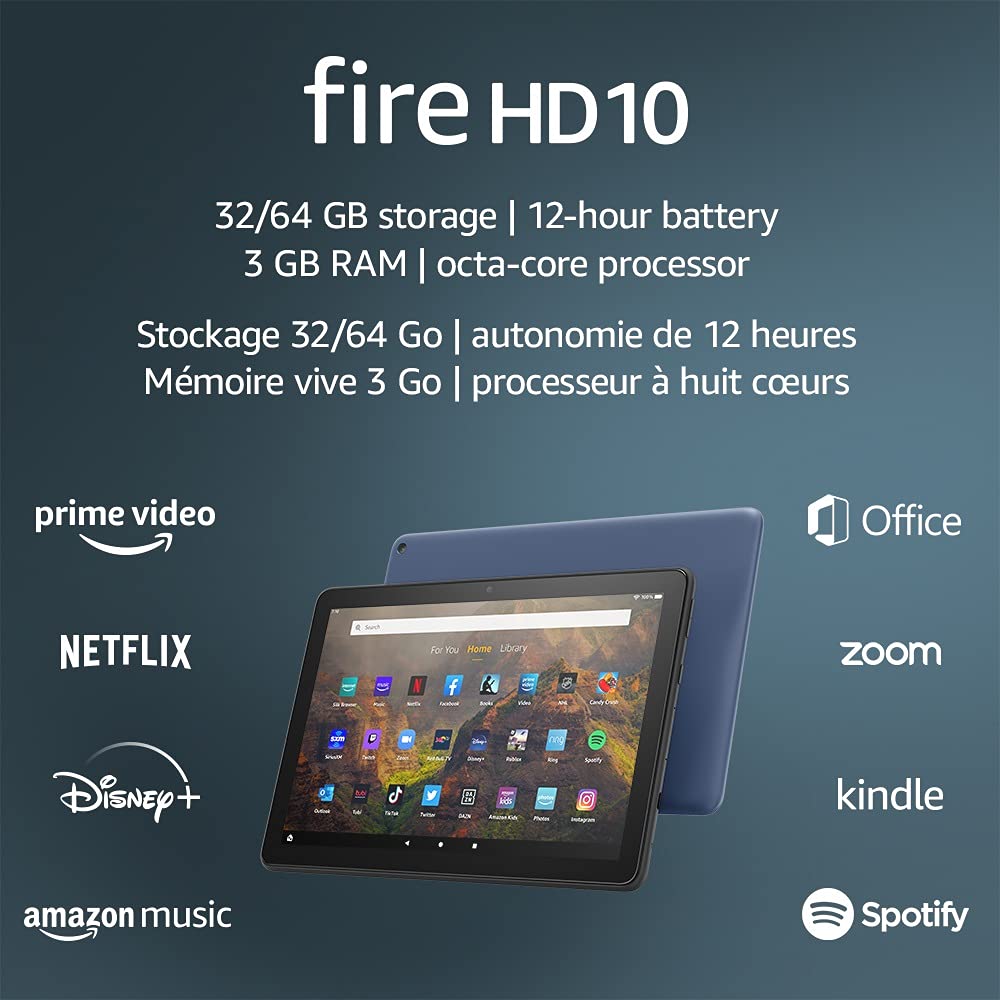
Image 1.1: The Amazon Fire HD 10 tablet highlighting its 32/64 GB storage, 12-hour battery, 3 GB RAM, and octa-core processor, alongside logos of supported applications such as Prime Video, Netflix, Disney+, Amazon Music, Office, Zoom, Kindle, and Spotify.
2. Поставување
2.1 Распакување и почетна наплата
Upon receiving your Fire HD 10 tablet, carefully remove all components from the packaging. Before first use, it is recommended to fully charge the device.
- Connect the provided USB-C (2.0) cable to the tablet's USB-C port.
- Plug the other end of the USB-C cable into the 9W power adapter.
- Приклучете го адаптерот за напојување во ѕиден штекер.
- A full charge from 0% to 100% typically takes approximately 4 hours while the device is in standby mode.
2.2 Вклучување/исклучување
- За вклучување: Press and hold the power button located on the side of the tablet until the Amazon logo appears on the screen.
- За исклучување: Press and hold the power button until a power options menu appears. Select 'Power Off'.
- За рестартирање: Од менито со опции за напојување, изберете „Рестартирај“.
2.3 Wi-Fi поврзување
To access online content and services, connect your Fire HD 10 to a Wi-Fi network.
- From the Home screen, swipe down from the top to open the Quick Settings panel.
- Допрете ја иконата за Wi-Fi.
- Изберете ја саканата Wi-Fi мрежа од листата на достапни мрежи.
- Доколку се побара, внесете ја лозинката за мрежата и допрете „Поврзи се“.
- The tablet supports 2.4 GHz and 5.0 GHz networks. Ad-hoc (peer-to-peer) Wi-Fi networks are not supported.
2.4 Поставување на сметка
During the initial setup process, you will be guided to register your Fire HD 10 to an Amazon account. This is necessary to download apps, access Amazon content, and utilize cloud services.
- Follow the on-screen prompts to sign in with an existing Amazon account or create a new one.
- Ensure your account details are accurate for full functionality.
3. Упатства за работа
3.1 Навигација низ интерфејсот
The Fire HD 10 tablet features a touch-sensitive display for interaction.
- Допрете: За да изберете ставка, отворете апликација или активирајте копче.
- Повлечете: За прелистување низ страници, листи или префрлување помеѓу почетните екрани.
- Штипнете за зумирање: За да зумирате или одзумирате слики, web pages, or documents.
- Долг печат: За пристап до контекстуални менија или преместување икони на апликации.
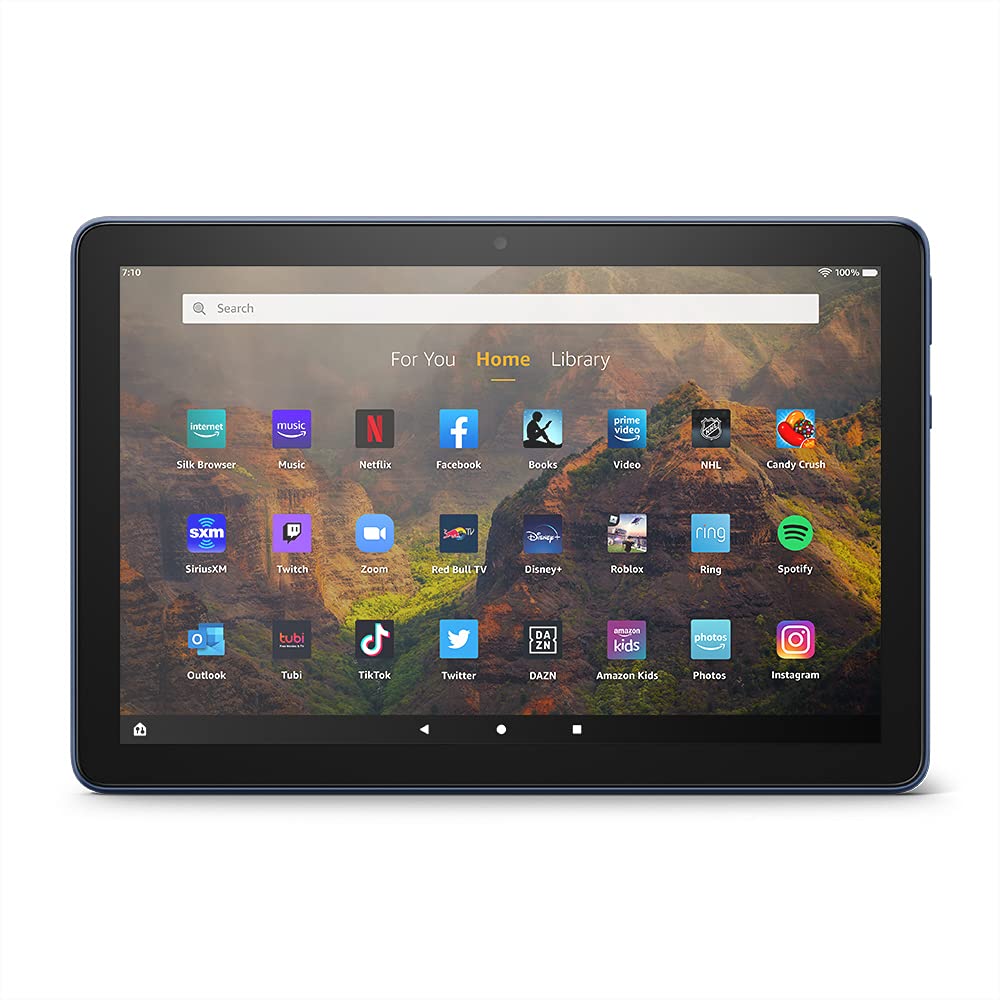
Image 3.1: The Amazon Fire HD 10 tablet's home screen, showcasing a grid of application icons including Silk Browser, Music, Netflix, Facebook, Books, Video, NHL, Candy Crush, SiriusXM, Twitch, Zoom, Red Bull TV, Disney+, Roblox, Ring, Spotify, Outlook, Tubi, TikTok, Twitter, DAZN, Amazon Kids, Photos, and InstagRAM меморија.
3.2 Користење на апликации
Applications can be downloaded from the Amazon Appstore. Google Play is not supported.
- Tap an app icon on the Home screen to launch it.
- To find new apps, open the 'Appstore' application.
- Some apps may require a subscription for full access.

Image 3.2: A collage of content available on the Amazon Fire HD 10 tablet, featuring book covers like 'The Silent Patient', Amazon Original series and movies such as 'The Wilds', 'Coming to America', 'The Expanse', 'Dune', 'Hanna', 'One Night in Miami', 'Sound of Metal', 'The Marvelous Mrs. Maisel', 'Upload', and 'The Boys', alongside social media app logos for TikTok, Facebook, and Twitter.
3.3 Split Screen Multitasking
The Fire HD 10 supports split screen functionality, allowing two compatible applications to run side-by-side.
- Отворете ја првата апликација што сакате да ја користите.
- Swipe up from the bottom of the screen to reveal the navigation bar.
- Long-press the icon of the first app in the recent apps view.
- Select 'Split Screen' from the options.
- Choose a second compatible app from your recent apps or app drawer to fill the other half of the screen.

Image 3.3: The Amazon Fire HD 10 tablet, shown with an optional Bluetooth keyboard case, demonstrating its split-screen capability. Two applications are open simultaneously: a calendar app on the left and a messaging app on the right, illustrating enhanced productivity.
3.4 Употреба на камерата
The tablet is equipped with a 2 MP front-facing camera and a 5 MP rear-facing camera, both capable of 720p HD video recording.
- Open the 'Camera' app from your Home screen or app drawer.
- Допрете го копчето за бленда за да фотографирате.
- Префрлувајте се помеѓу предните и задните камери користејќи ја иконата за префрлување на камерата.
- Изберете видео режим за снимање видеа.
3.5 Audio and Bluetooth
The Fire HD 10 includes dual integrated speakers and a 3.5 mm stereo jack for headphones. It also supports Bluetooth 5.0 LE.
- Connect wired headphones or external speakers via the 3.5 mm jack.
- To pair Bluetooth devices (headphones, speakers, microphones, LE accessories):
- Go to 'Settings' > 'Connected Devices' > 'Bluetooth'.
- Осигурете се дека Bluetooth е вклучен.
- Изберете го вашиот уред од листата на достапни уреди и следете ги упатствата за спарување.
3.6 Управување со складирање
Your Fire HD 10 comes with either 32 GB or 64 GB of internal storage. You can expand this by up to 1 TB using a microSD card.
- To insert a microSD card: Locate the microSD slot on the side of the tablet, open the cover, and gently insert the card until it clicks into place.
- Manage storage by going to 'Settings' > 'Storage'. Here you can view usage and move compatible apps or media to the microSD card.
4. Одржување
4.1 Грижа за батерии
- Avoid exposing the tablet to extreme temperatures, as this can degrade battery performance.
- За оптимален век на траење на батеријата, избегнувајте често целосно празнење на батеријата или нејзино одржување на 100% полнење подолг временски период.
- Use only the provided 9W power adapter and USB-C cable for charging.
4.2 Чистење на уредот
- Исклучете го таблетот пред чистење.
- Користете мека крпа без влакненца за нежно да го избришете екранот и куќиштето.
- За тврдокорни дамки, малку дampИзмијте ја крпата со вода. Избегнувајте употреба на јаки хемикалии, абразивни средства за чистење или аеросолни спрејови.
4.3 Ажурирања на софтверот
Amazon periodically releases software updates to improve performance and add new features. Ensure your device is connected to Wi-Fi to receive these updates.
- Updates are typically downloaded and installed automatically.
- You can manually check for updates by going to 'Settings' > 'Device Options' > 'System Updates'.
5 Смена на проблеми
5.1 Уредот не реагира
- If the device is frozen or unresponsive, press and hold the power button for approximately 20 seconds to force a restart.
- Ensure the device has sufficient battery charge. Connect it to the charger and try powering it on again.
5.2 Проблеми со Wi-Fi поврзување
- Verify that Wi-Fi is enabled in Quick Settings or 'Settings' > 'Wireless'.
- Ensure you are within range of your Wi-Fi router.
- Рестартирајте го вашиот Wi-Fi рутер и модем.
- Forget the network in 'Settings' > 'Wireless' and reconnect, re-entering the password if necessary.
5.3 Апликациите се уриваат или не се вчитуваат
- Затворете ја и повторно отворете ја апликацијата.
- Clear the app's cache: Go to 'Settings' > 'Apps & Games' > 'Manage All Applications', select the problematic app, and tap 'Clear Cache'.
- Осигурајте се дека софтверот на вашиот таблет е ажуриран.
- Ако проблемот продолжи, размислете за деинсталирање и повторно инсталирање на апликацијата.
5.4 Кратко траење на батеријата
- Намалете ја осветленоста на екранот.
- Затворете ги неискористените апликации што работат во позадина.
- Исклучете Wi-Fi или Bluetooth кога не ги користите.
- Ограничете го користењето на податоци во позадина за апликациите.
- Check 'Settings' > 'Battery' to identify apps consuming the most power.
6. Спецификации
| Карактеристика | Детал |
|---|---|
| Генерација | 11-та генерација, издание во 2021 година |
| Приказ | Брилијантен 10.1” 1080p дисплеј (1920 x 1200) со над 2 милиони пиксели (224 ppi). Екранот е зајакнат со алумосиликатно стакло. |
| Големина | 247мм х 166мм х 9.2мм |
| Тежина | 465 grams (Actual size and weight may vary) |
| Процесор и RAM меморија | Octa-core 2.0 GHz со 3 GB RAM |
| Складирање | 32 GB (24.2 GB available) or 64 GB (55.0 GB available) internal storage. Expandable up to 1 TB with microSD card. |
| Траење на батеријата | Up to 12 hours of mixed usage (reading, web, video, music). Varies by settings and usage. |
| Време на полнење | Approx. 4 hours (0-100%) with provided 9W adapter in standby. |
| Поврзување со WiFi | Supports 2.4 GHz and 5.0 GHz networks. Does not support ad-hoc networks. |
| Пристаништа | USB-C (2.0) for charging, microSD slot for external storage. |
| Аудио | 3.5 mm stereo jack, dual integrated speakers, external volume controls. |
| Сензори | Accelerometer, ambient light sensors. |
| Спецификации на камерата | 2 MP front-facing, 5 MP rear-facing cameras with 720p HD video recording. |
| Микрофони | 2 built-in microphones. |
| Услуги за локација | Location-based services via WiFi. |
| Достапни бои | Black, Denim. |
| Bluetooth | Built-in Bluetooth 5.0 LE with A2DP support for stereo headphones, speakers, microphone, and LE accessories. |
6.1 Карактеристики за пристапност
The Fire HD 10 tablet includes various accessibility features to assist users. These can be accessed via 'Settings' > 'Accessibility'.
- ГласView Читач на екран: Provides spoken feedback for users who are blind or visually impaired.
- Зголемувач на екранот: Им овозможува на корисниците да зумираат/одзумираат и да се движат по екранот.
- Пристап со прекинувач: Enables interaction for users with motor impairments via compatible Bluetooth devices.
- Читај на глас од Kindle: Alexa can read Kindle books aloud.
- Поставувањата на екранот: Includes options for Closed Captioning, Font Size, Display Size, High Contrast Text, Color Inversion, Color Correction, and Convert Stereo to Mono audio. (Note: Captions are not available for all content.)
7. Гаранција и поддршка
7.1 Информации за гаранцијата
Your Amazon Fire HD 10 tablet comes with a 1-year limited warranty and service. Optional 1-year, 2-year, and 3-year extended warranties are available for purchase separately for customers in Canada.
Use of the Fire HD 10 tablet is subject to Amazon's Conditions of Use and associated terms.
7.2 Вклучено во кутијата
The following items are included with your Fire HD 10 tablet:
- Таблет Fire HD 10
- USB-C (2.0) кабел
- Адаптер за напојување од 9 W
- Водич за брз почеток
7.3 Понатамошна поддршка
For additional assistance, please visit the Amazon Device Support website or contact Amazon Customer Service.


