1. Вовед
This manual provides detailed instructions for installing, configuring, and operating your TP-Link AC1900 Smart WiFi Router, model Archer A8. Please read this guide thoroughly to ensure proper setup and optimal performance of your device.
2. Содржина на пакетот
Проверете дали сите артикли се присутни во вашиот пакет:
- Паметен WiFi рутер TP-Link AC1900 (Archer A8)
- Адаптер за напојување
- Кабел за етернет RJ45
- Водич за брза инсталација
3. Физичко преоптоварувањеview
Запознајте се со компонентите и индикаторите на рутерот.
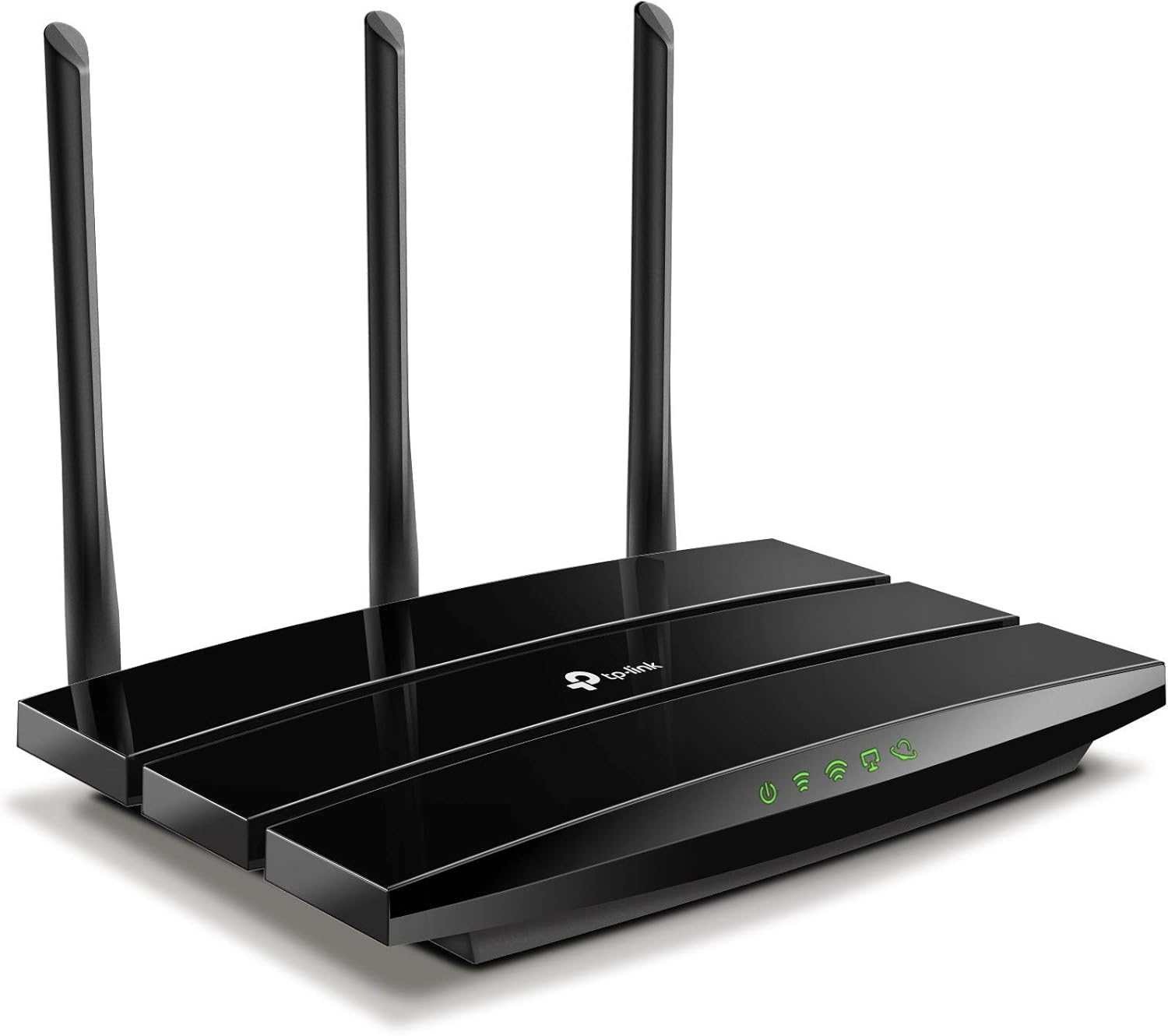
Слика 3.1: Предна страна View of TP-Link Archer A8 Router. Оваа слика го прикажува од горе надолу view of the TP-Link Archer A8 router, featuring its sleek black design and three external antennas. The front panel includes LED indicators for power, internet connectivity, Wi-Fi status, and Ethernet port activity.
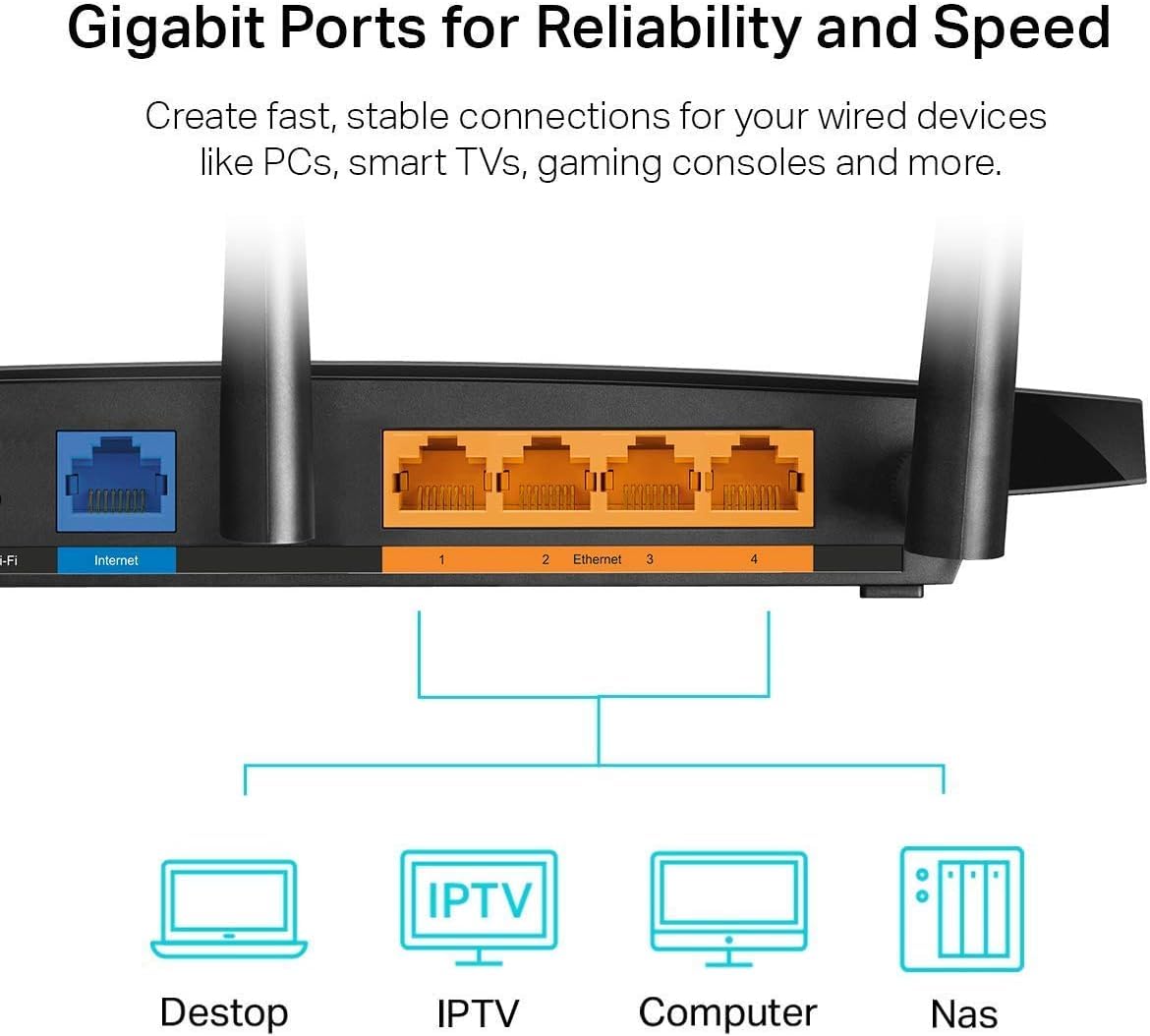
Figure 3.2: Rear Panel of TP-Link Archer A8 Router. This image shows the rear panel of the router, highlighting the Gigabit WAN port (blue) and four Gigabit LAN ports (orange). These ports are used for wired connections to your modem and other network devices.
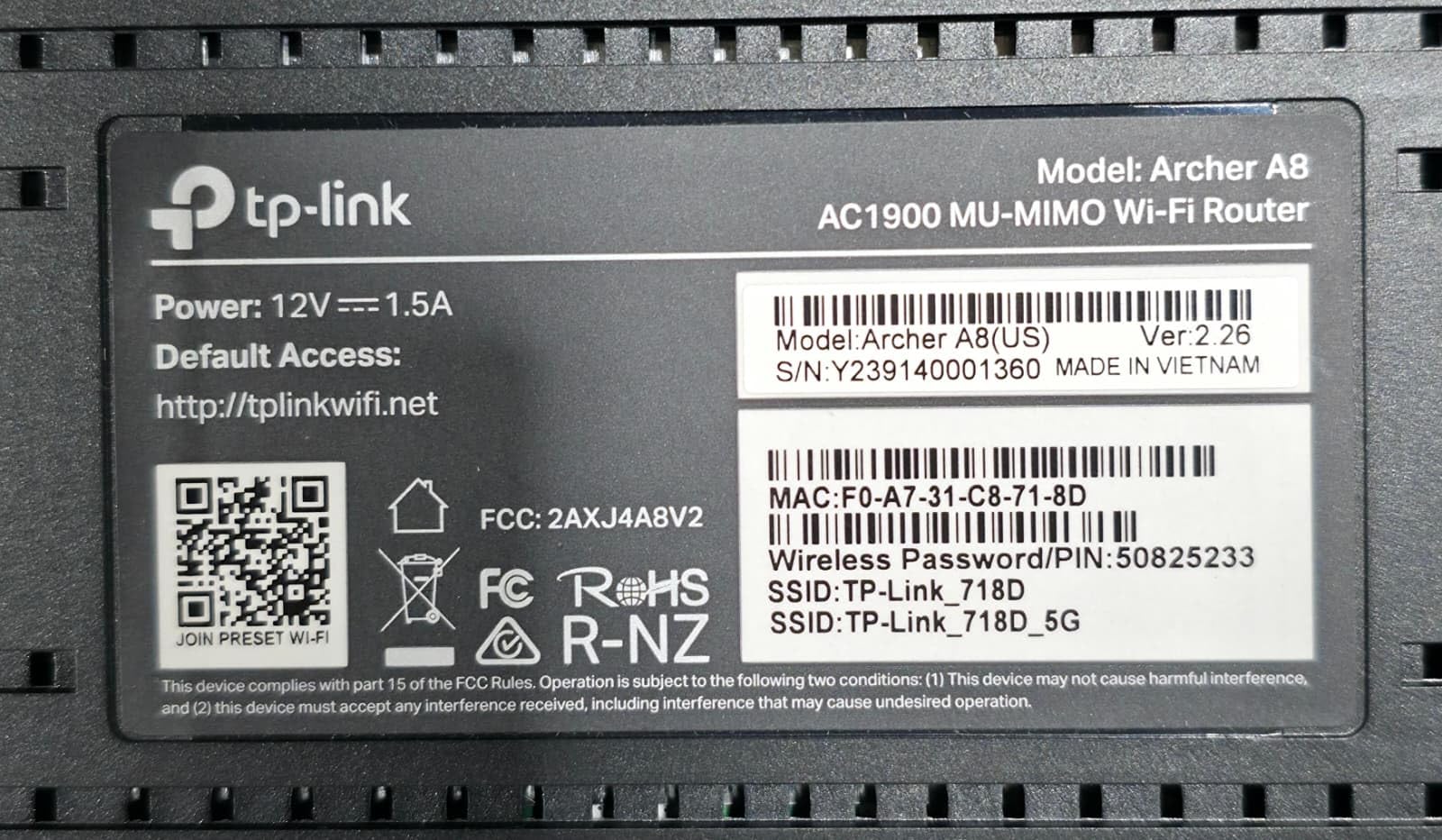
Figure 3.3: Router Bottom Label. This label provides essential information including the model (Archer A8, AC1900 MU-MIMO Wi-Fi Router), power specifications (12V===1.5A), default access URL (http://tplinkwifi.net), MAC address (F0:A7:31:C8:71:8D), serial number (Y239140001360), and default Wi-Fi network names (SSID: TP-Link_718D, TP-Link_718D_5G) with the default wireless password (50825233). It also includes FCC and RoHS compliance marks.
4. Упатства за поставување
- Исклучете го модемот: Исклучете го напојувањето од вашиот постоечки модем.
- Поврзете го рутерот:
- Поврзете го етернет кабелот на вашиот модем со WAN порта (blue) on the Archer A8 router.
- Поврзете го адаптерот за напојување со рутерот и приклучете го во штекер.
- Вклучете го модемот, а потоа вклучете го рутерот. Почекајте LED индикаторите да се стабилизираат.
- Поврзете се со рутерот:
- Безжична врска: Connect your computer or mobile device to the router's default Wi-Fi network. The default SSIDs (e.g., TP-Link_718D, TP-Link_718D_5G) and Wireless Password (e.g., 50825233) are printed on the router's bottom label (refer to Figure 3.3).
- Жична врска: Connect your computer to one of the router's LAN порти (orange) using an Ethernet cable.
- Конфигурирајте го рутерот:
- Отвори a web browser and enter the default access URL: http://tplinkwifi.net.
- Follow the on-screen instructions in the Quick Setup wizard to configure your internet connection and Wi-Fi settings. You will be prompted to create a new login password for the router.
- Alternatively, use the TP-Link Tether App for mobile-based setup.
5. Упатства за работа
5.1. Поврзување на уредите
Once the router is set up, you can connect your devices:
- Безжични уреди: Пребарај за your Wi-Fi network name (SSID) on your device and enter the password you configured during setup.
- Жичени уреди: Connect devices like PCs, Smart TVs, or gaming consoles to the router's Gigabit LAN ports using Ethernet cables.
5.2. Двоен опсег Wi-Fi
The Archer A8 operates on two frequency bands:
- Опсег од 2.4 GHz: Provides wider coverage and better penetration through walls, ideal for general internet use and older devices. Offers speeds up to 600Mbps.
- Опсег од 5 GHz: Offers faster speeds (up to 1300Mbps) and lower latency, suitable for bandwidth-intensive activities like 4K streaming and online gaming. Has a shorter range and is more susceptible to obstacles.
The router supports Smart Connect, which automatically assigns devices to the best available band for optimal performance.
5.3. MU-MIMO Technology
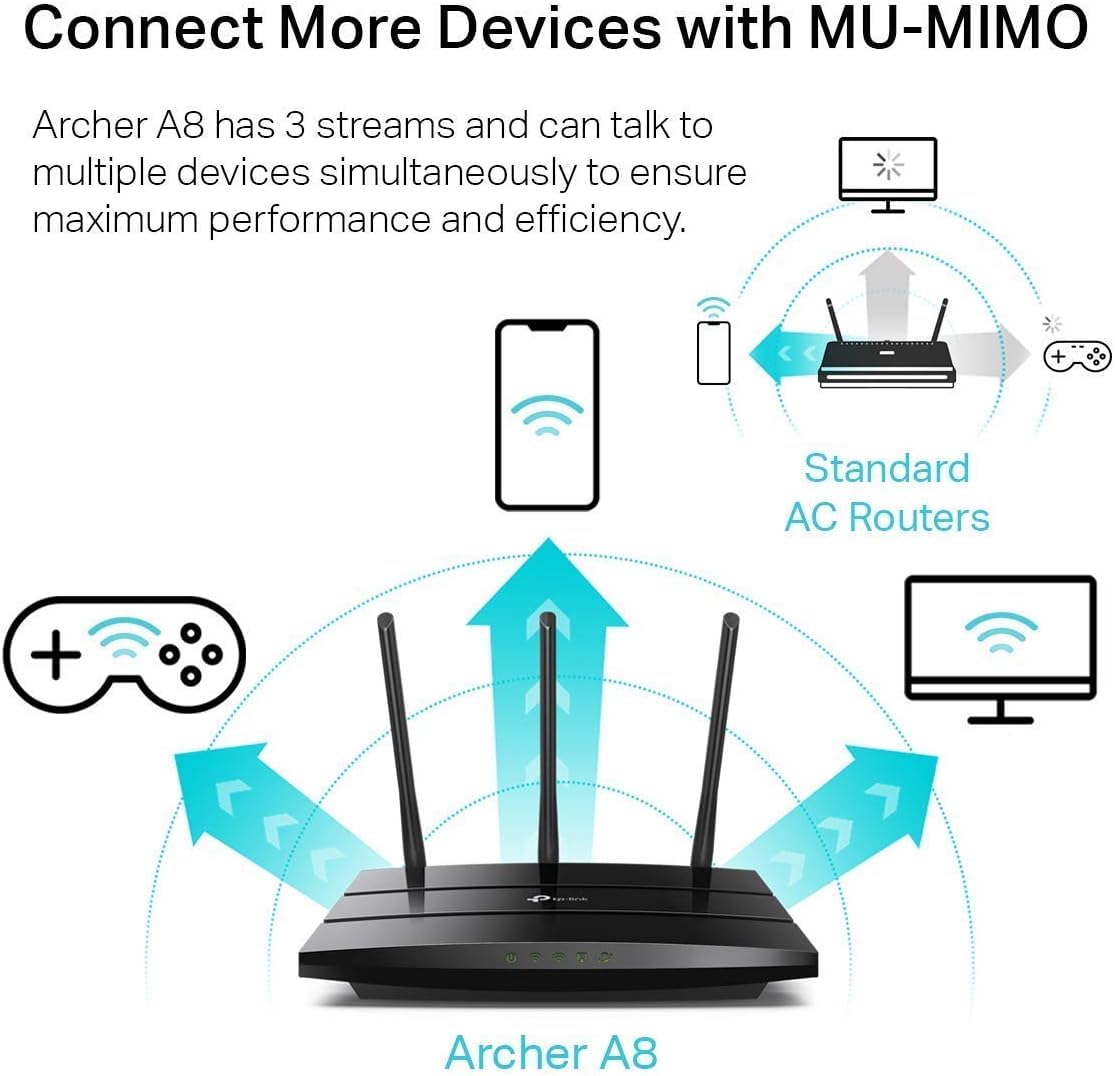
Figure 5.1: MU-MIMO Operation. This diagram illustrates how the Archer A8 router, equipped with MU-MIMO technology, can communicate with multiple devices simultaneously, unlike standard AC routers that communicate with one device at a time. This improves network efficiency and performance for all connected devices.
MU-MIMO (Multi-User, Multiple-Input, Multiple-Output) allows the Archer A8 to communicate with multiple devices simultaneously, rather than sequentially. This significantly improves network efficiency and throughput, especially in environments with many connected devices. For MU-MIMO to function, client devices must also support MU-MIMO.
5.4. Beamforming Technology
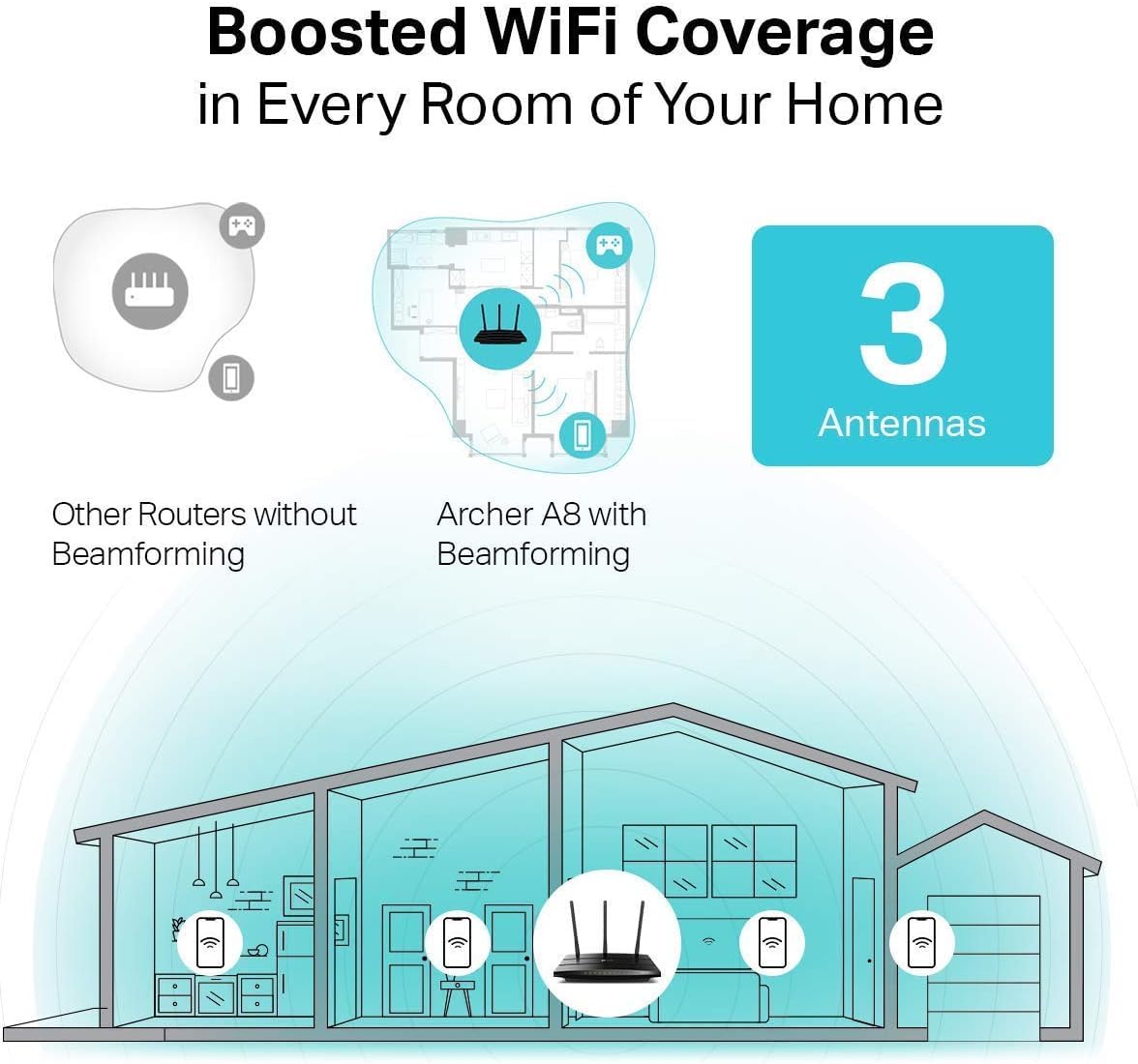
Figure 5.2: Beamforming Coverage. This image compares Wi-Fi coverage between a router without Beamforming and the Archer A8 with Beamforming. The Archer A8 directs stronger, more focused Wi-Fi signals towards connected devices, extending coverage and improving signal strength throughout your home.
Beamforming technology detects the location of your connected devices and concentrates the Wi-Fi signal directly towards them. This results in a more efficient and stronger wireless connection, extending Wi-Fi coverage and improving reliability, particularly for long-range connections.
5.5. Wi-Fi мрежа за гости
The router allows you to create a separate guest network, providing internet access to visitors without granting them access to your main network resources. This enhances security for your primary network.
5.6. Родителска контрола
Utilize the Parental Controls feature to manage internet access for children. You can block inappropriate content and set daily time limits for online activity.
6. Одржување
- Ажурирања на фирмверот: Редовно проверувајте и инсталирајте ажурирања на фирмверот преку рутерот web management interface or the TP-Link Tether App. Updates often include performance improvements, security patches, and new features.
- Поставување на рутерот: Place the router in a central location, away from obstructions and devices that emit electromagnetic interference (e.g., microwaves, cordless phones) to maximize Wi-Fi coverage.
- Рестартирање: Периодично рестартирајте го рутерот (исклучете го и повторно вклучете го адаптерот за напојување) за да ја исчистите неговата меморија и да ги освежите мрежните врски, што може да реши помали проблеми со перформансите.
- Безбедност: Use strong, unique passwords for your Wi-Fi network and router administration. Enable WPA2/WPA3 encryption for your wireless network.
7 Смена на проблеми
If you encounter issues with your router, consider the following steps:
- Нема пристап до Интернет:
- Проверете дали вашиот модем работи правилно.
- Ensure all cables are securely connected to the correct ports (WAN port to modem, LAN ports to devices).
- Рестартирајте ги и модемот и рутерот.
- Проверете ги поставките за интернет во рутерот web интерфејс за управување.
- Weak Wi-Fi Signal or Dropouts:
- Преместете го рутерот на поцентрална позиција, подалеку од пречки и извори на пречки.
- Прилагодете ги антените на рутерот за оптимална насока на сигналот.
- Consider using a Wi-Fi analyzer app to identify channel interference and switch to a less congested channel.
- Не можам да пристапам до страницата за управување со рутерот:
- Осигурајте се дека вашиот уред е поврзан со мрежата на рутерот (жичен или безжичен).
- Verify you are using the correct access URL (http://tplinkwifi.net) or IP address.
- Исчистете го кешот на прелистувачот или обидете се со друг прелистувач.
- Ја заборавив лозинката за најавување на рутерот:
- Perform a factory reset on the router. This will revert all settings to default, including the login password (which you will then set up again via the Quick Setup wizard). To factory reset, press and hold the reset button on the router (usually a small pinhole button) for about 10 seconds while the router is powered on.
8. Спецификации
| Карактеристика | Детал |
|---|---|
| Име на моделот | TP-Link AC1900 (Archer A8) |
| Безжичен стандард | IEEE 802.11ac/n/a 5 GHz, IEEE 802.11n/b/g 2.4 GHz |
| Брзини на Wi-Fi | AC1900 (1300 Mbps на 5 GHz, 600 Mbps на 2.4 GHz) |
| Антени | 3 Fixed External Antennas |
| Етернет порти | 1x гигабитен WAN порт, 4x гигабитен LAN порти |
| Посебни карактеристики | MU-MIMO, Beamforming, Smart Connect, Guest Wi-Fi, Parental Controls, WPS |
| Димензии (Ш x Д x В) | 9.57 x 6.32 x 1.28 инчи |
| Тежина на ставката | 14.6 унци |
| Влез на енергија | 12V===1.5А |
| Компатибилни уреди | Играчка конзола, персонален компјутер, паметен телевизор |
Забелешка: Maximum wireless transmission rates are physical rates derived from IEEE 802.11 specifications. Actual wireless data throughput and wireless coverage are not guaranteed and will vary due to network conditions, environmental factors, and client limitations. Use of MU-MIMO requires client devices to also support MU-MIMO.
9. Гаранција и поддршка
TP-Link provides an industry-leading 2-year warranty for this product. For technical assistance, please contact TP-Link's 24/7 technical support.
For the most up-to-date information, support resources, and contact details, please visit the official TP-Link webсајт.
Правно одрекување:
1. Maximum wireless transmission rates are the physical rates derived from IEEE Standard 802.11 specifications. Range and coverage specifications are based upon test results under normal usage conditions. Actual wireless transmission rate and wireless coverage are not guaranteed and will vary as a result of 1) environmental factors, including building materials, physical objects, and obstacles, 2) network conditions, including local interference, volume and density of traffic, product location, network complexity, and network overhead and 3) client limitations, including rated performance, location, connection quality, and client condition. 2. Use of MU-MIMO requires clients to also support MU-MIMO.


