Вовед
This manual provides instructions for the KLIM Unity Wireless Keyboard and Mouse Set. This set is designed to offer a wireless input solution for various devices, including PCs, Macs, PS4, and PS5 consoles. It features a backlit keyboard with a semi-mechanical feel and an ergonomic mouse with adjustable DPI.

Image: The KLIM Unity Wireless Keyboard and Mouse Set, showcasing the keyboard's vibrant backlighting and the sleek design of the accompanying mouse.
Поставување
1. Распакување и компоненти
Проверете дали се присутни сите компоненти:
- KLIM Unity Wireless Keyboard
- KLIM Unity Wireless Mouse
- USB Receiver (located underneath the mouse)
- USB кабел за полнење
2. Поврзување на USB приемникот
The KLIM Unity set operates wirelessly, connecting both the keyboard and mouse to your computer via a single USB receiver. The USB receiver is stored in a compartment underneath the mouse for convenience.
- Locate the USB receiver in its storage slot underneath the mouse.
- Insert the USB receiver into an available USB port on your computer or console.
- The devices should connect automatically.

Image: The wireless mouse and a portion of the keyboard, illustrating the compact USB receiver and key features like adjustable DPI.
3. Почетно полнење
Both the keyboard and mouse feature built-in rechargeable batteries. For optimal performance, it is recommended to fully charge both devices before first use.
- Поврзете го испорачаниот USB кабел за полнење со приклучокот за полнење на тастатурата и глувчето.
- Connect the other end of the USB cable to a powered USB port (e.g., on your computer or a USB wall adapter).
- Charging indicators will typically show when the devices are charging and when they are fully charged.
Ракување со тастатурата
1. Контрола на задното осветлување
The keyboard features colorful backlighting. You can adjust the lighting to suit your preference.
- Вклучување/исклучување: Use the dedicated backlight control keys (often indicated by a light bulb icon or combined with a Function key) to toggle the backlighting.
- Прилагодување на осветленоста: Use the Function (Fn) key in combination with specific arrow keys or dedicated brightness keys to increase or decrease the backlight intensity.
- Changing Colors/Modes: Some models allow cycling through different color modes or static colors using Fn key combinations.
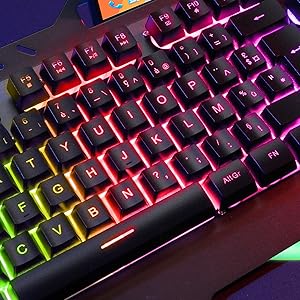
Слика: Детална view of the keyboard keys, showcasing the colorful RGB backlighting.
2. Функционални копчиња и кратенки
The keyboard includes a special Function (Fn) key that, when pressed in combination with other keys, provides access to various shortcuts.
- Контроли на медиумите: Common shortcuts include volume control (up, down, mute), play/pause, previous/next track.
- Кратенки за апликации: Some keys may launch specific applications or functions.
3. Искуство со пишување
The keyboard features hybrid keys, combining elements of mechanical keyboards for a responsive feel with reduced noise levels, suitable for both typing and gaming.

Image: The keyboard with a smartphone in its integrated holder, demonstrating a practical feature.
Работа со глувчето
1. Ergonomic Design and Grip
The wireless mouse features an ergonomic design with anti-skid flanks for comfortable use during extended periods. Its symmetrical design accommodates both right-handed and left-handed users, though side buttons are located on one side only.
2. Прилагодување на DPI
The mouse includes adjustable DPI (Dots Per Inch) settings, allowing you to change cursor sensitivity to match your preferences or task requirements.
- Locate the DPI adjustment button, typically near the scroll wheel.
- Press the button to cycle through available DPI settings. The mouse's LED indicator may change color to indicate the current DPI level.
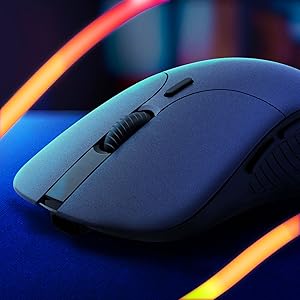
Слика: Крупен план view of the wireless mouse, highlighting its ergonomic contours.
Одржување
1. Полнење
To charge the keyboard and mouse, use the provided USB cable. Connect the cable to the respective charging ports on each device and to a powered USB source. The devices are designed with long-lasting built-in batteries.
2. Чистење
To clean the keyboard and mouse:
- Осигурајте се дека двата уреди се исклучени.
- Use a soft, dry, lint-free cloth to wipe surfaces.
- За тврдокорна нечистотија, малкуamp може да се користи крпа, осигурувајќи се дека влагата нема да влезе во отворите.
- Избегнувајте груби хемикалии или абразивни материјали.
Решавање проблеми
1. Проблеми со поврзувањето
- Нема конекција: Ensure the USB receiver is securely plugged into a working USB port. Verify that both the keyboard and mouse are powered on.
- Пречки: Move the receiver closer to the devices or away from other wireless devices that might cause interference.
2. Lag or Delayed Response
- Слаба батерија: Charge both the keyboard and mouse fully. Low battery can affect wireless performance.
- Растојание: Ensure the devices are within the operational range (up to 10 meters) of the USB receiver.
- Зачувување на енергија: Some devices may enter a power-saving mode after inactivity, which can cause a slight delay upon reactivation.
3. Позадинското осветлување не работи
- Check if the backlight is simply turned off using the dedicated control keys.
- Ensure the keyboard has sufficient battery charge, as backlighting consumes power.
Спецификации
| Карактеристика | Детал |
|---|---|
| Димензии на производот | 17.5 x 7.6 x 1.68 инчи |
| Тежина на ставката | 1.98 фунти |
| Производител | КЛИМ |
| Број на модел на ставка | k108-6 |
| Батерии | Потребни се 1 литиум полимер батерии (вклучени) |
| Технологија за поврзување | Безжичен |
| Посебни карактеристики | Осветлување позади, Ергономски |
| Компатибилни уреди | Mac, PS4, PS5, Personal Computer |
| Боја | Црното |
Официјално видео за производот
Видео: Службено лице завршиview of the KLIM Unity Wireless Keyboard and Mouse Set, demonstrating its features and design.
Гаранција
The KLIM Unity Wireless Keyboard and Mouse Set comes with a 5 година гаранција, covering manufacturing defects and ensuring product reliability.
Поддршка
For any questions, technical assistance, or warranty claims, please contact KLIM Customer Service. The support team aims to provide a response within 24 hours.
За повеќе информации, посетете ја KLIM Store on Amazon.


