Вовед
This manual provides comprehensive instructions for the setup, operation, and maintenance of your Plantronics Poly Studio P5 Webcam and Voyager 4220 UC Headset Kit. Please read this manual thoroughly before using the product to ensure optimal performance and longevity.
The kit includes a high-definition webcam designed for professional video conferencing and a stereo Bluetooth wireless headset for clear audio communication.
Содржина на пакетот
- Поли Студио П5 Webкамера
- Безжични слушалки Poly Voyager 4220 UC
- USB-A Adapter (for headset)
- USB Cable (for webкамера)
- Водич за брз почеток
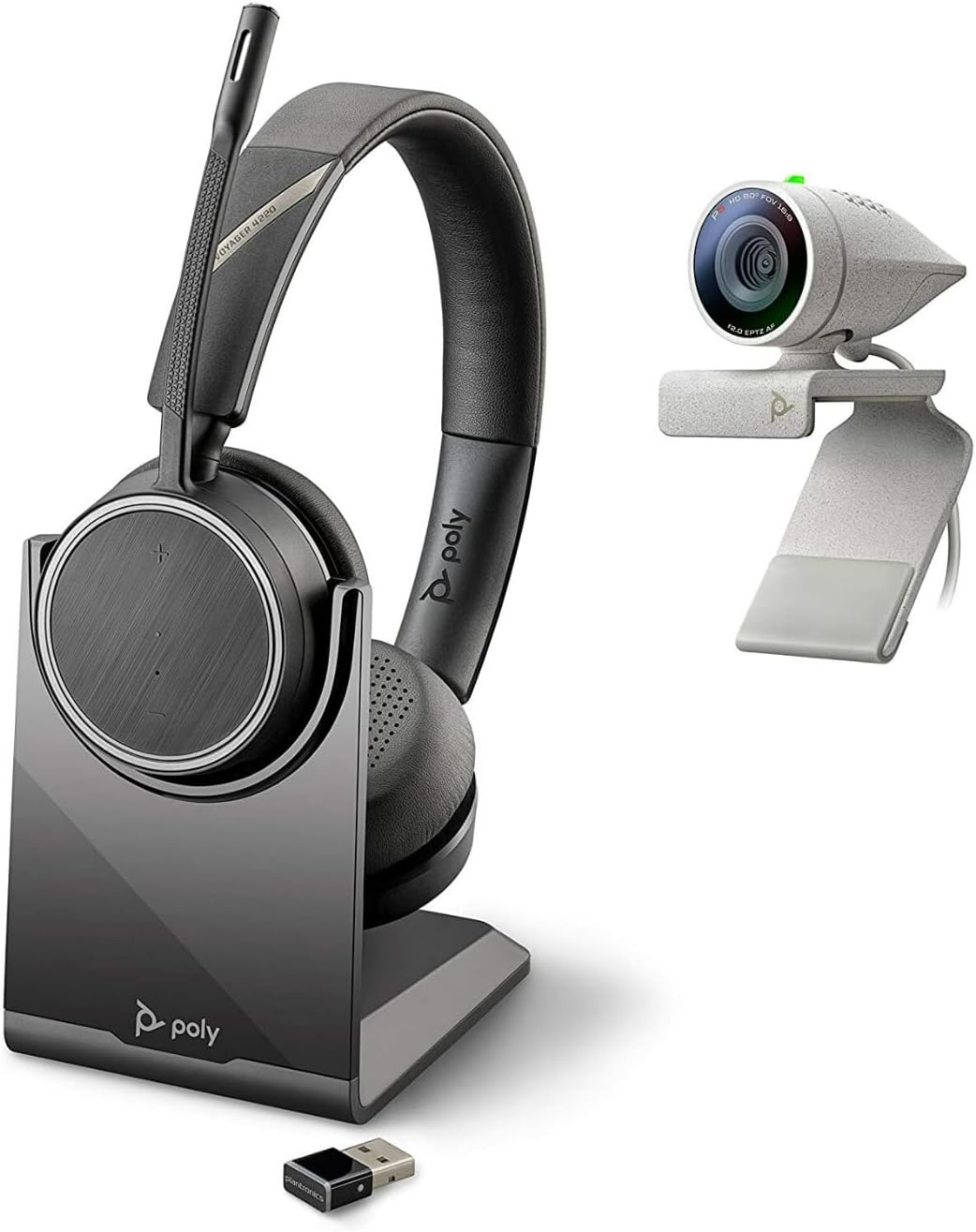
Image: Poly Studio P5 Webcam and Voyager 4220 UC Headset Kit, showing the webcam, headset, charging stand, and USB adapter.
Инструкции за поставување
1. Poly Studio P5 WebПоставување камера
- Монтирање на Webкамера:
Поставете го webcam on top of your monitor or laptop screen. Adjust the clip to secure it firmly. The webcam can also be mounted on a tripod using the integrated tripod-ready design.

Image: Poly Studio P5 Webcam positioned on top of a laptop screen, showing its compact design and mounting clip.
- Поврзување со вашиот компјутер:
Поврзете го интегрираниот USB кабел од webcam to an available USB port on your PC or Mac. The device is plug-and-play; drivers will install automatically.
- Бленда за приватност:
На webcam features an integrated privacy shutter. Slide the shutter to cover the lens when not in use to enhance security and privacy.

Слика: напред view of the Poly Studio P5 Webcam, highlighting the lens and the integrated privacy shutter mechanism.
2. Voyager 4220 UC Headset Setup
- Полнење на слушалките:
Before first use, fully charge the headset. Connect the charging cable to the headset and a USB power source. A full charge provides approximately 12 hours of talk time or 15 hours of listening time.
- Connecting the USB-A Adapter:
Insert the USB-A adapter into an available USB port on your PC or Mac. The adapter will automatically pair with the Voyager 4220 UC headset.
- Носење на слушалките:
Adjust the headband for a comfortable fit. Position the microphone boom approximately two finger-widths from the corner of your mouth for optimal voice pickup.
Упатства за работа
1. Using the Poly Studio P5 Webкамера
- Видео конференција: На webcam is compatible with Zoom, Microsoft Teams, and other video conferencing services. Select "Poly Studio P5" as your camera and microphone input within your chosen application's settings.
- Automatic Low-Light Compensation: На webcam automatically adjusts to maintain proper light exposure, ensuring clear visibility even in darker environments.
- Дигитален зум: The camera supports up to 4x digital zoom. This feature can typically be controlled through your video conferencing software or the Poly Lens Desktop app.

Image: A person wearing the Voyager 4220 UC Headset and using the Poly Studio P5 Webcam with a laptop, demonstrating a typical video conferencing setup.
2. Using the Voyager 4220 UC Headset
- Вклучување/исклучување: Slide the power switch to turn the headset on or off.
- Контрола на јачината на звукот: Use the volume up (+) and volume down (-) buttons on the earcup to adjust audio levels.
- Исклучи/вклучи звук: Press the mute button on the microphone boom or earcup to mute or unmute your microphone.
- Контрола на повици: Press the call button to answer or end calls in supported applications.
- Микрофони со поништување на бучава: The headset features dual noise-cancelling microphones to reduce background noise for clear voice transmission.
3. Poly Lens Desktop App
The Poly Lens Desktop app allows you to customize settings, receive firmware updates, and access practical tips for your devices. Download the app from the official Poly webсајт.
- Прилагодете се webcam settings (e.g., brightness, contrast, zoom).
- Configure headset audio preferences.
- Receive health and wellness reminders.
Одржување
- Чистење:
Избришете го webcam lens and headset surfaces with a soft, dry, lint-free cloth. Do not use liquid cleaners or abrasive materials.
- Складирање:
Чувајте ги уредите на ладно и суво место, подалеку од директна сончева светлина и екстремни температури кога не се во употреба.
- Ажурирања на фирмверот:
Regularly check for firmware updates via the Poly Lens Desktop app to ensure optimal performance and access to new features.
Решавање проблеми
| Проблем | Можна причина | Решение |
|---|---|---|
| Webкамера не е откриена | Loose USB connection, incorrect software settings, driver issue. |
|
| Нема аудио од слушалките | Headset not powered on, not paired, volume too low, incorrect audio output selected. |
|
| Микрофонот не работи | Microphone muted, incorrect audio input selected, boom not positioned correctly. |
|
| Лош квалитет на видеото | Low light conditions, dirty lens, internet bandwidth issues. |
|
Спецификации
Поли Студио П5 Webкамера
- Максимална резолуција на екранот: FHD (1080p)
- Резолуција за снимање видео: 1080 стр
- Технологија на фотосензор: CMOS
- Заден дел WebРезолуција на камерата: 5 MP
- Максимална фокусна должина: 4
- Максимална решетка: f/2.0
- Технологија за поврзување: USB
- Хардверска платформа: PC, Mac
- Посебни карактеристики: Integrated privacy shutter, automatic low-light compensation, tripod-ready design.
- Димензии на производот: 14.1 x 8.3 x 4.5 inches (Kit dimensions)
- Тежина на ставката: 2.09 pounds (Kit weight)
Слушалки Poly Voyager 4220 UC
- Безжичен тип: Bluetooth
- Време за разговор: До 12 часа
- Време на слушање: До 15 часа
- Микрофони: Dual noise-cancelling
- Поврзување: USB-А адаптер
- Поддржан аудио формат: AAC, MP3
- Батерии: 1 литиум полимерна батерија (вклучена)
Информации за гаранцијата
For detailed warranty information, please refer to the warranty card included with your product or visit the official Poly webлокација. Стандардните гарантни услови обично ги покриваат производствените дефекти за одреден период од датумот на купување.
Поддршка и контакт
For technical support, product registration, or to download the latest software and drivers, please visit the official Poly support webсајт:
Webсајт: www.poly.com/support
You can also find FAQs and community forums on the support page.


